In this guide
- The Two Types of PDF Password (and Why It Matters)
- How to Password Protect a PDF Online: Step by Step
- What Actually Makes a Strong PDF Password
- Sharing the Password Safely
- Important Limits of PDF Password Protection
- When You’ll Actually Use This
- What If You Need to Remove a Password Later?
- Frequently Asked Questions
- The Bottom Line
A contract, a bank statement, a set of medical records, an employee’s personal information — plenty of everyday PDFs contain something you wouldn’t want opened by the wrong person. Password protection is the simplest, most direct way to make sure that if a file ends up somewhere it shouldn’t, whoever finds it still can’t get inside without the password.
Table of Contents
- In this guide
- The Two Types of PDF Password (and Why It Matters)
- How to Password Protect a PDF Online: Step by Step
- What Actually Makes a Strong PDF Password
- Sharing the Password Safely
- Important Limits of PDF Password Protection
- When You’ll Actually Use This
- What If You Need to Remove a Password Later?
- Frequently Asked Questions
- The Bottom Line
This guide covers how PDF passwords actually work, how to add one to a file in under a minute, and how to choose a password that’s actually doing its job.
The Two Types of PDF Password (and Why It Matters)
Most people think of a PDF password as one thing, but PDF security actually supports two distinct types, and understanding the difference changes how you should set things up:
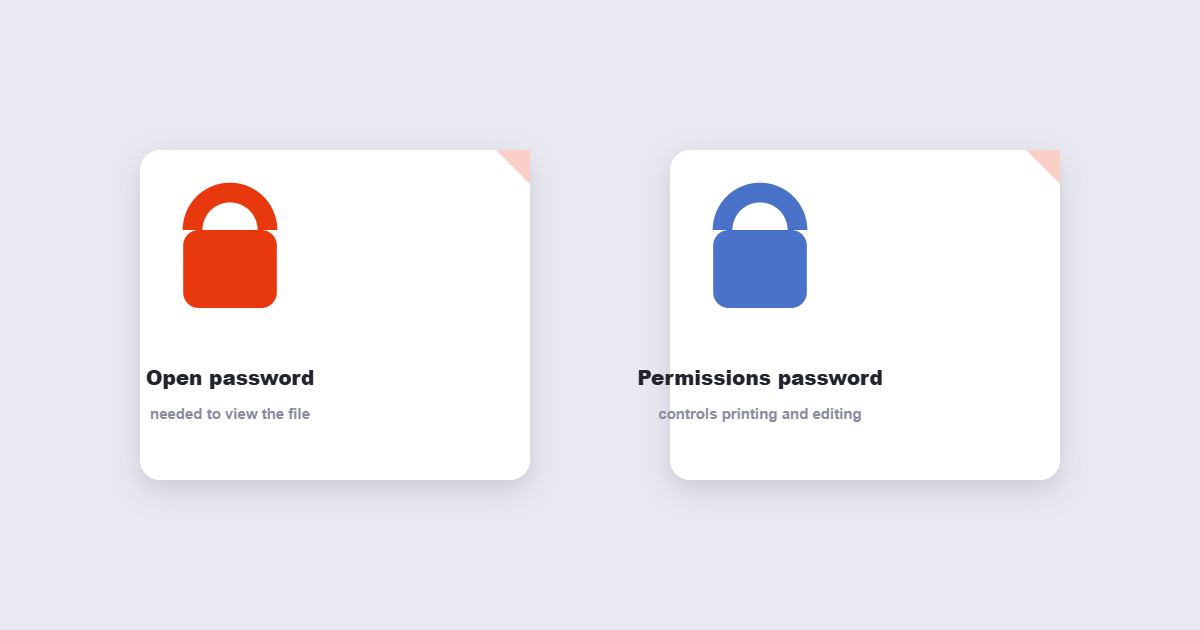
An open password (also called a user password) is required just to view the document at all. Without it, the file won’t open in any PDF reader. This is what most people mean when they say “password protect a PDF.”
A permissions password (also called an owner password) controls what someone can do once the file is open — whether they can print it, copy text out of it, or edit its contents — without necessarily blocking them from viewing it in the first place.
You can set either one independently, or both together. For most everyday use — keeping a sensitive document away from unauthorized eyes — an open password alone is what you want. Permissions restrictions matter more in situations like distributing a document you want people to read but not edit or redistribute.
How to Password Protect a PDF Online: Step by Step
Using the free Protect PDF tool:
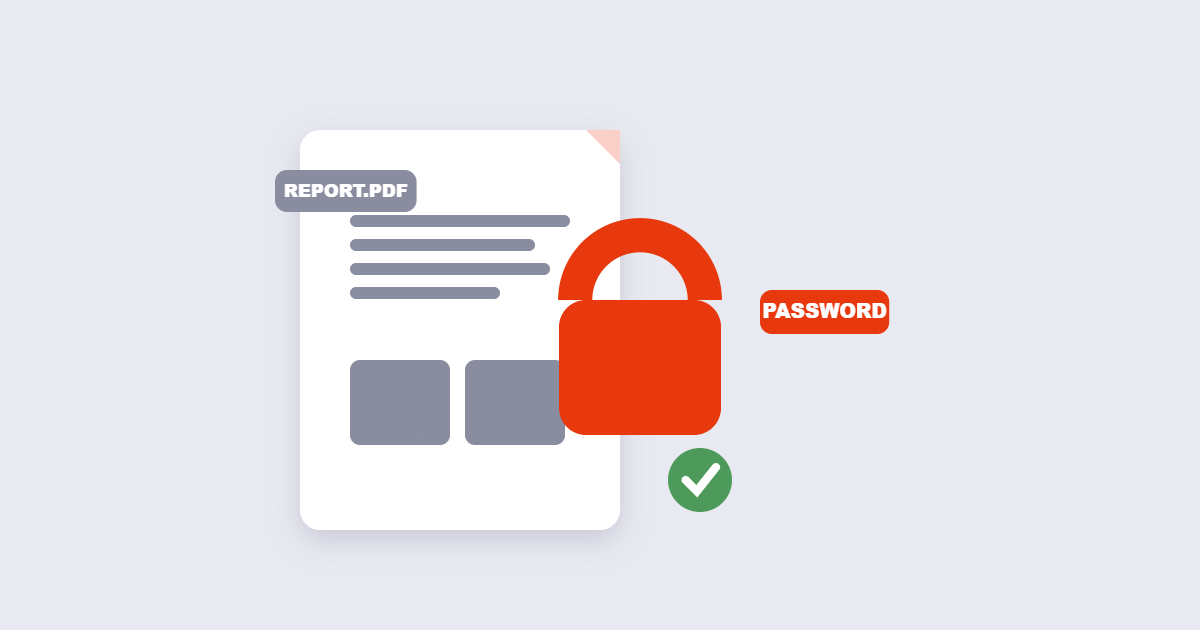
- Upload the PDF you want to lock.
- Enter a password. Choose something strong — more on what that means below.
- Set any permission restrictions if you want to limit printing, copying, or editing beyond just requiring the password to open.
- Download the protected file and test it — open it once yourself to confirm the password works before you send it anywhere.
The whole process takes under a minute, and there’s no limit on how many files you can protect.
What Actually Makes a Strong PDF Password
A password that’s easy to guess defeats the entire point of protecting the file in the first place. A few concrete guidelines:
- Use at least 12 characters. Longer passwords are dramatically harder to crack than short ones — each additional character multiplies the number of possible combinations.
- Mix character types. Combine uppercase and lowercase letters, numbers, and symbols rather than sticking to one type.
- Avoid dictionary words and predictable substitutions. “Password123!” and similar patterns are among the first things automated cracking tools try.
- Don’t reuse a password from another account. If that password is ever exposed elsewhere, this file becomes vulnerable too.
If you’re protecting more than a couple of files and need to generate strong passwords quickly, a Password Generator creates random, unpredictable passwords in one click — see our full guide to creating a strong password for what actually makes one hard to crack.
Sharing the Password Safely
A strong password doesn’t help much if it’s sent alongside the file in the same email — anyone who intercepts one gets the other too. A more secure approach:
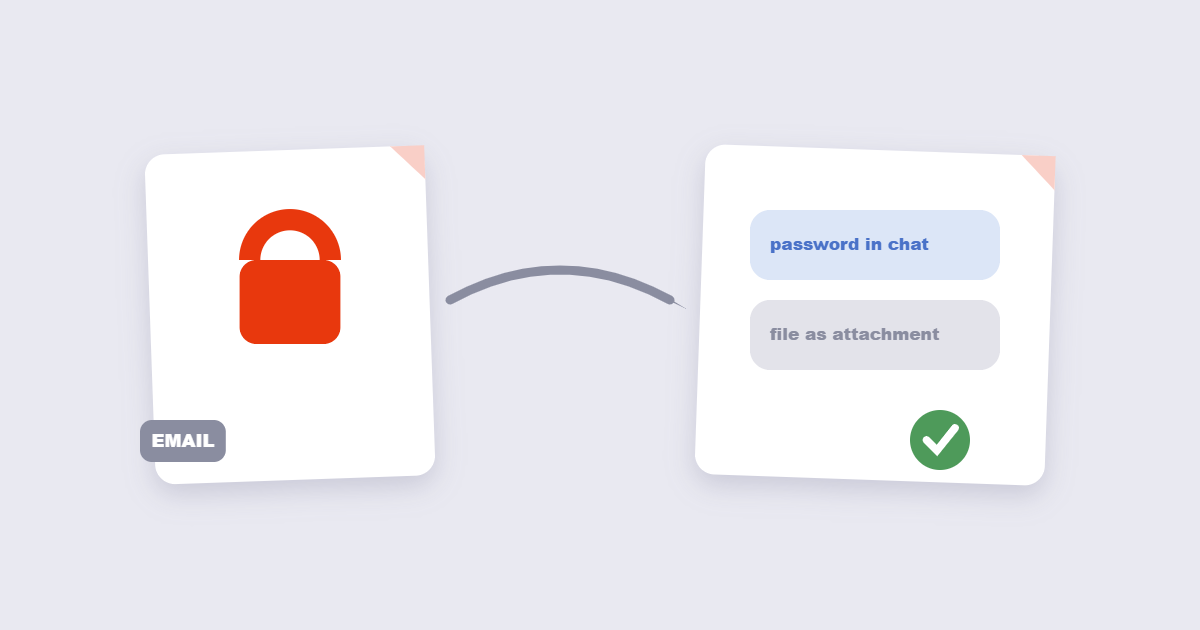
- Send the file and the password through different channels — for example, email the PDF and text or call the recipient the password separately.
- Use a password manager to share credentials securely if you’re doing this regularly with the same person or team.
- Avoid writing the password directly in the email subject line or body where it’s the first thing visible to anyone who gains access to the inbox.
Important Limits of PDF Password Protection
Password protection is a genuinely useful, easy-to-use layer of security — but it’s worth understanding what it does and doesn’t guarantee. A password stops casual, unauthorized access effectively: someone who receives the file without the password simply can’t open it in a standard PDF reader. It is not, however, an unbreakable vault — determined attackers with the right tools and enough time can potentially crack weaker passwords through brute-force methods, particularly short ones or ones based on common words.
For most everyday situations — keeping a document away from people who shouldn’t casually see it — a strong password is entirely sufficient. For extremely sensitive material (think regulated financial or health data at an organizational level), password protection is usually one layer in a broader security approach rather than the only safeguard in place.
When You’ll Actually Use This
Sharing financial documents. Bank statements, tax filings, and pay stubs are common candidates for password protection before emailing them anywhere.
Sending contracts and legal paperwork. Especially before a deal is finalized, keeping drafts restricted to only the intended parties matters.
Distributing internal company documents. HR files, internal reports, or anything meant for a specific team rather than the whole organization.
Protecting personal records. Medical information, identification documents, or anything you’re storing in cloud storage that you’d rather keep locked even from casual access.
What If You Need to Remove a Password Later?
If a file no longer needs to be restricted — or you need to edit it and the password is getting in the way — the Unlock PDF tool removes existing password protection, provided you have the correct password. This is also the necessary first step before running a locked PDF through most other tools, like Compress PDF or PDF to Word, since those generally can’t process a file that’s still locked.
For password best practices, see the NIST Digital Identity Guidelines on authentication secrets.
Frequently Asked Questions
What happens if I forget the password I set?
The file can’t be opened without it, and there’s no built-in recovery option — so store the password somewhere safe, like a password manager, before you send the file anywhere.
Can I set separate passwords for opening versus editing?
Yes — an open password controls who can view the document at all, while a separate permissions password can independently restrict printing, copying, or editing once it’s open.
Is a password-protected PDF completely unbreakable?
No security measure is absolute. A strong, long password makes unauthorized access impractical for most purposes, but extremely sensitive data may warrant additional safeguards beyond a single password.
Can I remove a password if I no longer need the file protected?
Yes, using an unlock tool along with the correct password — this removes the protection and returns the file to its normal, unrestricted state.
The Bottom Line
Adding a password to a PDF takes less than a minute and meaningfully reduces the risk of a sensitive file being opened by the wrong person. Use the free Protect PDF tool, choose a genuinely strong password — 12+ characters, mixed types, nothing guessable — and share the password through a separate channel from the file itself.