In this guide
- What “Rotating a PDF” Actually Means
- Why This Matters More Than It Seems
- Why PDF Pages End Up Sideways in the First Place
- How to Permanently Rotate a PDF: Step by Step
- Best Practices for Getting It Right the First Time
- Common Mistakes to Avoid
- What About Fixing This Before You Even Scan?
- Frequently Asked Questions
- Final Thoughts
You rotate a sideways PDF in your reader, close the file feeling satisfied, and the next time you — or worse, someone you sent it to — opens it, the page is sideways again. This isn’t a bug you’re imagining. It’s the single most misunderstood thing about fixing PDF orientation, and once you understand why it happens, the actual fix takes under a minute.
Table of Contents
- In this guide
- What “Rotating a PDF” Actually Means
- Why This Matters More Than It Seems
- Why PDF Pages End Up Sideways in the First Place
- How to Permanently Rotate a PDF: Step by Step
- Best Practices for Getting It Right the First Time
- Common Mistakes to Avoid
- What About Fixing This Before You Even Scan?
- Frequently Asked Questions
- Final Thoughts
| Cause | What you see | Fix |
|---|---|---|
| Scanner sheet feed | Every page rotated the same way | Rotate all pages once |
| Phone captured in a hurry | Some pages sideways, some upright | Rotate individual pages |
| Mixed sources in one PDF | Orientation varies page to page | Rotate per page as needed |
What “Rotating a PDF” Actually Means
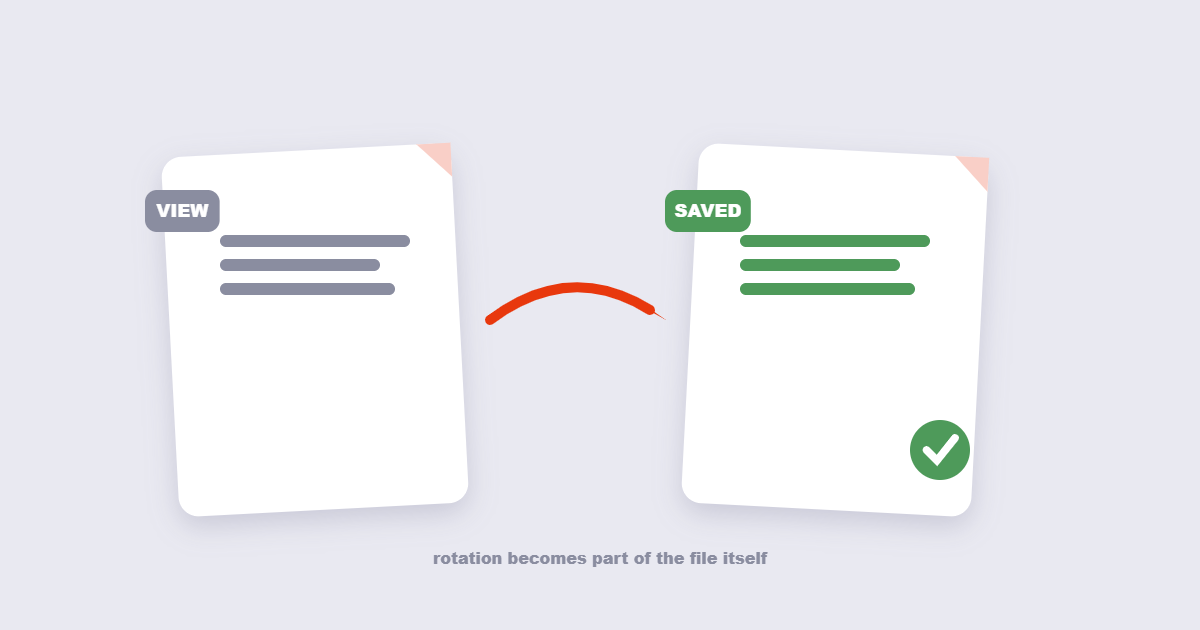
Most PDF readers — browser viewers, Preview on Mac, many mobile apps — have a rotate button that changes how the page displays in that specific viewing session. It doesn’t write anything back into the file itself. Close the document and reopen it, and you’re back where you started, because nothing was actually saved.
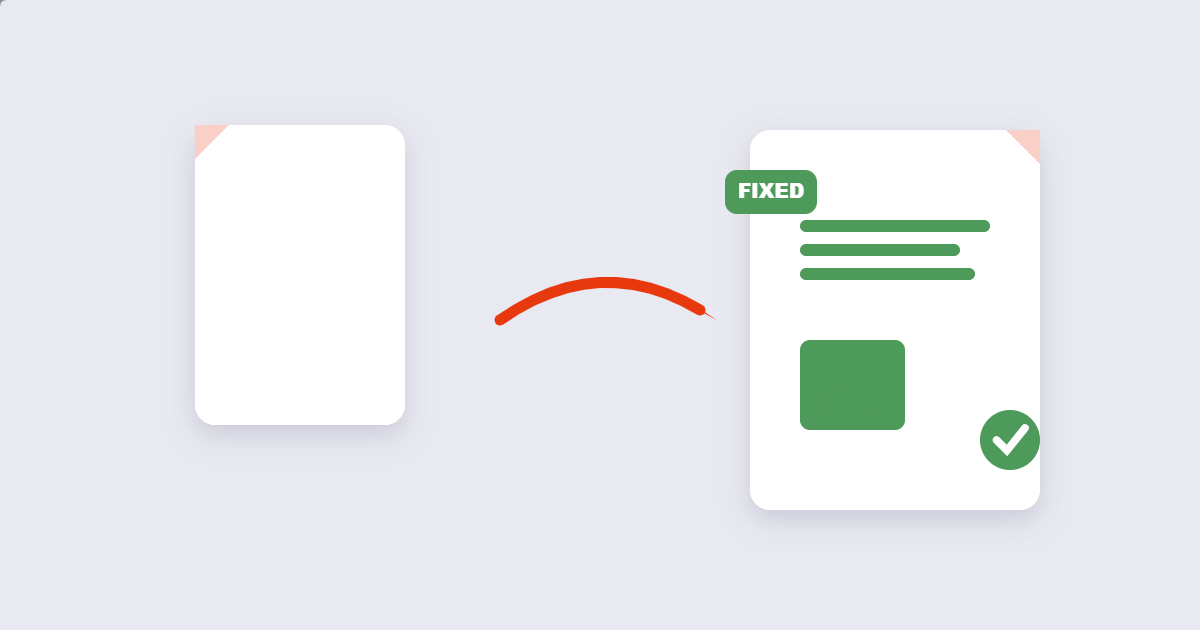
A real fix changes the page’s orientation data inside the PDF file permanently, so it opens correctly every time, in every viewer, on every device — not just in the app where you happened to click rotate.
Why This Matters More Than It Seems
A sideways page is more than an inconvenience to look at. It causes real, practical problems: printed copies of scanned contracts or IDs come out rotated regardless of what your screen showed. Documents shared with someone else look broken on their end even though they looked fine on yours. And if you’re planning to run a sideways page through OCR (converting it to searchable or editable text), a misoriented page significantly reduces accuracy — OCR engines read left to right, and a sideways page confuses that process badly.
Why PDF Pages End Up Sideways in the First Place
- Scanner or document feeder orientation. Flatbed scanners and automatic document feeders produce rotated pages when a document is placed or fed in a different orientation than the scanner expects.
- Phone camera scanning apps. If a phone’s orientation sensor misreads how it was held during a scan, the resulting PDF page can save rotated.
- Export from design or presentation software. Landscape slide decks or wide spreadsheets exported to PDF sometimes carry an orientation flag that doesn’t match how you’d expect to view them.
- Double-sided (duplex) scanning. This commonly produces every other page upside down, since the scanner flips the physical sheet but doesn’t always correct for it in the file.
How to Permanently Rotate a PDF: Step by Step
Step 1: Identify which pages need rotating and which direction
Open the file and note which pages are affected — the whole document, alternating pages from a duplex scan, or just one or two individual pages mixed in with correctly-oriented ones.

Step 2: Upload to a rotation tool
Using the free Rotate PDF tool, upload your file — you’ll see a thumbnail of every page.
Step 3: Select pages and rotation direction
Choose to rotate every page at once (for a whole document scanned sideways) or select specific pages individually (for a mixed document with only some pages affected), then pick 90° clockwise, 90° counterclockwise, or 180°.
Step 4: Apply, download, and verify
Download the result and actually open it to confirm every page displays correctly — this takes a few seconds and catches the wrong rotation direction before you’ve already shared the file.
Best Practices for Getting It Right the First Time
- Test one page before rotating in bulk. If you’re unsure whether you need clockwise or counterclockwise, rotate a single page first and confirm the direction before applying it to dozens of pages at once.
- Don’t assume every landscape-looking page is wrong. Wide tables, charts, and diagrams are sometimes intentionally landscape within an otherwise portrait document — rotating them “to match” the rest of the file would actually break them.
- Handle duplex-scan patterns as a batch, not page by page. If every even page came out upside down, select just those pages (2, 4, 6, and so on) and rotate them together instead of working through the file one page at a time.
Common Mistakes to Avoid
- Relying on your PDF reader’s rotate button as a permanent fix. As covered above, this is a view setting in most readers, not a saved change — it will not persist for anyone else who opens the file, and often not even for you the next time you open it.
- Rotating the whole document when only a few pages are affected. This fixes the sideways pages but turns the previously-correct ones sideways instead.
- Expecting rotation to fix a slight tilt. PDF rotation works in clean 90° increments — it corrects pages that are cleanly sideways or upside down, not a page that’s tilted by a few degrees from an unsteady phone scan. That’s a different problem (deskewing), and the more reliable fix is usually rescanning the page squarely.
- Forgetting the file is password-protected. Rotation tools generally need a PDF unlocked first — use Unlock PDF if that’s the case before attempting to rotate it.
What About Fixing This Before You Even Scan?
If sideways scans are a recurring problem rather than a one-off, it’s often worth checking your scanner or scanning app’s orientation settings directly — many document scanning apps have an auto-rotate detection feature that can be enabled, catching the problem before it ever reaches a PDF.
Frequently Asked Questions
Why does my PDF still open sideways after I rotated it in my reader?
Most PDF readers’ rotate button only changes the current viewing session and doesn’t save the change into the file itself — the fix needs to be applied and saved using a tool that writes the new orientation permanently into the document.
Can I rotate just one page instead of the whole document?
Yes, most rotation tools let you select individual pages from a thumbnail view and rotate only those, leaving the rest of the document untouched.
What rotation angles are available?
Standard options are 90° clockwise, 90° counterclockwise, and 180° for a fully upside-down page — covering the vast majority of orientation problems.
Will rotating a PDF reduce its quality?
No, rotation only changes the page’s orientation data — it doesn’t re-render, recompress, or otherwise alter the actual text and image content of the page.
Can I fix a page that’s tilted at a slight angle, not fully sideways?
Not with standard rotation, which works in clean 90° increments. A slightly tilted scan is a different problem (deskewing), and rescanning the page squarely is usually more reliable than software correction, especially for pages with tables or diagrams.
Why are every other page in my scanned document upside down?
This is a common pattern from duplex (double-sided) scanning, where the scanner flips the physical page but the resulting file doesn’t correct for it — select the affected pages (typically all even or all odd pages) and rotate them as a batch.
Do I need special software to rotate a PDF permanently?
No, an online rotation tool can process and permanently save the correct orientation directly in your browser, without installing dedicated PDF editing software.
Final Thoughts
A sideways PDF is almost always a saving problem, not a content problem — your reader’s rotate button shows you the fix without actually applying it. The free Rotate PDF tool applies the correction permanently in a few clicks, so the page opens right side up everywhere, for everyone, every time.