In this guide
- What Is EXIF Data?
- Why This Matters
- What Information EXIF Data Can Actually Contain
- Which Platforms Strip This Automatically (and Which Don’t)
- How to Remove EXIF Data: Step by Step
- Best Practices
- Common Mistakes to Avoid
- Does Removing Metadata Reduce File Size?
- Frequently Asked Questions
- Final Thoughts
Every photo your phone or camera takes carries more than the image itself. Tucked inside the file is a layer of hidden data — camera model, exposure settings, the exact time the photo was taken, and in many cases, the precise GPS coordinates of where it happened. Most of the time this is harmless and even useful. Occasionally, it’s information you’d rather not hand to a stranger along with a photo you’re posting publicly.
Table of Contents
- In this guide
- What Is EXIF Data?
- Why This Matters
- What Information EXIF Data Can Actually Contain
- Which Platforms Strip This Automatically (and Which Don’t)
- How to Remove EXIF Data: Step by Step
- Best Practices
- Common Mistakes to Avoid
- Does Removing Metadata Reduce File Size?
- Frequently Asked Questions
- Final Thoughts
| EXIF field | Example |
|---|---|
| Camera / phone model | iPhone 15 Pro, Canon EOS R6 |
| Date and time | 2026:09:06 14:32:11 |
| GPS coordinates | 48.8584° N, 2.2945° E |
| Exposure settings | f/2.8, 1/250s, ISO 400 |
| Software used | Adobe Lightroom 13.0 |
| Thumbnail | A small preview of the original image |
What Is EXIF Data?
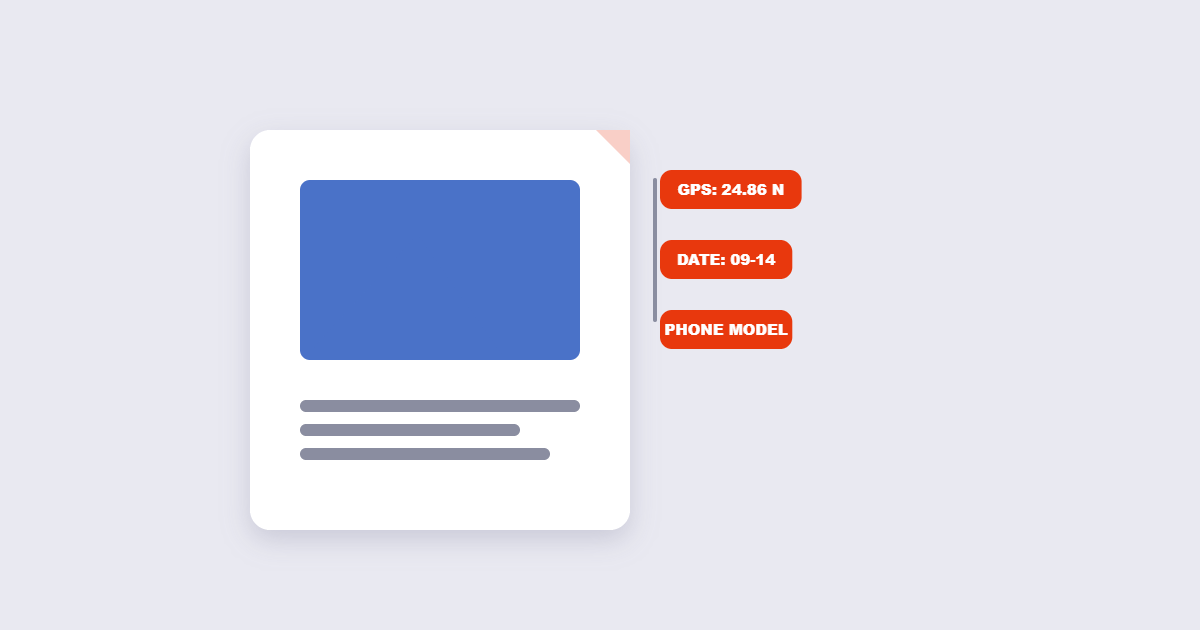
EXIF stands for Exchangeable Image File Format — a standard for embedding metadata directly inside an image file, most commonly JPEG. When a camera or smartphone captures a photo, it automatically writes in details like the camera or phone model, the lens used, exposure settings (aperture, shutter speed, ISO), the date and time, and — if location services were enabled — the GPS coordinates of where the photo was taken.
None of this was designed with privacy risk in mind. EXIF data exists mainly to help photographers review their own settings and organize their photo libraries. The privacy concern is really a side effect: that same data travels along with the file wherever it goes, unless something along the way strips it out.
Why This Matters
The most sensitive field by far is GPS location. A photo taken at home and shared publicly can, if the metadata is intact, reveal your home address to anyone who knows how to check it — a real concern for photos of children, personal property, or anything you wouldn’t want geographically pinpointed by a stranger. Camera or device information is lower-stakes but still occasionally something people prefer not to share, and timestamp data can matter in specific fact-checking contexts where the exact time an image was captured is meaningful.
What Information EXIF Data Can Actually Contain
- GPS coordinates — the exact latitude and longitude where the photo was taken, if location services were on.
- Camera or phone model — sometimes down to the specific device.
- Date and time — precisely when the photo was captured.
- Camera settings — aperture, shutter speed, ISO, focal length.
- Software used — which app or program last edited the file.
Which Platforms Strip This Automatically (and Which Don’t)
Most major social media platforms remove some or all EXIF data automatically when you upload a photo, largely to save storage and bandwidth rather than specifically for user privacy — though the practical effect is similar. This is genuinely useful, but it isn’t something to rely on universally: email attachments, direct messaging apps, and cloud storage links frequently preserve the full metadata exactly as captured, since there’s no automatic processing step removing it. If you’re sharing a photo directly rather than through a social feed, assume the metadata is still intact unless you’ve checked or removed it yourself.

How to Remove EXIF Data: Step by Step
Step 1: Identify photos with sensitive metadata
Photos taken on a smartphone with location services enabled are the most likely to carry GPS data — this is the field worth checking first if privacy is the main concern.
Step 2: Upload the photo to a metadata viewer
Using the free EXIF Data Remover tool, upload your image to see exactly what metadata is currently embedded.
Step 3: Remove the metadata
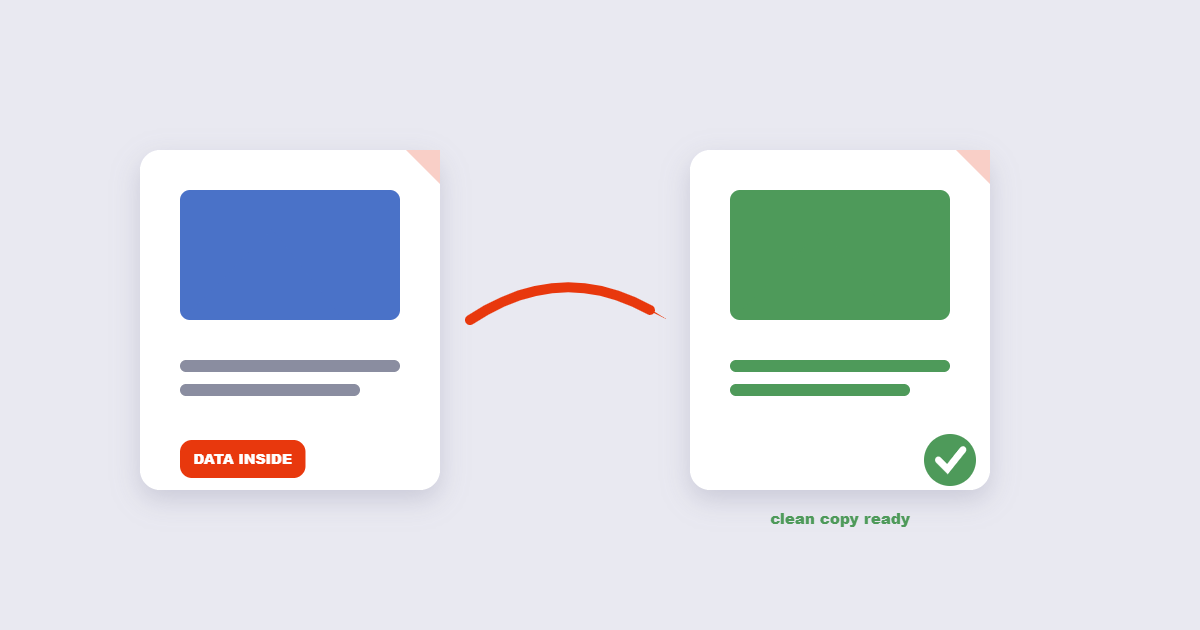
Strip the metadata from the file — this removes the hidden data fields without altering the visible image itself.
Step 4: Download and verify
Download the cleaned file, and if you want to confirm the removal worked, re-upload it to check that the metadata fields are now empty.
Best Practices
- Turn off location tagging at the camera level if you regularly share photos publicly — on iPhone, Settings → Privacy & Security → Location Services → Camera, set to Never; on Android, the Camera app’s own settings typically have a similar location toggle. This prevents new photos from capturing GPS data at all, though it doesn’t retroactively clean photos you’ve already taken.
- Don’t rely on a platform to strip metadata for you. Assume any direct file share — email, messaging apps, cloud links — keeps the full metadata intact unless you’ve removed it yourself first.
- Check metadata before sharing anything involving children, your home, or your workplace, since these are the categories where location exposure carries the most real-world risk.
Common Mistakes to Avoid
- Assuming social media always strips metadata. Many platforms do, but not universally, and definitely not for direct file sharing outside those platforms.
- Only checking for GPS data and ignoring everything else. Location is the highest-stakes field, but camera serial numbers and other identifying details can occasionally matter too, particularly for anyone with specific privacy or safety concerns.
- Removing metadata after a photo has already been shared. Once a file with intact metadata is out in the world — sent, posted, or downloaded by someone else — removing it from your own copy afterward doesn’t affect copies others may already have.
- Confusing metadata removal with photo editing. Stripping EXIF data doesn’t touch the visible image at all — cropping, filtering, or otherwise editing the photo is a completely separate step.
Does Removing Metadata Reduce File Size?
Slightly, yes — metadata adds some amount of extra data to the file, though it’s typically a small fraction of a photo’s overall size compared to the actual image data. If your main goal is a smaller file rather than privacy specifically, Compress Image will have a far larger impact on file size than metadata removal alone.
Wikipedia’s EXIF article details the specification.
Frequently Asked Questions
Does every photo contain EXIF data?
Most photos from cameras and smartphones do by default, though some editing software or platforms may strip it during processing before you ever see the final file.
Can EXIF data reveal my exact home address?
Yes, if location services were enabled when the photo was taken, GPS coordinates embedded in the metadata can pinpoint the location with meaningful precision.
Do social media platforms remove EXIF data automatically?
Many do, largely as a side effect of processing images for storage and bandwidth rather than as a dedicated privacy feature — but this isn’t universal across every platform, and direct file sharing outside social platforms typically preserves it fully.
Will removing EXIF data affect how my photo looks?
No, metadata removal only affects the hidden data fields — the visible image itself, including its resolution and appearance, stays exactly the same.
Can I stop my phone from adding location data to new photos?
Yes, both iPhone and Android let you disable location access specifically for the camera app in your device’s privacy settings, though this only affects photos taken afterward, not ones you’ve already captured.
Is EXIF data the same as a digital watermark?
No, EXIF data is hidden metadata embedded in the file that isn’t visible when viewing the image, while a watermark is a visible overlay added directly onto the picture itself.
PDFs carry metadata too — read what PDF metadata reveals.
Final Thoughts
EXIF data is mostly harmless technical bookkeeping, right up until the GPS field reveals more than you meant to share. Checking and stripping metadata before posting or sending a photo takes seconds with the free EXIF Data Remover, and it’s a worthwhile habit specifically for anything involving your home, your location, or photos of people you’d rather not have geotagged.