In this guide
- What Is a PDF Watermark?
- Why Watermarks Matter
- How to Add a Watermark to a PDF: Step by Step
- Best Practices for a Watermark That Actually Works
- Common Mistakes to Avoid
- Watermarks vs. Other PDF Protection Methods
- Frequently Asked Questions
- Final Thoughts
A “DRAFT” or “CONFIDENTIAL” stamp across a document, or a faint logo repeated behind the text — a watermark communicates something about a file’s status at a glance, before anyone reads a word of the actual content. It’s a small addition that does real work: signaling ownership, marking a document’s stage, or making unauthorized copies noticeably less appealing to redistribute.
Table of Contents
- In this guide
- What Is a PDF Watermark?
- Why Watermarks Matter
- How to Add a Watermark to a PDF: Step by Step
- Best Practices for a Watermark That Actually Works
- Common Mistakes to Avoid
- Watermarks vs. Other PDF Protection Methods
- Frequently Asked Questions
- Watermark Design Guide: Opacity, Size & Position
- When to Use Watermarks vs. Other Security Layers
- Final Thoughts
| Method | What it does | Best for |
|---|---|---|
| Watermark | Visible mark on every page | Ownership, drafts, branding |
| Password | Blocks opening without the password | Confidential documents |
| Permissions | Blocks printing, copying or editing | Files that may be shared freely but not altered |
What Is a PDF Watermark?
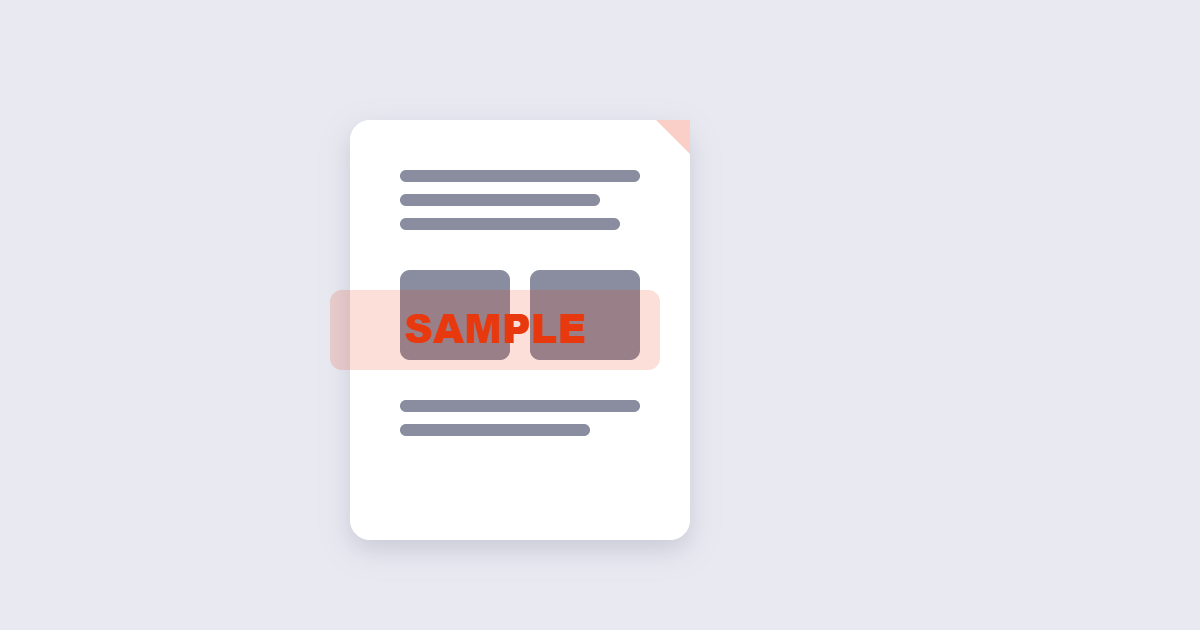
A watermark is text or an image overlaid onto every page of a PDF, embedded directly into the page content rather than sitting as a separate, removable layer floating on top. Unlike a stamp, which Adobe’s own documentation distinguishes as typically applied to a single page or location, a watermark is usually applied consistently across an entire document.
Watermarks can be text (“DRAFT,” “CONFIDENTIAL,” a company name) or an image (a logo, a signature graphic), and are typically set at reduced opacity so they don’t interfere with reading the actual content underneath.
Why Watermarks Matter
A watermark serves a few distinct purposes depending on what it’s protecting against. For branding, a repeated logo reinforces who a document came from, useful on reports or proposals leaving your organization. For status tracking, “DRAFT” or “FINAL” prevents confusion about which version of a document someone is looking at. For deterrence, a visible watermark makes casual unauthorized redistribution more obviously traceable back to its source — it won’t stop a determined bad actor, but it meaningfully raises the friction for casual misuse.
How to Add a Watermark to a PDF: Step by Step
Step 1: Decide between text and image
A short text watermark (“CONFIDENTIAL,” “DRAFT,” a company name) works well for status or basic branding. A logo image watermark reinforces visual brand identity more strongly, particularly for client-facing documents.
Step 2: Upload your PDF
Using the free Watermark PDF tool, upload the document you want to mark.
Step 3: Set your text or image, position, and opacity
Enter your watermark text or upload a logo, then adjust placement (commonly diagonal across the page, or centered) and opacity so the watermark is visible without overwhelming the readability of the content beneath it.
Step 4: Apply and download
Apply the watermark to the whole document (or a specific page range if you don’t want it on every page) and download the result.
Best Practices for a Watermark That Actually Works
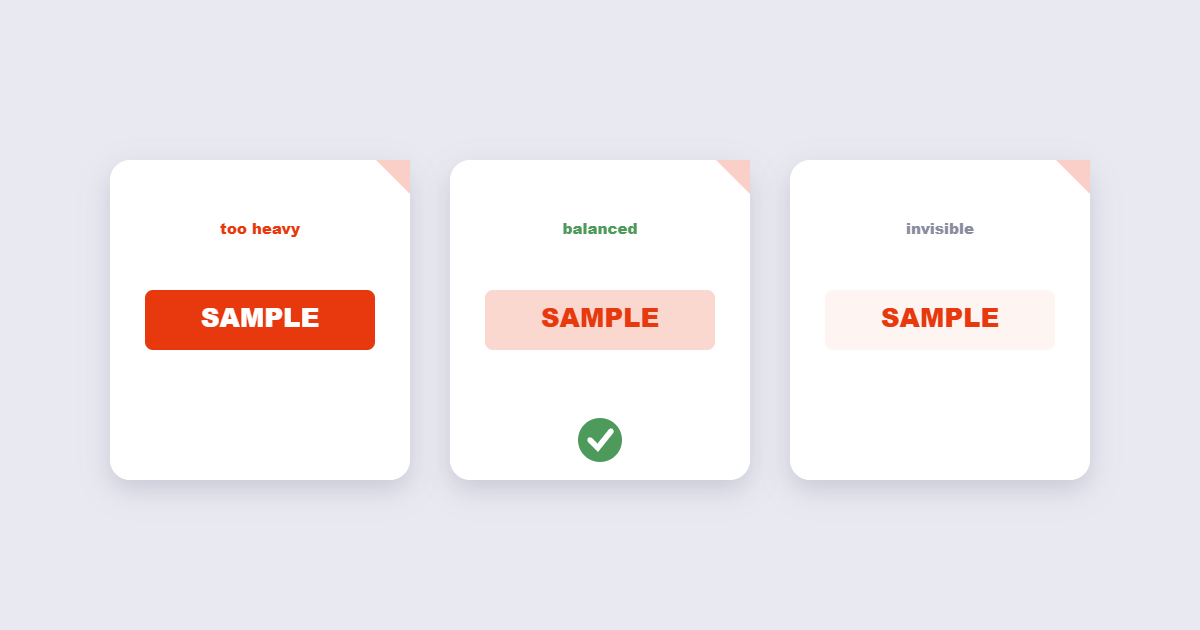
- Keep opacity moderate. A watermark that’s too dark or bold makes the underlying text harder to read; one that’s too faint may not accomplish its purpose. Something in a lighter, semi-transparent range typically balances both.
- Diagonal placement generally reads more clearly as a watermark than a horizontal one, and is harder to simply crop out of a page than a watermark placed in a single corner.
- Keep original, unwatermarked files separate for your own internal use, applying the watermark specifically to copies going out the door.
- Match watermark text to actual document status. A “DRAFT” watermark left on a document that’s since become final creates genuine confusion for whoever receives it later.
Common Mistakes to Avoid
- Making the watermark too prominent. If it fights for attention with the actual content, it’s doing more harm than good to the document’s usability.
- Relying on a watermark as your only protection for genuinely sensitive content. A watermark deters casual misuse and marks ownership — it doesn’t prevent someone from reading or copying the underlying text. For real access control, pair it with password protection.
- Forgetting to watermark every page consistently when the goal is document-wide branding or status marking, rather than leaving some pages unmarked by mistake.
- Using a watermark image without transparency when layering it over content — a solid-background image watermark can obscure text underneath rather than overlaying it subtly.
Watermarks vs. Other PDF Protection Methods
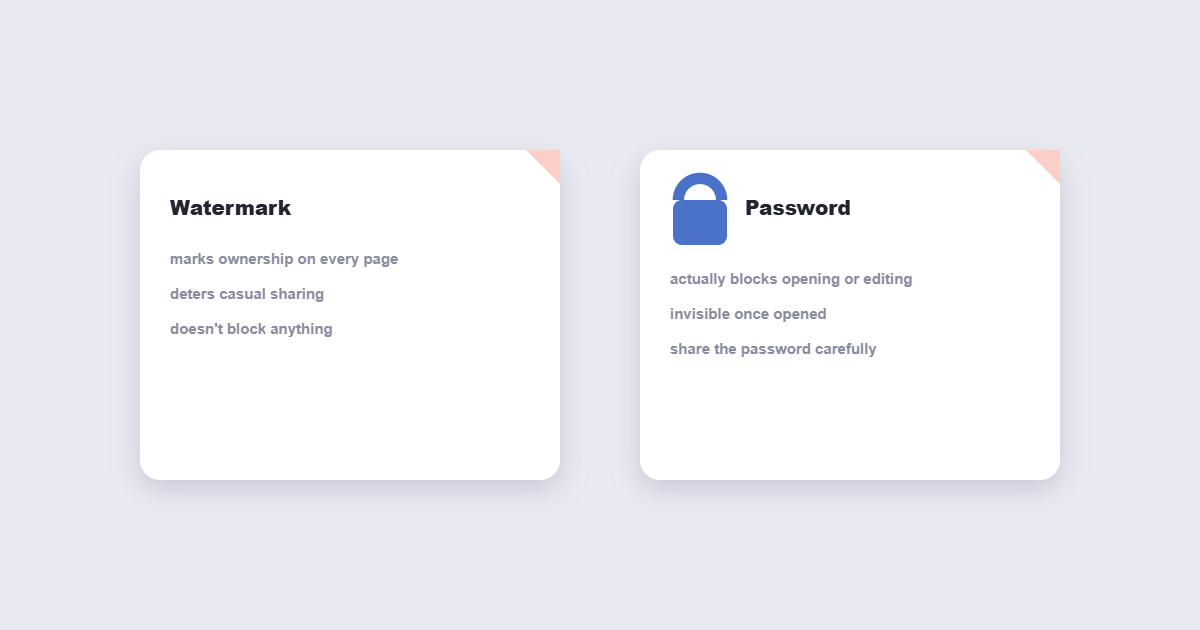
A watermark, password protection, and permissions restrictions each address a different concern, and they’re frequently used together rather than as alternatives to each other. A watermark marks and brands a document but doesn’t restrict access to it. A password restricts who can open the file at all. Permissions settings can separately limit printing or copying even for people who can open it. For a document that needs both visible branding and restricted access — say, a confidential client proposal — combining a watermark with a password is more effective than relying on either alone.
Frequently Asked Questions
Can I use my company logo as a watermark instead of text?
Yes, most watermarking tools accept an image file as the watermark source in addition to plain text, letting you apply a logo consistently across a document.
Will a watermark make my document impossible to copy or redistribute?
No, a watermark deters casual unauthorized use and marks ownership, but it doesn’t technically prevent someone from copying the underlying text or content — for actual access restriction, pair it with password protection.
Can I remove a watermark after I’ve added it?
If you still have the original unwatermarked file, simply use that instead of the watermarked copy going forward — watermarking tools are generally designed to add a mark, not selectively remove one that’s already embedded in a page.
Should a watermark be placed diagonally or straight across the page?
Diagonal placement is a common convention because it reads clearly as a watermark and is harder to crop out than one confined to a single corner or edge.
Can I apply a watermark to only some pages instead of the whole document?
Yes, most watermarking tools let you specify a page range rather than applying the mark to every page automatically.
What opacity should I use for a watermark?
A lighter, semi-transparent setting generally balances visibility with readability — dark or fully opaque watermarks tend to interfere with reading the content underneath.
Watermark Design Guide: Opacity, Size & Position
The most common reason a watermark fails is poor design — too dark to read the document underneath, or so faint it’s invisible on a printed copy. Here’s a practical guide to getting the balance right:
| Setting | Recommended value | What goes wrong outside this range |
|---|---|---|
| Opacity (text watermark) | 15–30% | Below 10%: invisible when printed. Above 40%: obscures content underneath. |
| Opacity (logo watermark) | 10–20% | Logos have more visual weight than text — lower opacity needed for the same visual result. |
| Font size (text watermark) | 60–90pt | Below 48pt: too small to read diagonally. Above 100pt: takes up too much of the page. |
| Rotation | −45° (diagonal) | 0° (horizontal) looks like a heading, not a watermark. Diagonal is the universal convention. |
| Position | Center of page | Corner placement can be cropped in print or when screenshots are taken. Center is hardest to remove. |
| Font weight | Bold | Light-weight fonts at reduced opacity become invisible, especially on printed copies. |
Print a test page before watermarking a large batch. A watermark that looks perfectly calibrated on screen sometimes prints too dark or too light depending on the printer’s color profile and paper type.
When to Use Watermarks vs. Other Security Layers
Watermarks are often misunderstood as a security tool. They’re a visibility tool — they make ownership and status obvious at a glance. For actual document security, they work best as one layer in a stack:
- Watermark alone: Good for branding, draft/final status, and deterring casual unauthorized redistribution. Anyone can still read, copy, and share the document. The watermark just makes it obvious the copy came from you.
- Watermark + password protection: The document can’t be opened without the password, and if it is shared, it carries your watermark. Best for confidential proposals, legal drafts, or financial documents shared with specific recipients.
- Watermark + permissions lock: The document opens freely but printing and copying are restricted. Best for reference documents you want widely readable but not easily reproducible — a price list, a training manual, a product catalogue.
- Watermark + PDF/A conversion: Watermarked archival documents that must be preserved long-term. Flatten the watermark first, then convert to PDF/A — the archive copy carries your mark permanently and meets archival standards.
A watermark and flattening are closely related: a watermark added as a layer can sometimes be removed by PDF editors; flattening the watermarked PDF merges it permanently into the page content where it can’t be separated. For documents where the watermark must stay, flatten after applying it.
Final Thoughts
A watermark is a small addition that does real, practical work — branding, status tracking, and a meaningful deterrent against casual misuse, all without restricting how the document itself can be read. The free Watermark PDF tool applies one in a few clicks, directly in your browser. For maximum protection, pair the watermark with password protection, and flatten the result before distributing — that combination makes the mark permanent and the file access-controlled.