In this guide
- “Splitting” Actually Means a Few Different Things
- How to Split a PDF Online: Step by Step
- Will Splitting Reduce Quality or Change Formatting?
- Common Situations Where Splitting Comes Up
- Extracting Pages vs. Splitting Into Equal Parts
- What to Do After Splitting
- A Quick Pre-Split Checklist
- Frequently Asked Questions
- The Bottom Line
Not every page of a long PDF needs to travel together. Maybe you scanned an entire folder of paperwork in one pass and now need to pull out just one form. Maybe a 200-page report needs to become five separate chapters for different reviewers. Maybe an upload portal simply refuses files over a certain size, and your only option is to break a large document into smaller pieces. Splitting a PDF handles all of these, and it’s a far quicker fix than most people expect.
| Mode | What you get | Best for |
|---|---|---|
| Custom ranges | Files from chosen page ranges | Chapters, sections, single documents |
| Every page separate | One PDF per page | Individual certificates, cards, forms |
| Extract pages | Only the selected pages | Pulling one section out of a big file |
This guide covers the different ways to split a PDF depending on what you’re actually trying to accomplish, plus a few details that keep the result clean.
“Splitting” Actually Means a Few Different Things
Before diving into steps, it’s worth clarifying which of these you actually need — they produce different results:
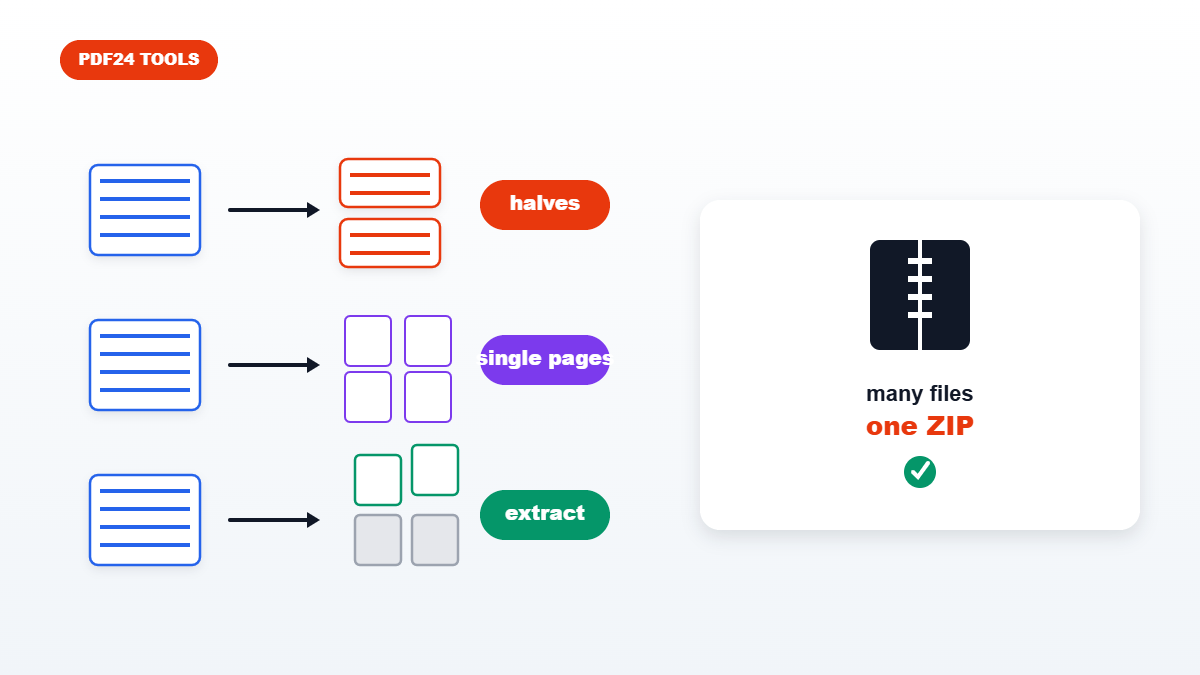
- Extracting specific pages. You want just pages 3–5 out of a 40-page document, pulled into their own file, leaving the rest behind.
- Splitting into equal parts. You want one long document broken into several smaller files — every 10 pages becomes its own PDF, for instance.
- Splitting every page individually. You want each page of the document turned into its own standalone single-page PDF.
- Removing pages you don’t need. Similar to extraction, but the goal is deleting the unwanted pages rather than keeping them — for this specific case, a Delete PDF Pages tool is more direct than splitting.
Most PDF splitting tools, including the one on this site, handle the first three; which one you pick determines what your final files look like.
How to Split a PDF Online: Step by Step
Using the free Split PDF tool:
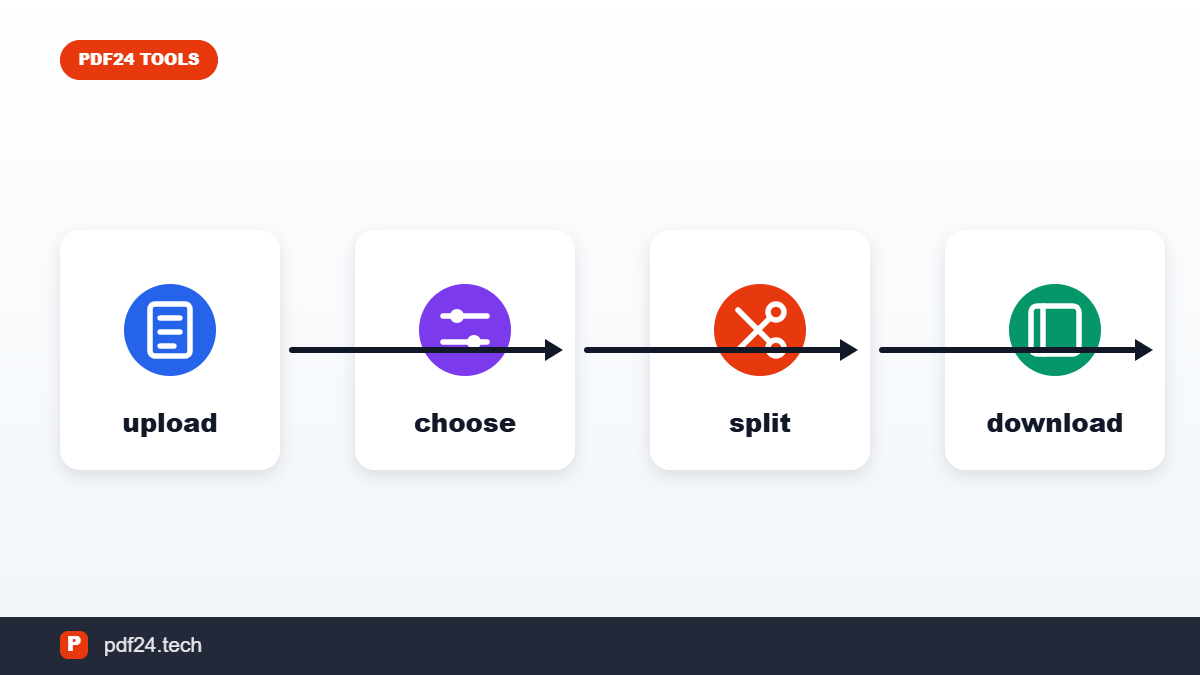
- Upload your PDF. The tool will show a thumbnail preview of every page.
- Choose your split method — extract specific pages or ranges, or split the file into equal sections.
- Select the pages or ranges you want, either by clicking thumbnails directly or entering page numbers.
- Split and download. You’ll get either one extracted file or several separate files, depending on your selection.
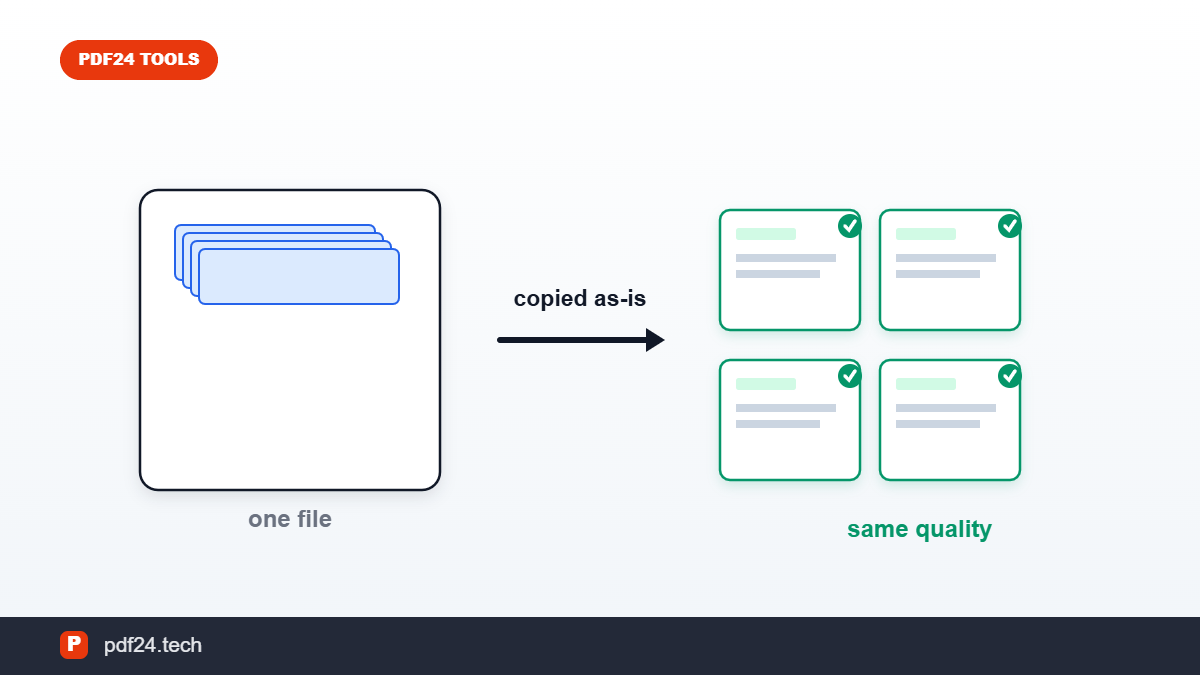
The original file stays untouched throughout — splitting creates new files rather than modifying the source document.
Will Splitting Reduce Quality or Change Formatting?
No. A properly built splitting tool doesn’t re-render or recompress anything — each extracted page keeps its original text, images, and formatting exactly as they were in the source file. If a “split” PDF looks different from the original, something in the workflow (often a print-based export rather than a dedicated splitting tool) has re-processed the pages rather than simply extracting them.
Common Situations Where Splitting Comes Up
Pulling one form out of a batch scan. If an entire folder of paperwork went through the scanner in one pass, splitting lets you extract just the one document you actually need without re-scanning anything.
Sharing a book or report by chapter. Breaking a long document into logical sections makes it easier for reviewers to work through smaller pieces, and easier to send by email if the whole file exceeds size limits.
Working around upload size limits. If a portal caps uploads at a certain size and your file exceeds it, splitting into smaller chunks — rather than compressing, which can degrade scanned pages — is often the more reliable fix.
Separating combined documents. If several unrelated documents were accidentally merged or scanned as one file, splitting undoes that and gets each one back to standing alone.
Extracting Pages vs. Splitting Into Equal Parts
If you know exactly which pages you need — say, an exhibit referenced on pages 12 through 15 of a contract — extracting that specific range is faster and cleaner than splitting the whole document and then discarding the parts you don’t need.
If instead you’re dealing with a genuinely long document that just needs to become several roughly equal pieces — a 300-page manuscript split into five sections for five reviewers, say — splitting into equal parts by page count saves you from manually specifying every range yourself.
What to Do After Splitting
A few natural next steps depending on what you’re doing with the resulting files:
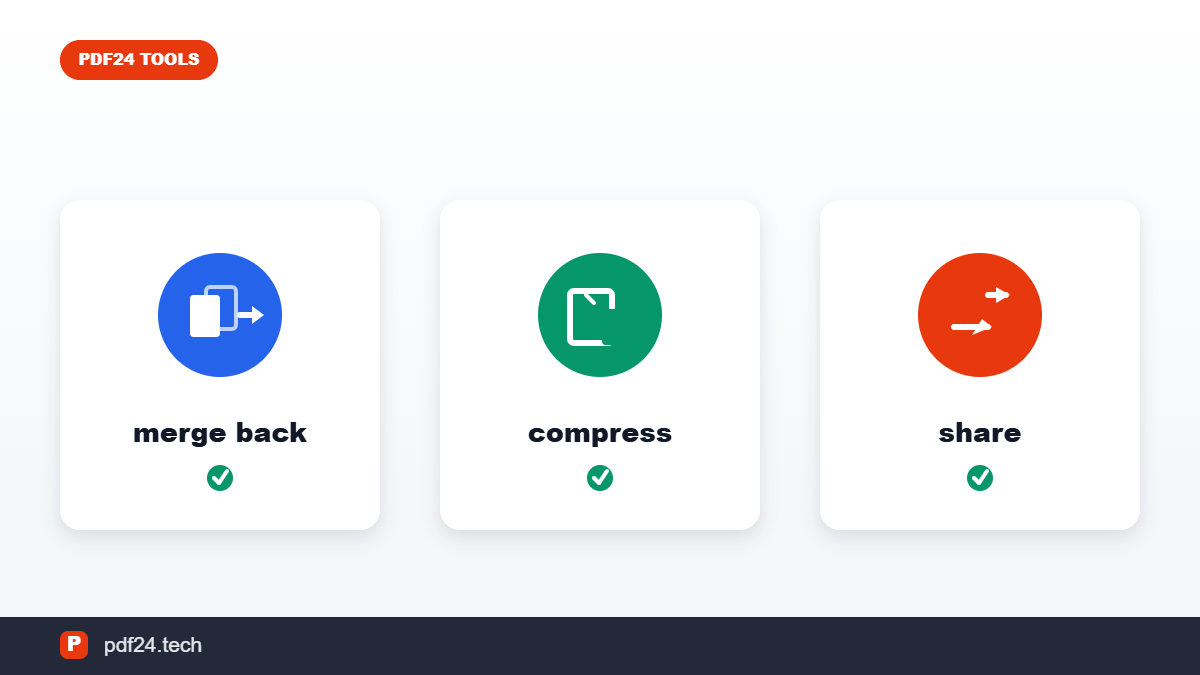
- Need to recombine some of the pieces later? Merge PDF reverses the process, combining files back into one document.
- Pages came out in the wrong order within one of the split files? Reorder PDF Pages fixes internal page order without needing to re-split anything.
- One of the split files is still too large? Run it through Compress PDF afterward — splitting and compressing address different problems and often get used together.
A Quick Pre-Split Checklist
- Do you know the exact page numbers you need, or do you need to preview the document first? Most tools show thumbnails so you can confirm before committing to a split.
- Is the file password-protected? Splitting tools generally need the file unlocked first — use Unlock PDF if that’s the case.
- Do you need the split files to keep a consistent naming pattern for organization afterward? Plan file names before you start if this matters for your workflow.
Frequently Asked Questions
Can I split a PDF into more than two files?
Yes — you can extract as many individual page ranges as you need, or split the document into as many equal-sized parts as makes sense for your document.
Does splitting affect the original file?
No, splitting creates new files from the content of the original — the source PDF itself remains untouched unless you specifically choose to delete it afterward.
Can I turn every page of a PDF into its own separate file?
Yes, most splitting tools support extracting every page individually as its own single-page PDF, which is useful when each page needs to be handled or shared independently.
Will bookmarks or a table of contents carry over into the split files?
Bookmarks tied to pages outside a given split file typically don’t carry over meaningfully, since they’d point to content that’s no longer part of that particular document — this is worth checking manually if your original file relied heavily on internal navigation.
The Bottom Line
Splitting a PDF is a two-minute task once you know which of the three main methods — extracting specific pages, splitting into equal parts, or separating every page — actually matches what you’re trying to do. Start with the free Split PDF tool, preview the pages before committing, and lean on merging or compressing afterward if the resulting files need further adjustment.