In this guide
- What Is Excel-to-PDF Conversion, Really?
- Why Getting This Right Matters
- The Core Problem: Print Layout vs. Your Actual Data
- How to Convert Excel to PDF Without Losing Formatting: Step by Step
- Best Practices for a Clean Result
- Common Mistakes to Avoid
- Comparing Your Conversion Options
- What to Do After Converting
- Frequently Asked Questions
- Final Thoughts
Save an Excel sheet as a PDF and there’s a good chance something doesn’t survive the trip — a table gets sliced in half across two pages, a chart shrinks into illegibility, or three columns you needed on one page scatter across five. None of this means you did something wrong. It means Excel’s page-based printing model and your spreadsheet’s actual layout disagreed with each other, and the PDF simply shows you the result of that disagreement.
Table of Contents
- In this guide
- What Is Excel-to-PDF Conversion, Really?
- Why Getting This Right Matters
- The Core Problem: Print Layout vs. Your Actual Data
- How to Convert Excel to PDF Without Losing Formatting: Step by Step
- Best Practices for a Clean Result
- Common Mistakes to Avoid
- Comparing Your Conversion Options
- What to Do After Converting
- Frequently Asked Questions
- Final Thoughts
| Option | Layout control | Formatting fidelity | Best for |
|---|---|---|---|
| Online converter | Automatic, print-layout aware | High | Quick, clean results |
| Excel’s built-in export | Manual print setup | High, if configured | Files still open in Excel |
| Print to PDF | Printer-driven | Risky (re-rendered) | Last resort |
This guide covers why that happens and the specific settings that fix it, along with a faster route when you just need a clean result without digging through print settings.
What Is Excel-to-PDF Conversion, Really?
Excel doesn’t export to PDF the way you might expect — it doesn’t take a “snapshot” of your data. Instead, it runs your spreadsheet through the same page-layout engine used for physical printing, then saves that output as a PDF instead of sending it to a printer. That’s why print settings — page size, orientation, margins, scaling — directly determine what your PDF looks like, even though you never touched a physical printer.
Understanding this one fact explains almost every formatting problem people run into: if a table looks wrong in Print Preview, it will look exactly as wrong in the exported PDF.
Why Getting This Right Matters
A spreadsheet that looks perfect on your screen but arrives as a cut-off, oddly-paginated PDF undermines the reason you converted it in the first place — usually to share something that looks clean and professional, or to lock in a final version that recipients can’t accidentally edit. A financial report with a column of totals sliced onto a separate page, or a project timeline chart cut in half, reads as careless even when the underlying data is solid.
The Core Problem: Print Layout vs. Your Actual Data
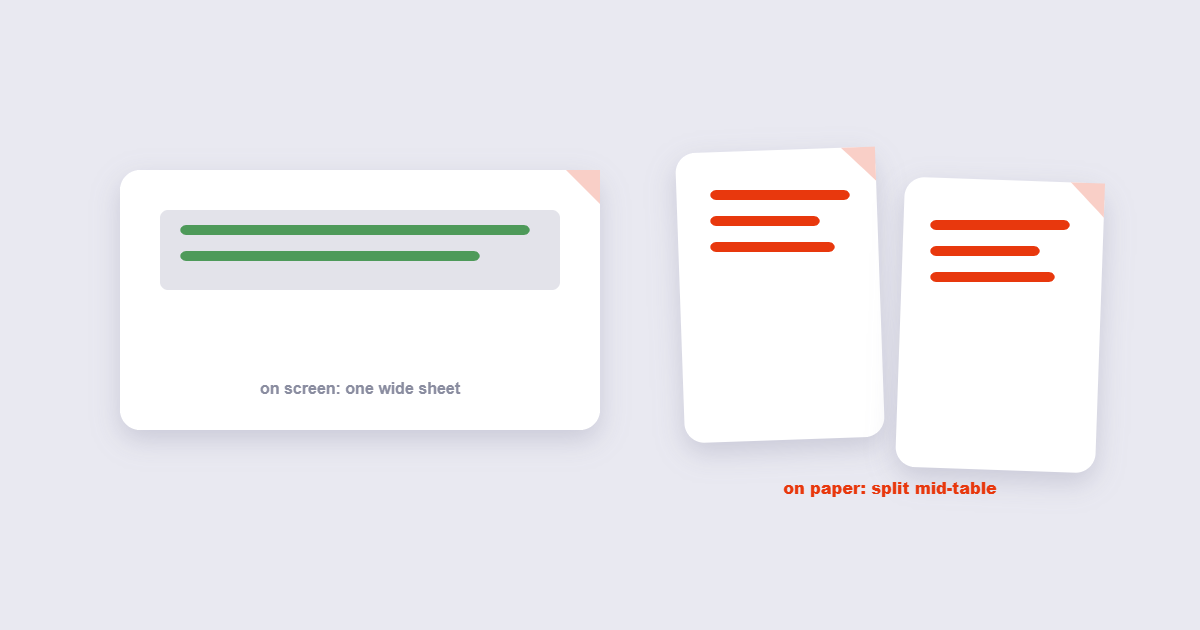
Spreadsheets are built to scroll infinitely in both directions. PDFs, like printed paper, are built around fixed page boundaries. Whenever your data is wider or taller than what fits on one page at 100% scale, Excel has to make a decision about where to break it — and its default decisions frequently aren’t the ones you’d choose yourself.
The most common symptoms:
- Columns get cut off and continue on a second page instead of shrinking to fit.
- Only part of a multi-sheet workbook exports because “Entire Workbook” wasn’t selected.
- Charts or images shrink oddly when scaling is applied inconsistently across a page.
- Row and column headers appear in the output when they weren’t meant to be part of the shareable document.
How to Convert Excel to PDF Without Losing Formatting: Step by Step
Step 1: Set your print area first
Before anything else, select exactly the range you want to appear in the PDF, then go to Page Layout → Print Area → Set Print Area. Skipping this step is the single most common cause of unexpected extra pages or columns in the output — Excel will otherwise try to include every cell that has ever contained data, even empty-looking ones.
Step 2: Fix orientation and scaling
In Page Layout → Orientation, switch to Landscape for wide tables — most cut-off column problems are simply a Portrait-orientation table that’s too wide for a vertical page. Then, in Page Layout → Scale to Fit, set “Width” to 1 page. Leave “Height” on automatic so text doesn’t shrink to an unreadable size trying to force everything onto exactly one page.
Step 3: Choose Entire Workbook if you have multiple sheets
When exporting, look for an option (under File → Export, or in the print dialog) to convert the entire workbook rather than just the active sheet. Missing this step is why people often end up with a one-page PDF when they expected ten.
Step 4: Export and check the result
Export or print to PDF, then actually open the result and check page breaks, especially around any tables or charts near the edge of a page. Catching a bad page break here takes seconds; catching it after you’ve already sent the file to someone else does not.
Best Practices for a Clean Result
- Use Print Preview before exporting, every time. Whatever Print Preview shows you is exactly what the PDF will contain — it’s the fastest way to catch a bad page break before it becomes a shared file.
- Keep fonts standard where possible. Common, widely available fonts convert consistently; obscure or custom fonts occasionally substitute unexpectedly if they aren’t embedded properly.
- Freeze panes before exporting if your sheet has header rows. This doesn’t directly affect the PDF layout, but it helps you review long sheets accurately before you commit to a print area.
- Turn off gridlines and headers in Page Layout → Sheet Options unless you specifically want them visible in the shared document — they’re on by default for editing but rarely wanted in a shared PDF.
Common Mistakes to Avoid
- Skipping the print area setup and hoping the export “just works” — it usually doesn’t for anything beyond a small, simple sheet.
- Forcing everything to one page with aggressive scaling. This is how you end up with technically-one-page PDFs that are unreadable without zooming in significantly.
- Forgetting hidden rows or columns. Hidden data generally does not appear in the exported PDF, which is usually desirable — but double-check if you were relying on a hidden helper column for calculations only, not display.
- Exporting before finishing edits. It sounds obvious, but re-exporting after a last-minute number change is a frequent, avoidable source of sharing an outdated PDF.
Comparing Your Conversion Options
| Method | Best For | Control Over Layout |
|---|---|---|
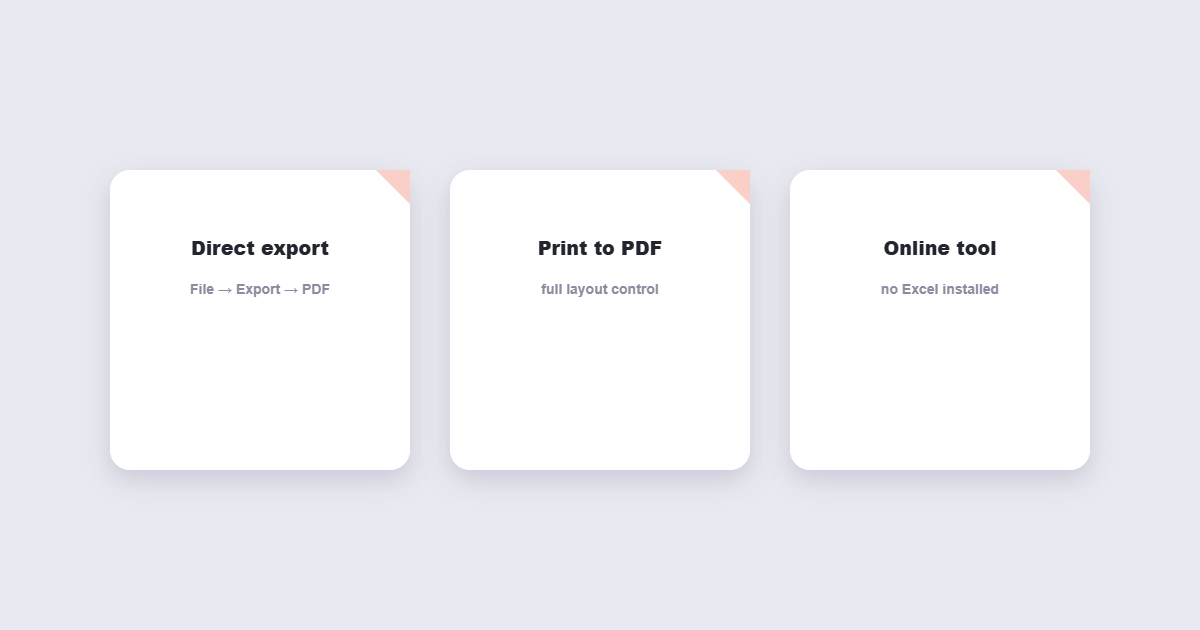
| Excel’s built-in Export/Save As | Anyone with Excel installed, one-off conversions | High — full access to print/page setup |
| Print to PDF (virtual printer) | Quick conversions without navigating Export menus | Medium — relies on existing print settings |
| Free online converter | Converting without opening Excel at all, or when you don’t have Excel installed | Medium — good defaults, less manual page-break control |
If you already have Excel open and need fine control over exactly where pages break, the built-in Export option is worth the extra two minutes of print setup. If you just need a fast, reasonable-looking PDF from a file someone sent you — including on a phone or a computer without Excel — the free Excel to PDF tool handles it directly in your browser, no spreadsheet software required.
What to Do After Converting
Once you have your PDF, a few common next steps: if the file needs to go to multiple recipients as part of a larger document, Merge PDF combines it with a cover page or supporting documents. If it turns out too large to email — common with workbooks containing embedded charts or images — Compress PDF brings the size down without another export cycle. And if you need a quick visual snapshot of just one sheet rather than the whole workbook, Excel to JPG is faster than a full PDF export.
Frequently Asked Questions
Why do my Excel columns get cut off when I convert to PDF?
This happens when your table is wider than what fits on the current page size and orientation at 100% scale. Switching to Landscape orientation and setting “Scale to Fit” width to one page usually resolves it.
Can I convert an entire workbook with multiple sheets to one PDF?
Yes — when exporting, choose the option for “Entire Workbook” rather than “Active Sheet” so every tab is included in a single combined PDF rather than just the sheet you currently have open.
Will my charts and images stay the same size and position?
Charts and images generally scale along with the rest of the page content, so if you apply aggressive “fit to one page” scaling, they’ll shrink along with everything else. Keeping scaling closer to 100% preserves their relative size better.
Do I need Excel installed to convert a spreadsheet to PDF?
No — an online converter can process .xls and .xlsx files directly without Excel or any other spreadsheet software installed on your device.
Why does my PDF show gridlines and row numbers I don’t want?
Gridlines and headers are visible by default while editing but can be turned off specifically for printing and export under Page Layout → Sheet Options, unchecking “Print” for both gridlines and headings.
Can I convert just one section of a large spreadsheet instead of everything?
Yes — select the specific range you want first, then set it as the print area before exporting, so only that range appears in the resulting PDF.
Will hidden rows or columns show up in the PDF?
Generally no, hidden rows and columns are excluded from the export by default, which is usually what you want — just confirm nothing important was hidden unintentionally before sharing the result.
Also converting slides? See how to convert PowerPoint to PDF.
Final Thoughts
Excel-to-PDF formatting problems almost always trace back to the print layout, not the conversion process itself — set your print area, fix orientation and scaling, and check Print Preview before exporting, and most of the surprises disappear. When you need a fast result without opening Excel at all, the free Excel to PDF tool converts your spreadsheet directly in your browser in seconds.