In this guide
- What Removing a PDF Password Actually Does
- Why People Need to Do This
- Before You Remove a Password: One Judgment Call
- How to Remove a Password From a PDF: Step by Step
- Best Practices
- Common Mistakes to Avoid
- What If You Genuinely Forgot the Password?
- What to Do After Unlocking
- Frequently Asked Questions
- Final Thoughts
You know the password — you set it yourself, or someone gave it to you — but typing it in every single time a file opens has stopped being useful and started being annoying. Removing a PDF password when you already know it is a genuinely quick fix, though it’s worth being clear upfront about what this does and doesn’t cover: this is about removing a password you have permission to remove, not cracking one you don’t.
Table of Contents
- In this guide
- What Removing a PDF Password Actually Does
- Why People Need to Do This
- Before You Remove a Password: One Judgment Call
- How to Remove a Password From a PDF: Step by Step
- Best Practices
- Common Mistakes to Avoid
- What If You Genuinely Forgot the Password?
- What to Do After Unlocking
- Frequently Asked Questions
- Final Thoughts
What Removing a PDF Password Actually Does
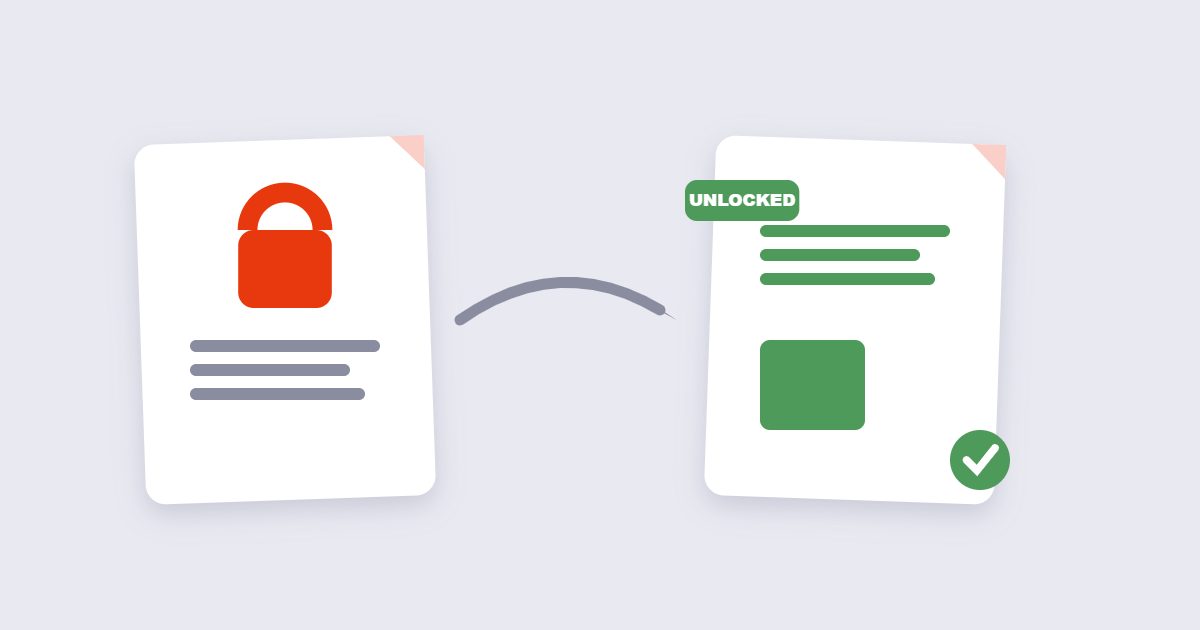
A password-protected PDF is encrypted — the password is what allows the decryption to happen. “Unlocking” a PDF means decrypting it using the known password and saving a new copy without that encryption applied. The content itself doesn’t change at all; only the requirement to enter a password before opening it goes away.
This is a fundamentally different thing from “cracking” a password you don’t know. Legitimate PDF tools require the correct password to remove protection — they don’t guess or brute-force their way in, and for anything using modern encryption, brute-forcing a reasonably strong password isn’t practical anyway.
Why People Need to Do This
The most common reason is simple fatigue: a document you reference constantly, protected with a password that’s now just friction rather than useful security. Other common cases include a document that’s no longer sensitive but was originally protected out of caution, or a file that needs to be edited, merged, or converted using a tool that can’t process a locked PDF until the protection is removed first.
Before You Remove a Password: One Judgment Call
Not every password-protected file is a good candidate for an online tool, regardless of how reputable the tool is. Documents like passport scans, tax filings, medical records, or unreleased business contracts carry more risk if anything goes wrong during upload, however small that risk might be. For files in that category, a desktop application that processes the file entirely on your own device is the more cautious choice. For everyday documents — an old contract you no longer need protected, a personal file you’re tired of re-entering a password for — an online tool is generally a reasonable, convenient option.
How to Remove a Password From a PDF: Step by Step
Step 1: Confirm you have the password and the right to remove it
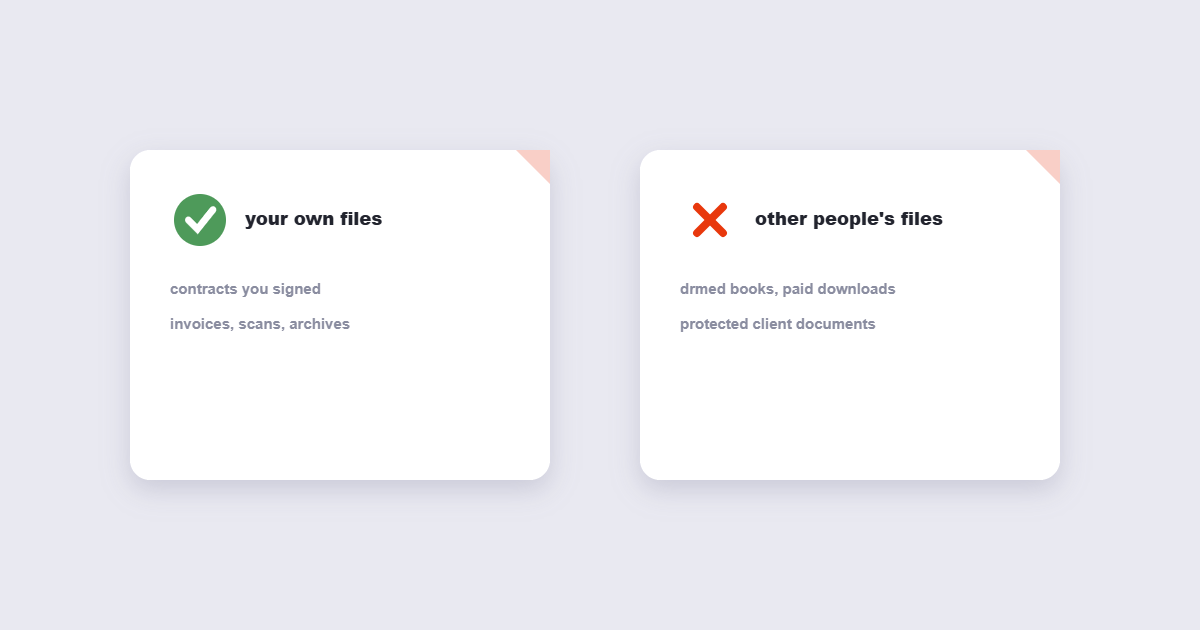
You’ll need the exact current password. If the file belongs to someone else or was shared under a policy that restricts what you can do with it, check before proceeding.
Step 2: Upload the file
Using the free Unlock PDF tool, upload the protected document.
Step 3: Enter the password
Type in the current password exactly as it was set — passwords are typically case-sensitive, so a small typo will cause it to fail.
Step 4: Download and verify
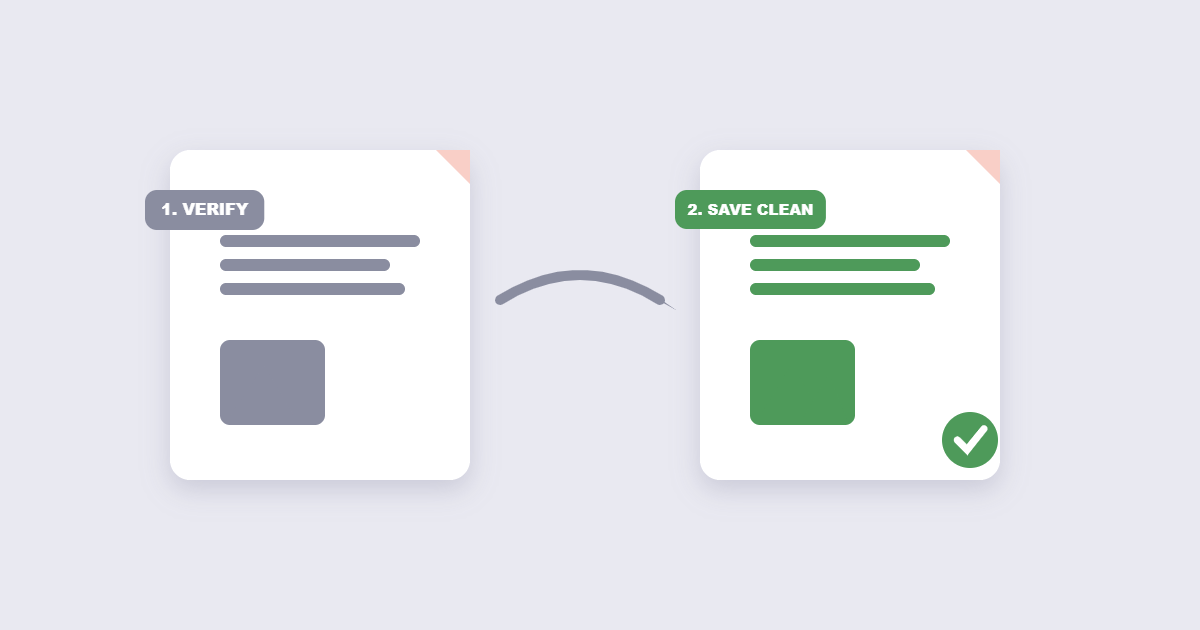
Download the unlocked file and open it to confirm it no longer prompts for a password before you delete or replace the original protected copy.
Best Practices
- Keep a backup of the protected original until you’ve confirmed the unlocked version works exactly as expected.
- Double-check case sensitivity and special characters if the password isn’t being accepted — this is the most common reason removal fails on the first try.
- Consider whether the document still needs protection at all, or whether it should simply stay as-is if there’s any chance you’ll need to share it securely again later.
Common Mistakes to Avoid
- Assuming any online tool can remove a password you don’t know. Legitimate tools require the correct password — anything claiming to unlock without it should be treated with suspicion.
- Uploading highly sensitive documents to an unfamiliar tool without checking how it handles files. Reasonable caution here costs nothing and avoids a genuinely bad outcome.
- Confusing the open password with a separate permissions/owner password. A PDF can have one, the other, or both — if removal doesn’t fully behave as expected, you may be dealing with a different type of restriction than you assumed.
- Forgetting you’ll need to re-protect the file if you still want it password-secured after making an edit that required it to be unlocked first.
What If You Genuinely Forgot the Password?
This is the one case where an unlock tool that requires a known password won’t help. If the password is truly lost and the file is yours, options are limited and none are guaranteed: password-recovery software exists that attempts to guess weaker passwords through brute force, but this can take an impractical amount of time against anything reasonably strong, and doesn’t work at all against modern, properly implemented encryption. If the file matters enough, check whether anyone else involved — a colleague, a service provider, whoever originally protected it — might still have the password on record before assuming it’s permanently inaccessible.
What to Do After Unlocking
Once a file is unlocked, it can be processed by tools that couldn’t touch it while protected. If you need to shrink it, Compress PDF works only on unlocked files. The same applies to converting it — PDF to Word and other converters require the password removed first. If you still want some protection after your edits, Protect PDF re-applies a password to the updated file — our guide on password protecting a PDF covers choosing one that’s actually strong.
Frequently Asked Questions
Can I remove a PDF password if I don’t know it?
Legitimate unlock tools require the correct password to remove protection — they aren’t designed to guess or crack an unknown password, and doing so against modern encryption generally isn’t practical regardless.
Is it legal to remove a password from a PDF?
You should only remove protection from files you own or have explicit permission to modify — respecting the original protection is both a legal and ethical baseline regardless of how technically easy the removal process is.
Will removing the password change the document’s content?
No, only the encryption and password requirement are removed — the text, images, and formatting stay exactly as they were.
Why isn’t my password being accepted?
Passwords are typically case-sensitive, so check for capitalization and special characters first — this is the most common reason a correct-seeming password fails.
Is it safe to upload sensitive documents to an online unlock tool?
For highly sensitive files — financial records, IDs, medical documents — a desktop tool that processes everything on your own device is the more cautious choice; everyday documents are generally fine with a reputable online tool.
What’s the difference between an open password and a permissions password?
An open password is required just to view the document, while a permissions password separately restricts actions like printing or editing once the file is already open — a PDF can have either one independently or both together.
Final Thoughts
Removing a PDF password you already know is a genuinely quick, low-risk task — the only real judgment call is whether a given document is sensitive enough to warrant extra caution about where you process it. For everyday files, the free Unlock PDF tool handles it directly in your browser in seconds.