Converting a PDF to JPG is the fastest way to share a document as an image — useful for posting a single page on social media, embedding a certificate into a website, attaching a page to a ticket or email that doesn’t accept PDFs, or previewing a page without a PDF reader. This guide covers how to do it free, what DPI and quality settings to use, and when PNG is a better choice than JPG.
Table of Contents
- How to Convert PDF to JPG Free (Step by Step)
- DPI and Quality Settings Explained
- PDF to JPG vs PDF to PNG — Which to Choose
- How to Convert a Specific PDF Page to JPG
- How to Convert PDF to JPG on Windows, Mac and Mobile
- Why Is My PDF to JPG Blurry?
- Common Use Cases and Best Settings
- Frequently Asked Questions
- The Short Version
How to Convert PDF to JPG Free (Step by Step)
- Open the PDF to Image converter and upload your PDF file.
- Choose JPG or PNG as the output format (see section 3 below for which to pick).
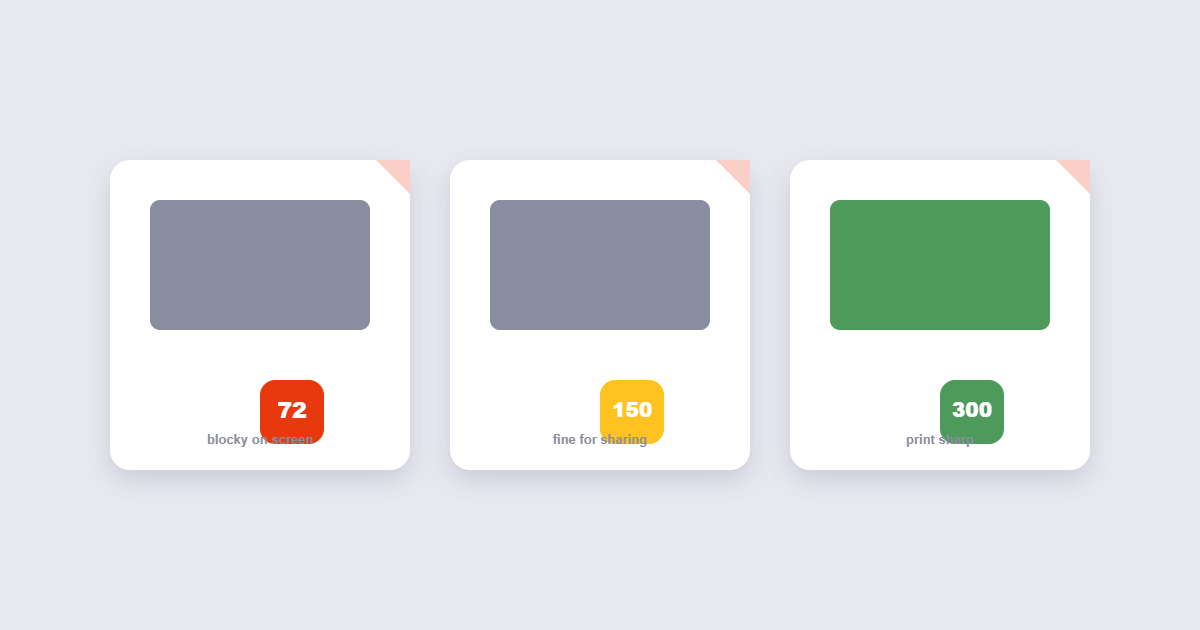
- Set the resolution (DPI). For screen use, 150 DPI is fine. For printing, use 300 DPI. Higher DPI = sharper image, larger file.
- Click convert. Each page of the PDF becomes a separate image file.
- Download as individual files or as a ZIP archive containing all pages.
No account required, no watermarks. Files are deleted from the server automatically after download. For a confidential PDF — legal documents, medical records, ID scans — use a desktop method instead so the file never leaves your device.
DPI and Quality Settings Explained
DPI (dots per inch) controls how sharp the image is. It’s the most important setting for PDF-to-image conversion and the most commonly misunderstood:
| DPI | Result | Best for | Approx. file size (A4 page) |
|---|---|---|---|
| 72 DPI | Web-only quality — blurry if zoomed | Thumbnail previews only | ~80–150 KB |
| 150 DPI | Good screen quality — sharp on most displays | Email, web embeds, social media | ~300–600 KB |
| 300 DPI | Print-ready quality | Printing, archiving, professional use | ~1–3 MB |
| 600 DPI | Very high quality — overkill for most uses | Technical drawings, engineering documents | ~4–10 MB |
The quality slider (separate from DPI) controls JPG compression after rendering. At 100% quality the file is larger but sharper; at 80% quality the file is smaller with almost no visible difference. For most uses, 150 DPI at 85% quality is the right balance — sharp enough to read, small enough to share.
PDF to JPG vs PDF to PNG — Which to Choose
| Format | Best for | File size | Quality type |
|---|---|---|---|
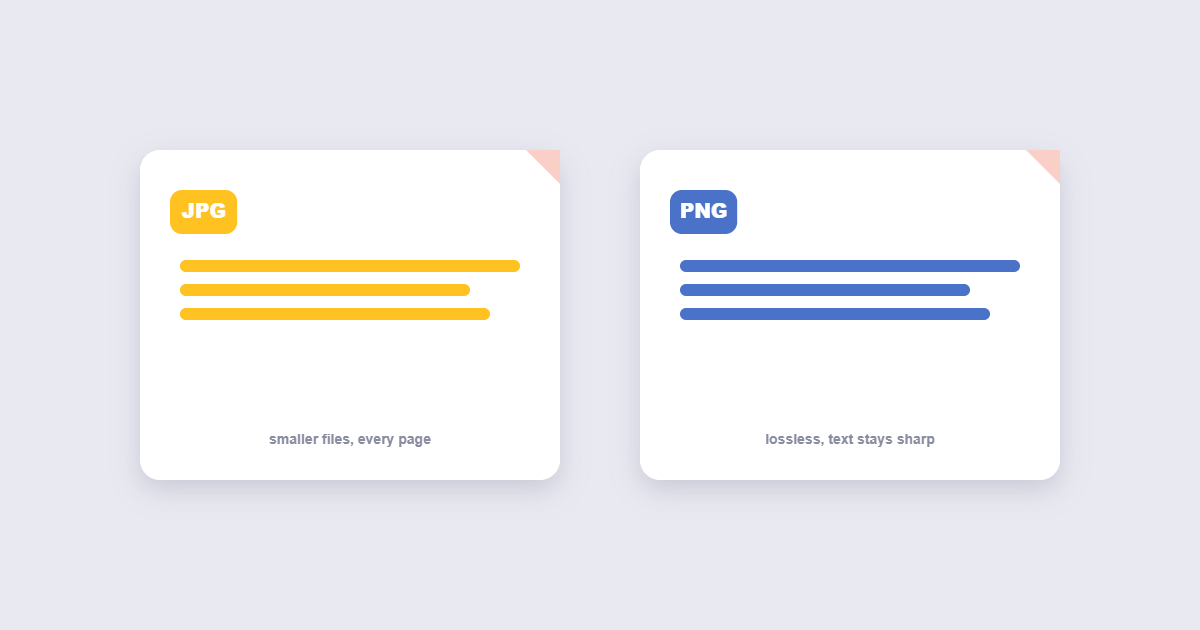
| JPG | Photos, colourful pages, documents with images | Smaller | Lossy — slight compression artefacts possible |
| PNG | Text-heavy pages, charts, diagrams, line art | Larger | Lossless — pixel-perfect sharpness |
The practical rule: if the PDF page contains mostly text or fine lines (a contract, a diagram, a spreadsheet), use PNG — it preserves sharp edges that JPG softens. If the PDF contains photos or richly coloured content, JPG is fine and produces a much smaller file. For a certificate or official document you want to share as an image, PNG looks more professional because the text edges stay crisp.
How to Convert a Specific PDF Page to JPG
Every tool convert all pages by default. To get only a specific page:
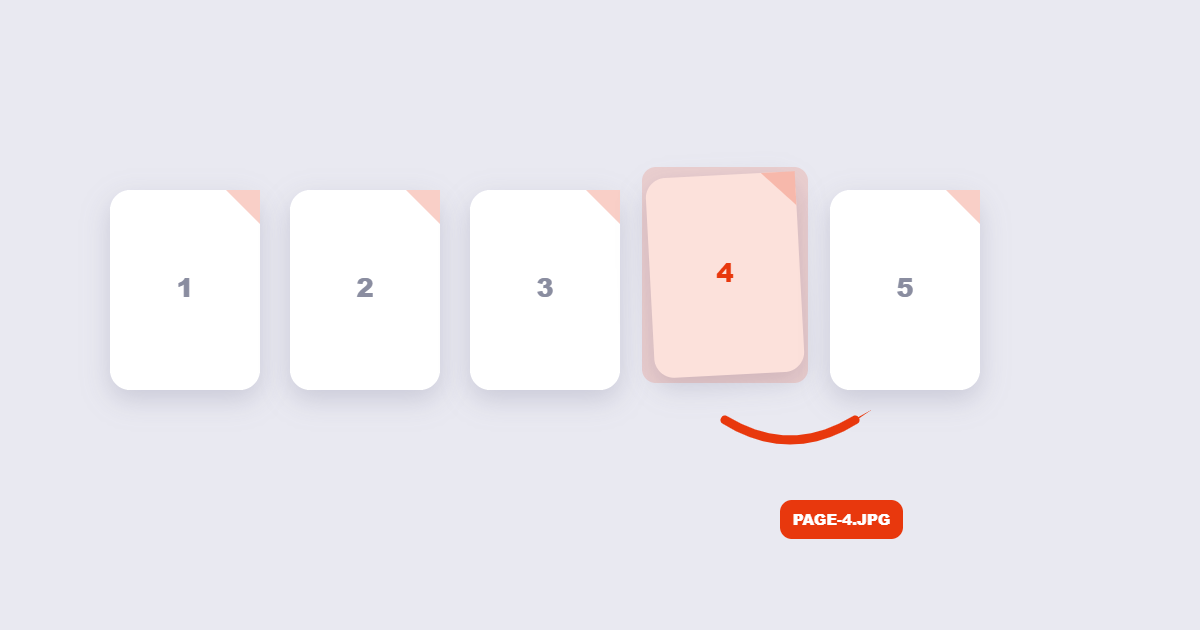
- Split the page out first: Use the PDF splitter to extract the specific page as a single-page PDF, then convert that to JPG. This works with any tool regardless of whether it supports page range selection.
- Use a tool with page range selection: Some converters let you enter “page 3” or “pages 1–5” before converting. If yours doesn’t, the split-first approach takes under a minute.
- On Mac: Open the PDF in Preview, select the page in the sidebar, File → Export → choose JPG. This exports just the selected page without converting the whole document.
How to Convert PDF to JPG on Windows, Mac and Mobile
Windows
Windows has no built-in PDF-to-image converter. Options:
- Online tool: Fastest — upload, set DPI, download.
- Adobe Acrobat Reader (free): Reader alone doesn’t export images — you need Acrobat Pro for that. Use the online tool instead.
- Edge browser: Open the PDF in Edge, take a screenshot of the page with the Snipping Tool (Win + Shift + S). Quick for a single page, not practical for multi-page documents.
Mac
- Preview: Open the PDF → select a page in the sidebar → File → Export → choose JPEG or PNG → set quality → Save. Repeat for each page. Preview uses 72 DPI by default — change it to 150 or 300 in the export dialog for sharper output.
- Online tool: Faster for multi-page documents — converts all pages at once and downloads as a ZIP.
iPhone and Android
- Open the PDF to Image tool in your mobile browser — upload from Files (iOS) or your file manager (Android), convert, download.
- For a quick single-page conversion, open the PDF in your phone’s PDF viewer, take a screenshot, and crop to the page. Not suitable for print quality but fine for sharing.
Why Is My PDF to JPG Blurry?
Blurry output is almost always a DPI problem. Three causes:
- DPI set too low: 72 DPI looks fine at thumbnail size but blurs immediately when zoomed or printed. Set it to at least 150 for screen use and 300 for print.
- JPG quality set too low: Below 70% quality, text in JPG images starts showing compression artefacts — fuzzy edges on letters. Use 80–90% or switch to PNG for text-heavy pages.
- The original PDF was a low-resolution scan: If the PDF was created by scanning a document at 150 DPI, converting to 300 DPI won’t add detail — it just makes a larger blurry image. The resolution ceiling is set by the source. For scanned PDFs, the output can only be as sharp as the original scan.
Common Use Cases and Best Settings
| Use case | Recommended format | DPI | Quality |
|---|---|---|---|
| Social media post (Instagram, LinkedIn) | JPG | 150 | 85% |
| Email attachment (page preview) | JPG | 150 | 80% |
| Certificate or award (for display) | PNG | 300 | 100% (lossless) |
| Embedding in a website | JPG or WebP | 150 | 80–85% |
| Thumbnail preview | JPG | 72–96 | 75% |
| Professional print use | PNG or TIFF | 300 | 100% |
| Technical drawing or diagram | PNG | 300–600 | 100% |
Frequently Asked Questions
Does converting PDF to JPG reduce quality?
It can, depending on settings. At 300 DPI and 90% quality, the output is essentially indistinguishable from the original. At 72 DPI and 70% quality, text goes blurry and colours look washed out. The conversion itself doesn’t lose quality — the settings you choose determine the result.
How do I convert all pages of a PDF to separate JPG files?
The PDF to Image tool converts every page automatically and packages them as a ZIP download — one JPG per page, numbered in order.
Can I convert a PDF to JPG without losing the text quality?
For readable text, use PNG instead of JPG — PNG is lossless and keeps text edges sharp. If you must use JPG, set quality to 90%+ and DPI to at least 150. Below those settings, text in JPG images softens noticeably.
Is there a free way to convert PDF to JPG without uploading the file?
Yes — on Mac, Preview converts pages to JPG locally (File → Export). On Windows, the Snipping Tool captures a screenshot of any page displayed in Edge or Chrome. For automated multi-page conversion without uploading, desktop tools like ImageMagick (free, command-line) can batch-convert an entire PDF.
Can I convert a password-protected PDF to JPG?
You need to unlock the PDF first. Use the PDF unlock tool with the correct password, then convert the unlocked file to JPG.
Why does my PDF look different as a JPG?
JPG compression softens sharp edges and introduces subtle colour changes, especially on text and thin lines. Switch to PNG for text-heavy documents — it’s lossless and preserves the exact appearance of the original page.
Need to trim the edges of a scanned page first? See our guide on how to crop a PDF.
The Short Version
Upload to the PDF to Image converter, choose JPG for photos and coloured pages or PNG for text and diagrams, set DPI to 150 for screen or 300 for print, and download. Each page becomes a separate image file. If you only need one specific page, split it out first then convert. Blurry output almost always means DPI was set too low — not a problem with the conversion itself.