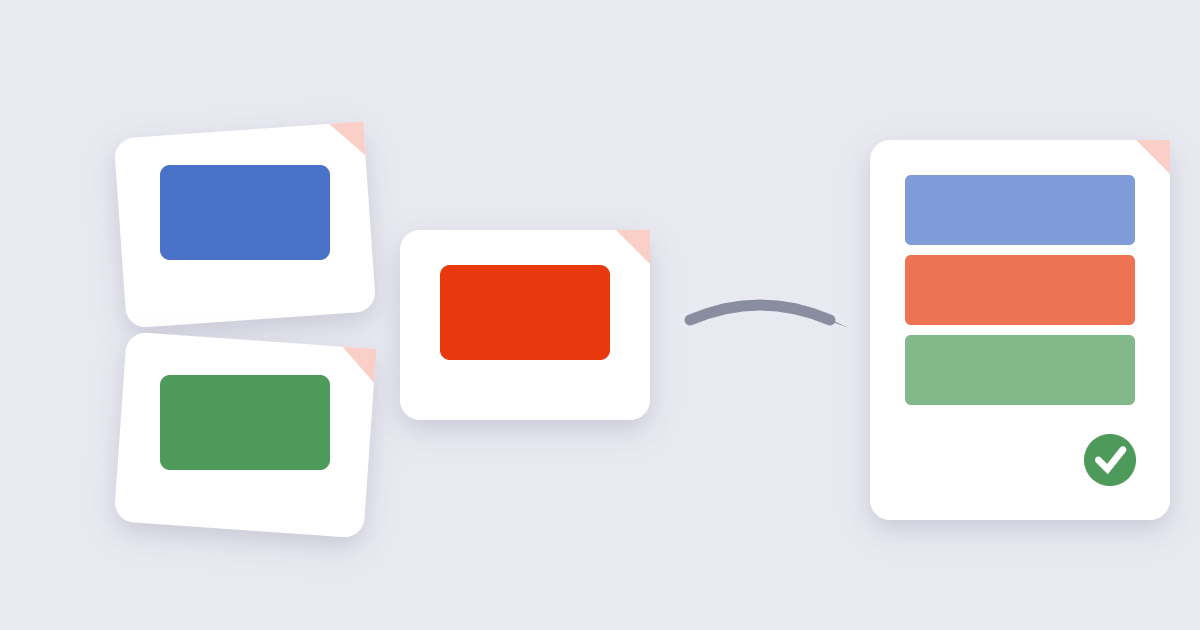
Expenses software wants one receipt file. Your manager wants the screenshots in a single image. Your group chat wants one photo, not nine. Combining images into one file solves all three – and the two real decisions are layout (stacked, side by side or grid) and format (PNG or JPG). Get those right and the merged image takes two minutes; get them wrong and you’re re-cropping at midnight before the deadline.
Table of Contents
What Does Combining Images Actually Mean?
Merging images isn’t compression and it isn’t conversion – it’s placing several pictures onto one shared canvas. The tool builds a page as wide as your widest image (or as tall as your tallest, for horizontal layouts) and positions each image edge to edge. The originals are untouched; the output is a new file containing all of them. That’s why merging is lossless when done in a lossless format: no pixels are recalculated, they’re just relocated. The only quality question is the format you export to – and that’s a choice you make deliberately at the end, not a side effect.
Which Layout Should You Use?
Layout is the decision that actually matters, because it determines whether the result is readable:
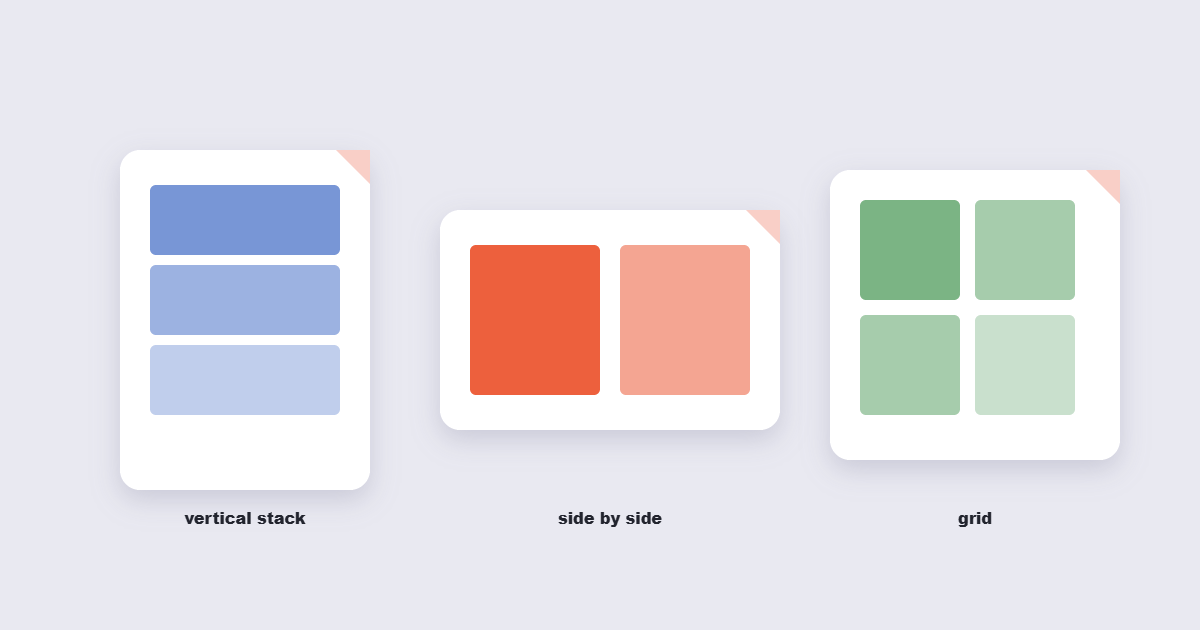
| Layout | Best for | Watch out for |
|---|---|---|
| Vertical stack | Receipts, invoices, long screenshots, chat logs | Extremely tall images in messaging apps |
| Side by side | Before/after comparisons, two signatures, ID cards | Unmatched heights make it look sloppy |
| Grid (2×2, 3×3) | Photo collages, product galleries, mood boards | Grid cells force cropping unless images match |
My honest preference for documents: vertical stacking wins almost every time. Accountants, expense tools and support teams read receipts top to bottom, and a stacked image keeps every receipt at full readable width. Side-by-side layouts look tidy but shrink each image to half the width – which is exactly when the small print becomes unreadable.
How to Combine Images Into One File Online
The browser route needs no software and works the same on desktop and phone:
- Open the merge images tool and add your images.
- Drag them into the right order – merge tools keep your upload order, and wrong order means redoing the merge. A scanned page is worth keeping at 300 DPI for print and 150 DPI is usually enough for on-screen reading. Below 150 DPI text starts to soften; dropping to 72 DPI typically cuts the file to roughly a quarter while making small print harder to read.
- Pick the layout: vertical, horizontal or grid, with spacing and background if you want a border.
- Export as PNG (quality, transparency support) or JPG (smaller file).
The whole job takes about a minute for five images. If your images need size corrections first – matching widths for a side-by-side, for example – the image resize tool fixes dimensions before you merge, which produces a far cleaner result than cropping afterwards.
Does Merging Images Reduce Quality?
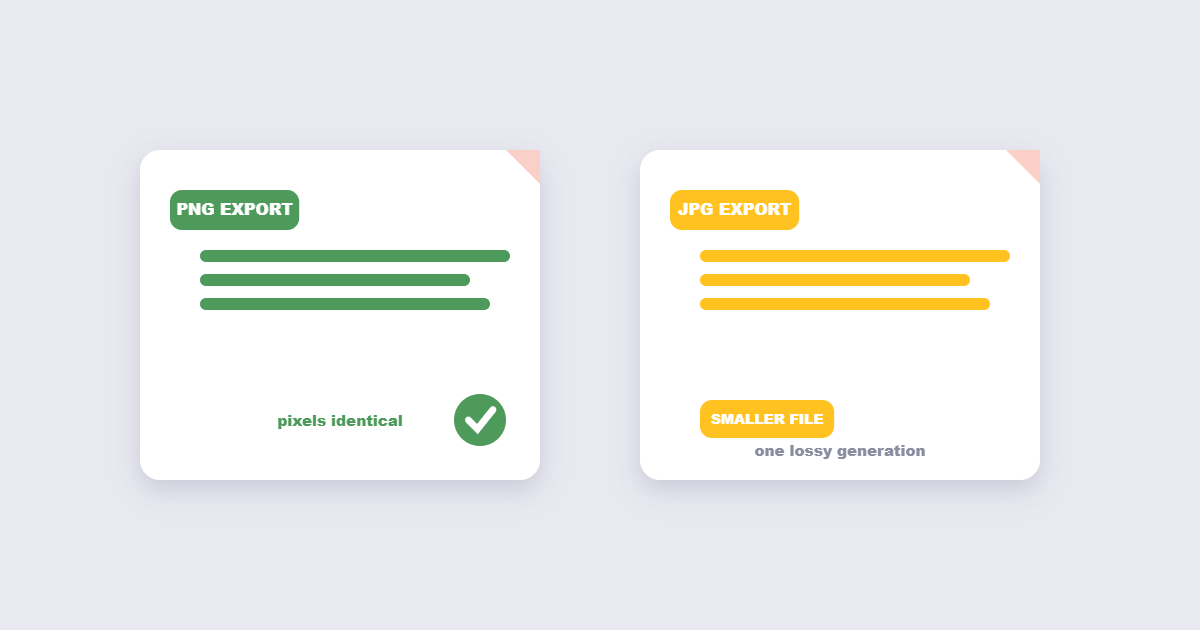
No – merging itself is a pure relocation of pixels. Quality only changes when re-encoding happens, and that depends on your export choice. Export as PNG and every pixel stays exactly as it was, because PNG is a lossless format. Export as JPG and the merge tool encodes the combined image once, which is a single generation of lossy compression – visually harmless at quality 85+, and worth it when the file needs to travel by email. The mistake to avoid is repeated re-encoding: merging, then cropping, then compressing, then re-compressing again. Each JPEG save compounds (JPEG is lossy by design), so plan your edit chain and export once.
The Three Jobs People Actually Use This For
| Task | Layout | Format |
|---|---|---|
| Expense receipts | Vertical stack, newest first | JPG at 85% – accounts want small files |
| Before/after proof | Side by side, matched heights | PNG – labels stay sharp |
| Photo collage | Grid with spacing | JPG – photos don’t need lossless |
One more genuinely useful case: combining screenshots of a broken website or an error message into a single image for a support ticket. Support teams prefer one attachment over seven, and a vertical stack keeps the sequence obvious.
PNG or JPG for the Merged File?
PNG if the merged image contains text, screenshots, receipts, logos or any flat-color edges – lossless encoding keeps characters crisp. JPG if it’s photographs only and the file needs to be small; photos tolerate JPEG compression gracefully while text doesn’t. Mixed content (a photo with a caption)? PNG, or export JPG at quality 90+ and check the text edges. And if transparency matters – say you’re building an overlay – PNG is the only one of the two that supports it. The three web formats differ in what they keep. JPEG discards detail permanently to shrink size, PNG stores every pixel losslessly and supports transparency, and WebP can do either — lossy or lossless — usually landing 25–35% smaller than an equivalent JPEG or PNG. Converting afterwards is easy with the image converter, but choosing correctly at export saves the round trip. Heavy merged file? The image compressor trims it without a second merge.
Frequently Asked Questions
How do I put multiple pictures on one page?
Use a merge tool with a grid or stack layout. Upload the pictures in order, choose the layout, and export. For print-oriented pages, a PDF made from the images is often better – see our guide on converting images to PDF.
Can I merge JPG and PNG files together?
Yes – merge tools accept mixed formats and place them on one canvas. The output format is what you pick at export; PNG handles both cleanly, JPG will flatten any transparency to white.
Does merging images reduce quality?
No, merging only repositions pixels. Quality changes only if you export to a lossy format (JPG) or chain multiple lossy edits together. PNG export is lossless.
How many images can I combine at once?
Browser-based tools handle dozens comfortably since processing happens on your device. Practical limits come from output size: a 30-image vertical stack becomes a very tall file that some apps display poorly.
What’s the best layout for before and after photos?
Side by side with matched heights. Resize both images to the same height first, then merge horizontally – the comparison reads instantly.
Can I combine images into a PDF instead of an image?
Yes, and it’s often smarter for documents: each image becomes a page, which prints cleanly and emails well. The image to PDF tool does it in one step.
Working with product photos? Learn how to remove the background from an image.
The Short Version
Choose the layout for the reader – vertical stacks for documents, side by side for comparisons, grids for collages. Order your images before merging. Export PNG for text and transparency, JPG for photo-only files that need to travel light. Merging itself never costs quality; the export format is where quality lives or dies.