Most PDFs that need page removal fall into one of three buckets: the scanner fed through two blank pages, a report arrived with a draft chapter nobody was supposed to see, or a 40-page contract has to go out with just the signed pages. In all three cases the fix takes under a minute — you upload the file, select the pages, delete them, download the result. The differences between tools are speed, file limits, and whether the result comes back stamped with a watermark.
Table of Contents
What Deleting a Page Actually Does to the File
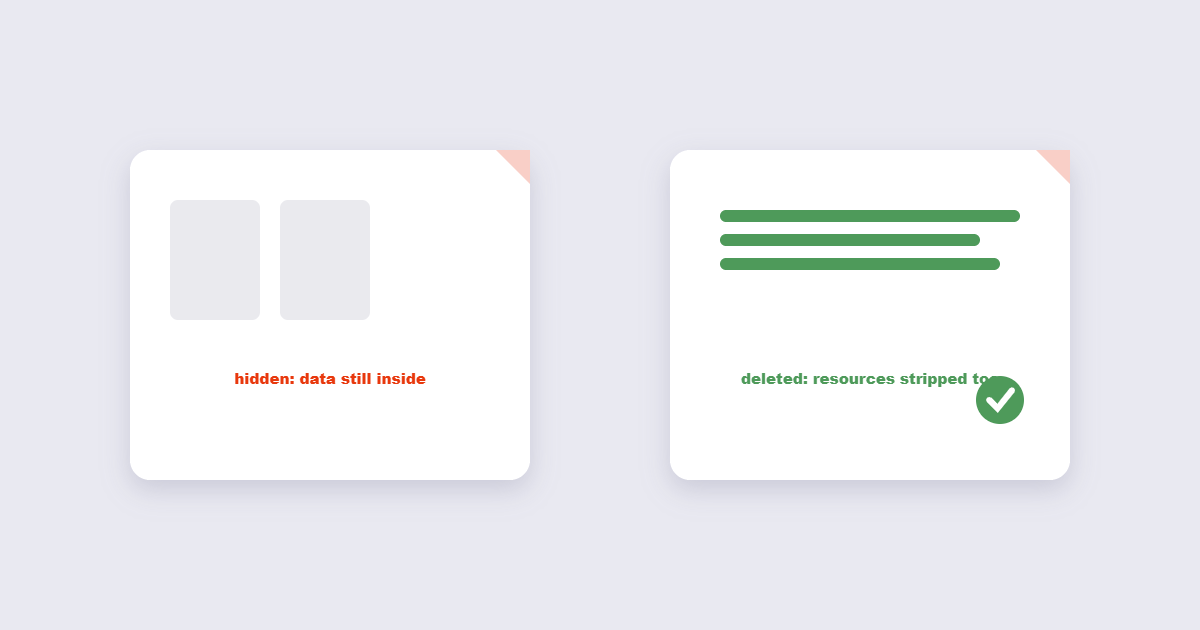
A PDF is a container holding page objects, and each page object holds references to fonts, images and other resources. When you delete a page, a well-behaved tool removes the page object and then checks whether the fonts and images on it were used anywhere else. If nothing else references them, it drops those resources too — which is why a 12-page PDF with 3 pages removed can shrink from 8 MB to 2 MB, not just by a quarter. Cheap tools only mark the page as hidden, leaving the data in the file. That matters when the pages you removed held personal information: hidden is not removed. If privacy is the reason you’re deleting pages, verify with a second tool afterward that opens the result and reports the real page count.
How to Delete Pages From a PDF Online (60 Seconds)
The online route wins for one-off jobs because nothing gets installed and the steps are nearly identical everywhere:
- Open the Delete PDF Pages tool and upload your file.
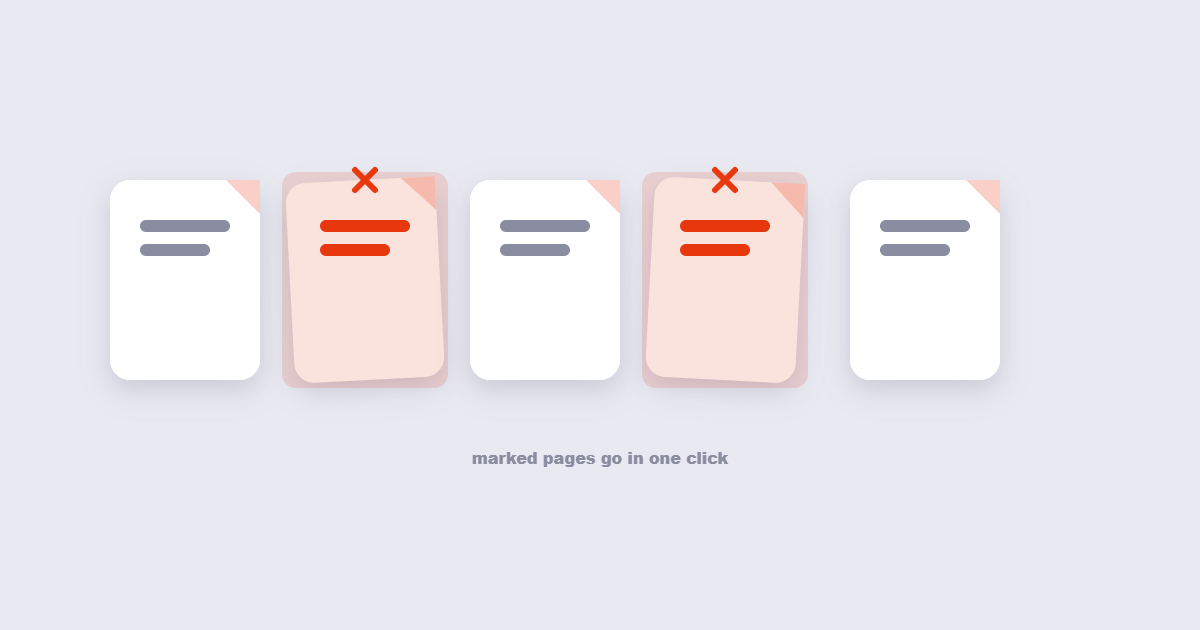
- Thumbnails appear — click each page you want gone, or type page numbers like 4, 7, 9-12 directly.
- Check the page count the tool reports versus what you expect. This is the step people skip and regret.
- Apply, then download. Give the file a new name instead of overwriting the original — you may want the removed pages back later.
Keep the original until you’ve opened the new file once. Downloads fail silently more often than deletes do.
Deleting Pages in Acrobat, Preview and Edge
If the file lives on a work machine where uploads are blocked, desktop tools do the same job. In Adobe Acrobat, open the Pages sidebar on the left, select the page thumbnail, and press the delete key — Acrobat asks for confirmation, which online tools don’t. On a Mac, Preview is already installed: show Thumbnails under the View menu, select a page, press Delete. Windows users often overlook that Microsoft Edge can open PDFs, but it cannot delete pages — for that, the free online tools or a desktop install are the only routes on Windows without paying for Acrobat.
When Deleting Pages Isn’t the Right Fix
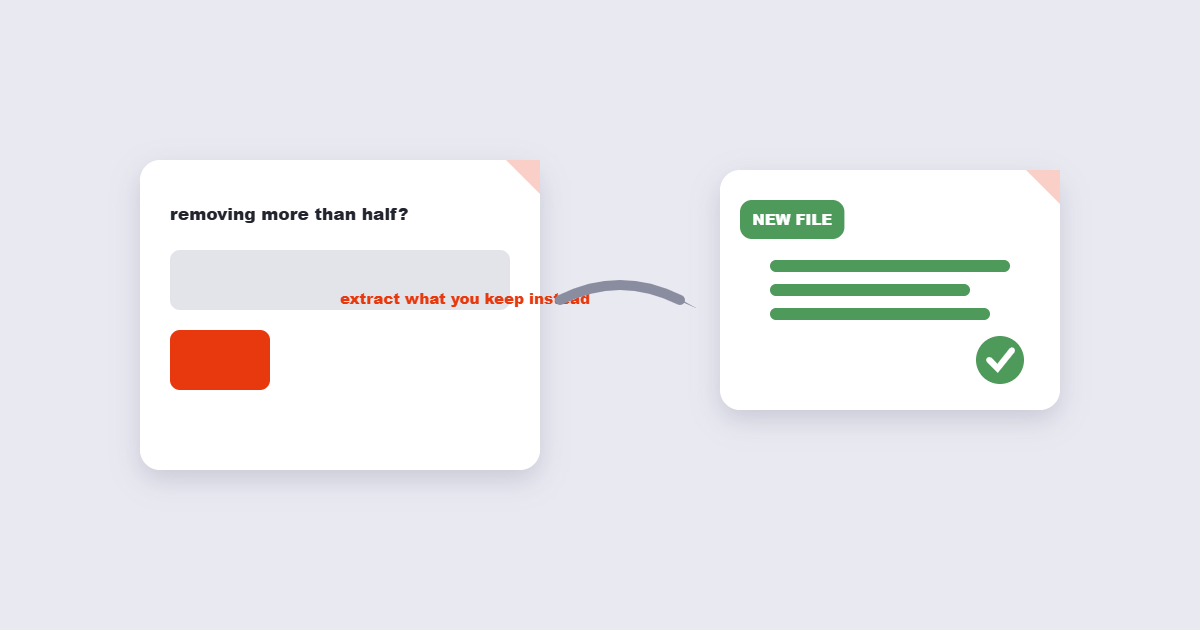
Sometimes what looks like a page problem is a document structure problem. If you’re removing more than half the pages, you may actually want to extract the pages you’re keeping into a new PDF — the result is cleaner and there’s no risk of deleting the wrong batch. If the pages you want to remove form a logical section — say, the appendix of a report — splitting first also leaves you with that section as its own file, which is usually what you’ll want a week later. And if the goal is to hide sensitive information rather than remove pages, note that deleting the page is only half the job; the text can still sit in the document’s other layers. For truly sensitive removals, redaction tools exist, and they’re the correct tool for that job.
A Quick Check Before You Hit Delete
| Situation | What to use | Why |
|---|---|---|
| 1-5 pages to remove | Online delete tool | Fastest path, no install |
| Blank pages from scanning | Online tool with blank-page detection | Auto-detect beats clicking 30 thumbnails |
| Keeping a small section of a big file | Extract instead of delete | Fewer clicks, keeps the section as a bonus file |
| Removing confidential pages | Desktop tool + verification | Full removal, not hiding; verify after |
| File too big to upload | Desktop (Acrobat/Preview) | No upload limits apply |
Frequently Asked Questions
Can I delete pages from a PDF without Adobe Acrobat?
Yes. Free online tools, including the one linked above, delete pages with no Acrobat subscription. Mac users have Preview built in, which handles it too.
Does deleting pages reduce the PDF’s file size?
Usually, and sometimes dramatically — if the deleted pages held large images or embedded fonts used nowhere else, the tool removes those resources as well as the page itself. A page of plain text contributes almost nothing to file size.
Can I recover pages after deleting them?
Not from the edited file. Keep the original download until you’ve verified the new file — once you overwrite the original, the deleted pages are gone unless you have a backup.
Why did my page numbers not change after deleting pages?
If the numbers are printed into the page content (typed or stamped), they don’t renumber automatically — they’re just ink. Only bookmarks and some interactive tables of contents update themselves. Deleting the printed numbers and adding fresh page numbers fixes the mismatch.
How to Delete Pages From Password-Protected PDFs
A locked PDF will reject page deletion — the tool can’t modify content it has no permission to touch. Here’s how to handle it:
- If you have the password: Unlock the PDF first using a PDF password remover with the correct password, then proceed with page deletion. Tools that ask for the password during the deletion step do the unlock internally — same result, one fewer step.
- If you own the document but forgot the password: Password recovery is a separate process. For PDFs you created yourself, check the software you used to create them — many authoring tools store the password in the project settings.
- If the PDF has a print-only restriction (not an open password): Some PDFs open freely but restrict editing. These permissions passwords can be removed by printing to a PDF printer (which creates a new, unrestricted file) — after which page deletion works normally. Note that this re-renders the file, which may affect text selectability on scanned pages.
Deleting Blank Pages From Scanned Documents
Scanners love inserting blank pages — a two-sided scan of a single-sided document produces one content page and one blank for every sheet fed. For a 30-page document, that’s 30 pages to find and delete manually. Better approaches:
- Use a tool with blank-page detection. Some PDF editors scan for pages below a content threshold and flag them automatically — much faster than clicking 30 thumbnails.
- Sort by page content in the thumbnail view. Blank pages appear as uniformly light thumbnails — in a grid view they’re usually obvious. Click all the pale ones, verify none contain faint content, then delete.
- Prevent them at the scanner. Most modern scanner software has a “skip blank pages” option in the duplex settings. Enabling it at scan time is faster than removing pages afterward.
- For large batches: If you’re processing many scanned documents regularly, a desktop tool like Adobe Acrobat’s Action Wizard can automate blank-page removal across a folder of files.
One caution: don’t delete pages that appear blank but carry a watermark or faint confidential stamp — they look empty at thumbnail size but contain content at full view. Always zoom before deleting unfamiliar pages.
The Short Version
Upload, select, delete, download, keep the original. Sixty seconds for the common case. Extract instead of delete when you’re keeping a small piece, and verify the page count afterward when the removal was for privacy — because hidden and deleted are not the same thing, and the only way you’ll know which one you got is by checking. For password-protected files, unlock first; for blank scanner pages, look for a blank-page detection option rather than clicking each one manually. Once you have the final page set, you may want to add fresh page numbers to keep the count consistent.