“I just need to fix one line in this PDF” is one of the most common frustrations in everyday document work. PDF was designed as a final format — fixed and unchangeable — which is why editing it feels harder than it should. But free tools handle most editing jobs well. The key is knowing which tool is right for what you’re trying to do.
Table of Contents
- What “Editing a PDF” Actually Means
- How to Add Text to a PDF Free
- How to Add an Image or Signature to a PDF
- How to Annotate, Highlight and Comment on a PDF
- How to Fill Out a PDF Form Free
- Editing vs Converting: When to Convert to Word First
- Which Free PDF Editor to Use
- Frequently Asked Questions
- The Short Version
What “Editing a PDF” Actually Means
PDF editing covers several different jobs that require different tools:
| What you want to do | Type of edit | Free tool available? |
|---|---|---|
| Fix a typo in the existing text | Native text edit | Only with Acrobat Pro or paid desktop tools |
| Add a new text box on top | Text overlay | Yes — browser tools do this well |
| Add a signature or initial | Image/stamp overlay | Yes — very easy in browser tools |
| Highlight, underline or comment | Annotation | Yes — free in most PDF viewers |
| Fill in a form field | Form fill | Yes — most browsers do this natively |
| Rewrite large sections of content | Full rewrite | Better to convert to Word, edit, re-export |
The important distinction: overlaying new content (adding text boxes, images, stamps) is easy and free. Rewriting existing text that’s already in the PDF requires either a paid tool or converting to Word first. Most real-world editing jobs are the former.
How to Add Text to a PDF Free
Adding a text overlay — a new box of text placed on top of the page — is the most common free edit and works reliably in browser tools:
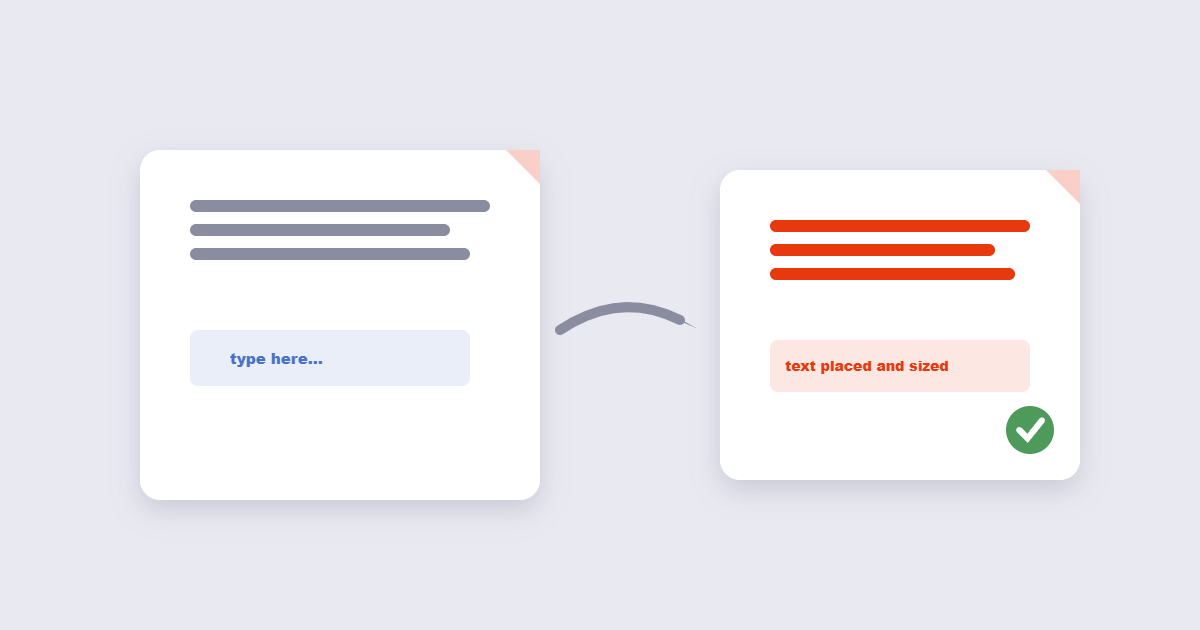
- Open the PDF editor and upload your file.
- Select the text tool and click where you want to place the new text.
- Type the text, set the font size and colour to match the surrounding document as closely as possible.
- Reposition the text box until it sits where you need it — drag to move, corner handles to resize.
- Save and download.
This creates a new text layer on top of the original page content — not a replacement of the existing text. For a one-word correction that blends in, this works perfectly. For multi-paragraph rewrites, converting to Word first is faster.
Tips for making added text blend in
- Match the font size exactly. Most PDFs use 11pt or 12pt for body text. Try both and compare.
- Use a white background box to cover any underlying text before placing new text on top. This is the free way to “replace” existing text — cover it, then write over it.
- Check the font family. Common PDF fonts are Times New Roman, Arial, Helvetica and Calibri. A close match looks professional; a mismatch looks patched.
How to Add an Image or Signature to a PDF
Adding a scanned signature, a company logo or a stamp image to a PDF is one of the most common editing tasks — and one of the easiest:
- In the PDF editor, select the image tool.
- Upload the image file — JPG or PNG. For a signature, a PNG with a transparent background looks most professional (no white box around the signature).
- Position and resize the image to where it should appear — a signature line, a header, a stamp position.
- Save and download.
For a professional signature on a white-background document, a JPG of the signature works fine. For a coloured document where the white box would be visible, use a PNG with the background removed. Flattening merges every annotation, form field and layer into the page’s own content stream. Afterwards the fields are no longer interactive and the annotation objects are gone — which is why a flattened PDF is smaller and cannot be edited back. The image editor can help prepare the signature image before adding it to the PDF.
How to Annotate, Highlight and Comment on a PDF
Annotations — highlights, underlines, comments, sticky notes — don’t permanently change the document content. They sit on a separate layer and can be removed later. They’re the right tool for review and feedback, not for final edits.
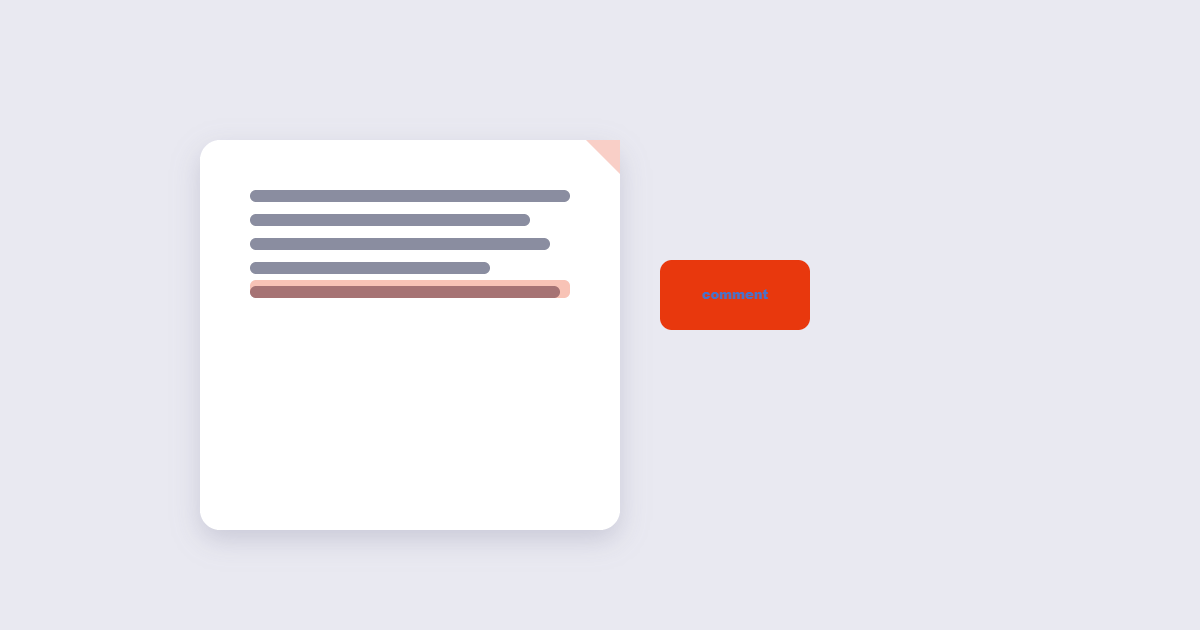
Free options for annotations:
- Your browser: Chrome, Firefox and Edge can all open PDFs and support basic highlighting and notes without any extension.
- Adobe Acrobat Reader (free): The free Reader app supports highlighting, strikethrough, comments and sticky notes. It’s the most full-featured free annotation tool on desktop.
- Preview on Mac: Full annotation toolkit built in — highlight, underline, shapes, comments, signatures.
- Online PDF editors: The browser-based editor handles overlays but not always the full annotation toolkit — check before using for review workflows.
If you’re sending a PDF for review and want the recipient’s comments to survive without flattening, leave annotations as annotations. If you want to lock the comments permanently into the page before archiving, flatten the PDF after reviewing.
How to Fill Out a PDF Form Free
PDF forms with interactive fields — text boxes, checkboxes, dropdowns — are the easiest edit of all:
- Open the PDF in any modern browser (Chrome, Firefox, Edge, Safari). The form fields are usually clickable and typeable with no tool needed.
- Fill in each field, check the boxes, make selections.
- Print to PDF or use File → Save to save the filled form.
One important step after filling: flatten the form before submitting it. Some government portals and HR systems re-render PDFs on receipt and strip out interactive field content — flattening bakes your answers into the page so they can’t be separated during transmission.
Editing vs Converting: When to Convert to Word First
If the edit you need involves rewriting several paragraphs, restructuring content, or changing the layout significantly, converting to Word first is almost always faster than trying to edit the PDF directly:
- Use the PDF to Word converter to get an editable .docx file.
- Edit in Word normally — full formatting control, spell check, track changes.
- Convert back to PDF when done using the Word to PDF tool.
The limitation: conversion accuracy depends on the PDF’s structure. Text-based PDFs (created from Word or similar) convert cleanly. Scanned PDFs convert as images and require OCR to become editable text — the resulting Word document may need cleanup. For simple single-page scans with a small correction, the overlay approach (add a white box over the wrong text, type the replacement) is often faster than converting.
Which Free PDF Editor to Use
| Tool | Best for | Limitations |
|---|---|---|
| Browser (Chrome/Edge) | Form filling, basic viewing | No text overlays, minimal editing |
| Adobe Acrobat Reader | Annotations, signing, form filling | Text overlay needs Acrobat Pro (paid) |
| Preview (Mac) | Annotations, signatures, page management | Mac only; limited text overlay |
| PDF24 Tools (browser) | Text overlays, image inserts, stamps, form fill | No native text rewriting |
| Convert to Word | Full content rewrites | Conversion quality varies with PDF type |
For most everyday edits — adding a date, inserting a signature, adding a stamp, filling a form — the browser-based tools handle everything without installing software or creating an account.
Frequently Asked Questions
Can I edit a PDF for free without Adobe Acrobat?
Yes. Browser-based tools handle text overlays, image inserts, signatures and form filling without Acrobat. For true native text editing (rewriting existing text in the PDF), Acrobat Pro or a paid desktop editor is the only reliable route — the free alternative is to convert to Word, edit there, and re-export. DOCX stores content as XML inside a ZIP container, which is why the same document can be read by Word, LibreOffice and Google Docs. PDF stores fixed-position drawing instructions, which is why it looks identical everywhere but is far harder to edit back.
Why can’t I click on the text in my PDF to edit it?
Most PDFs are static documents — the text is fixed in place and not editable by clicking, in the same way you can’t click on text in a printed page and type over it. Only PDFs that were specifically built with editable text fields support direct clicking-to-edit. For everything else, you use an overlay tool or convert to Word.
How do I edit a scanned PDF?
A scanned PDF is an image — the text is a photograph, not actual text characters. To edit it you first need OCR (optical character recognition) to convert the image to text. After OCR, the document becomes editable as a Word file. Convert it, edit in Word, re-export to PDF.
Is it safe to upload my PDF to an online editor?
For general documents, yes — reputable tools delete files automatically after processing. For documents containing sensitive information (legal, financial, medical, personal IDs), use a local desktop tool like Preview (Mac) or Adobe Acrobat Reader so the file never leaves your device.
Can I remove text from a PDF for free?
Not by deleting it directly — but you can cover it. Place a white rectangle (using the shape tool in a PDF editor) over the text you want to hide, then flatten the result. This effectively removes it visually. For true redaction where the underlying text data is also removed, use a dedicated PDF redaction tool.
Need to sign after editing? Learn how to sign a PDF for free.
The Short Version
For most free PDF edits — adding text, inserting a signature, filling a form, adding a stamp — a browser-based PDF editor handles it without software installation or an account. For large content rewrites, convert to Word, edit normally, and re-export. For form filling, fill first then flatten before submitting. And for scanned PDFs, run OCR first — you can’t edit an image until it becomes text.