In this guide
- What “Corrupted” Actually Means for a PDF
- Why PDFs Get Corrupted
- Quick Checks Before You Try to Repair Anything
- How to Repair a Corrupted PDF: Step by Step
- Best Practices
- Common Mistakes to Avoid
- Preventing Corruption Going Forward
- Frequently Asked Questions
- Final Thoughts
The file worked yesterday. Today it either refuses to open at all, or opens showing garbled content, missing pages, or an error about the file being damaged. Before assuming the document is gone for good, it’s worth knowing that PDF corruption is usually a structural problem — not a content problem — and structural problems are frequently fixable.
Table of Contents
| Cause | What it looks like | Prevention |
|---|---|---|
| Interrupted download | File opens partially or not at all | Re-download; avoid unstable connections |
| Editor or app crash mid-save | Newer file missing, older opens | Save once, close cleanly |
| Faulty drive or USB | Random bytes, gibberish on open | Copy to a healthy drive; run disk checks |
| Email or cloud mangling | Size differs from the original | ZIP before attaching; verify size after |
What “Corrupted” Actually Means for a PDF
A PDF file has an internal structure — a cross-reference table that tells a reader where each page, image, and font is located within the file. When that structure gets damaged, even though the actual text and images inside might still technically be intact, the reader can’t figure out how to assemble and display them, resulting in an error rather than a broken-looking document. This is why repair is often possible: a repair tool doesn’t need to recover lost content so much as rebuild the map that tells the reader where existing content lives.
Why PDFs Get Corrupted
- An interrupted download or transfer. If a download stops before finishing, the file is left incomplete, and an incomplete PDF’s internal structure is, by definition, broken.
- A crash during saving. If the application or your computer crashes mid-save, the file may be left in a partially-written, structurally invalid state.
- Storage or transfer errors. A failing drive, a corrupted USB transfer, or an interrupted cloud sync can each introduce errors into the file’s structure.
- Insufficient storage space during a save. If a device runs out of space mid-write, the resulting file can be truncated or incomplete.
Quick Checks Before You Try to Repair Anything
A few fast checks can rule out simpler explanations before you assume the file itself is damaged:
- Check the file size. If it seems unusually small compared to what you’d expect, the download or transfer likely didn’t complete — try getting the file again from its original source before troubleshooting repair.
- Try a different PDF viewer. Occasionally an error is specific to one application rather than the file itself — if one viewer fails, testing a second one takes a moment and sometimes resolves the issue entirely.
- Check for a backup or previous version. Cloud storage services and some operating systems keep previous versions of a file — if one exists from before the corruption occurred, it may be faster to restore that than repair the damaged copy.
How to Repair a Corrupted PDF: Step by Step
Step 1: Rule out a simple re-download
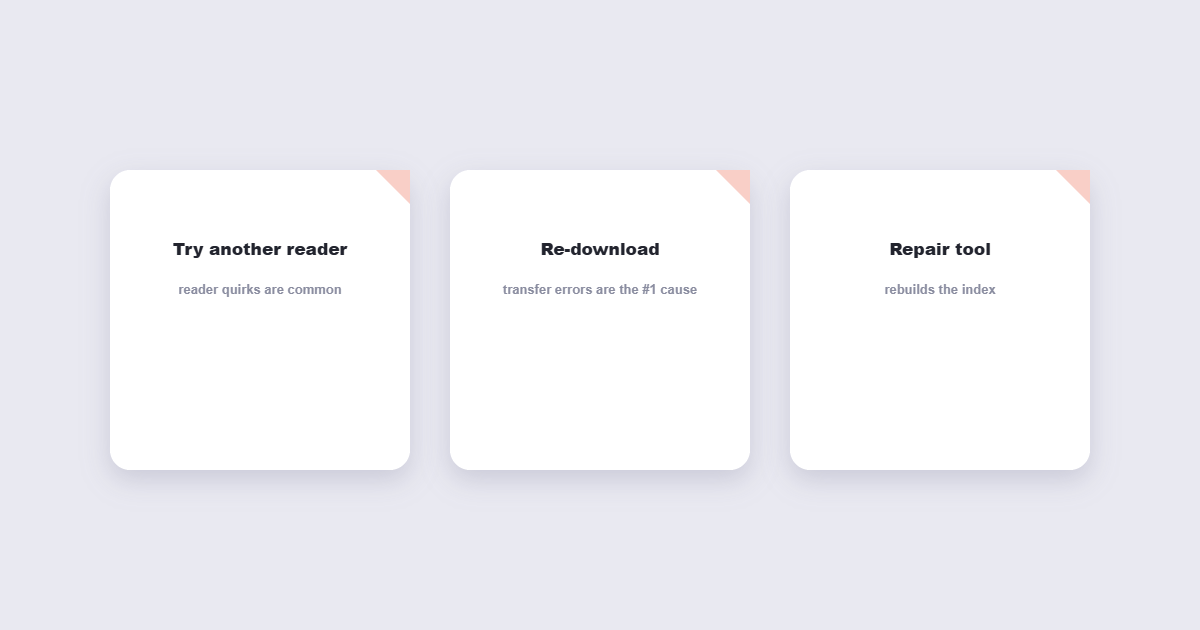
If the file originally came from an email attachment, download link, or cloud share, try getting a fresh copy first — this resolves a meaningful share of “corrupted” files that were simply incomplete transfers.
Step 2: Upload to a repair tool
Using the free Repair PDF tool, upload the damaged file.
Step 3: Run the repair process
The tool attempts to rebuild the file’s internal structure and recover as much readable content as possible.
Step 4: Download and review
Open the repaired file and check it page by page, particularly if it’s a long document — a repair may successfully recover most of a file while a specific severely damaged section remains unreadable.
Best Practices
- Keep the damaged original until you’ve confirmed the repaired version has everything you need — don’t delete your only copy of a corrupted file before verifying the repair result.
- Try more than one repair method if the first doesn’t fully work. Different tools handle different types of corruption with varying success, so a second attempt through a different tool is a reasonable next step if the first doesn’t recover everything.
- For consistently important documents, set up regular backups. The most reliable fix for corruption is never needing to repair anything because a clean backup already exists.
Common Mistakes to Avoid
- Assuming a corrupted file is unrecoverable without trying repair first. Many corruption cases are structural and genuinely fixable, rather than true data loss.
- Repeatedly trying to force-open a damaged file in the same application. This rarely resolves the underlying structural issue and can occasionally worsen file handling errors.
- Skipping the re-download check. If the file is available from its original source, this is often the fastest fix — no repair process needed at all.
- Not verifying the repaired file thoroughly. A repair can succeed for most of a document while a specific page or section remains genuinely unrecoverable — check carefully rather than assuming the entire file is fine.
Preventing Corruption Going Forward
A few habits meaningfully reduce how often this happens:
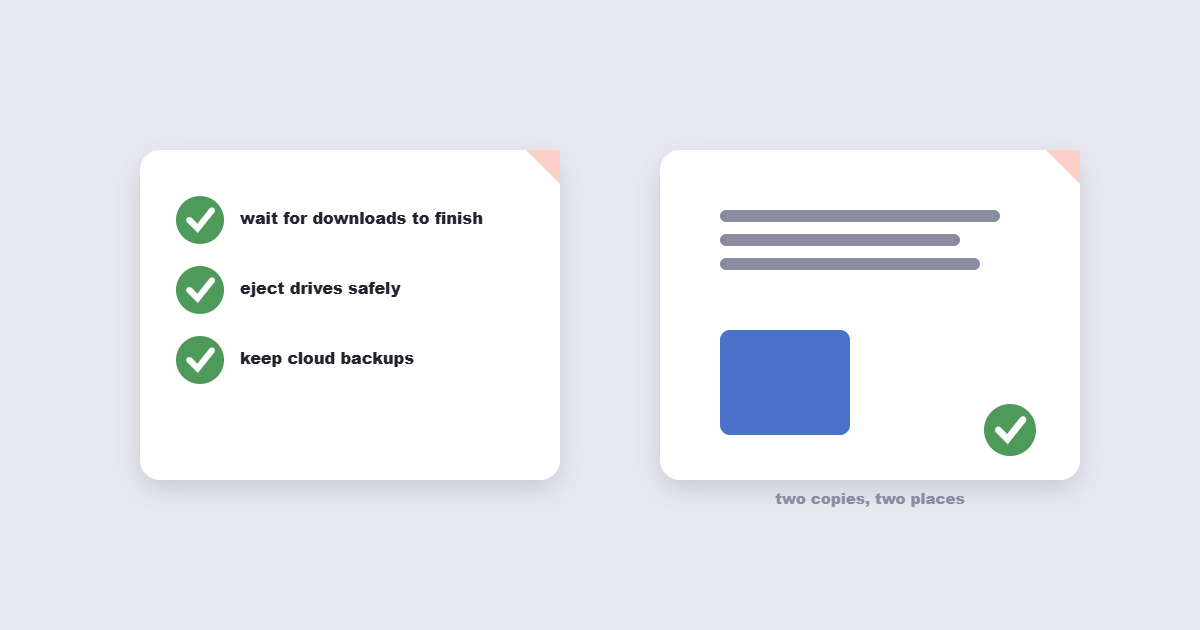
- Let downloads and transfers finish completely before opening or moving a file.
- Avoid force-closing applications while a PDF is actively being saved or exported.
- Keep backups of genuinely important documents in a second location, whether that’s cloud storage or a separate drive.
- Check available storage space before saving or exporting large files.
Frequently Asked Questions
Can every corrupted PDF be repaired?
Not always — most structural corruption is fixable, but severe damage to the underlying file data may only allow partial recovery, or in rare cases none at all.
Will I lose content during the repair process?
A repair tool aims to recover as much original content as possible, but severely damaged sections may not be fully recoverable — reviewing the result carefully after repair is worth the extra minute.
Why does my PDF show an error immediately when I try to open it?
This is typically caused by a damaged internal structure, often from an incomplete download, a crash during saving, or a storage/transfer error rather than an issue with the visible content itself.
Is there a file size limit for PDF repair?
No strict limit for typical use, though larger and more heavily damaged files may take longer to process.
Should I try a different PDF viewer before attempting repair?
Yes, this is worth trying first — occasionally an error is specific to one application rather than the file itself, and switching viewers resolves it without needing repair at all.
Final Thoughts
A PDF that won’t open often looks more catastrophic than it actually is — corruption is usually a structural problem, and structural problems are frequently repairable. Before assuming a document is permanently lost, try the free Repair PDF tool directly in your browser, and check for a fresh copy or backup from the original source as a first, faster option.