Every time you save or export an image, something in the background asks you a question you might not have thought much about: JPG, PNG, or WebP? Pick the wrong one and you end up with a logo that looks fuzzy, a photo that’s needlessly huge, or a website that loads slower than it should. Pick the right one and none of that happens — but “right” depends entirely on what the image actually is and where it’s going.
Table of Contents
This guide breaks down what each format is actually good at, when to use which one, and how to convert between them when you’ve picked wrong.
For the technical specifications behind each format, see the JPEG, PNG and WebP standards documentation on Wikipedia.
The Short Version
- JPG — best for photographs you’re sharing, printing, or emailing. Small files, universal compatibility, no transparency.
- PNG — best for screenshots, logos, and anything needing a transparent background. Larger files, but zero quality loss.
- WebP — best as a default for modern websites. Meaningfully smaller than JPG at similar quality, and supports transparency too.
That’s the summary. The rest of this guide is about the situations where the “best” choice isn’t obvious.
If your files ended up in the wrong format, the image compression guide explains how to fix the size without a full re-export.
JPG: The Universal Photo Format
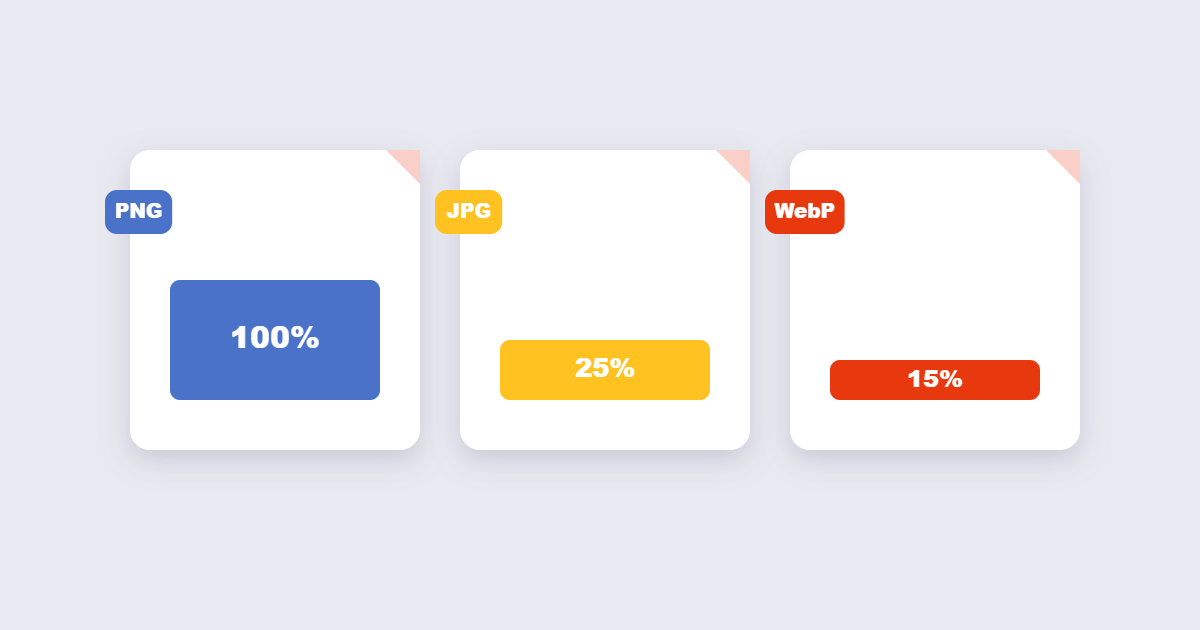
JPG (also written JPEG) has been the default photo format on the internet since long before most current websites existed. It uses lossy compression — meaning it permanently discards some image data to shrink the file, based on the idea that certain details are hard for the human eye to notice anyway. The three web formats differ in what they keep. JPEG discards detail permanently to shrink size, PNG stores every pixel losslessly and supports transparency, and WebP can do either — lossy or lossless — usually landing 25–35% smaller than an equivalent JPEG or PNG.
Where JPG wins: universal support. Every browser, phone, email client, and photo printing service handles JPG without a second thought. For photographs specifically — where the image already has millions of subtly blended colors — the quality loss from JPG compression is genuinely difficult to spot at reasonable quality settings.
Where JPG struggles: anything with sharp edges, flat colors, or text. Screenshots, logos, and diagrams saved as JPG often show visible fuzzy artifacts around edges — that “smudgy” look around text in a screenshot is almost always a JPG compression signature.
Use JPG for: photos you’re emailing, printing, or sharing on social media, and any image where small file size matters more than pixel-perfect edges.
PNG: Lossless Quality and Transparency
PNG takes the opposite approach — it’s lossless, meaning it preserves every single pixel exactly as it was, with no data discarded. That makes it the safer choice whenever quality can’t be compromised, at the cost of a noticeably larger file.
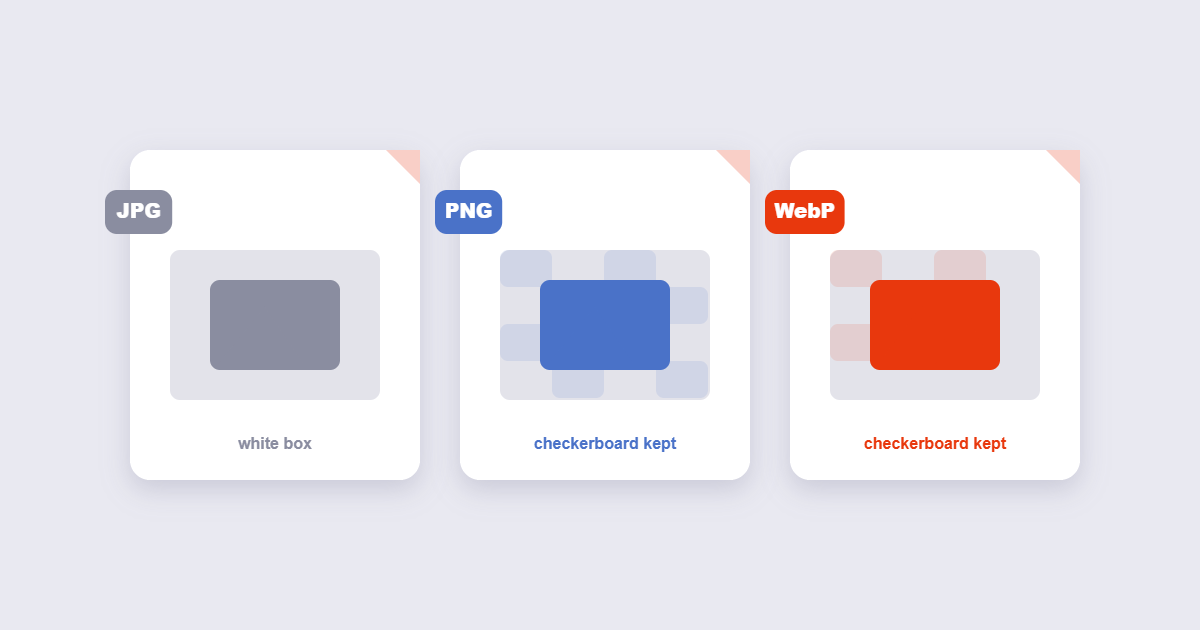
Where PNG wins: screenshots, logos, icons, and any graphic with flat colors or text stay perfectly crisp. PNG is also the format to reach for whenever you need a transparent background — a logo that needs to sit on top of different colored backgrounds, for instance.
Where PNG struggles: photographs. Because PNG doesn’t discard any data, a photo saved as PNG can be five to ten times larger than the same photo saved as JPG, with a quality difference most people won’t actually notice.
Use PNG for: logos, screenshots, diagrams, and any image that needs transparency.
WebP: The Modern All-Rounder
WebP was built specifically to be a better all-purpose format for the web — smaller files than JPG, but with the option of lossless compression and transparency support like PNG. In practical terms, WebP files typically run 25–35% smaller than an equivalent-quality JPG, and browser support is effectively universal at this point (only very old browsers lack it).
Where WebP wins: web performance. Smaller image files mean faster page loads, which affects both user experience and, measurably, search engine rankings — page speed is a known ranking factor, and images are usually the biggest contributor to page weight.
Where WebP falls short: compatibility with some non-browser contexts. A handful of older email clients and some print workflows don’t handle WebP well, so it’s worth sticking with JPG or PNG in those specific situations.
Use WebP for: images on your website — product photos, blog graphics, banners — as your default choice in 2026.
Quick Decision Guide
If you’re staring at a photo and not sure which format applies, run through these questions in order:
| Feature | JPG | PNG | WebP |
|---|---|---|---|
| Photos | Excellent | Works, but heavy | Excellent |
| Transparency | No | Yes | Yes |
| Text and logos | Poor (fuzzy edges) | Excellent | Excellent |
| File size | Small | Large | Smallest |
| Everywhere supported? | Yes | Yes | Nearly all |
- Does it need a transparent background? Use PNG (or WebP, which also supports transparency).
- Is it going on a website you control? Use WebP for the best balance of size and quality.
- Is it a screenshot, logo, or anything with text/sharp edges? Use PNG.
- Is it a photo you’re emailing, printing, or posting to social media? Use JPG.
- None of the above, and you just need maximum compatibility? JPG is still the safest universal default.
What About GIF and AVIF?
Two formats deliberately left out of the main comparison, because they solve narrower problems:
GIF persists mostly for cultural reasons — reaction images and short looping clips shared on social platforms. For any animation on a website you actually control, an animated WebP (or a short video file) will look better and load faster than GIF, which has limited color support and comparatively large file sizes.
AVIF is a newer format that compresses even more efficiently than WebP — often 20–50% smaller at similar quality — but it takes noticeably longer to encode, and tool support, while improving, is still catching up to WebP’s. For most everyday use, WebP remains the more practical choice; AVIF is worth considering for high-traffic pages where every kilobyte of load time matters.
One more thing worth knowing: photos you plan to upload often carry hidden EXIF metadata, which some formats strip and others keep.
Converting Between Formats
Realizing you’ve picked the wrong format after the fact isn’t a problem — converting is quick and doesn’t require reshooting or redesigning anything. Image-to-PDF output inherits the image’s own resolution. A 1500 × 1000 pixel photo placed on an A4 page fills it at roughly 180 DPI, while the same photo on Letter fills it at about 176 DPI — plenty for screen, light for print. A few common directions:
- Have a PNG that’s too large for a website? Convert it to WebP for a smaller file with the same transparency support.
- Have a WebP that a client’s email client won’t display? Convert it to JPG for guaranteed compatibility.
- Have a JPG screenshot that looks fuzzy around the text? Unfortunately, converting JPG to PNG at that point won’t recover detail already lost — the fix is to retake the screenshot and save it as PNG from the start.
- Need to shrink any image further regardless of format? Compress Image handles that as a separate step after choosing the right format.
All of these conversions can be done directly in your browser using the free Image Converter — upload the file, pick your target format, and download the result in seconds.
And if the pixel dimensions are wrong too, resize before you convert — the social media size guide lists the exact dimensions for each platform.
Frequently Asked Questions
Does converting PNG to JPG reduce quality?
Yes, some quality loss is inherent to JPG’s lossy compression, though at high quality settings the difference is typically invisible to the naked eye for photographic content.
Can converting JPG to PNG recover lost detail?
No. Once JPG compression has discarded image data, converting to a lossless format afterward only locks in whatever quality remains — it can’t restore what was already lost.
Is WebP supported everywhere now?
Support is effectively universal across modern browsers as of 2026. The main exceptions are older software and specific non-browser workflows like some print pipelines and legacy email clients.
What format should I use for a logo?
PNG is the safest default for logos, especially if they need a transparent background — it stays crisp on any color backdrop and works reliably across design tools and older systems.
Need to merge multiple images instead? See how to combine images into one file.
iPhone photos in HEIC format? See how to convert HEIC to JPG first.
The Bottom Line
There’s no single “best” image format — only the best format for what you’re actually doing with the image. Use JPG for photos you’re sharing broadly, PNG when you need transparency or perfectly crisp edges, and WebP as your default for anything going on a website. When you land on the wrong one, converting between formats takes seconds with a free online image converter — no software installation required.