Cropping looks like the simplest edit there is — just cut away what you don’t want. Get the aspect ratio or composition wrong, though, and a photo can fail a passport application, get auto-cropped strangely by a social platform, or just look off in a way that’s hard to name. The mechanics of cropping take thirty seconds to learn; picking the right ratio and composition for where the image is going is the part worth doing carefully.
Table of Contents
- In this guide
- What Cropping Actually Does
- Why Getting the Crop Right Matters
- Choosing the Right Aspect Ratio for Your Purpose
- How to Crop an Image: Step by Step
- Composition Tips for a Better Crop
- Passport and ID Photo Cropping Specifics
- Common Mistakes to Avoid
- Frequently Asked Questions
- Passport Photo Requirements by Country
- Social Media Crop Dimensions Reference
- Final Thoughts
In this guide
- What Cropping Actually Does
- Why Getting the Crop Right Matters
- Choosing the Right Aspect Ratio for Your Purpose
- How to Crop an Image: Step by Step
- Composition Tips for a Better Crop
- Passport and ID Photo Cropping Specifics
- Common Mistakes to Avoid
- Frequently Asked Questions
- Final Thoughts
What Cropping Actually Does
Cropping permanently removes everything outside a selected rectangle, keeping only what’s inside it at its original resolution. Unlike resizing, which shrinks or enlarges the whole image, cropping changes what’s included, not how large the remaining content appears. This also means cropping is generally not reversible — once you save a cropped version, the removed portions of the image are gone unless you kept the original file.
Why Getting the Crop Right Matters
A crop that ignores the destination’s requirements causes real, specific problems. A passport or ID photo cropped to the wrong dimensions or head size gets rejected outright, since most government photo requirements are exact, not approximate. A photo cropped to the wrong aspect ratio for a social platform gets auto-cropped again by the platform itself, often cutting off exactly the part you meant to keep. And a crop that ignores basic composition principles — centering a subject dead-center, leaving too much empty space — can make an otherwise good photo look amateurish for no reason related to the photo’s actual quality.
Choosing the Right Aspect Ratio for Your Purpose
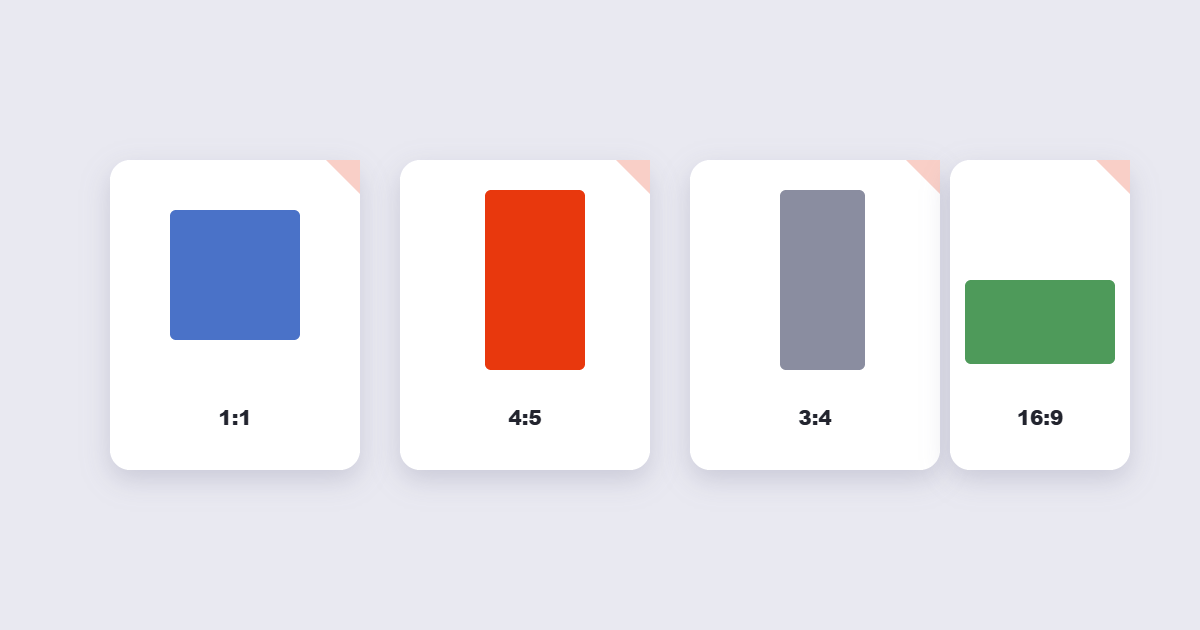
| Purpose | Common Ratio / Size |
|---|---|
| Social media square post | 1:1 |
| Social media portrait post | 4:5 |
| US passport photo | 2×2 inches (51×51mm) |
| Most international passport photos | 35×45mm |
| Standard printed photo | 4:6 or 5:7 |
| Widescreen / video thumbnail | 16:9 |
Passport and ID photo specifications vary by country, so always check the specific requirements for the document you’re applying for rather than assuming a universal standard — the acceptable head size, background color, and total image dimensions differ meaningfully between countries.
How to Crop an Image: Step by Step
Step 1: Know your target ratio or dimensions before you start
Cropping without a target in mind means cropping twice — once to “what looks right,” and again once you find out the actual required dimensions.
Step 2: Upload your image
Using the free Crop Image tool, upload the photo you want to crop.
Step 3: Select your aspect ratio and adjust the crop box
Choose a preset ratio if your destination requires one, or drag the crop box freely for a custom result. Position it so the subject sits where you want within the frame.
Step 4: Download and check the result at actual size
Zoom to 100% before finalizing — a crop that looks fine zoomed out can reveal awkward framing or cut-off details at full size.
Composition Tips for a Better Crop
- Use the rule of thirds for general photos. Placing the subject along one of the grid lines (roughly a third of the way in from an edge) rather than dead-center generally reads as more visually balanced.
- Leave breathing room around faces. Cropping too tightly around a person’s head can feel claustrophobic; a little space above the head and around the shoulders usually looks more natural.
- Crop before resizing, not after. Deciding what to keep first, then resizing the result to exact dimensions, keeps you from accidentally cropping into content you already resized for a specific size.
Passport and ID Photo Cropping Specifics
- Head size and position are usually specified precisely — commonly measured from chin to top of head, with an acceptable range rather than an exact pixel target.
- A neutral, plain background is typically required — usually white or light gray, with no shadows or patterns.
- Centered, forward-facing framing is standard — unlike general photo composition, passport photos are one of the few cases where dead-center framing is actually correct.
Because requirements vary by country and document type, check the specific issuing authority’s current guidelines before finalizing a passport photo crop — getting it wrong can mean a rejected application and a repeated trip.
Common Mistakes to Avoid
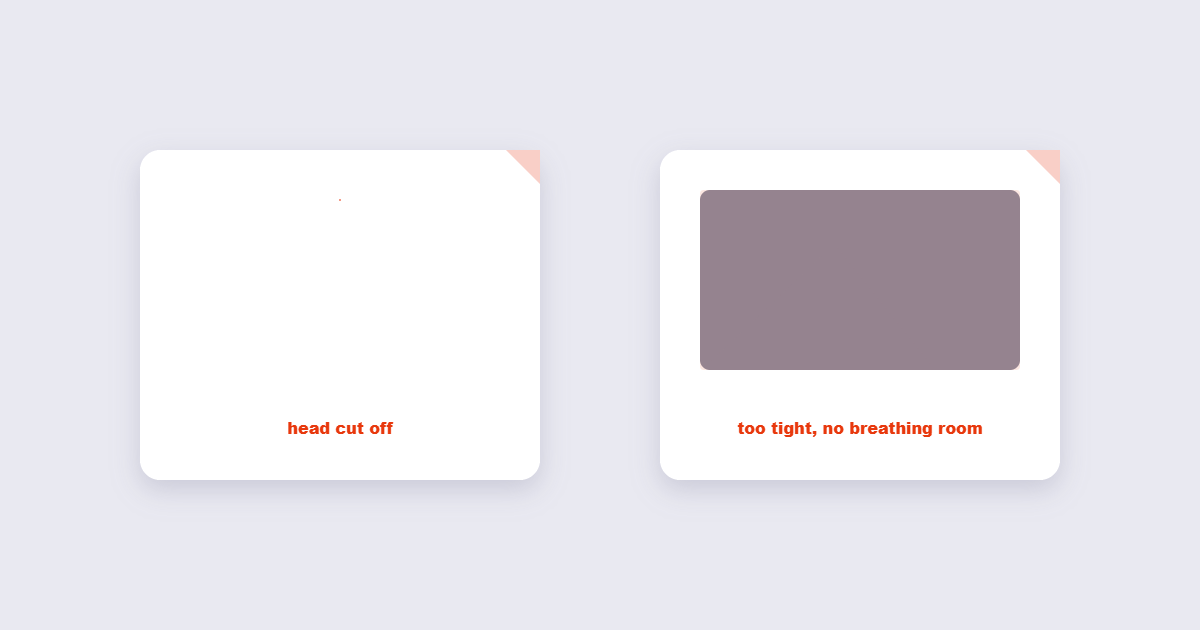
- Cropping too tightly and cutting off part of the subject. Leave a small margin rather than cropping exactly to the edge of what you want to keep.
- Ignoring the destination’s actual required ratio. A photo that looks fine on your screen can be cropped unpredictably again once uploaded somewhere with a fixed aspect ratio requirement.
- Ignoring resolution after cropping. Cropping a small section out of a lower-resolution image can leave you with a result too small or soft for its intended use, particularly for printing.
- Not checking passport photo requirements before cropping. Generic cropping tools don’t automatically know a specific country’s head-size or background requirements — verify manually against the official guidelines.
Frequently Asked Questions
Is cropping the same as resizing?
No — cropping removes part of the image to change what’s included in the frame, while resizing changes the overall dimensions of the entire image without removing any content.
Can I crop a photo to an exact pixel size?
Yes, most cropping tools allow entering exact target dimensions rather than only dragging freely, which is useful when a destination requires precise measurements.
Will cropping reduce my image’s quality?
The cropped portion keeps its original resolution — quality only becomes a concern if the remaining cropped area is small relative to what you need for its final use, such as printing.
What aspect ratio should I use for a passport photo?
This depends entirely on the issuing country — common examples include 2×2 inches (US) and 35×45mm (many other countries) — always confirm against the specific country’s current official requirements.
Can I undo a crop after saving the file?
Generally no, once a cropped version is saved over the original — keep a backup of the uncropped image if you might need the removed portions later.
Why does my photo get cropped again after I upload it to social media?
Many platforms apply their own automatic crop to fit a required aspect ratio for a specific placement (like a profile picture circle or feed thumbnail) — pre-cropping to match the platform’s expected ratio reduces unexpected re-cropping.
Passport Photo Requirements by Country
Passport photo specs differ more than most people expect. Using the wrong dimensions is one of the most common reasons applications are rejected. Here are current standard requirements for the most common countries — always verify against the official government source before submitting:
| Country | Photo size | Head height (approx.) | Background |
|---|---|---|---|
| United States | 2×2 in (51×51mm) | 1–1⅜ in chin to crown | Plain white or off-white |
| United Kingdom | 35×45mm | 29–34mm chin to crown | Cream or light grey |
| EU / Schengen countries | 35×45mm | 32–36mm chin to crown | Plain light colour |
| Canada | 50×70mm | 31–36mm chin to crown | White |
| Australia | 35×45mm | 32–36mm chin to crown | Plain white or off-white |
| India | 51×51mm | 25–35mm face height | Plain white |
| UAE | 40×60mm | 70–80% of frame | White |
The most common rejection reason is not the outer dimensions but the head size being outside the acceptable range. A photo can be exactly 35×45mm and still fail if the face covers too little or too much of the frame. Crop to the outer dimensions first, then check face coverage before submitting.
Social Media Crop Dimensions Reference
Every major platform has its own crop expectations. Pre-cropping to the correct ratio prevents the platform from auto-cropping the wrong part of your image:
| Platform / placement | Recommended ratio | Safe zone for key content |
|---|---|---|
| Instagram — square post | 1:1 | Center 80% |
| Instagram — portrait post | 4:5 | Center 80% |
| Instagram Stories / Reels | 9:16 | Center 75% (UI overlaps top and bottom) |
| Facebook feed image | 1.91:1 or 4:5 | Center 80% |
| LinkedIn post image | 1.91:1 | Center 80% |
| Twitter / X in-feed image | 16:9 | Center 60% (platform may crop to 2:1) |
| YouTube thumbnail | 16:9 | Center 80% |
| Pinterest pin | 2:3 | Full frame |
Keep important content — faces, text, logos — well inside the safe zone. Platforms apply their own crop in thumbnail and mobile feed views, and anything near the edge risks being clipped even when your uploaded image looks perfect at full size.
Final Thoughts
Cropping is mechanically simple — the real skill is knowing the target ratio and composition before you start rather than adjusting by eye alone. The free Crop Image tool handles the actual crop in seconds, directly in your browser. Use the passport table above for ID document submissions, and the social media table to avoid automatic re-cropping. Once your image is correctly cropped, you can convert it to PDF for official submissions or document creation in one more step.