In this guide
- Why PDF-to-Word Conversion Isn’t Simple “Extraction”
- How to Convert PDF to Word: Step by Step
- What Breaks Most Often (and Why)
- Getting the Cleanest Possible Result
- Fixing the Result in Word
- What About Password-Protected PDFs?
- Going the Other Direction: Word to PDF
- Frequently Asked Questions
- The Bottom Line
You need to update a resume, revise a contract, or reuse a report — but the file is a PDF, and PDFs aren’t built to be edited. Converting it to Word is the obvious fix, except anyone who’s done this before knows it doesn’t always go smoothly. Tables shift, fonts change, images jump to the wrong spot, and what should have been a two-minute task turns into twenty minutes of manual cleanup.
Table of Contents
- In this guide
- Why PDF-to-Word Conversion Isn’t Simple “Extraction”
- How to Convert PDF to Word: Step by Step
- What Breaks Most Often (and Why)
- Getting the Cleanest Possible Result
- Fixing the Result in Word
- What About Password-Protected PDFs?
- Going the Other Direction: Word to PDF
- Frequently Asked Questions
- The Bottom Line
| Broken element | Quick fix in Word |
|---|---|
| Table split into text | Re-insert as a real table (Insert → Table) |
| Columns merged | Select text → Layout → Columns → Two |
| Wrong font | Select all → set the intended font once |
| Images misplaced | Re-position and set text wrapping |
The good news is that most of this is predictable and preventable once you understand why it happens. This guide covers what actually goes on during PDF-to-Word conversion, how to get the cleanest possible result, and how to fix the specific things that tend to break.
Why PDF-to-Word Conversion Isn’t Simple “Extraction”
A PDF and a Word document store information in fundamentally different ways, and that mismatch is the root of every formatting issue you’ll ever run into.
A PDF is built like a fixed snapshot — every piece of text and every image is placed at a specific X/Y coordinate on the page. It doesn’t know what a “paragraph” is in any structural sense; it just knows that certain characters appear at certain positions. Word, by contrast, works with dynamic paragraphs, styles, and flowing text that automatically adapts when you edit, resize, or add content.
Converting between the two isn’t extraction — it’s reconstruction. The software has to look at where text and images sit on the PDF page and infer the paragraph structure, table grid, and formatting rules that would produce a similar-looking layout in Word. Most of the time it does a good job. Sometimes it guesses wrong, and that’s where formatting problems come from.
How to Convert PDF to Word: Step by Step
Using the free PDF to Word tool:
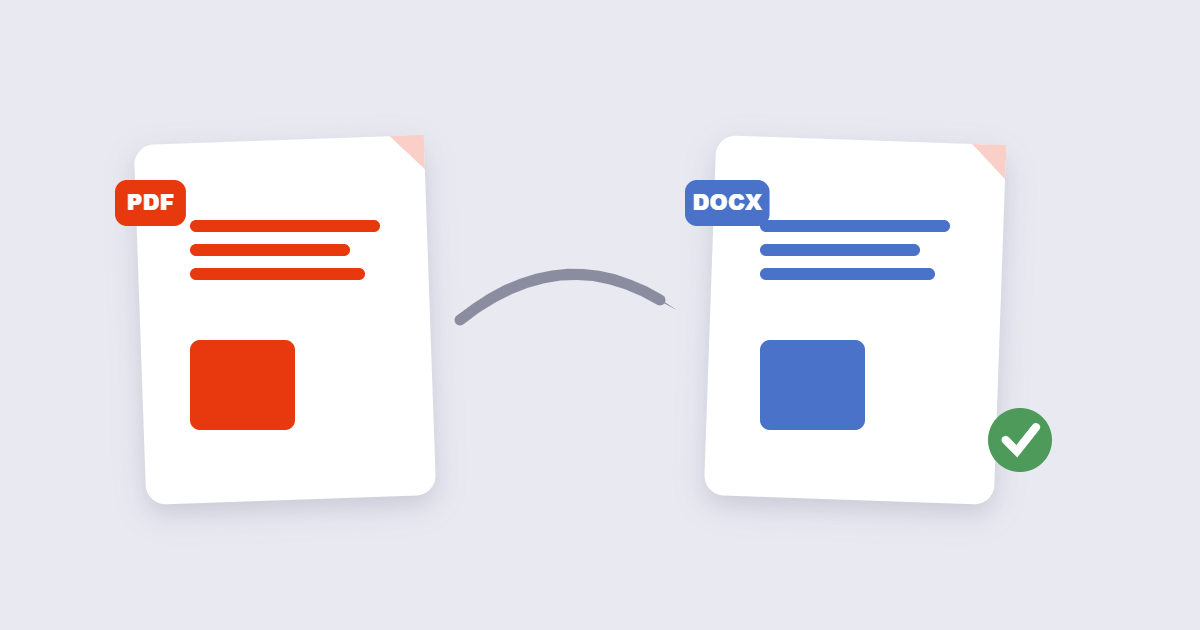
- Upload your PDF. Drop the file into the tool or select it from your device.
- Wait for the conversion to process. This typically takes just a few seconds for standard documents.
- Download the .docx file and open it in Word or Google Docs.
- Do a formatting pass. Skim through the document checking headings, tables, and images before you consider it done.
What Breaks Most Often (and Why)
Complex, multi-column layouts
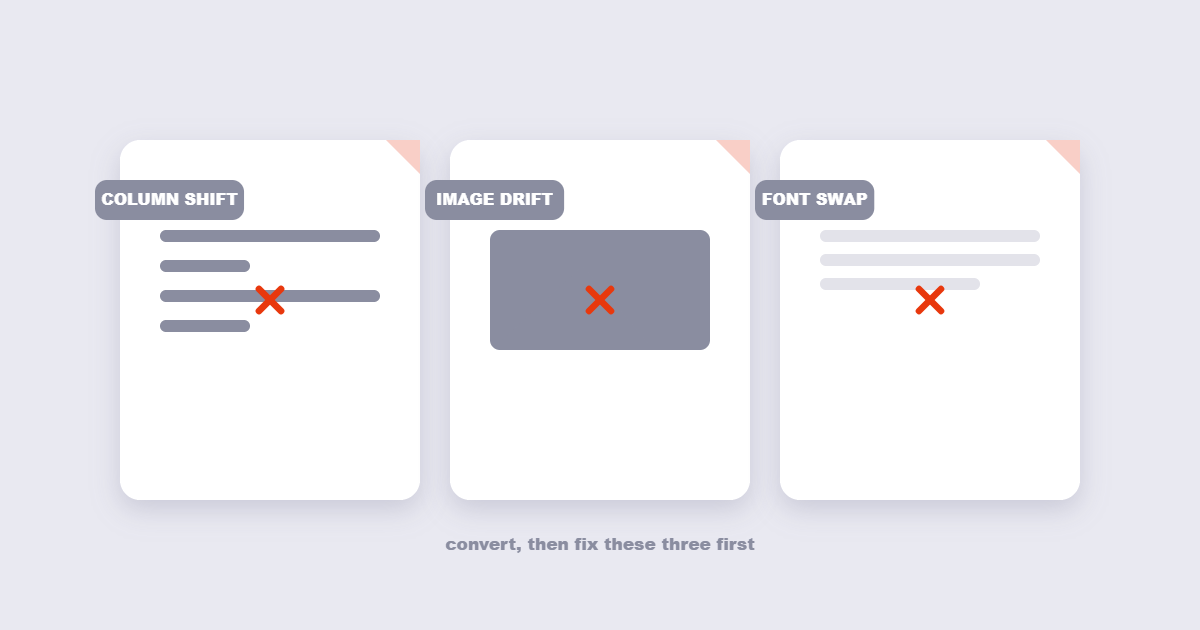
Brochures, newsletters, and anything with text wrapping around images or floating text boxes is the hardest category to convert cleanly. Even excellent conversion engines will need some manual rebuilding here — this is the type of document where you should expect cleanup work rather than a perfect one-click result.
Tables
Tables are frequently the trickiest element, because a PDF doesn’t actually “know” it contains a table — it just knows where lines and text happen to sit in a grid-like pattern. Conversion tools have to infer the table structure, and sometimes cells get merged, split, or converted into separate paragraphs instead of a proper grid.
Fonts
If a PDF doesn’t have its fonts fully embedded, the converter substitutes a similar-looking font in the Word output. This can shift line spacing and cause text to reflow slightly differently than the original.
Scanned documents
A scanned PDF is just a photograph of a page — there’s no actual text to extract at all. Converting one to editable Word text requires OCR (optical character recognition), which reads the shapes of characters in the image and matches them against known letterforms. OCR accuracy depends heavily on scan quality: a crisp, high-contrast scan converts far more accurately than a faded or skewed one.
Getting the Cleanest Possible Result
A few things you can do before converting to reduce how much cleanup you’ll need afterward:
- Start with the best-quality PDF you have. If you have a choice between a digitally created PDF and a scanned copy of the same document, always use the digital one — text-based PDFs convert far more reliably than scans.
- Avoid converting an already heavily compressed PDF if you can help it — very aggressive compression can blur small text just enough to trip up OCR on scanned pages. If your only copy has been compressed hard, it’s worth trying the original source file if you still have access to it.
- Remove pages you don’t need first. If you only need to edit a few pages out of a long document, extracting just those pages with a tool like Split PDF before converting keeps the job smaller and any cleanup more manageable.
Fixing the Result in Word
Even a strong conversion usually benefits from a short review pass. In order of what to check first:
- Heading styles. Apply proper Heading 1/2/3 styles rather than leaving section titles as plain bold text — this fixes a lot of downstream formatting issues automatically and makes the document properly navigable.
- Table alignment. Check that columns lined up correctly and that no cells accidentally merged or split.
- Image placement. Confirm images are anchored “in line with text” rather than floating, unless you specifically want them to float — floating images are the most common cause of content appearing to “jump around” when you edit nearby text.
- Paragraph spacing. Reset spacing to consistent values if it looks uneven between sections.
These fixes typically take a few minutes and are far faster than rebuilding a document from scratch.
What About Password-Protected PDFs?
Conversion tools generally can’t process a PDF that requires a password to open. If your file is locked, you’ll need to remove the password first using a tool like Unlock PDF — assuming you have the password or the right to access the file — before converting it to Word.
Going the Other Direction: Word to PDF
Once you’ve made your edits in Word, you may well need to convert back to PDF for the final version — PDFs display consistently across devices and can’t be casually edited by whoever receives them. The free Word to PDF tool handles that conversion in the other direction, keeping your fonts, images, and layout exactly as designed.
Adobe’s PDF overview covers the format’s history and technical foundation.
Frequently Asked Questions
Will converting a PDF to Word always produce a perfectly editable file?
For text-based PDFs with simple layouts, usually yes. For scanned documents or complex multi-column designs, expect some manual formatting cleanup afterward.
Can I convert a scanned PDF to editable text?
Yes, through OCR, which reads the characters in the scanned image and converts them to actual text. Accuracy depends on scan quality — clear, high-contrast scans convert far more reliably than blurry or skewed ones.
Why do my tables look wrong after converting?
PDFs don’t store an actual table structure — just text positioned in a grid-like pattern. The converter has to infer where rows and columns belong, and complex or irregular tables are more likely to need a manual fix afterward.
Is it safe to convert confidential documents using an online tool?
It’s worth checking how any tool handles your file — whether processing happens in your browser or on a server, and whether the file is retained afterward — before uploading anything sensitive.
Not sure whether to convert at all? Read our PDF vs DOCX comparison first.
The Bottom Line
PDF-to-Word conversion has gotten reliable enough that most everyday documents — reports, resumes, letters, simple layouts — convert cleanly with little to no cleanup needed. Complex layouts and scanned documents are the exception, not the rule, and even those just need a short formatting pass rather than a full rebuild. Start with the free PDF to Word tool, do a quick review of headings, tables, and images afterward, and you’ll have an editable document in a fraction of the time it would take to retype it from scratch.