Images are almost always the heaviest part of any webpage — often accounting for roughly half of a typical page’s total weight. A single uncompressed photo straight from a phone or camera can run 4–10MB, and multiply that by a dozen images on one page and you’ve got a website that takes visibly longer to load, frustrates visitors, and quietly loses you both traffic and search rankings.
Table of Contents
- Why Image Compression Matters More Than People Think
- Lossy vs. Lossless Compression, in Plain Terms
- The Quality Setting That Actually Works
- How to Compress an Image Online: Step by Step
- Choosing the Right Format Before You Compress
- Common Mistakes That Undo Good Compression
- A Simple Workflow for Website Images
- Frequently Asked Questions
- The Bottom Line
The good news is that compressing images correctly can shrink them by 50–80% with no visible difference at all. This guide covers how that’s actually possible, what settings to use, and the mistakes that turn “smaller” into “worse.”
Why Image Compression Matters More Than People Think
Page speed isn’t just a nice-to-have. Google’s Core Web Vitals — a set of metrics that measure real user experience — factor directly into search rankings, and large images are one of the biggest contributors to poor scores like Largest Contentful Paint (LCP). Independent research has also found that roughly half of mobile users abandon a site if it takes more than a few seconds to load, and even a one-second delay has been linked to measurable drops in conversions.
None of this requires sacrificing visual quality. It requires compressing images correctly, which is a fundamentally different thing than compressing them carelessly.
Lossy vs. Lossless Compression, in Plain Terms
Lossy compression (used by JPG and WebP) permanently discards some image data — specifically, details the human eye is unlikely to notice, like subtle color gradients. This is where the biggest file size savings come from, often 60–80% smaller with no visible difference at reasonable quality settings.
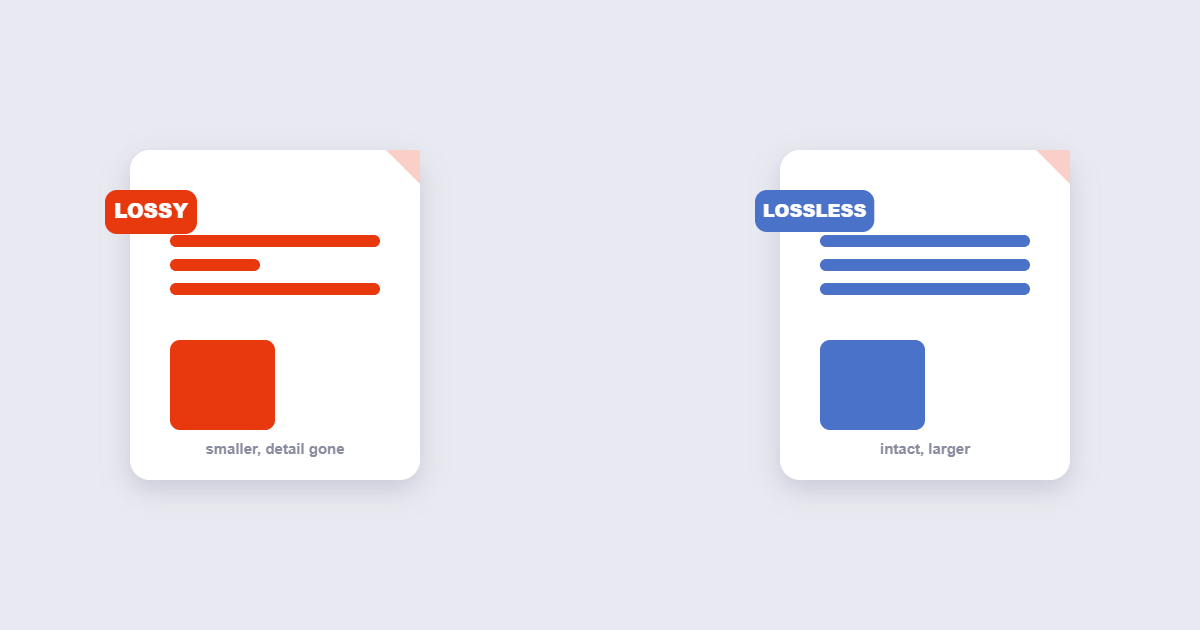
Lossless compression (used by PNG) keeps every pixel exactly intact, reorganizing the data more efficiently without discarding anything. The size savings are smaller — typically 10–30% — but there’s genuinely zero quality loss.
Most everyday compression, especially for photographs, should lean on lossy compression at a sensible quality level. Lossless makes the most sense for graphics and screenshots where every pixel matters and file size is a secondary concern.
The Quality Setting That Actually Works
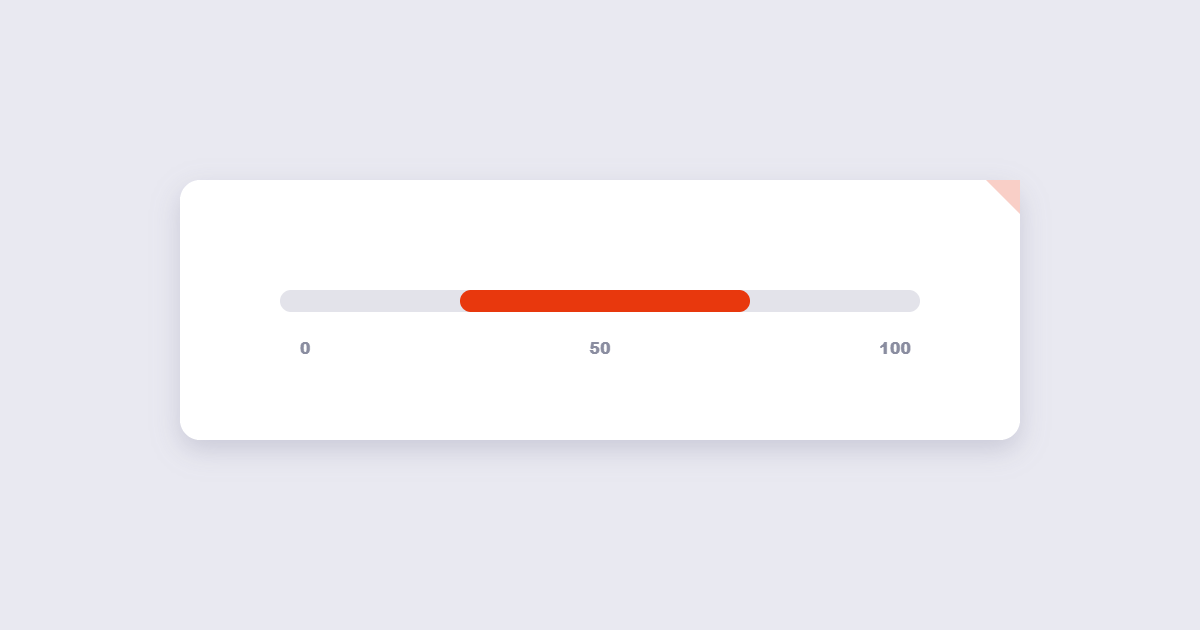
If you’ve ever dragged a quality slider down to 30–40% hoping for a smaller file, you’ve probably seen the result: blocky, pixelated images that look unprofessional. The practical sweet spot for most photographs is a quality setting around 80% — meaningfully smaller than the original, with a quality difference that’s essentially invisible to the naked eye. For especially important images — a hero banner or featured product photo — it’s worth staying at 75% or above, and always comparing the before and after visually rather than trusting the percentage number alone.
How to Compress an Image Online: Step by Step
Using the free Compress Image tool:
- Upload your image — JPG, PNG, and other common formats are supported.
- Choose a compression level. Start around 80% quality for photographs.
- Compress and compare. Look at the result at actual size, not just zoomed out, before deciding it’s good enough.
- Download. Keep the original file until you’ve confirmed the compressed version works for your purpose.
Choosing the Right Format Before You Compress
Sometimes the biggest win isn’t the compression slider at all — it’s the format. WebP files typically run 25–35% smaller than an equivalent-quality JPG, according to Google’s own published benchmarks, while offering the same broad compatibility across virtually every modern browser. If your images are currently sitting as PNG and don’t actually need transparency, converting to JPG or WebP first — then compressing — often produces a dramatically smaller result than compressing the PNG directly. Our full JPG vs PNG vs WebP guide walks through exactly when each format makes sense.
You can convert between formats using the free Image Converter before running the compression step.
| Format | Best for | Think twice when |
|---|---|---|
| JPG | Photos and screenshots with gradients | You need transparency or crisp text |
| PNG | Logos, icons, graphics with text | The image is a large photo and the file gets heavy |
| WebP | Web pages where load speed matters most | Older software has to open the file |
Common Mistakes That Undo Good Compression
- Compressing an already-compressed JPG repeatedly. JPG compression is lossy, so each additional round of compression discards more data and introduces new artifacts. Always compress from the original source file, not from a previously compressed copy.
- Using PNG for photographs. PNG is lossless, which is fantastic for logos and screenshots but produces needlessly huge files for photographic content — often five to ten times larger than an equivalent JPG.
- Overwriting your only copy. Keep an uncompressed master file, especially for images you might need to resize or reuse at full resolution later.
- Compressing before resizing. If an image also needs to be smaller in dimensions (not just file size), resize first, then compress — compressing an unnecessarily large image and then shrinking it wastes the compression step’s effort.
A Simple Workflow for Website Images
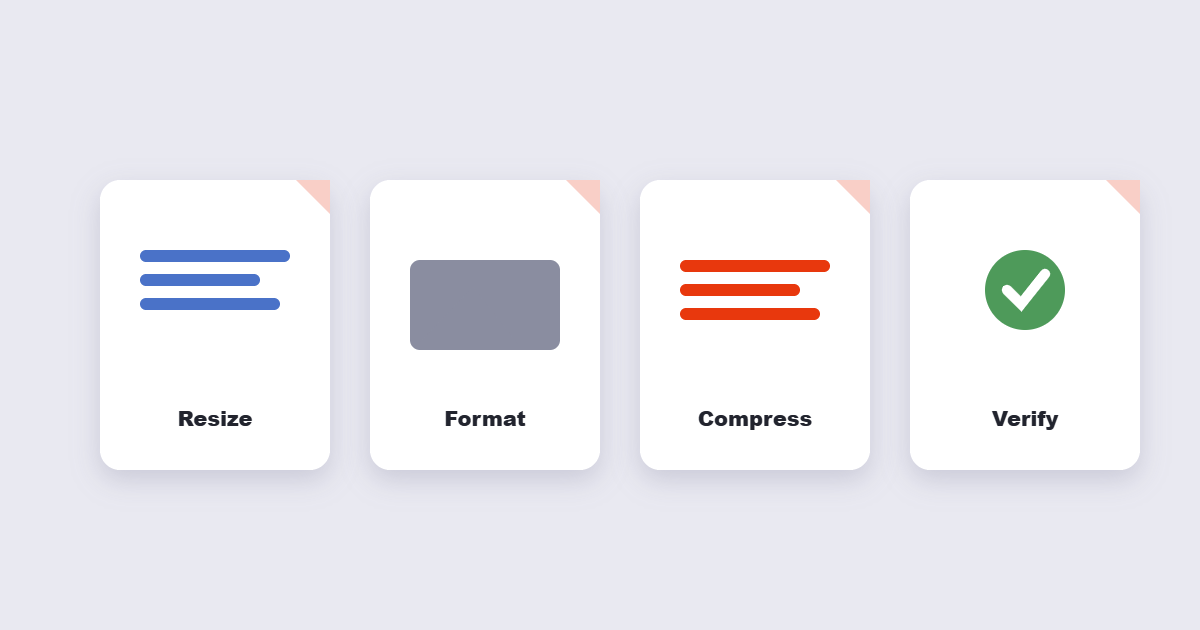
- Resize the image to the actual dimensions it will display at — there’s no benefit to serving a 4000px-wide image into a 600px-wide layout slot.
- Choose the right format — WebP for most web content, PNG only where transparency is required.
- Compress at roughly 80% quality, adjusting down slightly if the file still needs to be smaller.
- Compare visually at the actual display size before publishing.
Frequently Asked Questions
How much smaller can I expect my images to get?
Commonly 50–80% smaller with lossy compression at a sensible quality setting, with little to no visible difference for photographic content.
Will compression make my images blurry?
At extreme settings, yes — but at a reasonable quality level (around 80%), the difference is generally imperceptible. Blurriness is usually a sign of over-compressing rather than compression itself being the problem.
Should I compress every image the same amount?
Not necessarily — a background texture can usually tolerate more aggressive compression than a featured product photo or hero image where fine detail matters more.
Does image compression actually affect SEO?
Yes, indirectly but measurably — page speed is a component of Google’s ranking signals, and images are typically the largest contributor to page weight, making compression one of the more impactful, low-effort optimizations available.
The Bottom Line
Image compression done well is close to a free lunch: dramatically smaller files with a quality difference nobody will notice. Start with the free Compress Image tool, aim for around 80% quality as your default, and consider switching to WebP first if your images are currently sitting in an unnecessarily heavy format like PNG.