In this guide
- What “Resizing for Social Media” Actually Involves
- Why the Right Dimensions Matter
- Current Social Media Image Dimensions (2026)
- How to Resize an Image for Social Media: Step by Step
- Best Practices for Sharper Results
- Common Mistakes to Avoid
- Frequently Asked Questions
- Final Thoughts
Upload a photo to Instagram at the wrong dimensions and it gets cropped in ways you didn’t choose, padded with bars, or quietly downscaled and compressed until it looks noticeably softer than what you uploaded. None of this is Instagram — or any platform — being difficult on purpose. Every platform expects images at specific pixel dimensions and aspect ratios, and getting there before you upload is what separates a clean, sharp post from one that looks slightly off.
Table of Contents
| Platform | Format | Typical size (2026) |
|---|---|---|
| Feed square | 1080 × 1080 | |
| Feed portrait | 1080 × 1350 | |
| Instagram / TikTok | Story / Reel | 1080 × 1920 |
| X (Twitter) | Timeline image | 1600 × 900 |
| Feed image | 1200 × 627 | |
| YouTube | Thumbnail | 1280 × 720 |
| Link image | 1200 × 630 |
What “Resizing for Social Media” Actually Involves
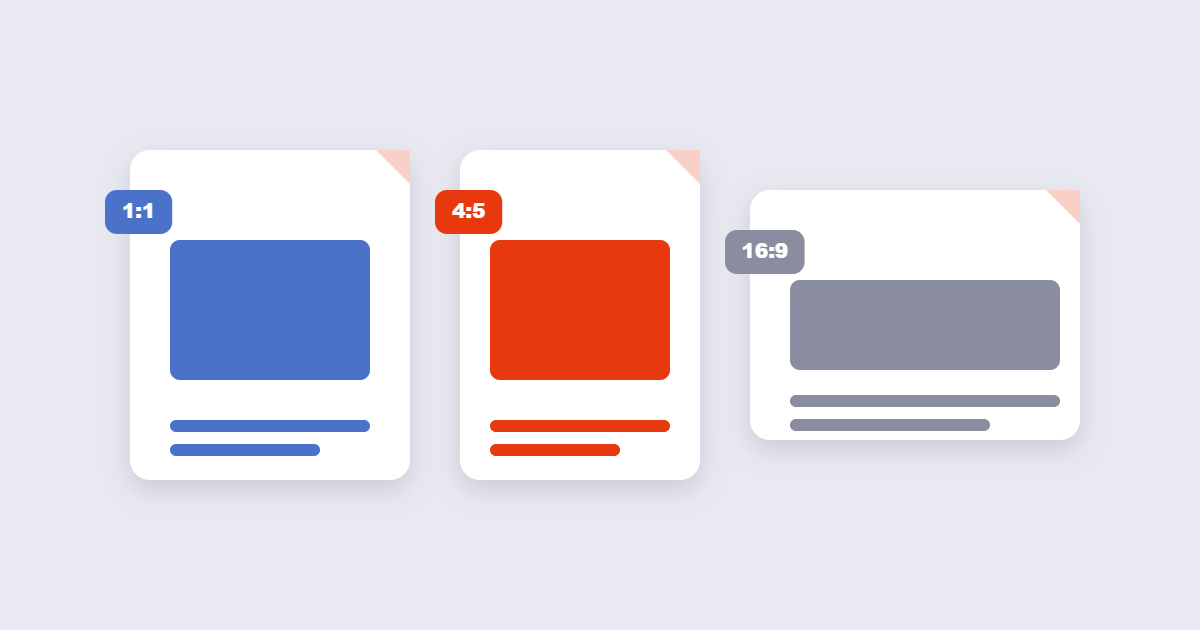
Resizing isn’t just shrinking a photo until the file size feels smaller — it specifically means matching an image to the exact pixel dimensions and aspect ratio a platform expects for a given placement, whether that’s a square feed post, a vertical Story, or a wide cover photo. Get the aspect ratio wrong, and the platform’s automatic cropping decides what part of your image survives, which is rarely the part you intended to feature.
Why the Right Dimensions Matter
An image at the wrong size doesn’t just look slightly off — it actively works against you. Content cropped unexpectedly can cut off faces, text, or the exact detail you were trying to highlight. Images uploaded far larger than needed get auto-compressed by the platform, often more aggressively than if you’d sized and compressed the image yourself beforehand. And on visually-driven platforms, a slightly blurry or oddly-cropped post is an easy thing for someone to scroll straight past.
Current Social Media Image Dimensions (2026)
| Platform | Placement | Recommended Size |
|---|---|---|
| Feed post (portrait, best reach) | 1080 × 1350 px (4:5) | |
| Feed post (square) | 1080 × 1080 px (1:1) | |
| Stories / Reels | 1080 × 1920 px (9:16) | |
| Feed image | 1200 × 630 px | |
| Cover photo | 1640 × 922 px | |
| Feed image | 1200 × 627 px (landscape performs well) | |
| Website / blog | Featured image | Match your theme’s display width; 1200 px wide is a safe general default |
Platforms adjust these specifications periodically, so treat exact numbers as current guidance rather than permanent rules — when in doubt, check the platform’s own current help documentation for the placement you’re targeting.
How to Resize an Image for Social Media: Step by Step
Step 1: Know your destination before you resize
Different placements need different dimensions — resizing once for “social media” in general usually means resizing again later when you realize Stories and feed posts need different aspect ratios.
Step 2: Crop to the right aspect ratio first
If your original photo doesn’t already match the target aspect ratio, decide what to crop out before resizing — cropping after resizing risks cutting into content you’d already compressed for a specific final size.
Step 3: Resize to the exact target dimensions
Using the free Resize Image tool, enter the exact pixel dimensions for your target platform and placement.
Step 4: Compress if the file is still large
If the resized image is still a large file, run it through Compress Image afterward — this gives you control over quality before the platform applies its own, often more aggressive, automatic compression.
Best Practices for Sharper Results
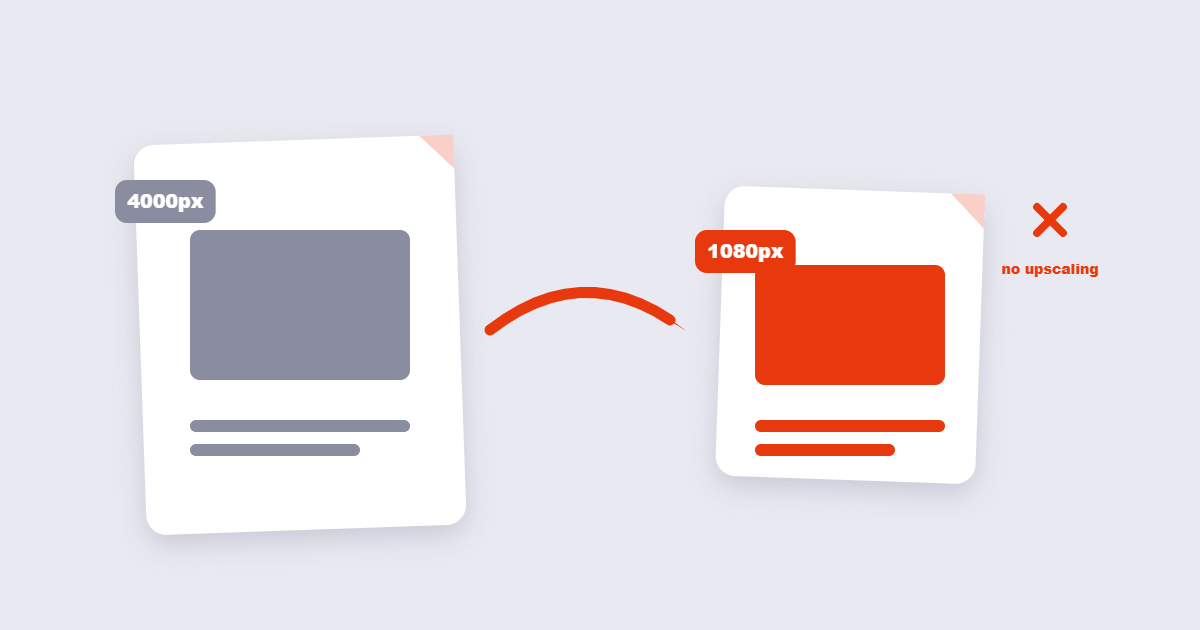
- Upload at the platform’s actual display resolution, not larger “just in case.” Extra-large uploads get downscaled and recompressed by the platform anyway, sometimes with worse results than sizing it correctly yourself.
- Keep key content away from the edges. Stories and Reels in particular have interface elements (like profile info and captions) overlapping the top and bottom of the frame — keep important details centered.
- Export at 80–90% JPEG quality for photographic content — this balances sharpness against file size well for most feed and Story placements.
- Keep carousel or multi-image posts at consistent dimensions. Mismatched aspect ratios across a carousel typically get padded or cropped to match, disrupting a cohesive look.
Common Mistakes to Avoid
- Uploading a landscape photo without checking how it’ll crop. A wide photo uploaded to a square or portrait placement will be cropped from the sides or top/bottom automatically — check what survives before publishing, not after.
- Resizing by dragging corners without locking the aspect ratio. This stretches or squashes the image rather than resizing it proportionally.
- Ignoring the platform’s safe zone for Stories and Reels. Text or faces placed too close to the top or bottom frequently end up covered by interface elements.
- Assuming one size fits every placement. A perfectly-sized Instagram feed image is the wrong aspect ratio for a Story — each placement typically needs its own export.
Frequently Asked Questions
What’s the best Instagram feed image size in 2026?
Portrait at 1080 × 1350 pixels (a 4:5 aspect ratio) is generally recommended for feed posts, as it takes up more vertical space in the feed than a square image.
Why does my image look blurry after uploading to social media?
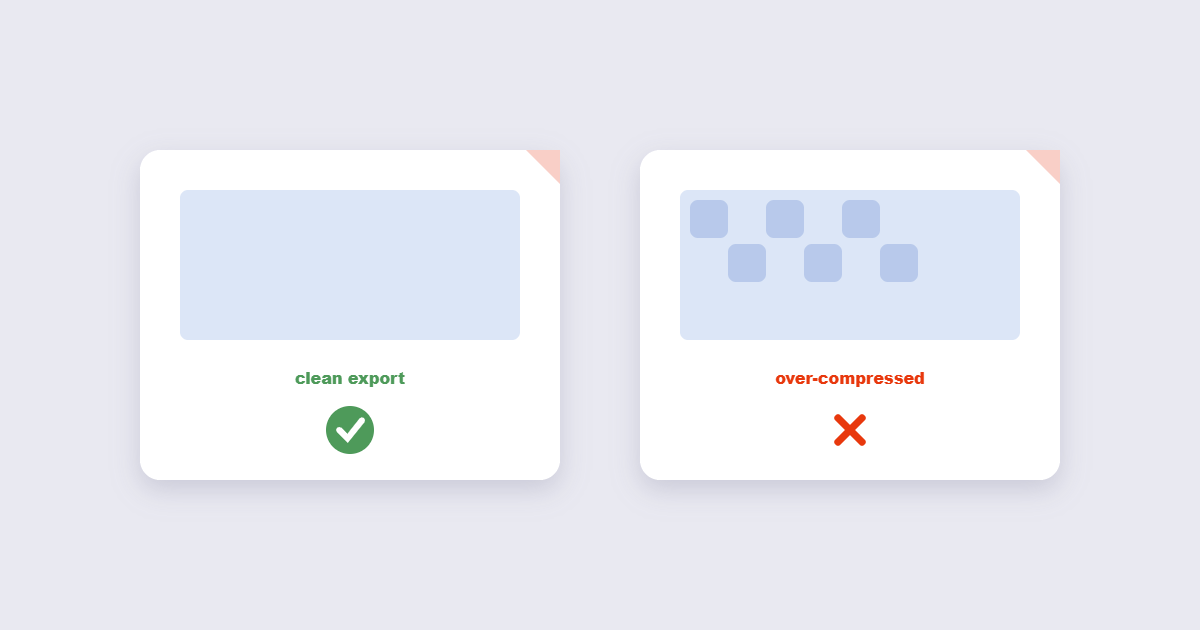
This is usually the platform’s automatic compression, applied more aggressively to images that are far larger than the display size actually needs — resizing and compressing the image yourself beforehand generally gives you more control over the final quality.
Can I use the same image for Instagram feed and Stories?
Not directly at the same dimensions — feed posts and Stories use different aspect ratios (roughly 4:5 versus 9:16), so the same image usually needs a separate crop and resize for each placement.
Should I resize before or after compressing an image?
Resize first, then compress — compressing an image that’s still much larger than its final display size wastes the compression step’s effect once the platform scales it down anyway.
What image format should I use for social media uploads?
JPEG at 80–90% quality is a reliable default for photographs; PNG is better specifically when you need a transparent background, such as for a logo overlay.
Will resizing an image reduce its quality?
Reducing dimensions (making an image smaller) doesn’t meaningfully hurt quality. Enlarging an image beyond its original resolution can make it look soft, since there’s no additional real detail to work with.
Final Thoughts
Getting image dimensions right before you upload is one of the simplest ways to make social content look noticeably more polished — it costs a couple of minutes and avoids letting the platform’s automatic cropping and compression make those decisions for you. The free Resize Image tool handles the exact pixel dimensions for any platform in seconds, directly in your browser.