In this guide
- What Actually Makes a Phone Photo Count as a “Scan”
- Why the Difference Matters
- How to Scan a Document With Your Phone: Step by Step
- Best Practices for a Cleaner Result
- Common Mistakes to Avoid
- Already Have Photos Instead of a Built-In Scan?
- What to Do After Scanning
- Frequently Asked Questions
- Final Thoughts
A dedicated scanner is no longer something most people own or need — a phone camera, held correctly under decent light, produces a document image clean enough to submit for most everyday purposes. The gap between “a photo of a document” and “a proper scan” comes down to a handful of details: lighting, angle, and what you do with the photo afterward.
Table of Contents
- In this guide
- What Actually Makes a Phone Photo Count as a “Scan”
- Why the Difference Matters
- How to Scan a Document With Your Phone: Step by Step
- Best Practices for a Cleaner Result
- Common Mistakes to Avoid
- Already Have Photos Instead of a Built-In Scan?
- What to Do After Scanning
- Frequently Asked Questions
- Final Thoughts
| Quick photo | Proper scan | |
|---|---|---|
| Edges | Crooked, corners cut | Straight, full page |
| Light | Shadows and glare | Even, balanced |
| Pages | One shot per page | Multi-page PDF in order |
| Reusability | Looks like a snapshot | Prints and shares cleanly |
What Actually Makes a Phone Photo Count as a “Scan”
A real scan and a photo of a document aren’t quite the same thing, even when they start from the same camera. A scan is typically cropped tightly to the page edges, corrected for any skew or trapezoid distortion from the camera angle, and often converted to a cleaner black-and-white or high-contrast version rather than a full-color photo. Most phone scanning features handle all of this automatically, which is why they consistently outperform just snapping a picture and calling it done.
Why the Difference Matters
A raw photo of a document — background visible around the edges, a slight skew from the angle you were holding the phone, uneven lighting across the page — often looks unprofessional and can be genuinely harder to read, especially once converted to a PDF and viewed on a different screen or printed. For anything you’re submitting officially — an application, an ID copy, a signed contract — a properly cropped, evenly lit scan reads as far more legitimate than an obvious phone photo.
How to Scan a Document With Your Phone: Step by Step
Step 1: Set up good lighting and a contrasting surface
Natural light near a window works well during the day; at night, use two light sources from opposite angles to avoid harsh shadows from overhead lighting alone. Place the document on a surface that contrasts with the paper color — a dark desk under white paper — which helps both your eyes and any auto-detection software identify the page edges.
Step 2: Use your phone’s built-in document scanner
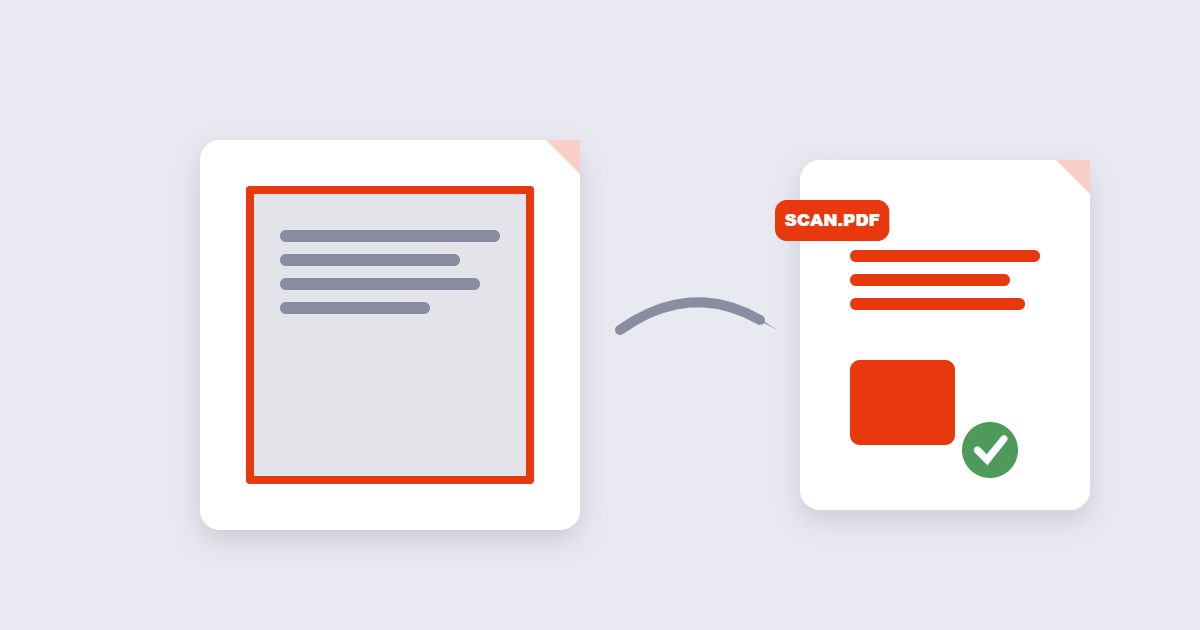
Both iPhone (through the Notes app’s document scanner) and Android (through Google Drive’s scan feature, among others) have a built-in scanning mode that auto-detects page edges, corrects perspective distortion, and lets you capture multiple pages into one file — this is generally a better starting point than a regular camera photo.
Step 3: Hold the phone directly above the page
Position the camera parallel to the document rather than at an angle — this minimizes the trapezoid distortion that scanning apps otherwise have to correct for, and correction always works better on a photo that started closer to straight.
Step 4: Adjust the crop and enhance if needed
Most scanning apps let you manually drag the corners of the detected page if auto-detection missed the edges, and offer a filter or enhancement mode that increases contrast for text-heavy pages.
Step 5: Save as a PDF
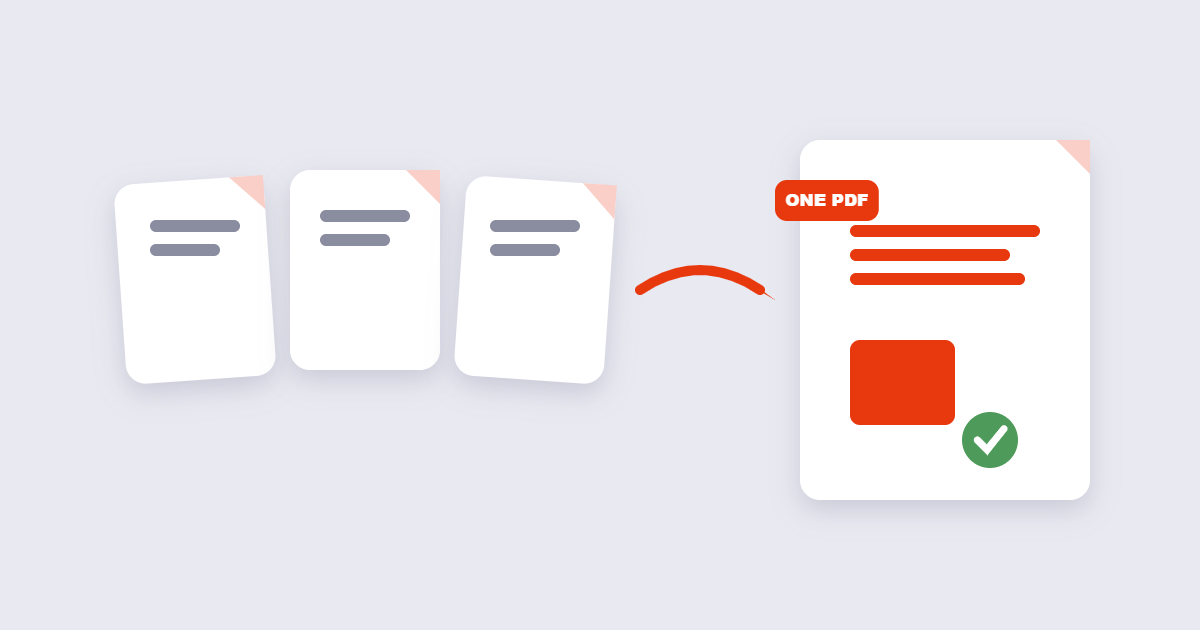
Choose PDF rather than a plain image when saving, particularly for multi-page documents — it keeps every page together as one file rather than a collection of separate images to manage and share individually.
Best Practices for a Cleaner Result
- Tap to focus on the text specifically. Phone cameras sometimes focus on the background rather than the document — tapping the text area on screen locks focus where it actually matters.
- Keep your hands steady or brace against a surface. Motion blur is one of the most common reasons a scan looks soft even with good lighting — resting your elbows on a table markedly helps.
- Scan a test page first for a large multi-page document. Confirming lighting and angle work well on one page saves you from redoing an entire stack.
- Use a tripod or phone stand for 20+ pages. For a quick one-off document, steady hands are enough; for a genuinely large batch, a stand removes hand fatigue as a source of inconsistent results.
Common Mistakes to Avoid
- Shooting at an angle instead of straight above the page. This introduces perspective distortion that’s harder to correct after the fact than it is to avoid at capture.
- Relying on overhead-only lighting. A single light source directly above frequently casts your own phone’s shadow onto the document.
- Saving as separate image files instead of one PDF for a multi-page document — this makes sharing and reviewing unnecessarily inconvenient compared to a single combined file.
- Skipping the crop step. Background clutter around the page edges looks unprofessional and is one of the fastest tells that a document wasn’t scanned properly.
Already Have Photos Instead of a Built-In Scan?
If you’ve already taken regular photos of a document — through a standard camera app rather than a dedicated scanning mode — you don’t need to retake them from scratch. The free Image to PDF tool combines multiple photos into a single PDF document directly, arranging them in whatever order you choose. If the photos are angled or a little skewed, straightening them out first with Crop PDF after conversion can clean up the excess background before you send the file anywhere.
What to Do After Scanning
Once your scanned pages are combined into one PDF, a few common next steps: if the pages came out sideways because of how you held the phone, fix the orientation permanently rather than relying on your viewer’s temporary rotate button. If the scan needs to be smaller for emailing, Compress PDF brings the size down. And if you need the text inside to be searchable or editable rather than just an image, converting with PDF to Word extracts it through OCR.
Frequently Asked Questions
Do I need a special app to scan documents with my phone?
No, both iPhone and Android have built-in scanning features (through Notes and Google Drive respectively) that don’t require installing anything extra, though dedicated apps offer additional features if you need them.
Why does my scan look blurry even though the lighting was good?
Motion blur from an unsteady hand is a common cause even in good lighting — bracing your elbows on a surface or using a stand for longer scanning sessions usually resolves this.
Can I combine multiple scanned pages into one PDF?
Yes, most phone scanning features let you capture several pages in sequence and save them together as a single multi-page PDF rather than separate files.
What’s the best way to scan a document at night or in low light?
Use two light sources positioned on opposite sides of the document rather than a single overhead light, which helps eliminate shadows that a single light source tends to cast.
Can I turn regular photos I already took into a PDF?
Yes, an image-to-PDF tool can combine existing photos into a single PDF document without needing to retake them through a dedicated scanning app.
Should I save my scan as an image or a PDF?
PDF is generally better for anything with multiple pages, since it keeps everything together as one file rather than a set of separate images that need to be managed individually.
Scanning for print? See how to convert a PDF to grayscale.
Final Thoughts
A phone camera can produce a genuinely clean, professional-looking scan once you account for lighting, angle, and steady hands — the built-in scanning tools on both iPhone and Android already do most of the cropping and correction work automatically. If you’re starting from photos you’ve already taken, the free Image to PDF tool turns them into a combined document in seconds.