Color in a PDF is wonderful on screen and expensive on paper. Print a 40-page color report on a mono laser printer and you get muddy dark gray blobs where the charts used to be – and a toner bill to match. Converting the PDF to true grayscale fixes both problems: you see exactly what the printer will produce, and text-heavy pages come out crisper. Here’s how to do it free in under a minute, plus the one question almost everyone gets wrong: does grayscale actually make the file smaller?
Table of Contents
When Converting to Grayscale Makes Sense
Four situations justify stripping color. Printing on a mono printer: what you see becomes what you get, instead of discovering that your red headings turned into illegible dark blobs. Scanned archives: old scans often carry a yellow-brown tint that grayscaling cleans up beautifully. Reading copies: grayscale versions of dense reports are easier on the eyes and reduce the “highlight everything” temptation. And compliance: some filing systems want grayscale scans, and submitting color versions gets them rejected.
How to Convert PDF to Grayscale Online (Free)
The browser route needs no Acrobat subscription:
- Open the convert PDF to grayscale tool and upload the file.
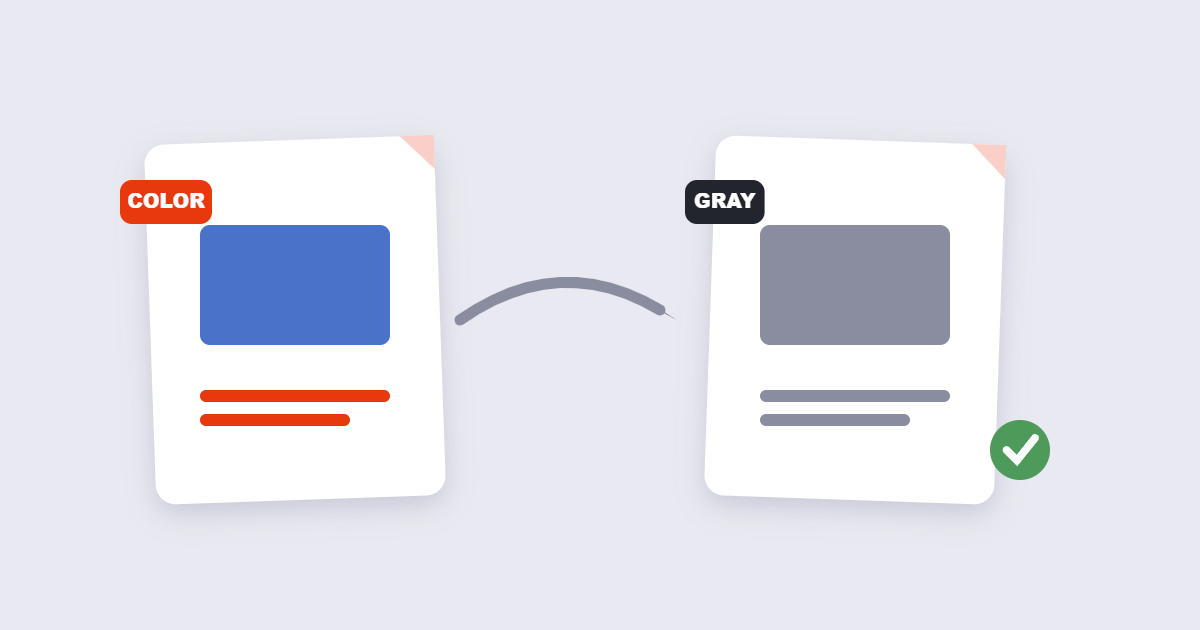
- Wait for the conversion – every page gets its colors remapped to shades of gray.
- Download under a new name, then open the result and check the pages that matter most.
Check before you delete anything: photos lose their punch in grayscale, and red text on dark backgrounds can sink into near-invisibility. If specific pages fail the eye test, you’ll want the color original still around.
Grayscale vs True Black and White: Not the Same Thing
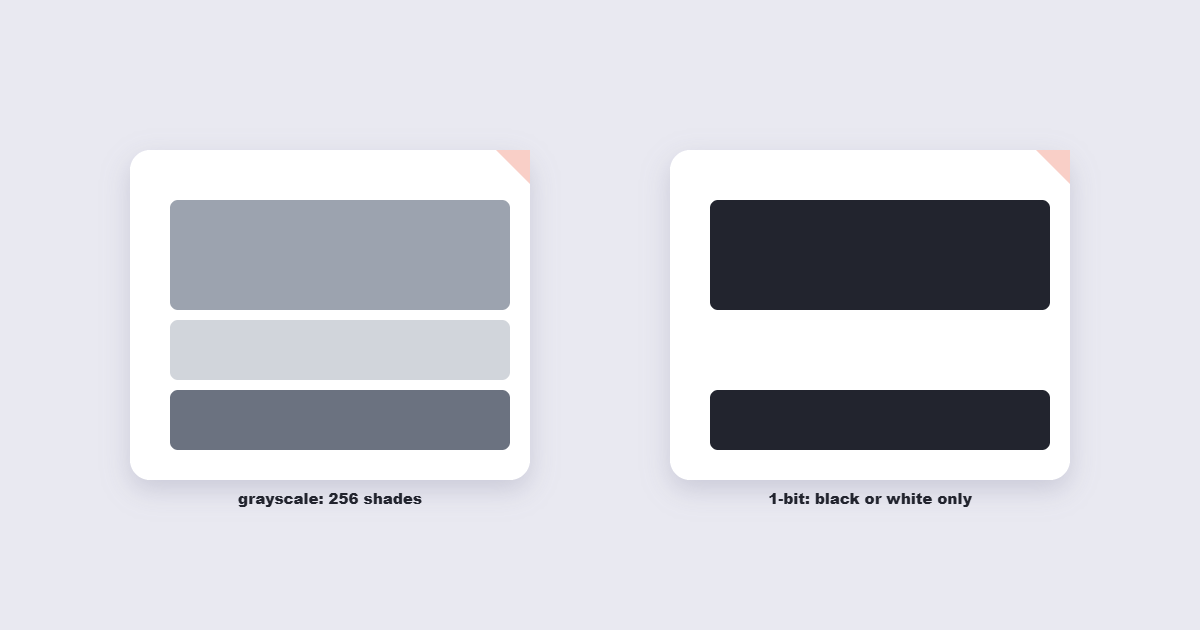
People use “black and white” for two different conversions, and the difference matters:
| Grayscale | 1-bit black & white | |
|---|---|---|
| Shades | 256 shades of gray | Only pure black and pure white |
| Photos | Look natural | Posterized, often ugly |
| Text & line art | Perfect | Perfect – and razor sharp |
| File size | Usually similar or smaller | Dramatically smaller for text pages |
| Best for | Mixed documents with photos | Pure text pages, faxes, OCR prep |
For anything with photographs, choose grayscale – it preserves the tonal range. Reserve hard 1-bit conversion for pure text pages, where the harshness doesn’t matter and the size savings are real.
Does Grayscale Actually Reduce File Size?
Here’s the honest answer that most tool pages dodge: it depends, and sometimes the file gets bigger. Grayscale mapping itself doesn’t compress anything – it just changes the color values. If the PDF’s images are JPEG-encoded, the converter usually re-encodes them, and the new encoding can land slightly above or below the original size. Where you reliably win is with PDFs full of flat color graphics converted to 1-bit, or with scans saved in heavy color formats. My advice: convert, compare the two file sizes, and if grayscale didn’t help, run the original through a dedicated PDF compressor instead – that attacks the actual source of the weight instead of hoping color removal does it by accident.
Printing in Black and White vs Converting First
Your printer driver already offers a “print in grayscale” checkbox – so why convert the file first? Because the driver setting is a guess made at print time, and different applications interpret it differently: some keep the colored areas as colored ink dots rendered in black, producing that muddy look. A properly converted file prints identically on every printer and every driver, and you can proof it on screen first. For one-off home printing, the driver checkbox is fine. For anything you’re handing to a print shop or filing officially, convert the file itself – the scan-to-PDF guide covers the same principle for phone scans.
The Decision Table
| You’re working with… | Convert? | Why |
|---|---|---|
| Color report → mono printer | Yes | Preview exact output, sharper text |
| Yellowed old scans | Yes | Removes the aged tint |
| PDF for a website or email | No | Color carries meaning on screens |
| Photo-heavy portfolio | No | Grayscale flattens the impact |
| Compliance filing | Check rules | Some systems require grayscale |
Frequently Asked Questions
How do I convert a PDF to grayscale without Adobe Acrobat?
Use a free online converter like the one linked above – upload, convert, download. Mac users can also use Preview’s Quartz filter, though results vary by macOS version.
Will converting to grayscale reduce the file size?
Sometimes. Flat-color graphics and heavy scans usually shrink; JPEG photos may stay the same size or grow slightly after re-encoding. Compare before committing – and use a real compressor if size is the actual goal.
Can I convert only some pages to grayscale?
Every tool convert the whole file. If you need a mix, split the PDF with the PDF split tool, convert the pages that need it, and merge them back with the color pages.
Is grayscale the same as black and white?
No. Grayscale keeps 256 shades of gray and looks natural with photos. True 1-bit black and white keeps only two colors – sharper and smaller for text, terrible for photos.
Does grayscale printing really save ink?
Yes, dramatically – colored areas in a color PDF often consume more toner when rendered by a mono driver than properly grayscaled pages do. Converting first makes the savings predictable.
Can I convert the grayscale PDF back to color?
No. The color data is discarded during conversion, which is exactly why you should always keep the original file.
The Short Version
Grayscale is for paper, not for screens. Convert files that are headed to a mono printer, an archive or a compliance system; keep the original safe; check the pages that matter before you commit. And if your actual goal is a smaller file, convert and compare – then let a real compressor do the heavy lifting.