In this guide
- What Is a ZIP File?
- Why ZIP Files Matter
- When You Actually Need to Zip Something
- How to Create a ZIP File: Step by Step
- Best Practices
- Common Mistakes to Avoid
- What About Extracting a ZIP File You Received?
- Frequently Asked Questions
- Final Thoughts
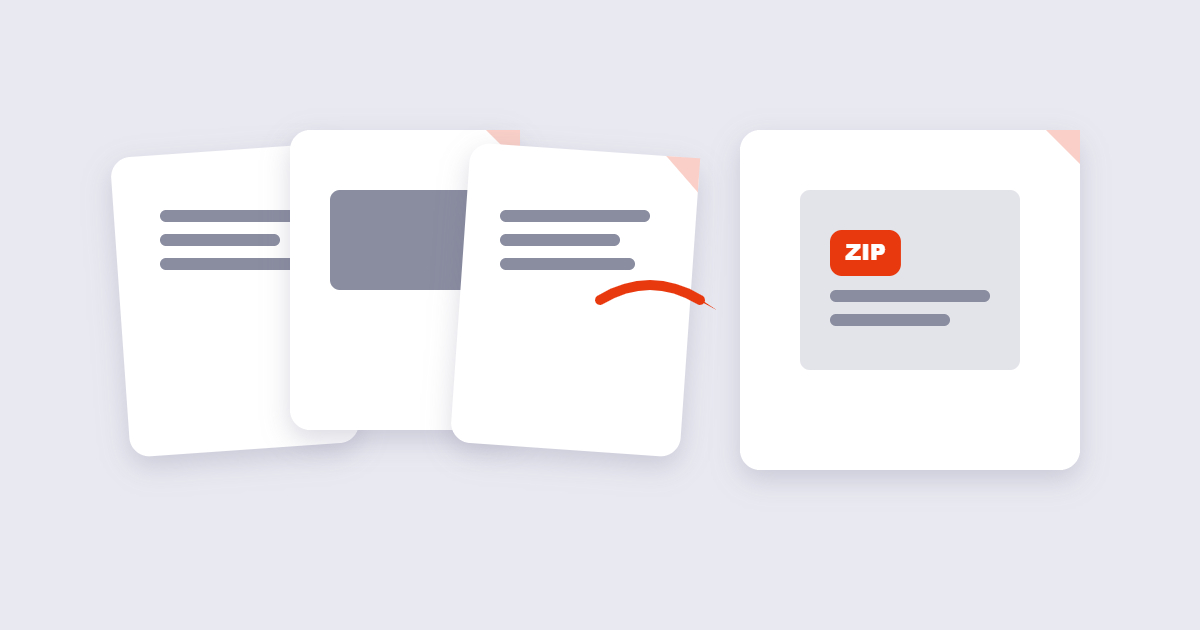
A ZIP file solves a specific, narrow problem: turning a scattered pile of files into one file. Nothing more complicated than that is going on, even though the format has been around for decades and shows up constantly without most people ever needing to think about what it actually does.
Table of Contents
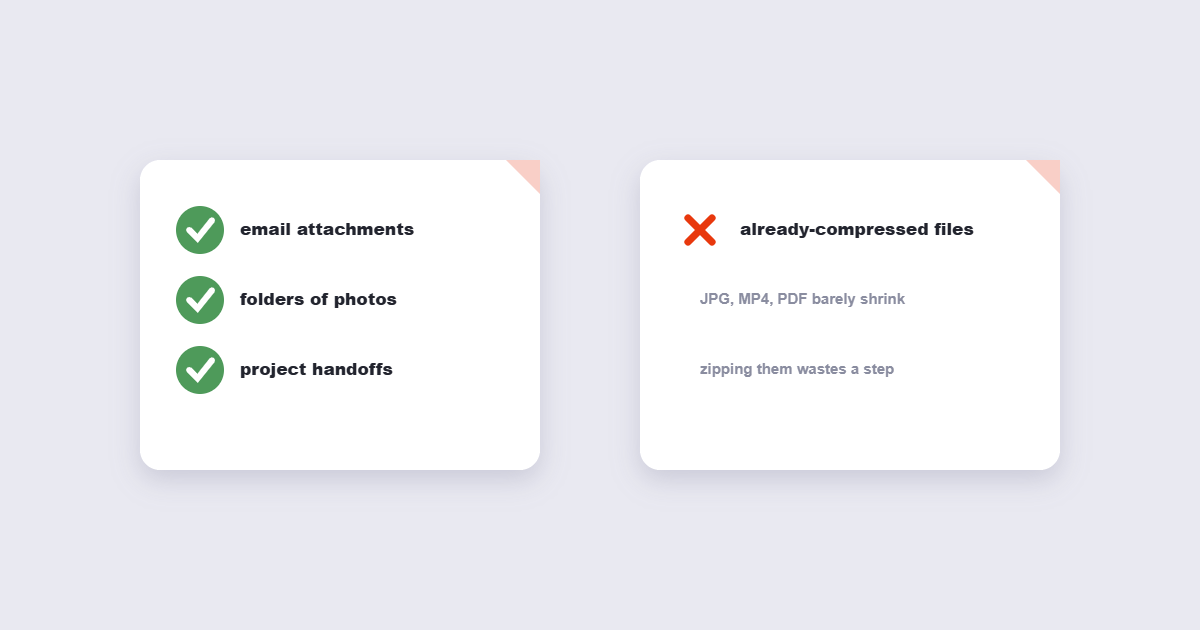
| Zip it | Don’t bother |
|---|---|
| Many small files going to one person | A single file on its own |
| Photos that must stay in order | Already-compressed videos |
| Archive folders for storage | Files the recipient must edit right away |
What Is a ZIP File?
A ZIP file is an archive format that bundles multiple files and folders into a single file, while also compressing the contents to reduce their combined size. It functions like a container — a virtual folder that holds everything you put into it — that can be sent, stored, or downloaded as one unit rather than dozens of separate items.
Extracting (or “unzipping”) a ZIP file restores everything to its original, uncompressed state, exactly as it was before. Nothing is lost in the compress-and-extract round trip, because ZIP uses lossless compression throughout.
Why ZIP Files Matter
The core benefit isn’t really about saving space, even though that’s the most commonly cited reason — it’s about convenience. Sending fifteen separate files through email or a messaging app means fifteen separate attachments for the recipient to manage. One ZIP file means one download, and the folder structure inside stays intact exactly as you organized it, which matters when files are meant to stay grouped together (like a project’s assets or a set of related documents).
When You Actually Need to Zip Something
- Sending multiple files at once. One ZIP attachment is simpler for both sender and recipient than a dozen individual files.
- Preserving a folder structure. If files need to stay organized in specific subfolders — a website’s assets, a project’s directory layout — zipping keeps that structure intact through the transfer.
- Reducing upload/download time for compressible files. Text documents, spreadsheets, and similar files often compress substantially.
- Archiving completed work. Bundling a finished project into one file makes it easier to store and locate later than a scattered folder of loose files.
How to Create a ZIP File: Step by Step
Step 1: Gather the files you want to bundle
Collect everything you want in the archive — this can be a mix of file types, documents, images, or entire folders.
Step 2: Upload to a ZIP tool
Using the free Create ZIP tool, add your files directly in the browser.
Step 3: Create the archive
Generate the ZIP file — this typically takes just a few seconds regardless of how many files you’re bundling.
Step 4: Download and verify
Download the resulting ZIP and, especially for anything important, extract it once to confirm every file is present and intact before deleting your originals.
Best Practices
- Don’t assume ZIP always shrinks a file dramatically. Compression works well on text-heavy files, but images and other already-compressed formats (like JPEGs) often see little to no size reduction from being zipped, since there’s not much redundant data left to compress.
- Name your archive descriptively before sending it, rather than leaving a generic auto-generated name that won’t mean anything to the recipient later.
- Check what’s actually needed before zipping everything in a folder. Including unnecessary files just because they happened to be in the same folder bloats the archive for no benefit.
Common Mistakes to Avoid
- Zipping already-compressed files and expecting a smaller result. JPEGs, MP3s, and already-zipped files typically don’t shrink further — zipping them mainly helps with bundling multiple files together, not reducing total size.
- Password-protecting sensitive content without a plan for sharing that password securely. A strong ZIP password sent in the same email as the file provides little real protection.
- Assuming every recipient can open a ZIP file easily. This is rarely an issue on modern devices, but it’s worth a quick check for less common formats or older systems.
- Not verifying the archive after creating it. A quick extraction test catches a corrupted or incomplete archive before it becomes someone else’s problem.
What About Extracting a ZIP File You Received?
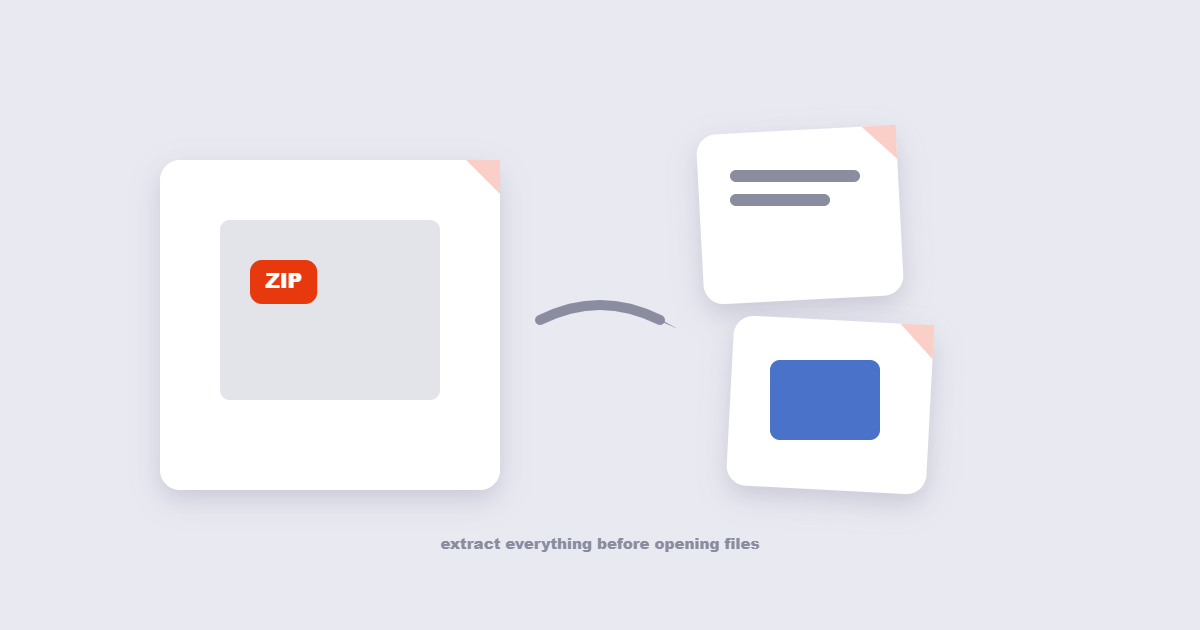
Going the other direction is just as common — someone sends you an archive and you need what’s inside. The free Extract ZIP tool unpacks a ZIP archive directly in your browser, showing you the contents before you download anything.
The ZIP format uses lossless compression.
Frequently Asked Questions
Does zipping a file always make it smaller?
Not always — text-based files typically compress well, while already-compressed formats like JPEGs or MP3s often see little to no reduction, since ZIP compression works by finding redundant patterns that these formats have already eliminated.
Will I lose any data when I zip and then unzip a file?
No, ZIP uses lossless compression, meaning every file is restored exactly as it was, byte for byte, when extracted.
Can I add a password to protect a ZIP file’s contents?
Many ZIP tools support password protection, though for genuinely sensitive content, remember that the password needs to be shared through a different channel than the file itself to be meaningfully secure.
Do I need special software to open a ZIP file?
No, Windows, macOS, iOS, and Android all have built-in support for opening ZIP files without needing to install additional software.
Can I put a mix of different file types in one ZIP?
Yes, a ZIP archive can contain any combination of file types — documents, images, folders, or anything else — bundled together as one file.
Is there a limit to how many files I can put in a ZIP archive?
Practically, no meaningful limit for typical everyday use — you can bundle as many files as you need into a single archive.
Final Thoughts
A ZIP file is a genuinely simple tool for a genuinely common problem: too many separate files that need to travel or be stored as one. The free Create ZIP tool bundles them together in seconds, directly in your browser, with no software installation required.