In this guide
- What Happens When You Convert PowerPoint to PDF
- Why This Distinction Matters
- How to Convert PowerPoint to PDF: Step by Step
- Best Practices for a Clean Result
- Common Mistakes to Avoid
- What If You Need the Animations to Survive?
- What to Do After Converting
- Frequently Asked Questions
- Final Thoughts
You finish a slide deck, hit export to PDF, and open the result only to find the animations gone, speaker notes missing, and a font that doesn’t quite match what you designed. None of this is a conversion failure — it’s PDF’s static format doing exactly what it’s built to do, which is fundamentally different from what a slide deck is built to do. Understanding that distinction is what lets you get a clean result instead of an unpleasant surprise.
Table of Contents
- In this guide
- What Happens When You Convert PowerPoint to PDF
- Why This Distinction Matters
- How to Convert PowerPoint to PDF: Step by Step
- Best Practices for a Clean Result
- Common Mistakes to Avoid
- What If You Need the Animations to Survive?
- What to Do After Converting
- Frequently Asked Questions
- Fonts, Images & Colors: What Survives and Why
- Alternatives to PDF: When PPTX Isn’t the Right Export
- Final Thoughts
| Element | Survives conversion? | Notes |
|---|---|---|
| Text | ✅ Yes | Stays selectable and searchable |
| Images & charts | ✅ Yes | Rendered as they appear on the slide |
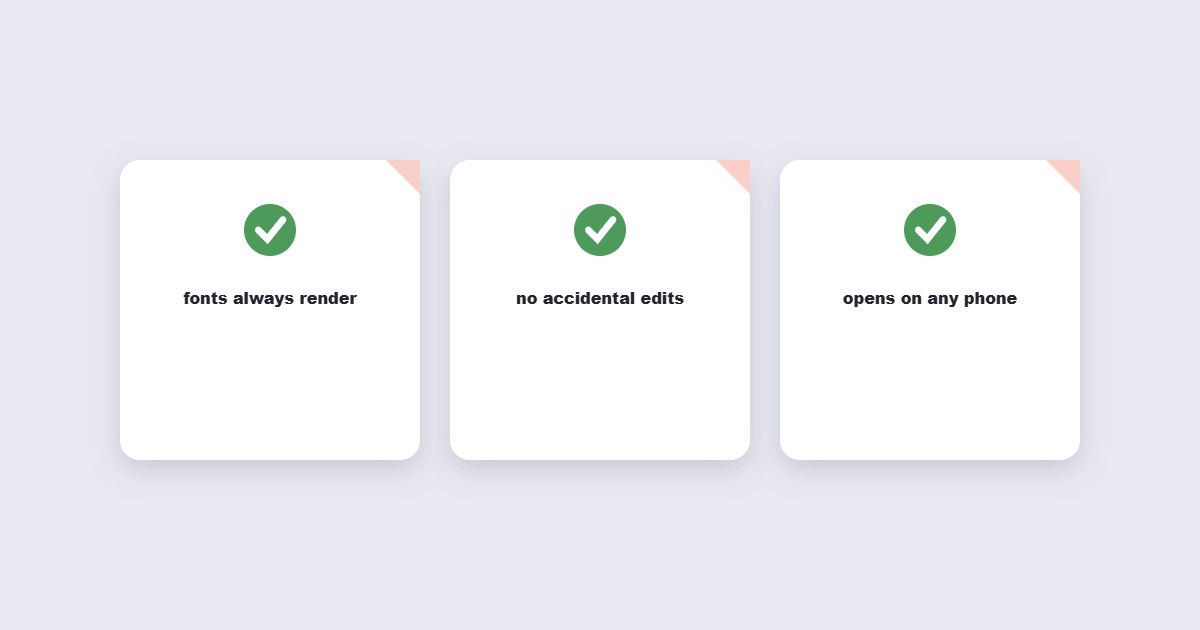
| Colors & fonts | ✅ Yes | Fonts embed into the PDF |
| Slide order | ✅ Yes | One slide = one page |
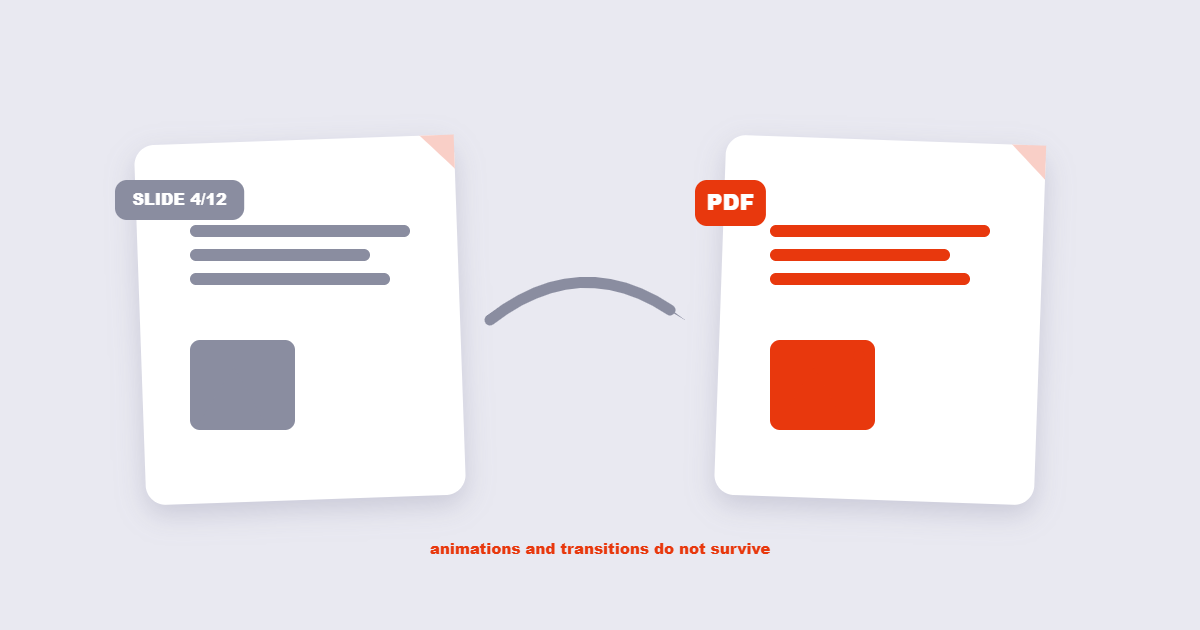
| Transitions | ❌ No | PDFs are static pages |
| Animations | ❌ No | Slides export in final state |
| Speaker notes | ❌ No | Notes pane is not included |
What Happens When You Convert PowerPoint to PDF
PowerPoint is a dynamic, presentation-oriented format — it supports animations, slide transitions, embedded video, and speaker notes meant to be seen only by the presenter. PDF is a static document format with no concept of any of that. When you convert, each slide becomes a single flat page showing its final visual state — whatever the slide looks like once every animation has already played out.
This isn’t a limitation of any particular conversion tool — it’s inherent to what a PDF is. No converter, free or paid, can make a fundamentally static format play an animation.
Why This Distinction Matters
If you’re converting a deck specifically to share for offline reading, archiving, or printing, none of this matters much — a PDF is arguably the better format for those purposes precisely because it’s static and displays identically everywhere. If you’re converting a deck that relies heavily on animated builds (revealing bullet points one at a time to control pacing, for example) to deliver information sequentially, losing that animation can genuinely change how the content reads, since everything on the slide now appears at once.
How to Convert PowerPoint to PDF: Step by Step
Step 1: Review your slides for animation-dependent content
If any slide relies on animation to reveal information in a specific order — a build sequence a viewer needs to follow — it’s worth deciding in advance whether that sequence still makes sense with everything visible at once.
Step 2: Export
Using the free PowerPoint to PDF tool, upload your .ppt or .pptx file and convert it directly in your browser — no PowerPoint installation required.
Step 3: Check fonts and layout
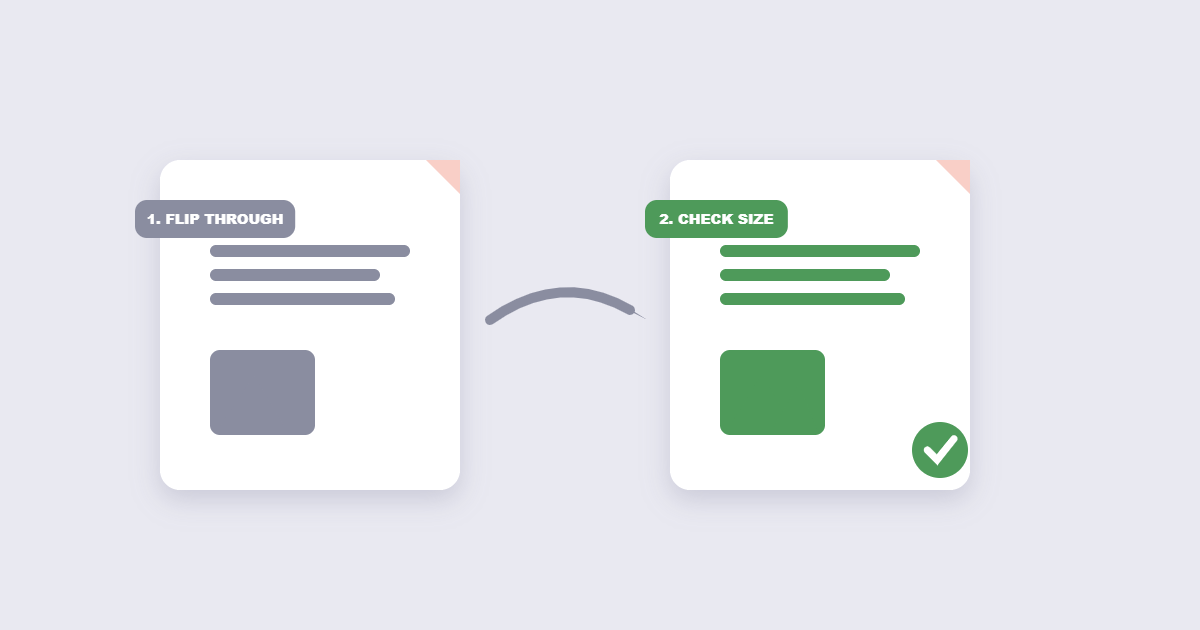
Open the resulting PDF and check that fonts rendered as expected, particularly if your presentation used any non-standard or custom fonts that might not have been embedded.
Step 4: Decide if you need speaker notes included
By default, most conversions export only the slide content. If you specifically need speaker notes included, check whether your conversion method offers a “Notes Pages” layout option, which places the slide and its notes together on each page.
Best Practices for a Clean Result
- If a build sequence matters, duplicate the slide for each reveal step before converting, so the PDF shows each stage as its own page rather than losing the sequential reveal entirely.
- Embed fonts before exporting if you’re working from PowerPoint directly — on Windows, this is available under File → Options → Save → “Embed fonts in the file,” which helps ensure the PDF matches what you designed rather than substituting a similar font.
- Check off-slide content isn’t accidentally included. Elements placed outside the visible slide area (a common trick for temporarily hiding draft content) are excluded from a standard export, which is usually desirable — just confirm nothing important was placed there by mistake.
- Convert from the final version, not a draft. Re-exporting after last-minute slide changes is a common, easily avoided source of sharing an outdated PDF.
Common Mistakes to Avoid
- Expecting animations or transitions to survive the conversion. This isn’t a bug to troubleshoot — PDF simply doesn’t support them, regardless of which tool performs the conversion.
- Forgetting speaker notes are excluded by default. If you need them included, you’ll typically need to specifically select a notes-inclusive export layout rather than the standard one.
- Using an unusual or unlicensed font without embedding it. This is the most common cause of a PDF that looks visually different from the original slide deck.
- Assuming the PDF will look identical on every device you didn’t test on. It generally will, but a quick check on a second device or PDF viewer catches font substitution issues before you’ve already shared the file widely.
What If You Need the Animations to Survive?
If preserving actual motion is essential — not just the final static state — PDF fundamentally isn’t the right export format, regardless of technique. Exporting the presentation as a video (most versions of PowerPoint support this directly) is the more appropriate route when animated content genuinely needs to play back for the viewer rather than appear all at once.
What to Do After Converting
Once you have your PDF, a few common next steps: if it needs to be combined with a cover page or supporting documents, Merge PDF handles that. If the file is too large to email — common with decks containing embedded video thumbnails or high-resolution images — Compress PDF brings the size down. And if you need to send just a visual snapshot of one slide rather than the whole deck, PowerPoint to JPG is faster than a full document export.
Frequently Asked Questions
Will my PowerPoint animations show up in the PDF?
No, PDF is a static format and cannot play animations — each slide converts to a single page showing its final visual state once every animation has already resolved.
Are speaker notes included when I convert to PDF?
Not by default — a standard conversion typically exports only the slide content, and including notes usually requires a specific “Notes Pages” export layout.
Why do my fonts look different in the converted PDF?
This usually happens when a font used in the presentation isn’t embedded in the file, causing the conversion to substitute a similar available font instead — embedding fonts before exporting resolves this.
Can I convert a PowerPoint to PDF without having PowerPoint installed?
Yes, an online converter can process .ppt and .pptx files directly without PowerPoint or any other presentation software installed on your device.
How can I preserve a step-by-step animated reveal in a static PDF?
Duplicate the slide once for each reveal stage before converting, so the sequence becomes multiple static pages instead of being collapsed into a single page showing everything at once.
Should I convert to PDF for archiving or just keep the original PPTX?
PDF is generally the safer archive format for long-term access, since it displays consistently without depending on having PowerPoint installed or a specific version available in the future.
Fonts, Images & Colors: What Survives and Why
Most formatting problems in a converted PDF trace back to one of three root causes. Understanding them saves you from troubleshooting a “broken conversion” that is actually working exactly as designed:
Fonts
If a font used in the presentation is not installed on the machine performing the conversion, the converter substitutes the closest available font. This almost never looks the same. The fix is to embed fonts in the source .pptx file before converting (in PowerPoint: File → Options → Save → “Embed fonts in the file”). Embedded fonts travel with the file and render correctly regardless of what’s installed on the converter’s system. If you’re using an online tool that runs on a server, embedding beforehand is especially important — that server almost certainly doesn’t have your custom font installed.
Images and charts
Raster images (JPG, PNG) convert cleanly — they become the same resolution they were in the slide. Low-resolution images that looked acceptable on screen may show pixelation when the PDF is printed, because printing magnifies quality issues that screens hide. If the PDF will be printed at A4 or larger, images inside the slide should be at least 150 DPI at print size; 300 DPI is the professional standard. Charts created in PowerPoint (not images of charts) render as vector graphics in the PDF — they scale to any size without pixelation and are generally the higher-quality result.
Colors
Colors almost always survive conversion correctly for screen use. The exception is print: PowerPoint uses the RGB color model (for screens), while professional printing uses CMYK. A PDF exported from PowerPoint for professional printing may show color shifts at the printer. For print-critical work, export to PDF via a print-production tool that converts the color profile, or confirm the print shop accepts RGB PDF.
Alternatives to PDF: When PPTX Isn’t the Right Export
PDF is the right export for most purposes — sharing, archiving, emailing — but not for every one:
| If you need… | Better format than PDF | Why |
|---|---|---|
| Animations to play back | Video (MP4) | PDF can’t play motion; video preserves every transition |
| An editable copy for colleagues | PPTX | Keep the source file for editing, share PDF for reading |
| A single slide as an image | JPG or PNG | Faster than a full PDF for social sharing or thumbnails |
| Long-term archiving | PDF/A | PDF/A embeds fonts and strips dependencies for 50-year-safe storage — more on PDF/A here |
| Interactive links to survive | PDF (export with hyperlinks on) | URL hyperlinks do survive PDF conversion; check that the export option is enabled |
Final Thoughts
PowerPoint-to-PDF conversion problems almost always come down to one fact: PDF is static and PowerPoint isn’t, so anything relying on motion won’t survive the trip. For everything else — layout, text, images, and overall design — conversion is reliable and fast. The free PowerPoint to PDF tool handles it directly in your browser in seconds, no software installation required. Embed fonts before converting, check the first and last slide of the result, and if the file is large, run it through the PDF compressor before sending — presentation PDFs with embedded images are often 2–3× larger than they need to be.