In this guide
- What Is a File Checksum?
- Why Checksums Matter
- MD5 vs. SHA-1 vs. SHA-256: What’s the Difference?
- How to Verify a File’s Checksum: Step by Step
- Best Practices
- Common Mistakes to Avoid
- What a Checksum Doesn’t Tell You
- Frequently Asked Questions
- Final Thoughts
Next to a download link, software publishers often list a long string of letters and numbers labeled MD5, SHA-1, or SHA-256. Almost everyone scrolls past it. That string exists for one specific reason: to let you prove the file on your computer is exactly the file the publisher actually released, not a corrupted, incomplete, or tampered-with copy.
Table of Contents
- In this guide
- What Is a File Checksum?
- Why Checksums Matter
- MD5 vs. SHA-1 vs. SHA-256: What’s the Difference?
- How to Verify a File’s Checksum: Step by Step
- Best Practices
- Common Mistakes to Avoid
- What a Checksum Doesn’t Tell You
- Frequently Asked Questions
- Hash Algorithms: Full Reference
- Verifying Checksums Without Uploading: Windows, Mac & Linux
- Final Thoughts
| Use case | What to compare |
|---|---|
| Verify a software download | Your hash vs. the publisher’s published checksum |
| Check a copied file | Hash of the copy vs. hash of the original |
| Detect tampering | Hash vs. a value recorded earlier |
| Confirm backup integrity | Backup hash vs. source hash |
What Is a File Checksum?
A checksum — also called a hash — is a fixed-length string of characters calculated from a file’s exact contents. Run a file through a hashing algorithm and you get a digest: a short, consistent-length fingerprint. Change even a single byte anywhere in the file, and the resulting hash changes completely and unpredictably. Run the same unchanged file through the same algorithm again, and you get the identical string every time.
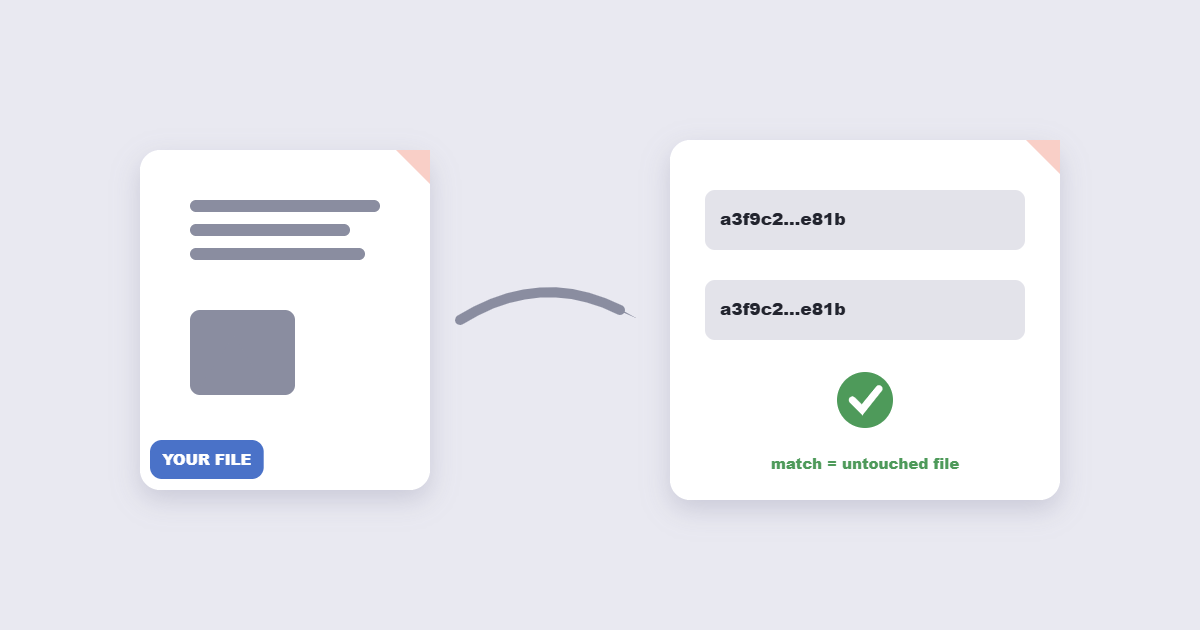
This makes a checksum useful for exactly one thing, done very reliably: confirming whether two copies of a file are byte-for-byte identical, without having to compare the entire file directly.
Why Checksums Matter
The core use case is verification. When you download a large file — an operating system image, a software installer, a big dataset — there’s a real chance the download was interrupted, corrupted in transit, or (in rare cases) intercepted and altered somewhere between the publisher and you. Comparing the checksum of your downloaded file against the one the publisher posted confirms, with strong confidence, whether what landed on your device matches what they actually shipped.
MD5 vs. SHA-1 vs. SHA-256: What’s the Difference?
| Algorithm | Output Length | Good For |
|---|---|---|
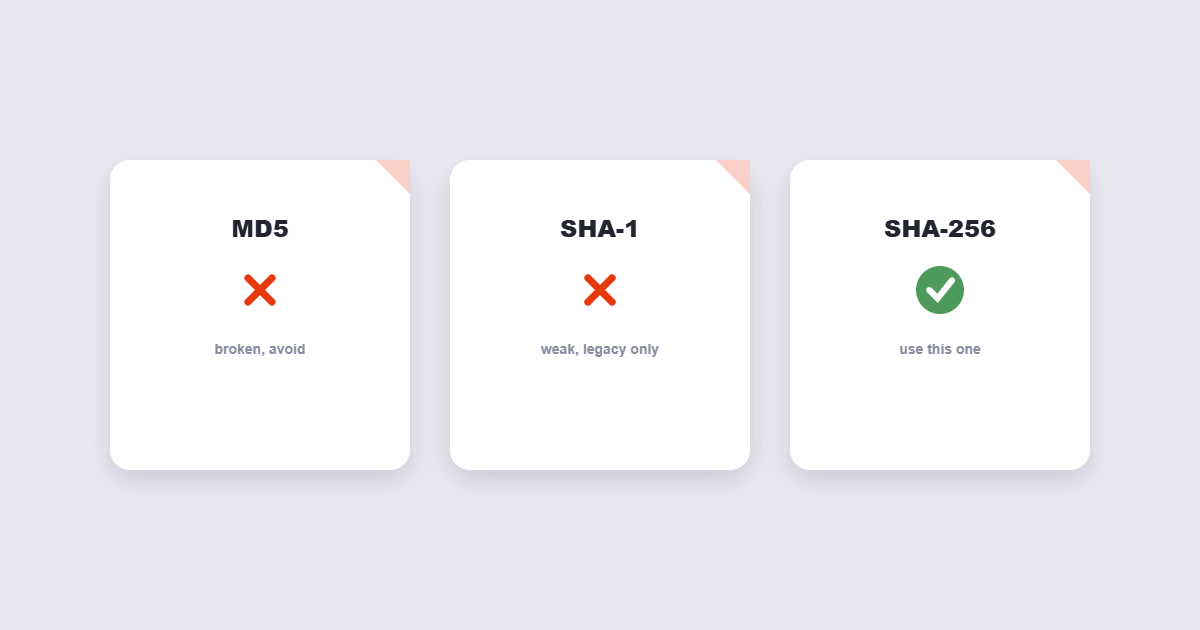
| MD5 | 128-bit (32 hex characters) | Detecting accidental corruption only — not secure against tampering |
| SHA-1 | 160-bit (40 hex characters) | Similar limitations to MD5 — considered broken for security purposes |
| SHA-256 | 256-bit (64 hex characters) | Current standard for both integrity and security verification |
Both MD5 and SHA-1 have been demonstrated by researchers to be vulnerable to deliberate collisions — meaning it’s possible, with effort, to construct two different files that produce the same hash. This doesn’t make them useless: they’re still reliable for catching accidental corruption, like a truncated or partially-downloaded file. What they should not be relied on for is proving a file hasn’t been deliberately tampered with by someone capable of exploiting that weakness. For that, SHA-256 is the current practical standard.
How to Verify a File’s Checksum: Step by Step
Step 1: Find the official checksum
Look for a value labeled MD5, SHA-1, or SHA-256 on the publisher’s official download page — ideally accessed over HTTPS from their primary domain, not a third-party mirror.
Step 2: Generate the hash of your downloaded file
Using the free File Hash Generator tool, upload your downloaded file to calculate its hash.
Step 3: Match the algorithm
Make sure you’re comparing the same algorithm the publisher used — a SHA-256 hash will never match an MD5 value, even for the exact same file, since they’re fundamentally different calculations.
Step 4: Compare the two values
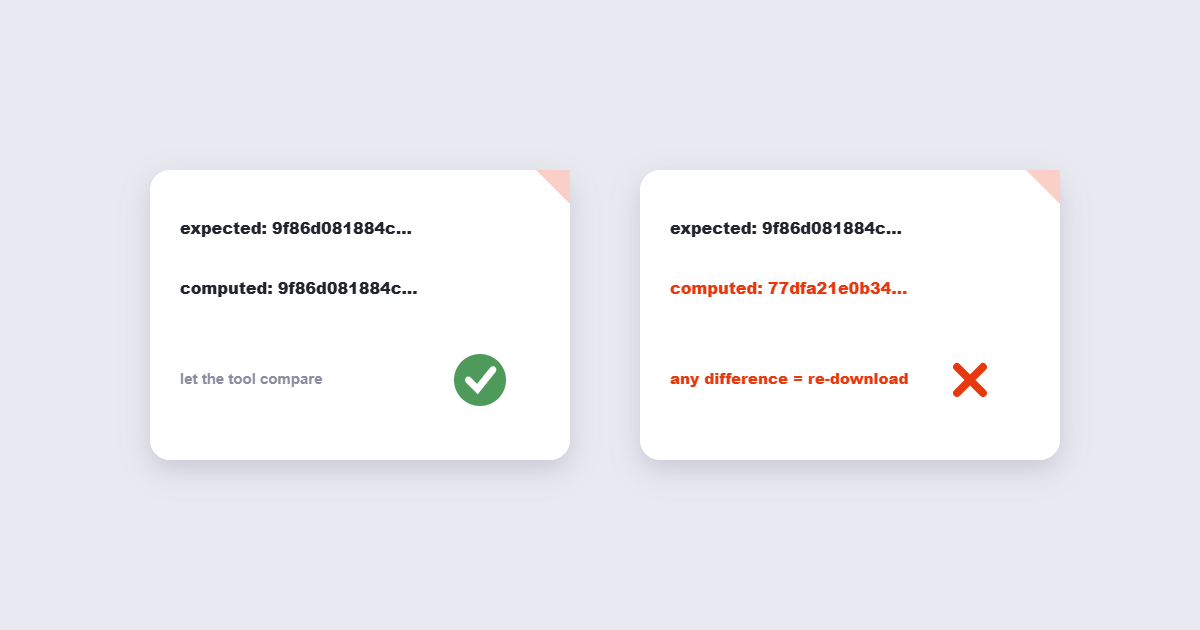
If the hashes match exactly, your file is confirmed identical to what the publisher released. If they don’t match, the file is either incomplete, corrupted, or different from the official version in some way.
Best Practices
- Use SHA-256 when the publisher offers it, rather than defaulting to MD5 out of habit — it’s the more robust option where security, not just accidental-corruption detection, matters.
- Get the official checksum from the publisher’s own page, not from the same download mirror you’re trying to verify — comparing against a value from an untrusted source doesn’t meaningfully protect you.
- Remember hash comparison is case-insensitive. Hex characters are equally valid in uppercase or lowercase, so a differently-cased but otherwise identical string still counts as a match.
Common Mistakes to Avoid
- Comparing hashes generated with different algorithms. A mismatch between a SHA-256 hash and an MD5 value doesn’t indicate a problem with the file — it means you compared two fundamentally different types of output.
- Assuming a matching checksum proves a file is safe. A checksum confirms the file matches what you compared it against — it says nothing about whether the original file itself is safe or malicious. If the publisher’s own file were compromised at the source, a matching hash would just confirm you received that compromised version.
- Getting the reference checksum from an unofficial source. If both the file and its “official” checksum come from the same untrustworthy mirror, the verification doesn’t protect against that mirror having altered both.
What a Checksum Doesn’t Tell You
It’s worth being precise about the limits here. A matching checksum reliably confirms your file is byte-for-byte identical to whatever it was compared against — nothing more. It doesn’t independently confirm the file is free of malware, doesn’t verify the publisher’s identity, and if an attacker were able to replace both the file and its published checksum on the same compromised page, comparing against that same page wouldn’t catch the substitution. A checksum verifies integrity against the reference value provided; it’s only as trustworthy as the source of that reference value.
Frequently Asked Questions
What’s the difference between a checksum and a hash?
In everyday use, the terms are largely interchangeable — both refer to a fixed-length fingerprint calculated from a file’s contents, used to verify the file hasn’t changed.
Why do MD5 and SHA-256 produce different-length results for the same file?
Each algorithm uses a different internal calculation and produces a fixed output length specific to that algorithm — MD5 always outputs 128 bits, SHA-256 always outputs 256 bits, regardless of the size of the original file.
Is MD5 still useful for anything?
Yes, for detecting accidental corruption — like an interrupted download — MD5 remains reliable. It should not be relied on to prove a file hasn’t been deliberately and maliciously altered, since it’s been demonstrated vulnerable to intentional collisions.
Does verifying a checksum upload my file anywhere?
A checksum tool that calculates the hash locally in your browser processes the file on your own device without uploading it — worth confirming for any tool handling a large or sensitive file.
What does it mean if the checksums don’t match?
Most commonly, the download was incomplete or corrupted — re-downloading and checking again resolves this in most cases. If a fresh copy still doesn’t match, treat the file as untrustworthy and avoid running it.
Hash Algorithms: Full Reference
There are more hashing algorithms than MD5, SHA-1 and SHA-256. Here’s the complete picture of what you’ll encounter and when each applies:
| Algorithm | Output length | Status | Use it when… |
|---|---|---|---|
| MD5 | 128-bit / 32 chars | Broken for security; fine for corruption detection | Publisher only lists MD5 and you’re checking for download corruption, not tampering |
| SHA-1 | 160-bit / 40 chars | Deprecated — collision attacks demonstrated | Legacy systems only; prefer SHA-256 if available |
| SHA-256 | 256-bit / 64 chars | Current standard — recommended | Any integrity or security verification |
| SHA-512 | 512-bit / 128 chars | Stronger than SHA-256; overkill for most uses | High-security environments where the publisher specifies it |
| CRC32 | 32-bit / 8 chars | Not cryptographic — fast corruption check only | Archive integrity (ZIP, RAR), not security |
Practical rule: use the strongest algorithm the publisher offers. If both MD5 and SHA-256 are listed, use SHA-256. If only MD5 is available and your goal is checking for download corruption (not deliberate tampering), it’s still reliable for that specific, narrower job.
Verifying Checksums Without Uploading: Windows, Mac & Linux
For large files — OS images, large installers — where uploading isn’t practical, every major operating system has built-in tools:
Windows (PowerShell)
Get-FileHash C:\path\to\file.iso -Algorithm SHA256Replace SHA256 with MD5 or SHA1 as needed. PowerShell is built into all modern Windows versions — no install required.
macOS (Terminal)
shasum -a 256 /path/to/file.isoFor MD5: md5 /path/to/file.iso. Both commands are pre-installed on macOS.
Linux (Terminal)
sha256sum /path/to/file.isoMost Linux distributions include sha256sum, sha1sum, and md5sum by default. The output is the hash followed by the filename — compare the hash string against the publisher’s published value.
For a one-off check or if you’re not comfortable with the command line, the browser-based File Hash Generator processes the file locally in your browser without uploading it to any server — the same privacy guarantee as the command-line approach, without the terminal.
Final Thoughts
A checksum is a small habit that catches a real, if infrequent, problem: a corrupted or altered download you’d otherwise have no easy way to detect. For anything important — an installer, a large document, a dataset you’re trusting — the free File Hash Generator calculates the hash directly in your browser in seconds. Use SHA-256 whenever the publisher offers it, compare against the official source only, and remember: a matching hash confirms the file is identical to the reference — nothing more, but nothing less. Once verified, if your file is a PDF, you can check its metadata or merge it with other documents in one more step.