A PDF with pages in the wrong order is almost never a mystery once you look at how it was made. The file was assembled from three attachments that arrived in email order, or it came off a duplex scanner that misfiled every back page, or someone dragged files into a converter in the order the folder happened to sort. The fix is the same in every case: see the pages as thumbnails, drag them back into line, export. Once pages are sorted, you may also want to add page numbers or merge the result with another PDF. The interesting part is knowing which of the three causes you’re looking at, because the fix differs slightly for each.
Table of Contents
The Three Ways Page Order Breaks
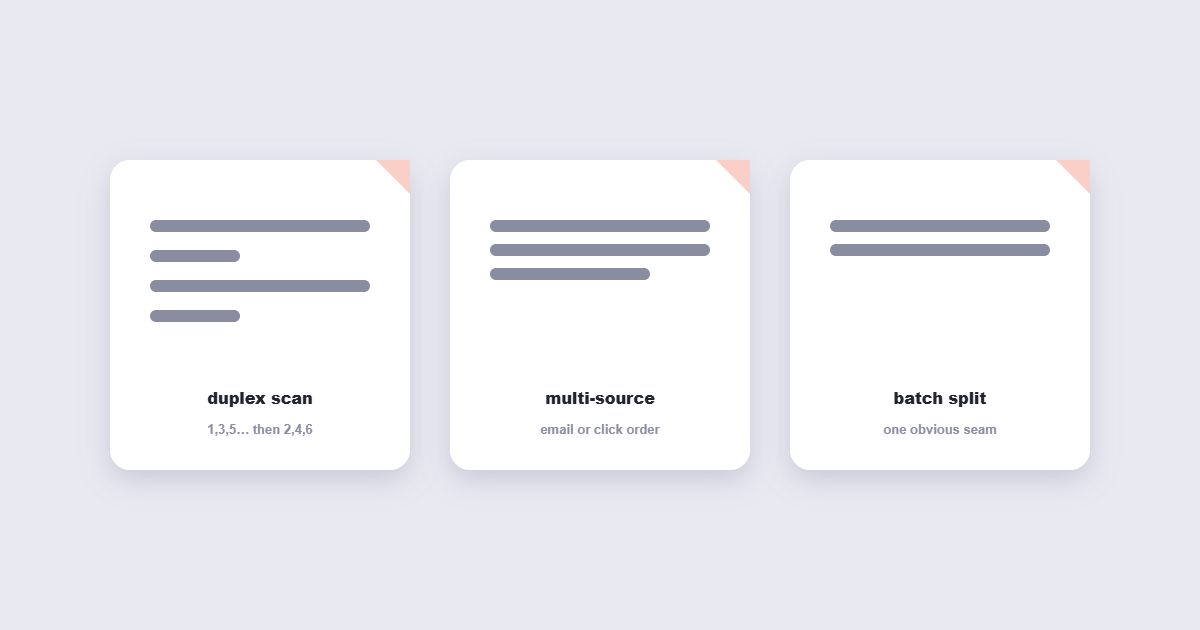
The duplex scanner shuffle
This is the most common and the most confusing. A stack of double-sided pages fed through a scanner with the wrong duplex setting produces pages in the order 1, 3, 5, 7… then 2, 4, 6, 8. The first half of the PDF is the front sides, the second half is the back sides. The tell is obvious once you know it: page 2 contains what should follow page 1, but it’s sitting at the halfway point. The fix is a specific interleave — not a simple drag-and-drop — so you either re-scan with the correct setting or use a tool that understands odd/even interleaving.
The multi-source assembly
You needed one PDF with a cover letter, a contract and an appendix, so you dragged three files into a merge tool. They came out in the order the tool received them, which was the order you clicked them, which was not the order you wanted. This is the easy case: open the result, drag the page blocks into the right sequence, export. No content changes, just order.
The scan-batch split
Someone scanned a document in two batches — pages 1–20 in one pass, 21–45 in another — and merged the files in the wrong order. The result looks like a normal PDF with one obvious seam where page 20 is followed by a page that doesn’t connect. Again, drag-and-drop territory.
How to Rearrange PDF Pages
- Open the Reorder PDF Pages tool and upload the file.
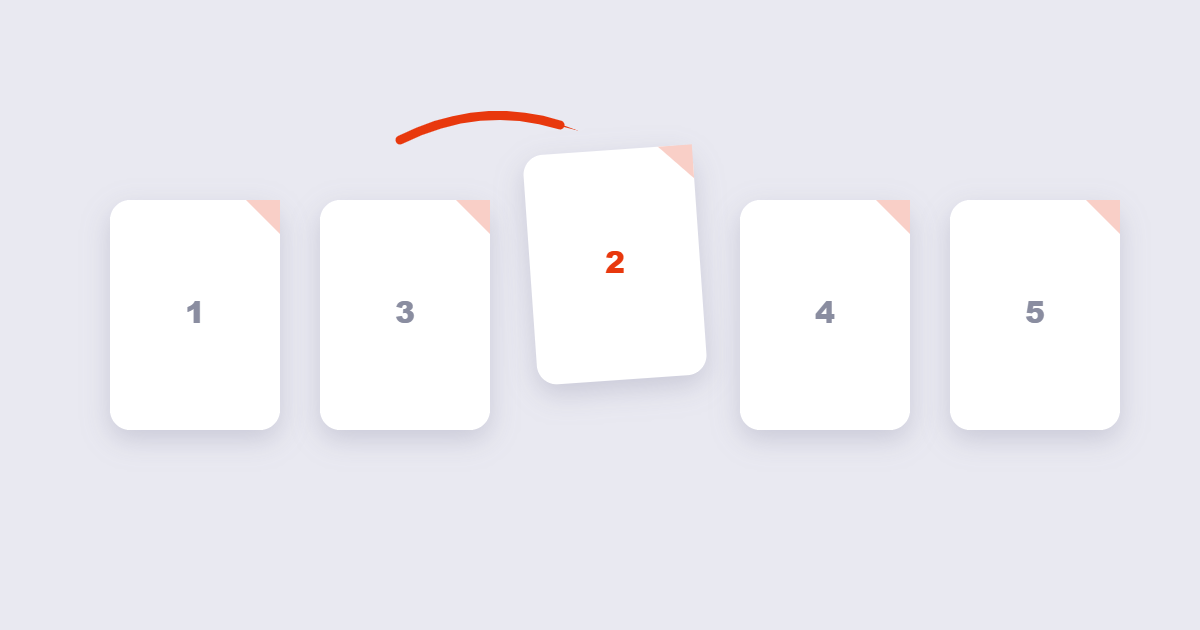
- Every page shows as a thumbnail. Click and drag a thumbnail to its new position — the other pages shift to make room.
- For long documents, use the page-number boxes: type new numbers next to each page, or move ranges like “pages 45–60 before page 12”.
- Export and open the result. Check the two or three seams where pages most likely went wrong — the start, the middle joint and the end.
Reorder vs Delete vs Insert: Three Different Jobs
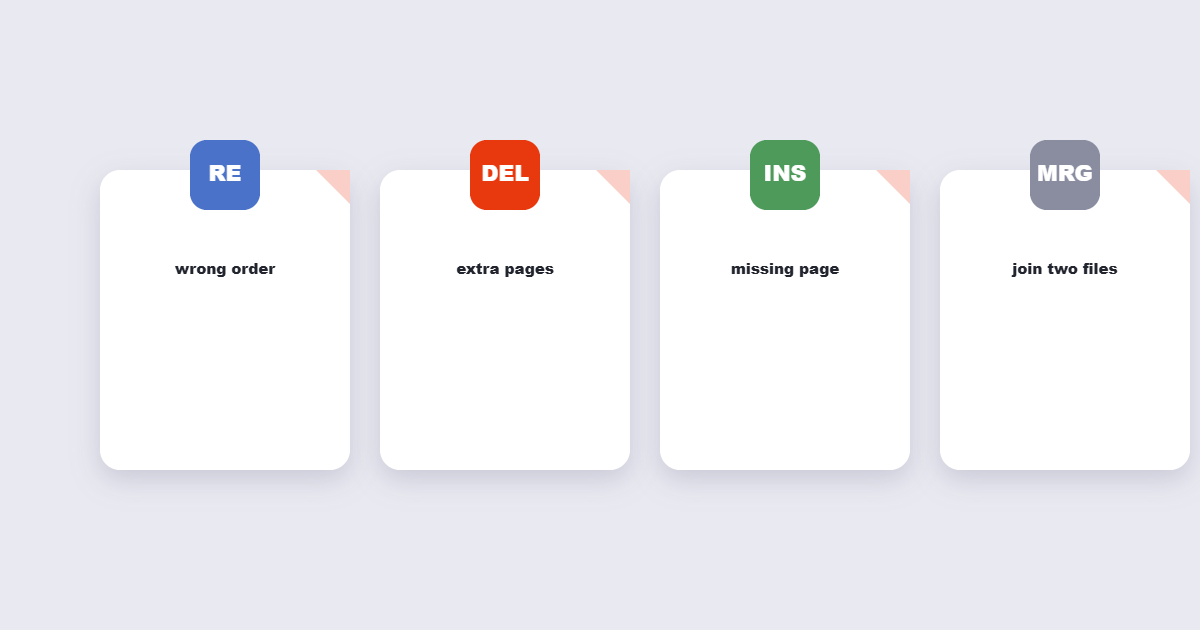
| What’s wrong | Tool you need | What it changes |
|---|---|---|
| Pages in wrong sequence | Reorder pages | Position of existing pages only |
| Extra or blank pages | Delete pages | Removes pages entirely |
| A missing page from another file | Insert pages | Adds pages from a second PDF |
| Two documents to join | Merge PDFs | Combines whole files end to end |
Large Documents: What Changes at 200+ Pages
Thumbnails stop being practical past roughly 100 pages — you can’t see enough of them at once, and dragging across 40 thumbnails is guesswork. Two techniques work better. First, use page-range moves instead of single-page drags: “move pages 130–145 to position 12” is one operation instead of sixteen drags. Second, if you’re reassembling a long document, consider splitting it into sections first with the split tool, reordering the sections, then merging. It sounds like more steps; for big files it’s faster and far less error-prone.
The PDF format specification explains how page order is stored in the document structure.
Frequently Asked Questions
Does reordering pages change bookmarks or links?
Yes, sometimes. Internal links and bookmarks point to pages by position, so moving pages can send a bookmark to the wrong place. Bookmarks that are part of the PDF’s structure usually update themselves; printed tables of contents and page-number references don’t. Reorder first, then fix cross-references, or renumber pages afterward with the page numbering tool.
Can I move several pages at once?
Yes — select multiple thumbnails with shift-click or checkbox selection, then drag the group. Tools that only allow single-page dragging triple the work on big documents; check before committing to one.
The scanner produced alternating wrong pages. Can tooling fix it?
Yes, if the tool offers odd/even interleaving. Output with pages in “1,3,5…2,4,6” order can be merged back into “1,2,3…” by interleaving the two halves. If your tool doesn’t have that option, re-scanning with the correct duplex setting is often faster than fighting the fix.
Is rearranging the same as rotating?
No. Reordering changes which position each page sits in; rotating changes a page’s orientation in place. Sideways pages need the rotate tool, not reordering.
The Short Version
Open the thumbnails, look at the first three pages and the last three — the problem is usually visible immediately and tells you which of the three causes you’re dealing with. Drag pages into sequence (or use range moves for big files), export under a new name, and renumber the pages at the end if the printed numbers no longer match their positions. If you also need to remove unwanted pages, see our guide on how to delete pages from a PDF.