HEIC is Apple’s default photo format since iOS 11 — smaller file size, same quality as JPG. The problem: most websites, apps, forms, and non-Apple devices don’t accept it. You try to upload a photo and get a “file type not supported” error. This guide covers every way to convert HEIC to JPG, including how to stop your iPhone from creating HEIC files in the first place.
Table of Contents
- How to Convert HEIC to JPG Free Online
- Convert HEIC to JPG on iPhone (Without a Computer)
- Convert HEIC to JPG on Windows
- Convert HEIC to JPG on Mac
- How to Stop iPhone Shooting HEIC (Shoot JPG Instead)
- HEIC vs JPG — Quality, File Size and Compatibility
- Converting Multiple HEIC Files at Once
- Frequently Asked Questions
- The Short Version
How to Convert HEIC to JPG Free Online
The fastest method for any device — no app or software needed:
- Open the HEIC to JPG converter in your browser.
- Upload the HEIC file — drag and drop, or click to browse.
- Download the converted JPG. The quality is identical to the original — only the format changes.
Works on Windows, Mac, iPhone, and Android. No account required, no watermarks, files deleted automatically after download. For batches of photos, most online tools accept multiple files at once — upload all, download as ZIP.
Convert HEIC to JPG on iPhone (Without a Computer)
You don’t always need to convert — iPhone handles it automatically in most cases:
Method 1: Share to anything (automatic conversion)
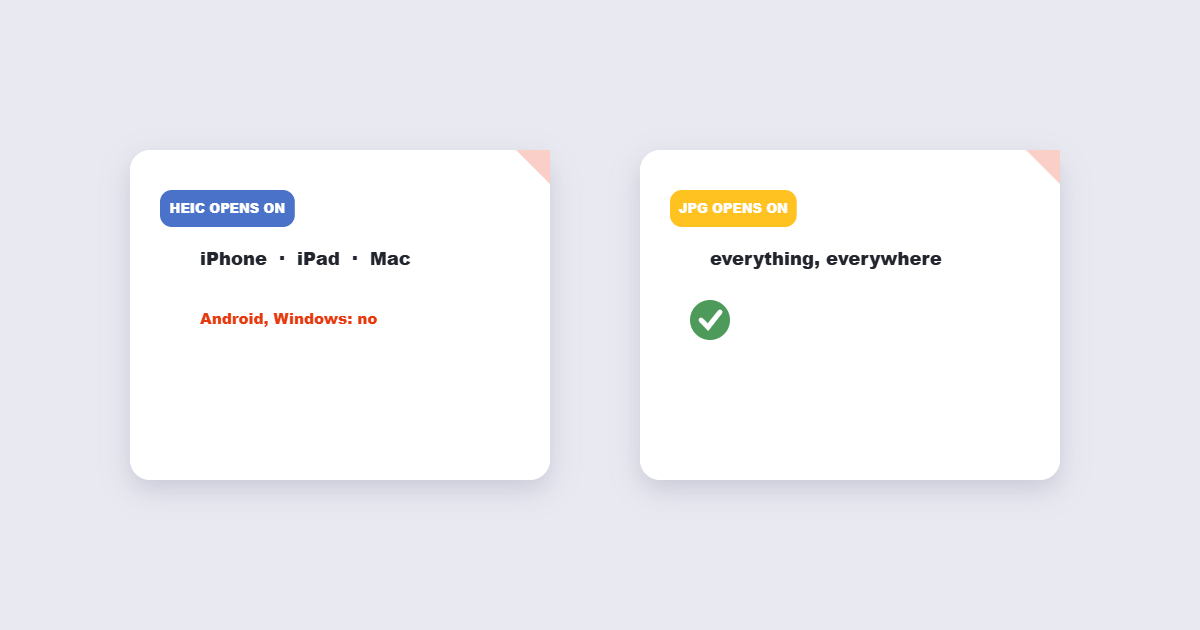
When you share a HEIC photo from the Photos app — via AirDrop to a non-Apple device, via email, via the Files app, or via any share sheet — iOS automatically converts it to JPG during the transfer. The photo on your iPhone stays as HEIC; the recipient gets a JPG. This works silently with no extra steps for most sharing situations.
Method 2: Save to Files as JPG
- Open the photo in the Photos app.
- Tap Share → Save to Files.
- In the Files location picker, tap the photo thumbnail at the top — you’ll see an option to choose the format. Select JPG.
- Save. The JPG version is now in Files, ready to upload anywhere.
Method 3: Online converter from iPhone
- Open the HEIC to JPG converter in Safari.
- Tap the upload area and choose the photo from your Photos library.
- Download the JPG — it saves to your Downloads folder in Files.
Convert HEIC to JPG on Windows
Windows doesn’t natively open HEIC files without a codec. Options from fastest to most complete:
Online converter (no install)
Upload to the HEIC to JPG tool — converts immediately in your browser with no software needed.
Install the HEIF Image Extensions (free, from Microsoft Store)
- Open the Microsoft Store and search for “HEIF Image Extensions” — install the free Microsoft codec.
- After installation, Windows Photos and File Explorer can open HEIC files natively.
- To convert: open the HEIC in Photos → three-dot menu → Save a Copy → choose JPG.
- Or: right-click the HEIC file in File Explorer → Open with → Paint → File → Save As → JPEG.
Via iPhone transfer (AirDrop / USB)
When you transfer photos from iPhone to a Windows PC via USB, iTunes or iCloud for Windows, they are automatically converted to JPG during transfer. The HEIC format stays on the iPhone; the Windows PC receives JPGs. This is the simplest zero-effort solution for regular iPhone-to-Windows photo workflows.
Convert HEIC to JPG on Mac
Mac supports HEIC natively — you can open, view and edit HEIC files without conversion. But if you need JPG specifically:
- Preview: Open the HEIC file in Preview → File → Export → Format: JPEG → set quality → Save. Done in 10 seconds.
- Photos app: Select the photo → File → Export → Export 1 Photo → Format: JPEG → Export. Works for single or multiple selected photos.
- Batch via Image Capture or Automator: For large batches, Automator has a “Change Type of Images” action that converts an entire folder of HEIC files to JPG in one run.
How to Stop iPhone Shooting HEIC (Shoot JPG Instead)
If you regularly need JPGs and want to avoid conversion entirely, change your iPhone camera format:
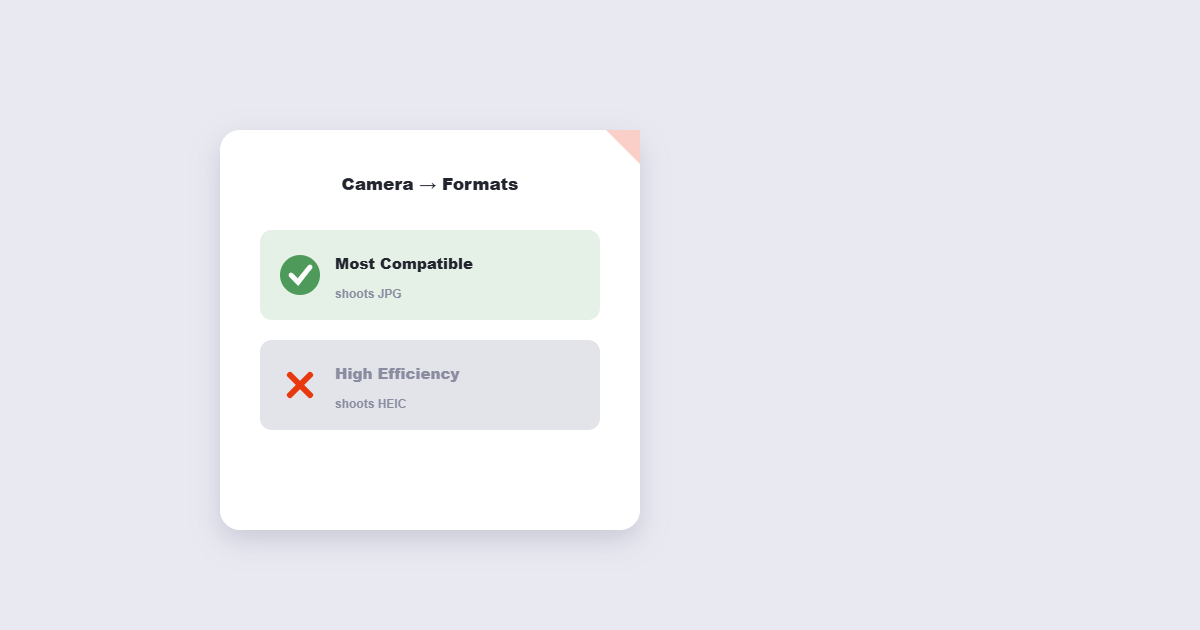
- Go to Settings → Camera → Formats.
- Change from “High Efficiency” (HEIC) to “Most Compatible” (JPG).
- All new photos will now be saved as JPG directly. Existing HEIC photos stay as HEIC.
The trade-off: JPG files are approximately 2× larger than HEIC for the same quality, so you’ll fill your iPhone storage faster. If storage space is not a concern and you regularly share photos to non-Apple platforms or upload them to websites, “Most Compatible” is the simpler setting.
HEIC vs JPG — Quality, File Size and Compatibility
| HEIC | JPG | |
|---|---|---|
| File size | ~50% smaller than JPG for same quality | Larger — standard compression |
| Image quality | Equal or better than JPG at same file size | Slightly more compression artefacts at same size |
| Compatibility | Apple devices only natively; limited elsewhere | Universal — works everywhere |
| Editing support | Limited — fewer apps support it | Universal — every image editor supports JPG |
| Web upload support | Many sites reject it | Accepted everywhere |
| Transparency support | Yes (HEIC supports alpha channel) | No — use PNG for transparent images |
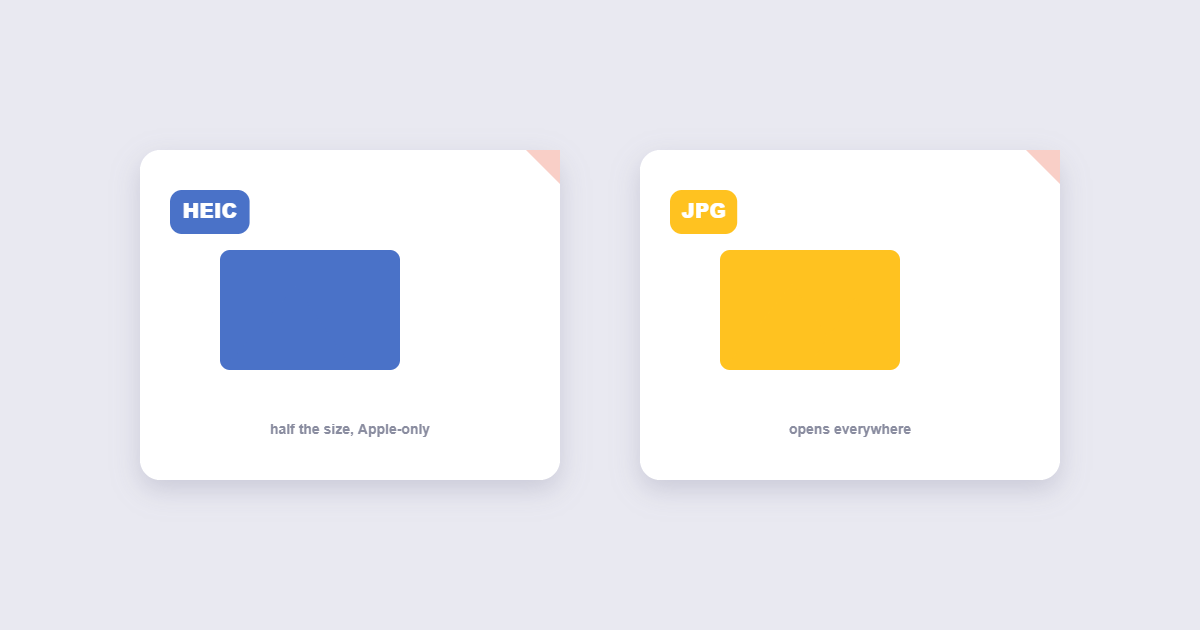
HEIC is technically superior to JPG — better quality at smaller file size. The problem is purely compatibility: the world outside Apple’s ecosystem mostly hasn’t adopted it yet. Until broader support arrives, JPG remains the safest format for sharing, uploading and archiving photos that need to work everywhere.
Converting Multiple HEIC Files at Once
For batches of photos — a holiday album, a product shoot, photos from a shared iCloud folder:
Read about the HEIF/HEIC format on Wikipedia for the technical details.
- Online tool: Most converters accept multiple files — upload all, download as ZIP.
- Mac Automator: Create a workflow with “Get Finder Items” → “Change Type of Images” (set to JPEG) → “Move Finder Items” to a destination folder. Run it on any folder of HEIC files instantly.
- iPhone Photos export: Select all photos in an album → Share → Save to Files (or AirDrop to Mac) → iOS converts all to JPG automatically during export.
- iCloud for Windows: Enable iCloud Photos in iCloud for Windows settings, then check “Download HEIC photos as JPG” — photos sync to your PC automatically as JPGs.
Frequently Asked Questions
Does converting HEIC to JPG reduce quality?
Minimally. Both formats are lossy, so some data is lost in any HEIC-to-JPG conversion — but at 85–90% JPG quality, the difference is invisible to the human eye in normal viewing. The visible content, colours, and detail of the photo survive intact.
Why can’t Windows open my HEIC files?
Windows needs the HEIF Image Extensions codec from the Microsoft Store to read HEIC files natively. Without it, HEIC files appear as unknown format. Install the free codec, or use the online converter to get a JPG without installing anything.
Will HEIC to JPG conversion change the photo’s metadata (date, location)?
Most converters preserve EXIF metadata — date taken, GPS location, camera settings — during conversion. If you need to remove location data before sharing, use an EXIF remover after converting to JPG.
Can I convert HEIC to PNG instead of JPG?
Yes — most converters including the online tool support HEIC to PNG conversion. Use PNG if the image contains transparency (HEIC supports alpha channels, JPG does not) or if you need lossless quality for a logo or diagram.
My HEIC file converted but the JPG looks different — why?
HEIC supports HDR (High Dynamic Range) colour information that standard JPG cannot store. An HDR HEIC photo converted to standard JPG may look slightly duller or have colour shifts in highlights and shadows. This is a format limitation, not a converter problem. For normal photos (non-HDR), the difference is unnoticeable.
The Short Version
Upload to the HEIC to JPG converter — works in any browser on any device, no account needed, converts instantly. On iPhone, sharing any HEIC photo via the share sheet automatically converts it to JPG for the recipient — no conversion tool needed for most sharing situations. On Mac, Preview converts HEIC to JPG in two clicks. On Windows, install the free HEIF codec from the Microsoft Store to open HEIC files natively, or use USB transfer from iPhone which auto-converts to JPG. To avoid the problem entirely, switch your iPhone camera to “Most Compatible” in Settings → Camera → Formats and it will shoot JPG directly.