Extracting table data from a PDF so you can work with it in Excel is one of the most requested document tasks — and one of the most frustrating when done wrong. A PDF table looks like a spreadsheet, but it’s actually just positioned text with no real row-and-column structure. This guide covers every method for getting that data into Excel accurately, what to do when conversion goes wrong, and the fastest approach for each type of PDF.
Table of Contents
- How to Convert PDF to Excel Free (Step by Step)
- Text-Based vs Scanned PDFs — Why It Matters
- How to Convert PDF to Excel in Microsoft Excel Directly
- PDF to Excel on Mac, Google Sheets and Mobile
- When Conversion Goes Wrong — How to Fix It
- Handling Complex Tables: Multi-Row Headers, Merged Cells
- PDF to Excel vs PDF to CSV — Which to Use
- Frequently Asked Questions
- The Short Version
How to Convert PDF to Excel Free (Step by Step)
- Open the PDF to Excel converter and upload your PDF file.
- The tool extracts tables and structured data and outputs an .xlsx file.
- Download the Excel file and open it.
- Check each table: column alignment, merged cells, header rows. Most simple tables come through cleanly; complex ones need a quick cleanup pass.
No account required. Files are deleted automatically after download. For PDFs containing sensitive financial or personal data, use the Excel-native import method (section 3) so the file stays on your device.
Text-Based vs Scanned PDFs — Why It Matters
This distinction determines which methods will work and how much cleanup you’ll need:

| Text-based PDF | Scanned PDF (image) | |
|---|---|---|
| What it is | Created from Word, Excel, accounting software — text is real text data | A photo or scan of a document — text is an image |
| How to tell | You can highlight and copy text in your PDF viewer | Text is not selectable — clicking produces no highlight |
| Conversion accuracy | High — tables usually come through correctly | Requires OCR first — accuracy depends on scan quality |
| Best method | Online converter or Excel Data → From PDF | OCR tool first, then convert to Excel |
To quickly check which type you have: open the PDF, try to click and drag to select a word in a table. If text highlights blue, it’s text-based. If nothing happens or a rectangle appears over the whole area, it’s a scanned image.
How to Convert PDF to Excel in Microsoft Excel Directly
Microsoft Excel 2016 and later (including Microsoft 365) has a built-in PDF import feature that works without any external tool:
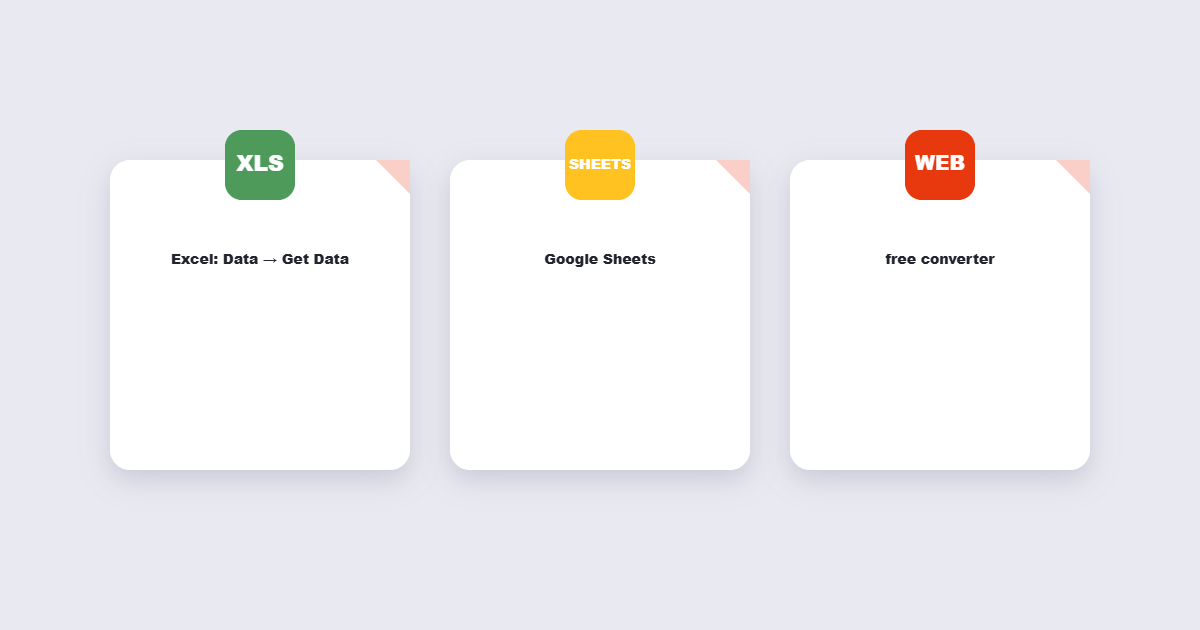
- Open Excel and go to Data → Get Data → From File → From PDF.
- Select your PDF file. Excel opens a Navigator panel showing each detected table as a separate item.
- Click on each table to preview it, select the ones you want, and click Load.
- Each table loads into a separate sheet or query — use Transform Data to clean column headers and data types before loading.
This is the best method for text-based PDFs going into Excel — the data stays on your device, Excel’s Power Query handles the import, and you get fine-grained control over which tables to import and how to structure them. The limitation: it doesn’t work on scanned PDFs, and it’s Windows-only (Excel for Mac doesn’t yet have the From PDF import feature).
PDF to Excel on Mac, Google Sheets and Mobile
Mac
- Online converter: The PDF to Excel tool works in any browser — upload, convert, download the .xlsx file, open in Excel for Mac or Numbers.
- Adobe Acrobat Pro: File → Export To → Spreadsheet → Microsoft Excel Workbook. Accurate for complex tables but requires a paid subscription.
- Copy-paste from Preview: For small tables, open the PDF in Preview, drag to select the table area, copy, paste into Excel. Works for simple tables; alignment often needs cleanup.
Google Sheets
- Upload the PDF to Google Drive → right-click → Open With → Google Docs. Google Docs performs OCR and converts the PDF to a Docs document, which you can then copy the tables from into Sheets.
- Alternatively, convert the PDF to Excel first using the online tool, then upload the .xlsx to Google Drive and open it in Sheets.
Mobile (iPhone and Android)
- Open the PDF to Excel converter in your mobile browser, upload the PDF, download the .xlsx file, and open it in the Excel mobile app or Google Sheets.
When Conversion Goes Wrong — How to Fix It
PDF-to-Excel conversion is rarely perfect for complex tables. Here are the most common problems and their fixes:
All data lands in column A
The converter couldn’t detect column boundaries and put everything in one column. Fix: select column A in Excel → Data → Text to Columns → Delimited → choose the delimiter (comma, tab, or space) that matches how the data is separated. If the data is fixed-width (columns aligned by spaces), choose Fixed Width instead.
Numbers come through as text
A column of currency or percentage values converts as text strings (“$1,234.56”) instead of numbers. Excel shows a small green triangle in the corner of affected cells. Fix: select the column → Data → Text to Columns → Finish (no changes) — this forces Excel to re-interpret the values as numbers. Alternatively, use Find & Replace to remove the currency symbol first, then format the column as Number.
Multi-page table splits across sheets
A table that spans multiple PDF pages sometimes converts as separate tables. Fix: after conversion, copy all sheets into one, remove the repeated header rows (the column headers that appear again at the top of each page), and consolidate into a single continuous table.
Row data merges into one cell
A row with merged cells in the PDF sometimes lands as a single cell in Excel. Fix: select the merged cell → Home → Merge & Center dropdown → Unmerge Cells, then fill down the repeated values using Ctrl+D.
Handling Complex Tables: Multi-Row Headers, Merged Cells
Complex tables — those with merged headers, sub-columns, or hierarchical structures — rarely convert cleanly from any tool. The most efficient approach:
- Convert the PDF to Excel using the online tool to get as much structure as possible automatically.
- Reconstruct the header rows manually — it usually takes 2–5 minutes for a complex table and is faster than trying to make the converter handle it perfectly.
- Use Excel’s Unmerge Cells + Fill Down to handle merged rows in the data area.
- If the table is very large (100+ rows), consider whether the original data source is accessible — a bank statement, for example, often has a CSV export option that bypasses the PDF entirely and gives you clean structured data.
PDF to Excel vs PDF to CSV — Which to Use
| Excel (.xlsx) | CSV (.csv) | |
|---|---|---|
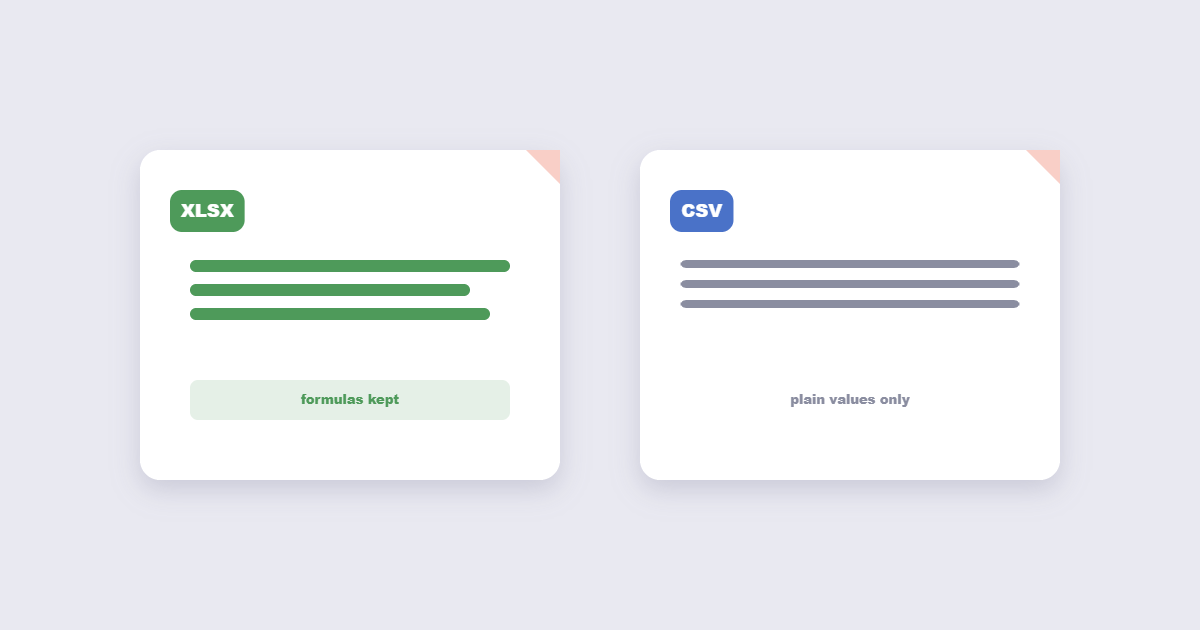
| Best for | Multiple tables, formatted data, charts | Single table, importing into databases or other software |
| Formatting | Preserves column widths, number formats, colours | Plain text only — no formatting |
| Compatibility | Excel, Google Sheets, Numbers | Any software that reads data (databases, Python, R) |
| Multiple sheets | Yes — each table on its own sheet | No — one table per file |
For most everyday uses — sharing a financial table, importing sales data, working on a report — Excel format is the right choice. CSV is better when the data is going into a database, CRM, or data analysis tool that prefers plain structured text.
Learn more about spreadsheet formats and their differences on Wikipedia.
Frequently Asked Questions
Can I convert a PDF to Excel for free?
Yes. The PDF to Excel converter is completely free — no account, no subscription, no watermarks on the result.
Why does my converted Excel file look wrong?
Most conversion problems come from the PDF’s table structure — merged cells, multi-row headers, or unusual column spacing that the converter couldn’t interpret. The data is usually all there — it just needs a few minutes of cleanup in Excel to align correctly.
Can I convert a scanned PDF to Excel?
Yes, but OCR (optical character recognition) is needed first to convert the image text into real text data. Some converters include OCR automatically — if the result is blank or garbled, try uploading the PDF to Google Drive first (which applies OCR), copying the text, and pasting into Excel manually for small tables.
Does PDF to Excel work with password-protected files?
No — you need to remove the password first using the unlock tool, then convert the unlocked PDF to Excel.
What is the best free PDF to Excel converter?
For everyday text-based PDFs, the online converter is the fastest option requiring no software. For PDFs going directly into Excel on Windows, the built-in Data → Get Data → From PDF feature gives the most control. For scanned PDFs, Adobe Acrobat (paid) has the best OCR accuracy.
The Short Version
Upload to the PDF to Excel converter, download the .xlsx file, open in Excel and do a quick cleanup pass. For Windows users with Excel 2016+, Data → Get Data → From PDF keeps the file local and gives fine-grained control over which tables to import. For scanned PDFs, check whether text is selectable first — if it isn’t, you need OCR before any conversion will produce usable data. Most simple bank statements and financial tables convert cleanly in under a minute; complex multi-header tables need 5–10 minutes of manual cleanup after conversion.