Quick answer
Cropping a PDF takes about a minute: open a crop tool, drag a box around the content you want to keep, tell it to apply that box to every page, then save. The pages shrink down to that area. What usually doesn’t shrink is the file size — we measured exactly why, below.
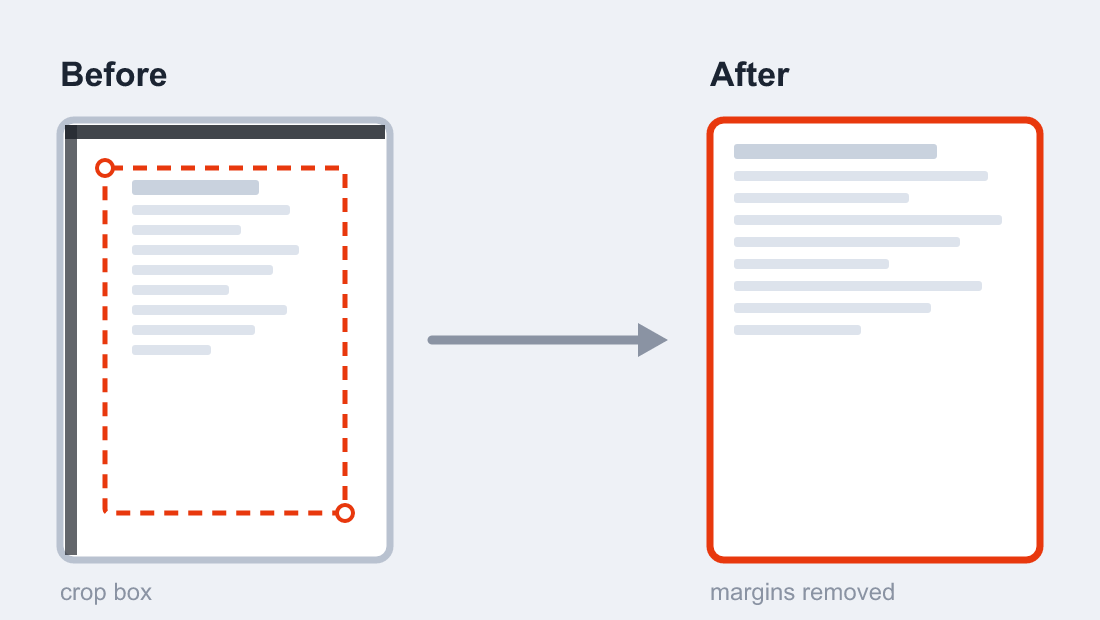
A scanner is generous with margins. Half a page of white on one side, a thick black edge along the other, your actual document floating somewhere in the middle. Cropping a PDF cleans that up: the content stays, the dead space goes, and every page ends up a consistent size. Here’s the free browser method, the trick to handling black scan borders, and the honest answer on what a crop does (and doesn’t do) to the file.
In this guide:
- Which fix do you actually need?
- How to crop a PDF in your browser
- Cropping scanned documents (the black-border problem)
- We tested it: cropping doesn’t shrink the file
- Other free ways to crop
- Troubleshooting
- FAQ
Which fix do you actually need?
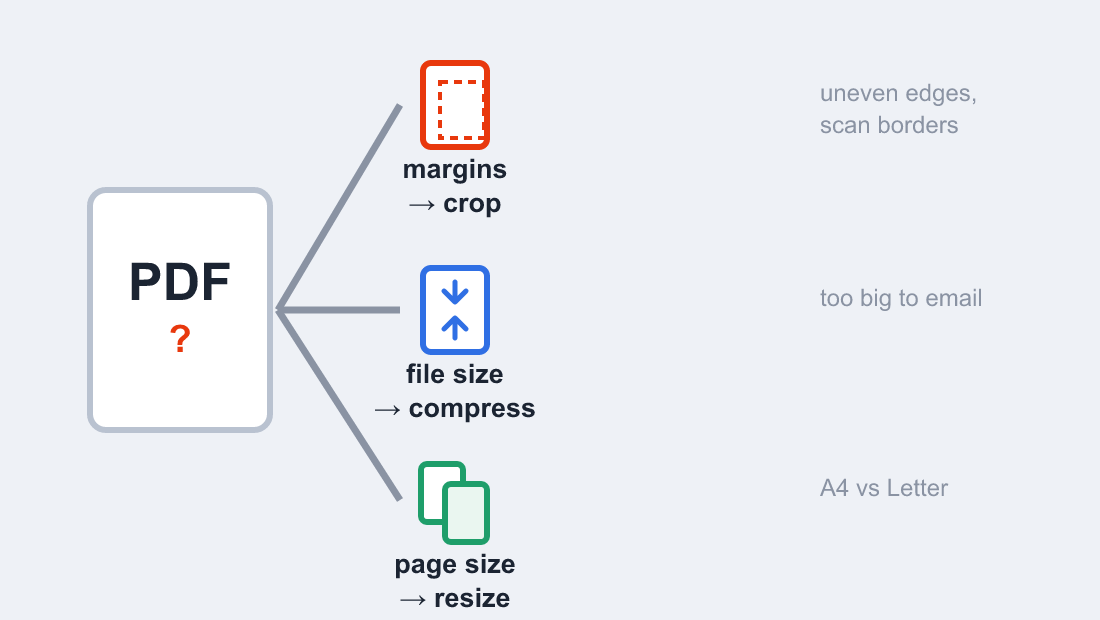
Four problems get mixed together under “fix this PDF,” and they have different solutions. Cropping removes margins. Compressing shrinks the file. Resizing changes the page dimensions. Deleting removes whole pages. Pick by the problem:
| Your problem | The right fix | Tool |
|---|---|---|
| White margins, black scan edges, off-center content | Crop the pages | Crop PDF |
| File too big to email — Gmail cuts off at 25 MB | Compress it (cropping won’t do it — we measured) | Compress PDF |
| Page is A4, the printer or portal wants Letter | Resize the page, keep the content | PDF Page Size |
| Entire pages you don’t need at all | Delete or extract them | Delete PDF Pages |
The email limit is the one that trips people up. Gmail’s 25 MB cap counts every attachment in the message combined (Google’s own documentation), and encoding overhead means even a 20 MB file can bounce. Trimming margins won’t get you under that line. Compression will.
How to crop a PDF in your browser
This is the method I’d point anyone to first. It’s free, needs no account, and works the same on Windows, Mac, Linux and phones because it’s just a web page.
- Open the free Crop PDF tool.
- Drop your file in, or click Choose Files to browse for it.
- Set the crop area — drag a box on the page preview, or type exact margin values if you want it precise. Leave a small buffer (5–10 points) so nothing important gets shaved.
- Choose apply to all pages, hit Crop, and download.
The part worth knowing: the work happens inside your browser. The file never gets processed in your browser, so there’s no transfer wait and nothing to trust but your own device. That makes it reasonable for tax documents, contracts and ID scans — the stuff you’d think twice about pushing through an upload-based service.
Cropping scanned documents (the black-border problem)
Auto-trim features look for white. They measure where the blank background ends and assume everything beyond it is margin. Scans break that assumption twice over: the scanner’s own shadow shows up as a dark band, and cheap feeds skew the page so one side has a fat black stripe while the other has none.
So for scans, ignore the auto option and set the box by hand. Line it up with the actual content and leave that 10–15 point buffer — scan edges are rarely straight enough to crop flush. Two more things that help:
- Sideways pages first. If pages came in rotated, fix orientation before you crop, or the box you draw on page 1 lands somewhere else on page 7. The free Rotate PDF tool does all pages in one pass.
- Really bad scans: re-scan. Cropping can’t rescue a page that’s crooked or cut off at the edge. Scanning at 200–300 dpi with the paper flat against the glass gives the crop tool something clean to work with — our phone scanning guide covers the settings.
We tested it: cropping doesn’t shrink the file
Every few weeks someone crops a 40 MB scan, checks the properties, and finds it’s still 40 MB. Here’s why, with real numbers.
How we tested: we built a five-page scan-style PDF — A4 pages, one full-page JPEG “scan” per page, margins ranging 29 to 53 points — then cropped it and re-saved it three ways. All measurements are from the actual saved files, September 2026.
| Version | Page size | File size |
|---|---|---|
| Original — 5 scanned pages | 595 × 842 pt (A4) | 1,111 KB |
| After crop — view only | 523 × 756 pt | 1,111 KB (100%) |
| Cropped + re-encoded | 523 × 756 pt | 858 KB (77%) |
A crop box is an instruction, not a deletion. It tells the viewer “show this region,” while the full scan rides along inside the file untouched. Our cropped copy was byte-for-byte the same size as the original. That sounds like a flaw, but it’s also the feature: the crop is reversible. Reset the box to the full page and everything you cropped away comes back.
To actually drop the bytes, the file has to be rebuilt — the cropped-out pixels thrown away and the images re-compressed. That took our test file from 1,111 KB to 858 KB, a 23% saving, and that’s before real compression. The Flatten PDF tool rebuilds pages this way; the Compress PDF tool goes further by shrinking the images themselves. In our test file, images were 99.8% of the bytes — text, fonts and structure barely registered. That’s typical for scans, and it’s why image compression moves the number when nothing else does.
Other free ways to crop
Adobe Acrobat (desktop, paid). Tools → Edit PDF → Crop Pages opens a dialog with margin controls, and its Remove White Margins checkbox is the best auto-trim implementation anywhere (Adobe documents it here). It’s the standard the online tools are copying. The catch is the price tag and that it crops page ranges one dialog at a time.
Mac Preview (free, built in). Tools → Rectangular Selection, drag a box on the page, then Tools → Crop (⌘K). Fine for one page. For a 40-page scan you’d do it forty times, which is honestly not a workflow — use the browser method for anything multi-page.
Phone. The app-store croppers are mostly trial-ware with subscription paywalls, in our experience. The browser method above behaves identically on Android and iPhone, costs nothing, and doesn’t upload your document anywhere.
Troubleshooting
- Cropped too much. Go back to the original file and re-crop with a wider box — don’t crop the cropped copy, quality compounds that way if the tool re-encodes. If the file was view-cropped only, resetting the crop box restores the full page, no re-crop needed.
- Only one page got cropped. The apply-to-all-pages option wasn’t ticked. Undo, re-do, tick it.
- Text or content got cut off. The box was too tight. Re-crop with a 10–15 point buffer around the content.
- File size didn’t change after cropping. Expected — that’s the test above. Flatten or compress afterwards if size is the goal.
- Pages still crooked after cropping. Crop trims, it doesn’t straighten. Run the file through Rotate PDF after.
Frequently asked questions
Does cropping a PDF reduce the file size?
Usually no. A crop box hides the margins rather than deleting them, so the original data stays in the file. In our test, a cropped scan stayed 100% of its original size; only rebuilding the file with re-encoded images brought it down to 77%. Crop for clean margins, compress for size.
Can I crop all pages of a PDF at once?
Yes — look for an “apply to all pages” or page-range option before you confirm the crop. Every tool default to the page you’re looking at, which is why single-page crops are such a common complaint.
Can you crop a PDF without losing quality?
Yes. Cropping doesn’t re-render or recompress the content within the box — the kept region is the same data at the same quality. Quality only suffers if you crop an already-cropped file through a tool that re-encodes it each time.
How do I remove the black edges from a scanned PDF?
Set the crop box manually instead of using auto white-margin removal, which hunts for white and gets confused by dark scan bands. Line the box up with the content and leave a 10–15 point buffer, then apply to all pages.
Can I undo a crop and get the full page back?
Often, yes. If the file was only view-cropped, the original content is still inside — a tool that can reset the crop box to the full page brings everything back. If the file was flattened or re-encoded after cropping, the cropped-away parts are genuinely gone.
What’s the difference between cropping and resizing a PDF?
Cropping trims the edges and shrinks the page to the content. Resizing keeps the page’s full layout and scales it to different dimensions, like A4 down to Letter. If a portal rejects your file for page size, resize; if it looks sloppy from margins, crop.
Fix the margins with the free Crop PDF tool, and if the size still bothers you, flatten or compress as a separate, deliberate step. One problem, one tool, in the right order.