A .txt file is the most portable document on earth and the worst thing to send to anyone who has to read it: no margins, no page breaks, and whatever font the recipient’s editor feels like using. Converting it to PDF adds the missing structure – fixed pages, real typography, identical rendering everywhere. The conversion is simple, but there’s one classic trap (line breaks going haywire) and a few choices worth getting right the first time.
Table of Contents
Why Convert a Text File to PDF at All?
Plain text has exactly one superpower – it works everywhere – and it loses it the moment presentation matters. A PDF gives a .txt file three things it can’t have on its own: fixed pages that print predictably, consistent typography on every device, and a format that recipients treat as finished rather than editable. Common real jobs: submitting a plain-text assignment or manuscript where the portal demands PDF, turning exported logs or code listings into something readable, and archiving notes in a format that won’t drift.
The Line Break Problem: Why TXT Files Shift
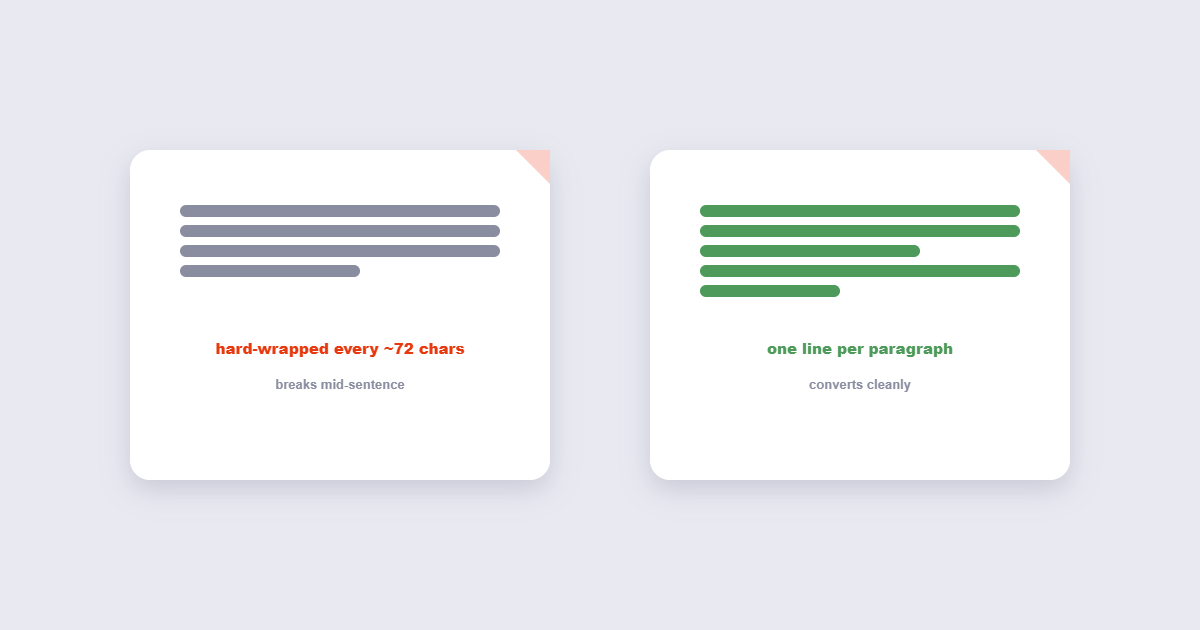
This is the issue that fills forums: you convert a text file and suddenly paragraphs collapse or every line breaks mid-sentence. The cause is ancient and structural. Text files hard-break lines in two different ways – old Windows and DOS files break at 72-80 characters, while Unix files break only at paragraph ends – and different converters interpret hard breaks differently. Some preserve them as literal line ends (faithful but jagged), some try to reflow them into paragraphs (pretty but risky). The honest fix isn’t a setting: it’s knowing your file. If your .txt has hard-wrapped lines from an old export, either accept the jagged look or clean the breaks in a text editor first. If it has one line per paragraph, any decent converter will keep it intact. Wikipedia’s text file article covers the format history if you want the full story.
How to Convert TXT to PDF Online (Free)
- Open the TXT to PDF tool and upload your file.
- Choose the font (monospace for code and logs, a serif or sans font for prose), the size and the page margins.
- Pick the page size – A4 unless the destination demands Letter.
- Convert and download. Open the result and scan for broken lines before sending.
Everything happens in your browser; the text file never leaves your device.
Choosing Font, Size and Margins
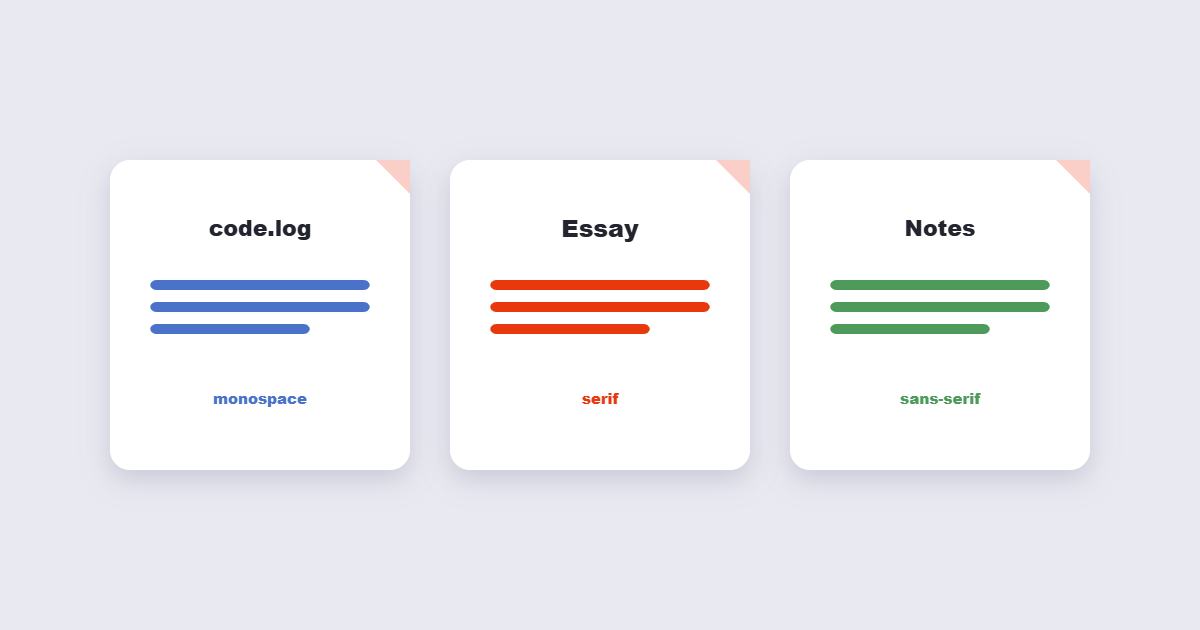
These three choices decide whether the output looks intentional or accidental:
| Content | Font | Size & margins |
|---|---|---|
| Code or logs | Monospace (Courier) | 10-11pt, narrow margins |
| Prose / essays | Serif (Times-style) | 12pt, normal margins |
| Notes for screen reading | Sans (Arial-style) | 11-12pt, wide margins |
The one rule with no exceptions: monospace for anything where character alignment matters. Proportional fonts destroy code indentation and table-like text instantly.
Built-In Routes on Windows and Mac
No tool upload needed if you prefer local options. On Windows, open the .txt in Notepad and print to “Microsoft Print to PDF” – quick, though you get no font or margin control. On Mac, open in TextEdit and use File → Export as PDF. Both routes preserve line breaks as displayed on screen, which is exactly the problem: if the editor wraps lines differently than the original file intends, the PDF inherits the mess. The online tool’s explicit font and margin settings make it the more predictable option for anything you’ll show to someone else.
When Word (or a Word Processor) Is the Better Tool
Convert to PDF only when the text is finished. If the document needs headings, bold text, tables or images, it stopped being a .txt job somewhere along the way – paste the content into a word processor, format it, and export a proper document. A good middle path for text with light structure: convert with the TXT to PDF tool for delivery, and keep the .txt as your editable master. And if the destination is a spreadsheet or a data pipeline rather than a human, neither format is right – the PDF to Excel guide covers that workflow.
Frequently Asked Questions
How do I keep line breaks when converting TXT to PDF?
Use a converter that preserves hard breaks literally, and check your source file first: old hard-wrapped files (broken every ~72 characters) will look jagged no matter what. Clean the wraps in a text editor if the output matters.
Is the TXT to PDF conversion lossless?
The text content is preserved exactly – no characters are added or removed. What changes is presentation: fonts, spacing and page geometry, which is the point of converting.
Can I convert multiple TXT files into one PDF?
Some tools accept multiple files and concatenate them into one PDF with each file starting on a new page. Check whether the tool keeps the order of your upload list.
What font should I use for a text file PDF?
Monospace for code, logs and anything column-aligned; a serif font for prose. 12pt with normal margins is the safe default for anything a human will read at length.
Is my text file processed in your browser?
With browser-based tools, no – the conversion happens locally in your browser and the file never leaves your device.
Why does my converted PDF have strange characters?
Encoding mismatch. Old text files may use legacy encodings (Windows-1252, OEM) that the converter read as UTF-8. Re-save the file as UTF-8 in a text editor and convert again.
The Short Version
TXT to PDF adds structure to the world’s most portable format: pick the right font for your content, know whether your file has hard-wrapped lines, and keep the .txt as your editable master. For finished prose, a word processor still wins – plain text has no headings to preserve.