A PDF that is too large to email, too slow to upload, or too heavy for a web portal is one of the most common everyday frustrations. The good news: most large PDFs have a clear reason for their size — and fixing the right cause can shrink a 50 MB file to under 2 MB without any visible quality loss. This guide explains every method, which one to try first, and what to do when nothing seems to work.
Table of Contents
- How to Reduce PDF File Size Free (Fastest Method)
- Why Is My PDF So Large?
- How Much Can You Compress a PDF?
- Reduce PDF Size on Windows, Mac and Mobile
- Advanced Methods: Images, Fonts and Unused Objects
- Email and Upload Limits — What to Do When Still Too Large
- Frequently Asked Questions
- The Short Version
- Why PDF Files Get So Large in the First Place
- What Actually Happens When You Compress a PDF
- How to Compress a PDF Online: Step by Step
- Choosing the Right Compression Level
- Will Compressing Actually Reduce Quality?
- When You’ll Actually Need to Compress a PDF
- Compressing vs. Other Ways to Reduce File Size
- A Few Practical Tips Before You Compress
- The Bottom Line
How to Reduce PDF File Size Free (Fastest Method)
For most PDFs, an online compressor solves the problem in under a minute:
- Open the PDF Compressor and upload your file.
- Choose a compression level. Every tool offer low, medium, and high — start with medium. High compression reduces images more aggressively and may show slight quality loss on photo-heavy pages.
- Click compress, download the result.
- Open the compressed file and check it looks correct before sending.
No account required. The file is deleted from the server automatically after download. This method works for the vast majority of PDFs — especially those created from Word, PowerPoint, or scanned documents with embedded images.
Why Is My PDF So Large?
Understanding what makes a PDF large tells you which fix will actually work:
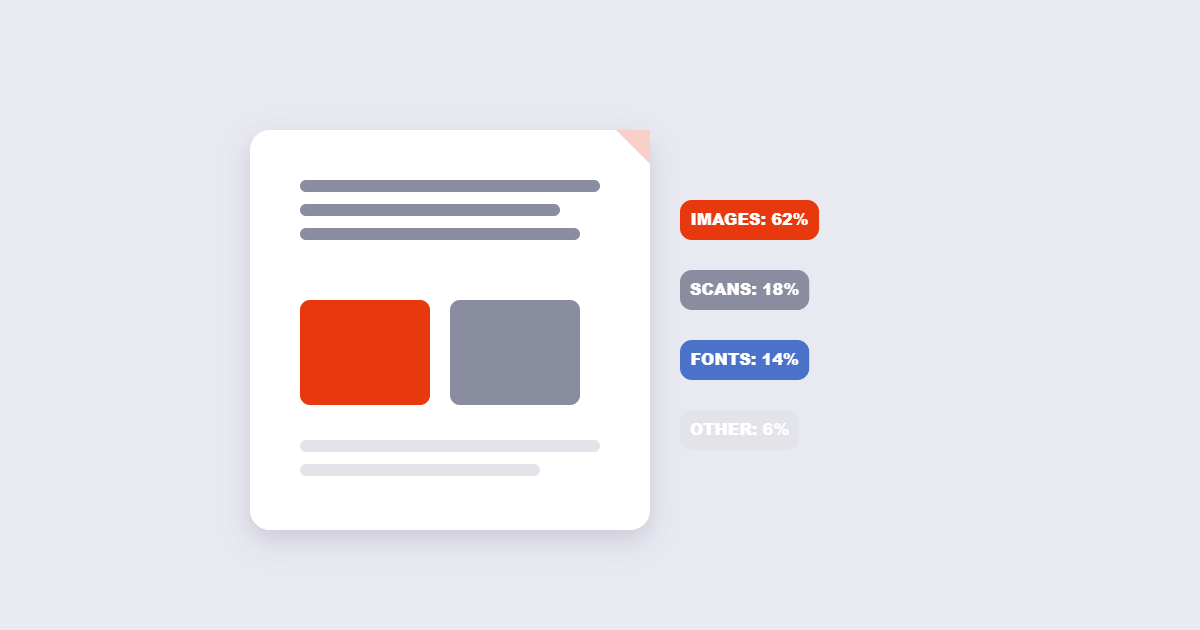
| Cause | Typical culprit | How much it adds | Fix |
|---|---|---|---|
| High-resolution embedded images | Word/PowerPoint with photos, scanned pages | Can be 90% of total file size | Compress images in the PDF |
| Uncompressed scanned pages | Scanner at 600 DPI, TIFF output | 10–50 MB per page | Re-scan at 300 DPI or compress |
| Embedded fonts (full font sets) | Documents with many font families | 1–5 MB per font | Subset fonts or use a PDF optimiser |
| Duplicate image data | Copy-paste workflows, multiple exports | Varies widely | PDF optimiser to deduplicate |
| Unused objects and metadata | Heavily edited documents, multiple saves | 0.5–5 MB | PDF clean/optimise tool |
| Transparency layers | InDesign, Illustrator exports | Can double file size | Flatten transparency before export |
Images are the most common culprit by far. A single 12-megapixel phone photo embedded in a Word document and exported as PDF can be 8–15 MB on its own. A 20-page report with one photo per page is 160–300 MB before any compression.
How Much Can You Compress a PDF?
Results vary dramatically depending on what is inside the PDF:
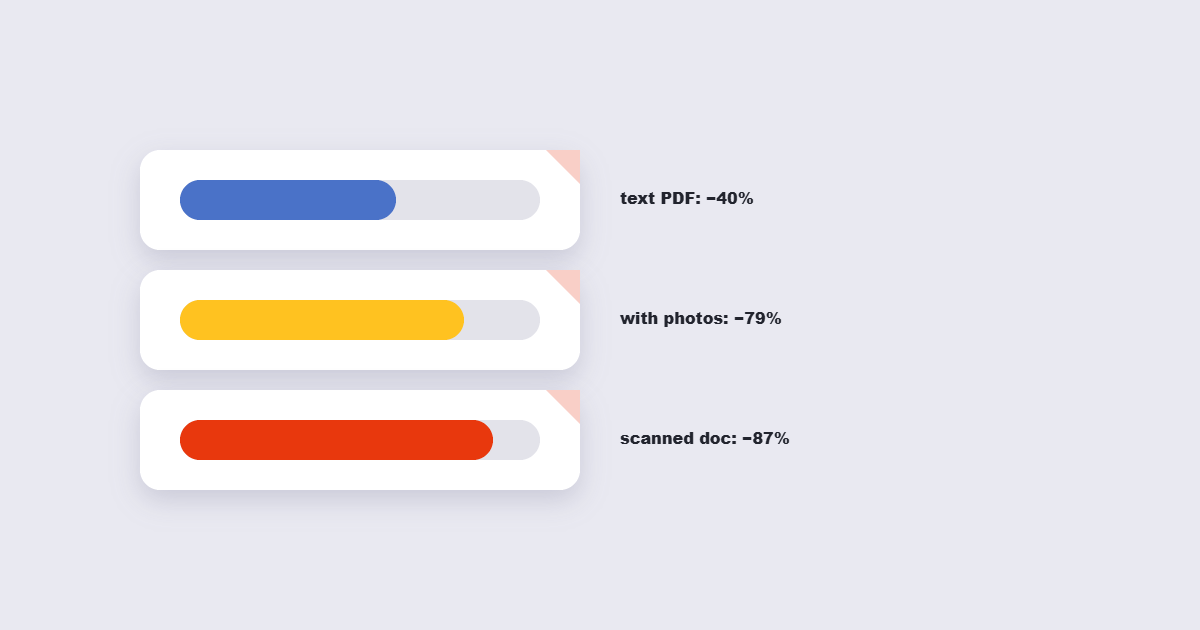
| PDF type | Typical compression result | Why |
|---|---|---|
| Scanned document (300 DPI+) | 70–90% size reduction | Scanned images compress extremely well |
| Word/PowerPoint with photos | 50–80% reduction | Embedded photos are the main target |
| Text-only document | 5–20% reduction | Text is already compact — little left to compress |
| Already compressed PDF | 0–5% reduction | Re-compressing a compressed file gives almost nothing |
| PDF with vector graphics only | 10–30% reduction | Vectors are efficient — limited gains |
If a PDF is already under 1 MB and you’re still hitting an upload limit, compression is unlikely to help further — see section 6 for alternatives.
Reduce PDF Size on Windows, Mac and Mobile
Windows
- Online compressor (recommended): Upload to the PDF Compressor — no software needed, works in any browser.
- Microsoft Word: If you still have the source.docx file, re-export as PDF with File → Save As → PDF, then click Options → Image Quality → set to a lower DPI (e.g. 150 instead of 220). This reduces image resolution before the PDF is created.
- Adobe Acrobat Pro (paid): File → Save as Other → Reduced Size PDF, or use the PDF Optimizer for granular control over images, fonts, and objects.
Mac
- Preview (free, built-in): Open the PDF in Preview → File → Export → Format: PDF → Quartz Filter dropdown → choose “Reduce File Size” → Save. This applies a basic compression filter. Results vary — it can be aggressive on image quality. For better control, use the online compressor.
- Online compressor: Upload to the PDF Compressor for more predictable results than Preview’s filter.
iPhone and Android
- Open the PDF Compressor in your mobile browser, upload from Files (iOS) or your file manager (Android), compress, download. Takes under a minute and works without any app.
Advanced Methods: Images, Fonts and Unused Objects
Downsampling images inside the PDF
Most PDF compressors work by reducing the resolution of embedded images. For a document that will only be read on screen, images only need to be 96–150 DPI — anything higher is invisible on screen but adds significant file size. For a document that will be printed, 300 DPI is sufficient — higher than that adds file size with no visible print benefit.
If your compressor has a DPI setting, set it to 150 for screen-only PDFs and 300 for print PDFs. This single setting often produces larger size reductions than any other option.
Subsetting fonts
A PDF that embeds the full Arial font set includes every character in that font — thousands of glyphs — even if the document only uses 52 of them. Font subsetting trims the embedded font down to only the characters actually used in the document. For text-heavy PDFs with several font families, this can save 2–5 MB. PDF/A optimisers and Adobe Acrobat Pro’s PDF Optimizer both offer font subsetting options.
Removing unused objects
Every time a PDF is edited and re-saved, the old version of each changed object is kept as a “dead” object in the file. A heavily edited 10-page document might have 3–4 previous versions of each page stored inside it. A “linearise” or “clean” operation strips these dead objects and re-writes the file as a single clean version. This is often called PDF optimisation or PDF repair — the PDF repair tool performs this clean-up as part of the repair process.
Removing unnecessary pages
Before compressing, check whether the PDF contains pages you don’t need — blank pages from duplex scanning, cover sheets, instruction pages. Deleting unnecessary pages before compressing reduces both the compression work and the final file size.
Email and Upload Limits — What to Do When Still Too Large
If the PDF is already as compressed as it can get and still exceeds a limit:
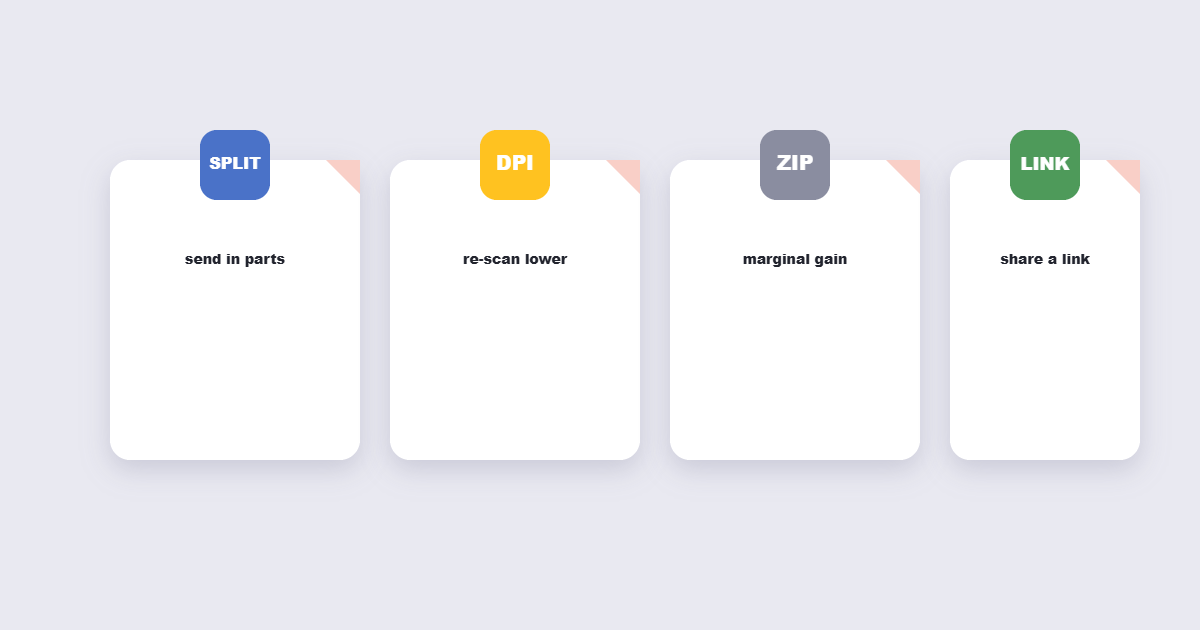
- Gmail / Outlook (25 MB email limit): Upload the PDF to Google Drive or OneDrive and share a link instead of attaching the file. The recipient gets the same document without the size constraint.
- Government portal limits (often 5–10 MB): If compression isn’t enough, split the PDF into sections and submit each section as a separate upload (check whether the portal accepts multiple files first). Alternatively, contact the portal — they often have an alternative submission route for large documents.
- WhatsApp (16 MB limit): Compress aggressively or use a file-sharing link instead.
- Submission portals with strict limits: Re-scan the document at 200 DPI (instead of 300 or 600) — this is the single most effective way to reduce a scanned PDF before it becomes a PDF.
Frequently Asked Questions
Does compressing a PDF reduce quality?
It depends on the compression level chosen. On medium compression, text remains sharp and image quality is barely affected for screen use. On high compression, images may show slight softening — acceptable for most documents, but check the result before sending anything print-critical.
Why is my PDF still large after compression?
Either the PDF contains mostly text (which barely compresses), or it was already compressed before you uploaded it. Check the content: open the PDF, zoom into the images — if they already look compressed (slightly blurry or artefacted), re-compressing won’t help. The alternative is to remove unnecessary pages or split the document.
Can I compress a PDF without an internet connection?
On Mac, Preview’s built-in Reduce File Size filter works offline. On Windows, Adobe Acrobat Pro and several desktop PDF tools (Foxit, PDF24 Desktop App) work offline. For a one-off job, the online tool is faster; for regular large-volume compression, a desktop tool is more practical.
What is the best compression level to use?
Start with medium and check the result. If the file is still too large, re-run with high. For a document going to print, use low or medium — high compression softens images in ways that are more visible on paper than on screen.
Will compression affect the text in my PDF?
No. Text in a PDF is vector data — it compresses differently from images and doesn’t lose sharpness regardless of the compression level chosen. Only embedded raster images (photos, scanned pages) are affected by image quality settings.
Can I compress a scanned PDF?
Yes — and scanned PDFs compress far better than text PDFs. A 300 DPI scan of an A4 page typically compresses from 2–3 MB down to 200–500 KB at medium quality. A 600 DPI scan compresses even more. Scanned PDFs are the biggest beneficiaries of PDF compression.
The Short Version
Upload to the PDF Compressor, choose medium compression, download and check. Most PDFs — especially those containing scanned pages or embedded photos — compress by 50–90% with no visible quality loss at medium settings. If the result is still too large, the file is probably already compressed or text-only — in that case, delete unnecessary pages or split into parts instead of compressing further. No account needed, no install, works on any device.
What’s in this guide
- Why PDF Files Get So Large in the First Place
- What Actually Happens When You Compress a PDF
- How to Compress a PDF Online: Step by Step
- Choosing the Right Compression Level
- Will Compressing Actually Reduce Quality?
- When You’ll Actually Need to Compress a PDF
- Compressing vs. Other Ways to Reduce File Size
- A Few Practical Tips Before You Compress
- Frequently Asked Questions
- The Bottom Line
If you have ever tried to email a PDF and gotten an error about attachment size, or watched a “file too large” message pop up while uploading a document to a job portal, you already know the problem this guide solves. PDF files — especially ones full of scanned pages or high-resolution images — can balloon to tens of megabytes without you doing anything wrong. The good news is that shrinking them back down rarely requires any special skill, and in most cases it does not noticeably hurt how the document looks.
This guide walks through why PDFs get so large in the first place, what actually happens when a PDF is compressed, how to do it in a few clicks, and how to pick a compression level that keeps your document readable.
Why PDF Files Get So Large in the First Place
A PDF is really a container — it can hold text, fonts, vector graphics, and embedded images all in one file. Most of the time, when a PDF feels unreasonably heavy, one of a few things is going on:
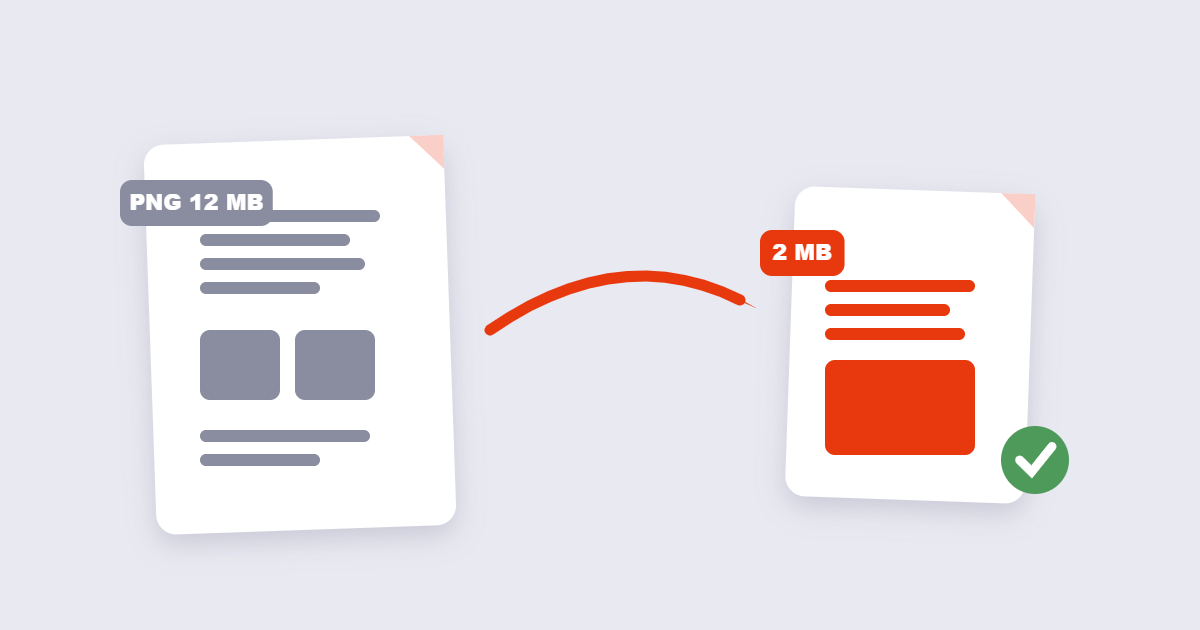
- Scanned pages are stored as images. A scanner doesn’t save “text” — it saves a photograph of the page. A ten-page scanned contract can easily be five to ten times larger than the same ten pages typed directly into a word processor.
- Images are embedded at print resolution. A photo that looks fine on screen at 150 DPI might be embedded at 300 DPI or higher because that’s how it came out of the camera or design software, even though nobody is going to print the PDF.
- Fonts are fully embedded. To make sure a document looks identical on every device, PDF software often embeds the complete font file rather than just the characters actually used.
- The file has been edited many times. Every round of edits in some PDF editors can leave behind old, unused data that never gets cleaned up automatically.
None of this is a mistake on your part — it’s simply how most PDF-creation tools default to preserving maximum quality, whether or not you actually need it.
What Actually Happens When You Compress a PDF
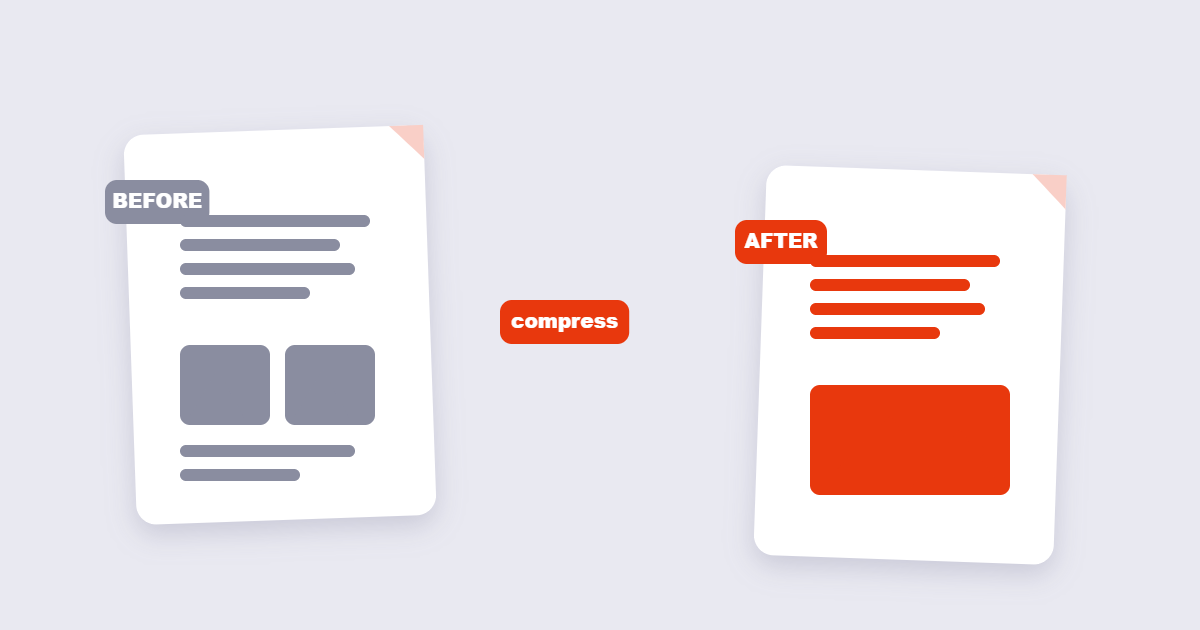
“Compression” sounds like one action, but it is really a bundle of smaller optimizations working together:
1. Image downsampling
This is usually where the biggest size savings come from. An embedded photo at 300 DPI gets resampled down to something like 150 or 96 DPI — still sharp on a screen, just not overkill for print.
2. Re-encoding images with stronger compression
Beyond resolution, the image data itself can be re-encoded more efficiently, similar to how a JPEG at 60% quality looks nearly identical to one at 95% quality but takes up a fraction of the space.
3. Font subsetting
Instead of embedding an entire typeface, the PDF keeps only the specific characters actually used in the document.
4. Removing redundant data
Leftover metadata, duplicate objects, and unused elements accumulated from earlier edits get stripped out.
Text itself is rarely the problem — plain text compresses extremely well on its own and is almost never the reason a PDF is large. That’s why a 40-page text-only report might already be under a megabyte, while a 4-page PDF with two high-resolution photos can be five times bigger.
How to Compress a PDF Online: Step by Step
You don’t need Adobe Acrobat or any other paid software to shrink a PDF. Using the free Compress PDF tool, the process looks like this:
- Open the Compress PDF tool and drop your file into the upload area, or select it from your device.
- Choose a compression level — light, medium, or strong, depending on how small you need the result and how much you care about squeezing out every extra kilobyte.
- Start the compression. For most documents this takes only a few seconds.
- Download the compressed file and do a quick check — open it and glance at a couple of pages, especially any with photos or fine print, before you delete the original.
That’s the entire process. There’s no account to create, no watermark added to your file, and no limit on how many times you can use the tool.
Choosing the Right Compression Level
Most compression tools, this one included, offer a few preset strength levels rather than dozens of granular sliders. Here’s a practical way to think about which one to pick:
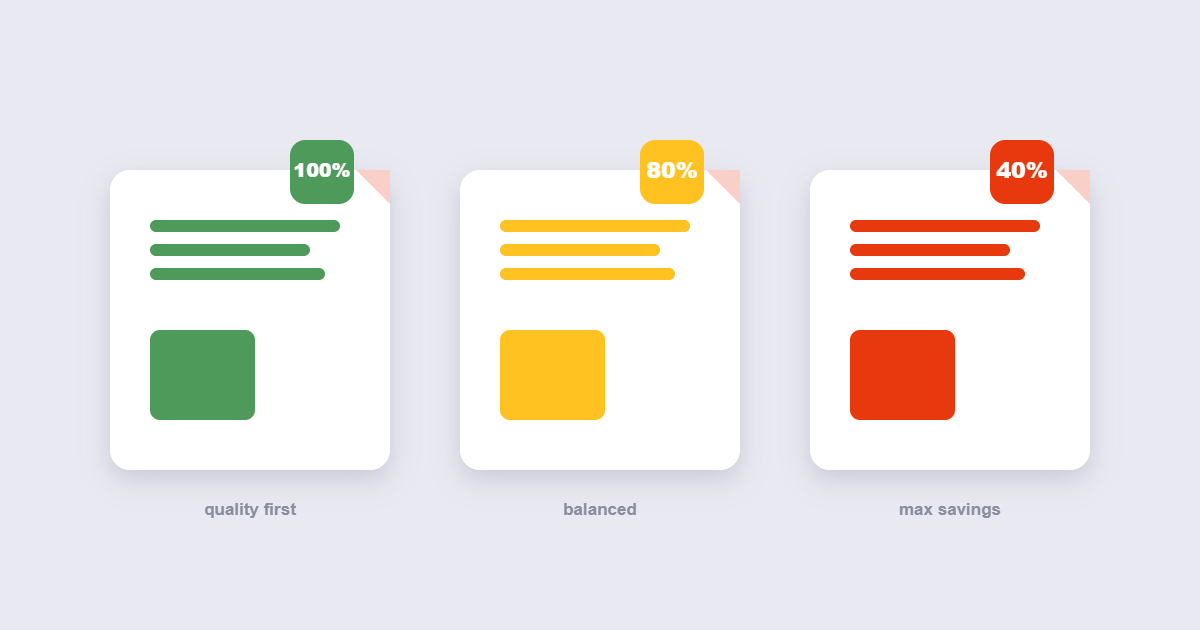
Light compression is the safest choice when the PDF contains design work, product photography, or anything where fine visual detail matters — think a portfolio or a printed brochure. You’ll get a modest size reduction with essentially no visible difference.
Medium compression is the right default for most everyday documents: reports, invoices, presentations exported to PDF, and scanned paperwork that just needs to be email-friendly. This is where most people land.
Strong compression makes sense when file size is the priority and the content is mostly text or simple graphics — think internal memos, contracts, or anything where nobody is going to zoom in on an image. This setting sacrifices the most image quality in exchange for the smallest possible file.
If you’re not sure which to pick, start with medium. You can always try strong afterward and compare the two results before deciding which one to send.
Will Compressing Actually Reduce Quality?
This is the question almost everyone has, and the honest answer is: it depends on what’s in the PDF and how hard you compress it.
Text stays text — headings, paragraphs, and body copy remain exactly as sharp after compression as before, because text in a PDF isn’t stored as a picture (unless the whole page came from a scanner). What changes is the images. At light or medium settings, the difference is usually invisible unless you zoom in significantly. At strong settings, you may start to notice softer detail in photos, particularly ones with fine texture or gradients.
A useful habit: keep the original file until you’ve confirmed the compressed version looks acceptable for your purpose. If you’re sending a scanned legal document, it’s worth opening the compressed file and checking that signatures and small print are still legible before you send it anywhere.
When You’ll Actually Need to Compress a PDF
A few everyday situations where this comes up constantly:
Email attachment limits. Most providers cap attachments around 20–25MB, and a lot of scanned documents or design files blow past that easily.
Job and university application portals. It’s common for these systems to cap uploads at 2–5MB per file, which a resume with an embedded photo or a scanned transcript can exceed surprisingly fast.
Website uploads. If you’re adding downloadable PDFs to a website, smaller files mean faster load times for visitors — and page speed genuinely affects both user experience and search rankings.
Storage and backups. If you’re archiving years of scanned paperwork, compressing each file adds up to real savings in cloud storage space over time.
Compressing vs. Other Ways to Reduce File Size
Compression isn’t the only lever available, and sometimes it’s not even the right one. If a PDF is large because it has far more pages than you actually need to send, using Split PDF to pull out just the relevant pages might solve the problem more directly than compressing the whole thing. On the flip side, if you’re assembling several smaller files into one — say, combining a cover letter with a resume — Merge PDF is the tool for that, and you can compress the combined result afterward if it’s still too large. Our full guide to merging PDFs covers how to get the page order right the first time.
If your PDF also needs a password removed before you can work with it at all, start with Unlock PDF first — most compression tools, including this one, can’t process a locked file until the password protection is removed.
A Few Practical Tips Before You Compress
- Always keep the original. Compression is generally one-directional — you can’t get back detail that’s been discarded, so don’t overwrite your only copy.
- Check scanned documents at a slightly higher zoom. Fine print, signatures, and small stamps are the first things to soften under aggressive compression.
- Compress after combining, not before. If you’re going to merge several PDFs into one, do that first, then compress the final result — it’s one less step than compressing every individual file.
- Re-check file size limits on the destination. A portal that says “5MB max” usually means it — a file at 5.1MB will still get rejected.
The Bottom Line
Shrinking a PDF down to a manageable size is usually a two-minute task, not a technical project. Start with the free Compress PDF tool, pick medium compression as your default, and adjust up or down depending on what you see when you check the result. Between compressing, splitting, and merging, most of the “my file is too big” problems people run into with PDFs have a straightforward fix — no software installation or paid subscription required.