Page numbers sound like the simplest thing in the world until you’re numbering a 60-page court exhibit, or a report where the cover page shouldn’t have a number, or a scan where two pages got fed through together and the count is off by one from that point on. Then the details start to matter: where the number sits, what number the second page should show, and whether “page numbers” is even the right tool for what you’re doing. This guide covers the normal job and the legal one, because they use the same machinery for different reasons.
Table of Contents
What Page Numbering Actually Does
Adding numbers to a PDF stamps text onto each page — it doesn’t touch the document’s internal structure, doesn’t update any table of contents already printed inside, and doesn’t create bookmarks. The number becomes part of the page, permanent and identical on every copy. That’s fine for most purposes, but it explains the one surprise people hit: if you later delete or insert pages, the printed numbers don’t renumber themselves. They’re ink, not formulas. For documents that will keep changing, either number them last or delete the old numbers and re-stamp.
Where to Put the Page Number
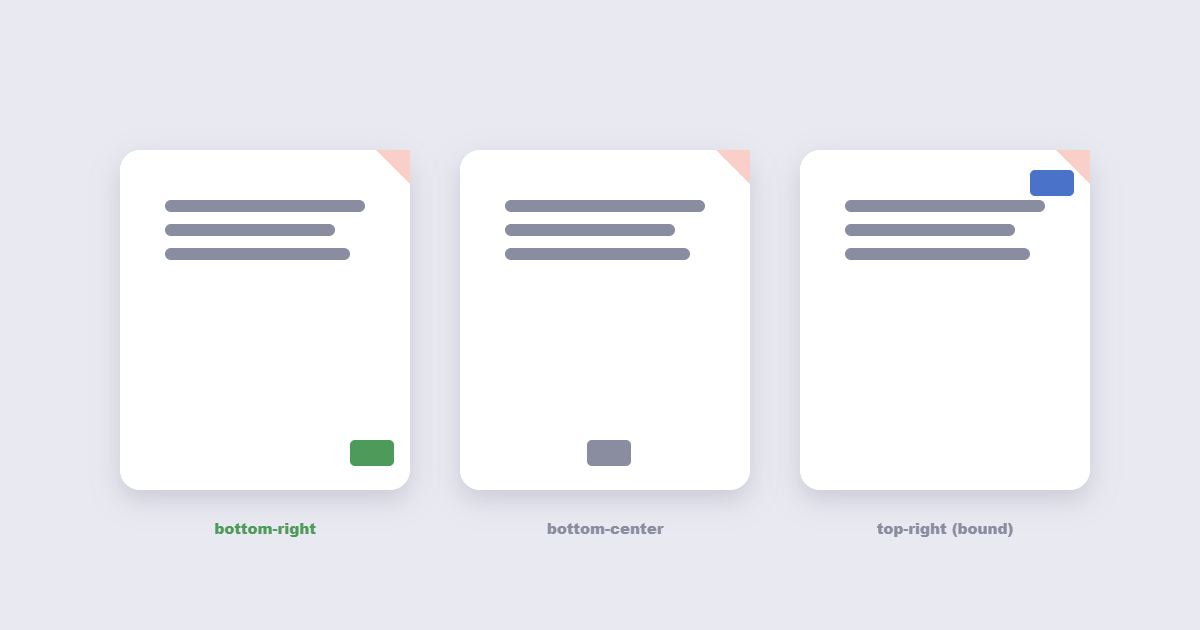
Convention isn’t random. Reports and contracts put numbers bottom-center or bottom-right. Academic papers that will be bound often put them top-right. Landscape pages — the ones from Excel exports — usually read best with the number bottom-right so it doesn’t collide with the header row. The position that causes trouble is bottom-center on documents with a wide footer band: the number lands on top of existing text. When in doubt, bottom-right, 10–11pt, half an inch from the edge. It’s the position least likely to overlap anything.
How to Add Page Numbers to a PDF Free
- Open the Add Page Numbers tool and upload your PDF.
- Pick position (bottom-right is safe), font size and the starting number.
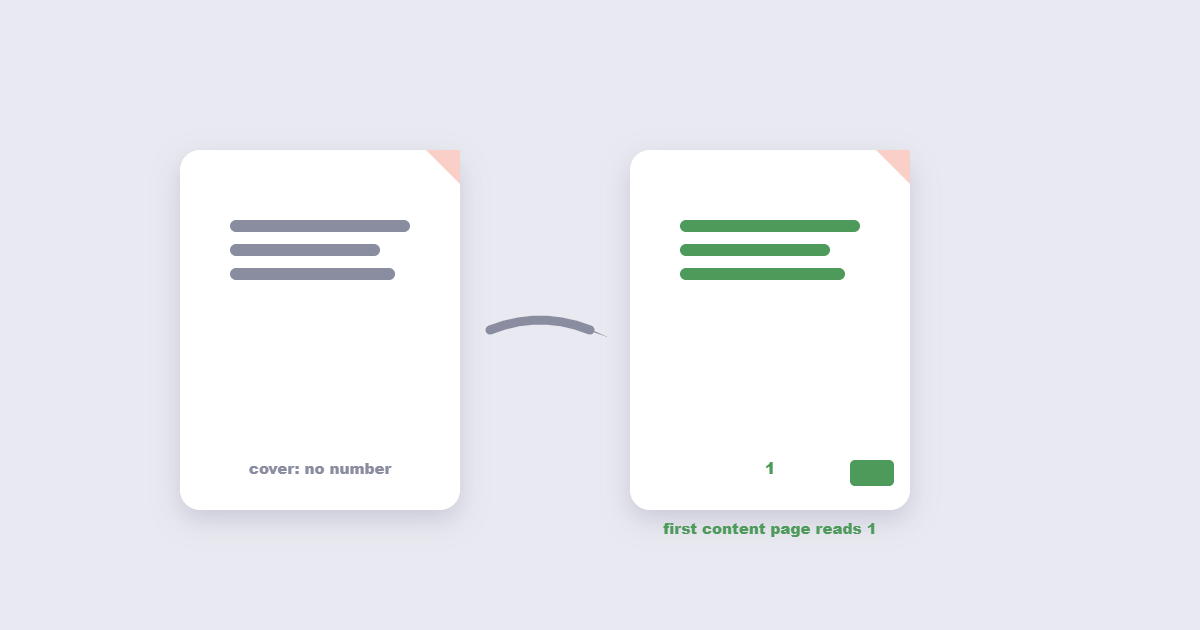
- Decide whether page one gets a number. For reports with a cover page, start numbering from page 2 and set the start value to 1 — so the cover stays unmarked and the first content page reads “1”.
- Apply and download. Check the first and last page of the result.
The “skip first page” option is the one people hunt for and can’t find. If the tool shows a start-number field rather than a skip checkbox, setting the start number to 1 and applying from page 2 achieves the same thing.
Bates Numbering: the Legal Version
Bates numbering — named after a 19th-century law firm that stamped paper files — puts a unique identifier on every page of every document in a legal case. The format is typically three parts: a prefix, a zero-padded counter, and sometimes a suffix. SMITH-000001, SMITH-000002, and so on across thousands of pages in dozens of files. The point isn’t navigation; it’s that any page can be cited in court unambiguously — “see SMITH-000417” refers to exactly one page in the entire case.
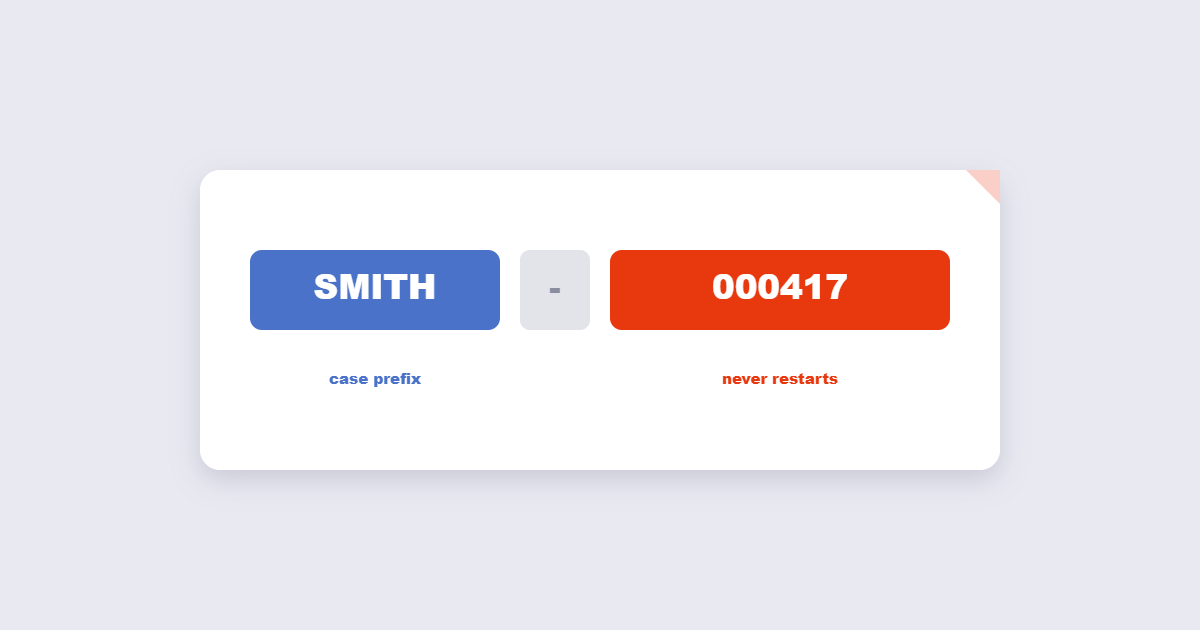
Two rules matter when you build these. First, the counter shouldn’t restart per document — it runs across the whole production, so exhibit 3 picks up where exhibit 2 ended. Second, zero-padding must be consistent (000001, not 1), or sorted file listings will scramble. Bates stamps usually sit bottom-right in a small monospace font, sometimes with a confidential footer.
Page Numbers vs Bates Stamping
| Page numbers | Bates numbering | |
|---|---|---|
| Used for | Reports, contracts, theses | Legal discovery, court filings |
| Restarts per document? | Yes, normally | No — runs across the production |
| Format | 1, 2, 3… | PREFIX-000001, zero-padded |
| Identifies the case file? | No | Yes, via prefix |
| Position | Bottom-center or bottom-right | Bottom-right, monospace |
Frequently Asked Questions
Can I start page numbering from a number other than 1?
Yes — every decent tool has a start-number field. This is also how you skip a cover: start at 1 but apply from page 2, or start at 0 and let the cover show nothing if the tool supports blank first values.
Why don’t my page numbers update after I delete pages?
Because they were stamped into the page content as text. Nothing in the PDF recalculates them. Delete the stamped numbers and re-apply, or number the document after all edits are final.
Do I need Adobe Acrobat for Bates numbering?
No. Acrobat has built-in Bates tools in the Pro version, but free online tools handle the same job: prefix, zero-padded counter, position. For very large productions (thousands of pages), a desktop tool is faster because nothing uploads.
Can page numbers be added to a scanned PDF?
Yes. Stamping adds new text on top of the existing page image — it works regardless of whether the page content is real text or a scan. That’s also why it works on protected PDFs that allow printing.
Page Numbering Formats and Style Guide
The number itself is just part of the stamp. Format choices affect how professional the document reads:
| Format | Example | Best used for |
|---|---|---|
| Plain number | 1, 2, 3 | Internal reports, simple documents |
| Page X of Y | Page 3 of 24 | Contracts, multi-party documents where total count matters |
| Roman numerals | i, ii, iii | Prefaces, front matter in academic documents |
| Section-prefixed | A-1, A-2, B-1 | Technical manuals with multiple appendices |
| Bates stamp | CASE-000001 | Legal discovery, court filings |
“Page X of Y” is underused outside legal documents but earns its place on anything multi-party: when a 40-page contract arrives by email, a reader who sees “Page 14 of 40” knows immediately whether their copy is complete.
Common Mistakes When Adding Page Numbers
- Numbering before finishing edits. Adding or removing pages after stamping leaves numbers wrong. Always number last.
- Forgetting to skip a cover page. A numbered cover page looks unprofessional on most report formats. Use the “start from page 2” option.
- Choosing a font size too large. 8–11pt is the standard range. Larger than 12pt competes with body text. Smaller than 8pt is hard to read when printed.
- Placing numbers over existing footers. Check the first few pages and the last few — footers vary, and a number that lands perfectly on a blank page may land on top of confidentiality text on the last page.
- Numbering a scanned document without checking orientation first. A page stamped upside-down gets a number in the wrong corner. Use the PDF rotate tool to correct orientation before numbering.
- Not keeping the unnumbered original. Once numbered, the only way to renumber is to delete the stamps and start again. Keep the pre-numbered file until you’re certain the count is correct.
Removing Page Numbers From an Existing PDF
If a PDF arrived already numbered and you need to renumber it — or the numbers are wrong — the process is the reverse of adding them. Most page-numbering tools include a “remove page numbers” option that scans for the stamp’s position and strips it. This works reliably when the numbers were added by a tool; it’s less reliable when page numbers were typed into the document content by the original author, because those look like ordinary text to the tool.
The safe approach for already-numbered PDFs: check whether the numbers appear in the original document content (zoom in and try selecting the number text — if you can select it, it’s content text, not a stamp) or as a layer on top (if it’s unselectable, it’s a stamp). Stamps can be removed cleanly; content text requires editing the original source.
The Short Version
Position the number where convention puts it — bottom-right, small and quiet. Skip the cover by starting from page 2. Use “Page X of Y” format for contracts and multi-party documents where the total page count matters. And if the document is going to court, use Bates numbering with a case prefix and a zero-padded counter that never restarts. Number last, after all page edits, because stamped numbers don’t renumber themselves. If the order needs fixing before you number, rearrange pages first, then stamp.