Send a PDF to a client and you might be sending more than the document. Most PDFs carry a metadata block: who created the file, on what software, when it was first made and last edited. Sometimes that’s exactly the paper trail you want. Other times it’s a quiet leak — a company’s internal template name on a “final” invoice, a personal laptop account on a job application, or an edit date that contradicts the “we prepared this months ago” story. Checking metadata takes ten seconds, and cleaning it takes a click. This guide shows what’s in there and how to get it out.
Table of Contents
The Metadata Most PDFs Carry
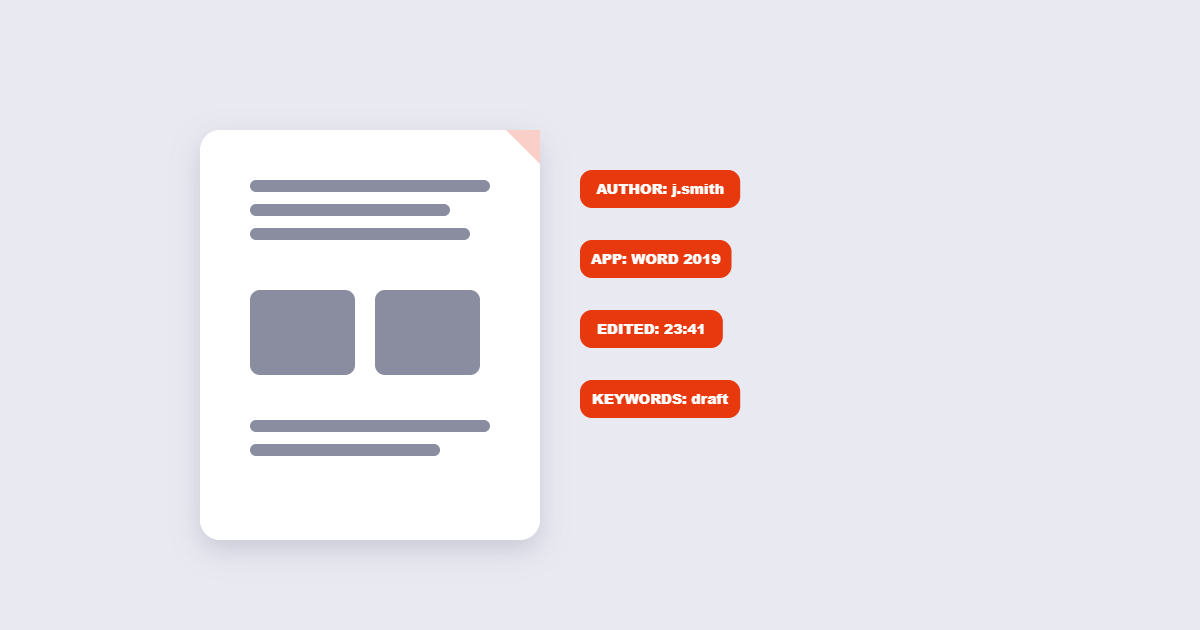
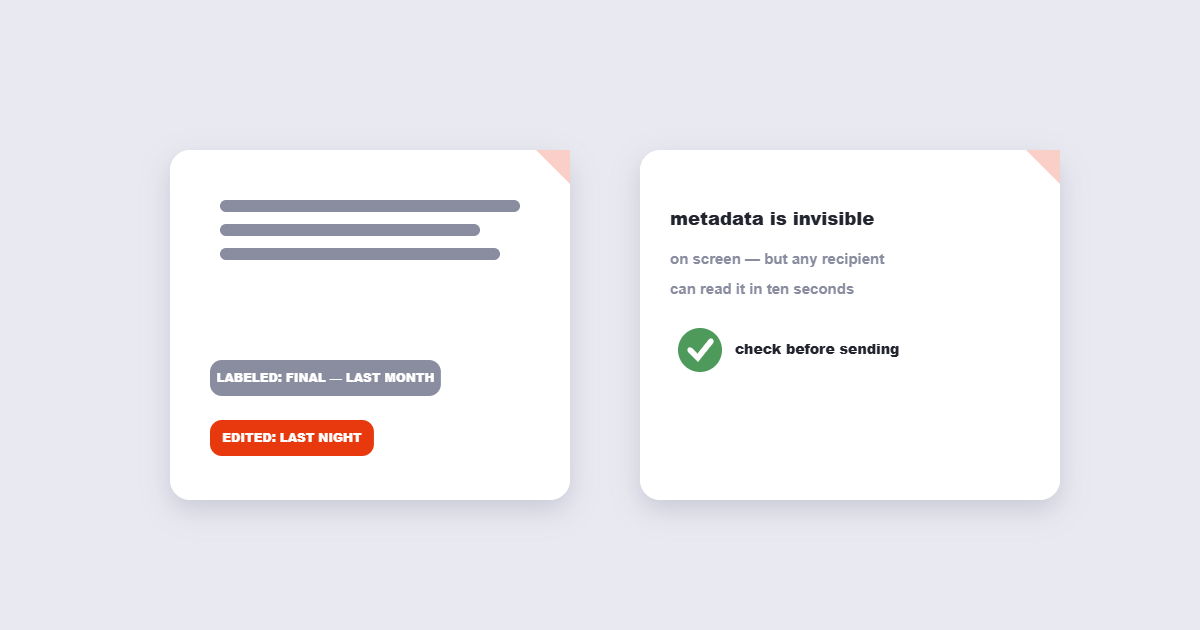
Every PDF has a document information dictionary, and most have an XMP block on top of it — an XML version of the same facts, sometimes with more detail. The practical fields you’ll see: Title, Author, Subject, Keywords, Creator (the software that made it), Producer (the software that converted it to PDF), CreationDate, and ModDate. That last pair is the one people forget. A contract with a ModDate from last night but a “signed and final” label from last month tells its own story. Beyond the standard block, annotations can carry author names, comments can carry timestamps, and anything inserted from a template can carry its source filename. None of it is visible when you read the document on screen. All of it travels with the file.
Why It Matters: Four Real Scenarios
Job applications are the classic case — your resume’s Author field is often your computer’s account name, and a “Draft_321_revised” internal title is visible to any recruiter who checks. Client work is the second: an agency’s internal project code in the Keywords field reveals which client is which. Legal and financial documents are the third, where an edit-date mismatch can raise questions nobody wants to answer. And public uploads are the fourth: a government body publishing a report with the minister’s name in the Author field, or a restaurant’s menu PDF with the old owner’s company name. You don’t need to be paranoid to check metadata. You just need to know it’s there.
How to Check a PDF’s Metadata
Two routes, both fast. On the free side, the PDF metadata viewer shows every field in plain text — title, author, dates, software names. If a field is empty, nothing was stored; if it’s populated, that’s what recipients can see. In Adobe Acrobat, the same information lives under File → Properties → Description. One caution: some PDFs are built to show you clean metadata while hiding additional XMP blocks elsewhere in the file — that’s rare and usually intentional, but for high-stakes documents a thorough metadata editor shows everything that’s actually in the file structure.
How to Remove or Edit PDF Metadata
- Open the PDF Metadata Editor and upload the file.
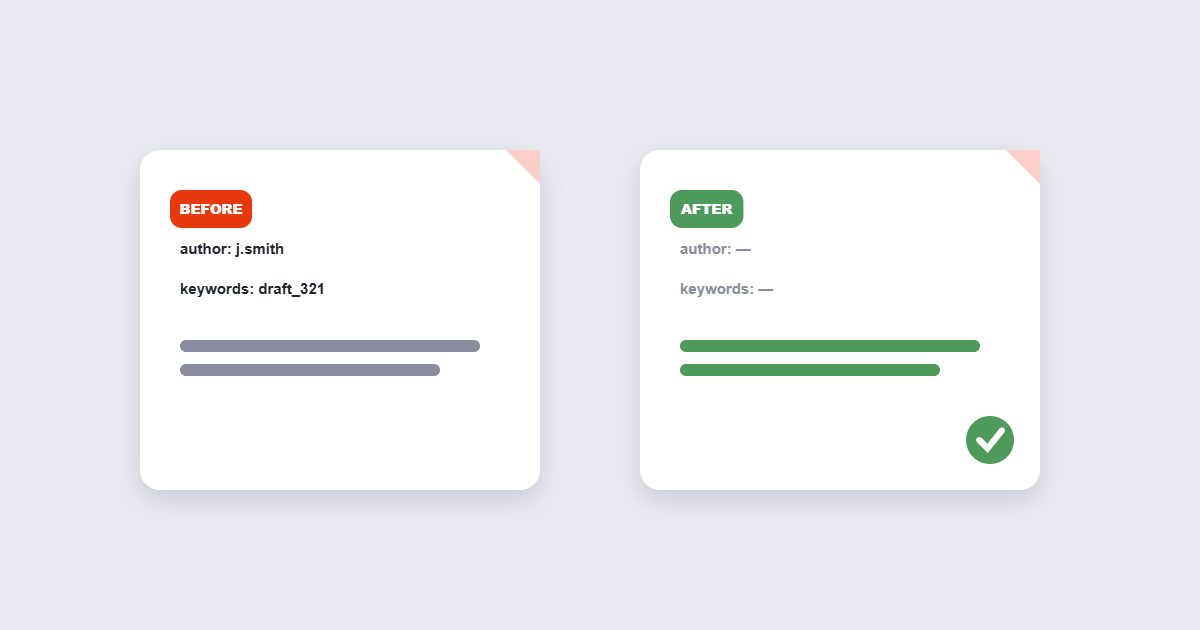
- Read what’s there first — deleting without looking loses information you might want (like a creation date that proves when the file was made).
- Clear the fields you don’t want to share, or overwrite them with neutral values. If the tool allows editing, you can also set your own title and author deliberately.
- Save and re-check the result. Verification takes five seconds and catches the half-cleaned file.
Note what this does and doesn’t do. Metadata cleaning removes the information block. It doesn’t remove the text content of the document, doesn’t redact visible names inside the file, and doesn’t alter hidden layers like old revision data stored by some authoring tools. If you’re removing metadata for privacy reasons, it’s one step, not the whole job.
What’s Inside vs What’s Visible
| Field | What it typically holds | Worth cleaning? |
|---|---|---|
| Author | Account or person who created the file | Usually yes |
| Creator / Producer | Software names and versions | Often yes — reveals your toolchain |
| CreationDate | When the file was first made | Sometimes — can be proof of origin |
| ModDate | Last edit timestamp | Often yes — contradicts “final” labels |
| Title / Subject | Internal document names | Check — draft names leak plans |
| Keywords | Internal project or client codes | Usually yes |
Frequently Asked Questions
Does removing metadata change the document?
No. The visible content — text, images, layout, page count — stays identical. Only the information block changes. Some older tools rewrite the whole file, which can break digital signatures; check that your signature still verifies if the document has one.
Can metadata removal be undone?
Once you save without the metadata, it’s gone from that copy. Keep the original if you need the author/date record — the clean version is a new file.
Do PDFs from scanners have metadata?
Yes, usually. A scan created on an office multifunction printer often carries the device’s model or hostname, the scanning account name, and timestamps. Photos scanned and saved through software carry that software’s signature too.
What about photos taken on a phone — is that different?
Phone photos carry EXIF data — GPS coordinates, camera model, exact capture time — which is more revealing than PDF metadata. It’s a separate removal job; see our EXIF data guide for that.
How Metadata Compares to Other Privacy Risks in PDFs
Metadata is one layer of a larger privacy picture. Understanding where it sits helps you know when cleaning it is enough and when it isn’t:
| Privacy risk | Where it hides | How to remove it |
|---|---|---|
| Author / software name | Metadata block (invisible) | PDF metadata editor |
| Edit timestamps | Metadata block (invisible) | PDF metadata editor |
| Visible text (names, addresses) | Page content (visible) | PDF redaction tool |
| Tracked changes / comments | Annotation layer | Flatten or remove annotations |
| Hidden text layers (scans with OCR) | Below the image layer | Flatten the PDF |
| GPS and camera data | EXIF block (images only) | EXIF data remover |
Cleaning metadata alone does not redact visible names or addresses inside the document. If a contract shows a client’s home address on page 3, that text is in the page content — a metadata clean leaves it untouched. Use a redaction tool for visible sensitive information, and a metadata editor for the invisible background block.
Metadata in PDFs From Different Sources
Not all metadata looks the same — the fields that appear depend on how the PDF was made:
- Microsoft Word → PDF: Author field carries the Windows account name. Title often inherits the document’s “Document Properties” title set in Word. The Creator field shows the Word version.
- Google Docs → Download as PDF: Author is often blank or set to “Google Docs.” CreationDate and ModDate are usually accurate and present.
- Adobe Acrobat: Tends to populate all standard fields. Producer shows the Acrobat version number, which can reveal an outdated or unlicensed copy.
- Office printer / scanner: Often carries the scanner model, hostname of the device, and the network account that triggered the scan.
- Online PDF converters: May inject their own branding into the Producer or Creator field, advertising the service in every file you send.
Knowing the source helps you predict what to look for. A Word-originated PDF almost always has an Author to clean; a Google Docs PDF is less likely to.
The Short Version
Every PDF has a metadata block, and it usually names a person, a machine or a moment in time. Check it in ten seconds with a viewer, and if the file is going outside your organization, clean it — unless that paper trail is something you want to keep. The visible document never changes; only the invisible background does. And remember: metadata cleaning removes the hidden block — for visible names and addresses in the document itself, you need redaction or page removal, not just a metadata wipe.