Converting a Word document to PDF is one of the most common tasks in everyday document work. You do it before emailing a CV, submitting an assignment, sending a contract, or sharing anything that needs to look the same on every device. The conversion is fast and free — but small setting choices determine whether the result looks exactly like your Word document or slightly off. This guide covers every method and every common problem.
Table of Contents
- How to Convert Word to PDF Free Online (No Install)
- How to Convert Word to PDF Inside Microsoft Word
- How to Convert Word to PDF on Mac
- How to Convert Word to PDF on Mobile
- Why Formatting Breaks — And How to Fix It
- Fonts, Hyperlinks and Images: What Survives
- Word to PDF vs Save As PDF — What’s the Difference?
- Frequently Asked Questions
- The Short Version
How to Convert Word to PDF Free Online (No Install)
The fastest route for a one-off conversion — no software, no account, works on any device:
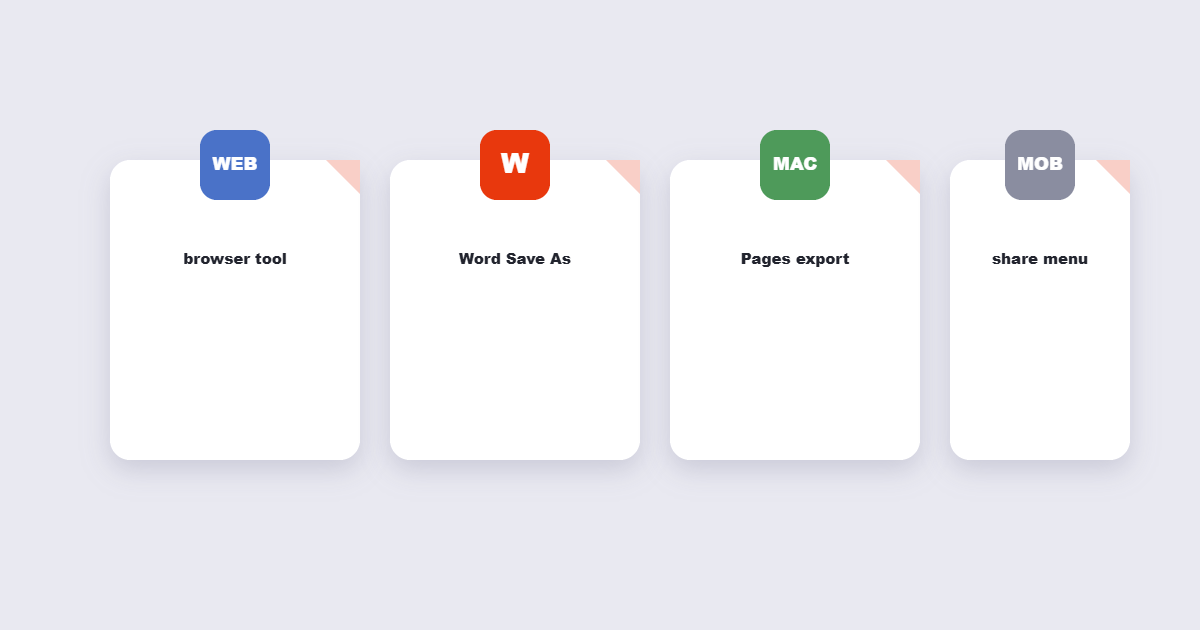
- Open the Word to PDF converter and upload your .docx or .doc file.
- The tool converts the file browser-based using the same rendering engine Word uses — fonts, tables, headers and footers all come across correctly.
- Download the PDF. Open it once to verify the first page and last page look correct before sending.
No account required, no watermark on the result. The file is automatically deleted from the server after download. For confidential documents — legal, medical, financial — use the Word-native method below so the file never leaves your device.
How to Convert Word to PDF Inside Microsoft Word
Microsoft Word has built-in PDF export, and it produces the most accurate result because it uses Word’s own rendering engine. This is the best method for any document with complex formatting — tables of contents, footnotes, cross-references, tracked changes.
Word for Windows (2010 and later)
- File → Save As → choose a location → in the “Save as type” dropdown, choose PDF → Save.
- Or: File → Export → Create PDF/XPS → Publish.
Before saving, click Options in the Save As dialog to choose whether to include comments, bookmarks and document properties in the PDF — or to save only the current page.
Word for Mac
- File → Save As → Format dropdown → PDF → Save.
- Or: File → Print → PDF dropdown (bottom-left of print dialog) → Save as PDF.
The Print → Save as PDF route goes through macOS’s PDF engine — slightly different rendering than Word’s built-in export. For most documents they look identical; for complex layouts, prefer File → Save As → PDF.
Microsoft 365 (browser version)
- File → Save As → Download as PDF.
- Word Online converts and downloads the PDF directly from the browser. No desktop software needed.
How to Convert Word to PDF on Mac
On a Mac without Microsoft Word installed, you can still convert .docx files to PDF using two free methods:
- Pages: Open the .docx file in Apple Pages (free on Mac). File → Export To → PDF. Pages handles most Word formatting correctly, though complex layouts with text boxes or Word-specific styles may shift slightly.
- LibreOffice Writer: Free, open-source, excellent Word compatibility. Open the file, File → Export as PDF. LibreOffice gives you detailed PDF settings — PDF/A compliance, image compression, form handling.
- Online converter: Upload to the Word to PDF tool — the browser-based conversion uses a LibreOffice-compatible engine and handles .docx files correctly without any software installed.
How to Convert Word to PDF on Mobile
iPhone / iPad
- Microsoft Word app (free): Open the document → tap the three-dot menu → Export → PDF. Best formatting accuracy.
- Files app: If you have the .docx file in iCloud Drive or Files, tap to open in Word or Pages, then export as PDF from there.
- Online tool: Open the converter in Safari or Chrome, upload from Files, download the PDF.
Android
- Microsoft Word app (free): Open the document → three-dot menu → Export → PDF. Same as iOS.
- Google Docs: Open the .docx in Google Docs → File → Download → PDF document. Good formatting accuracy for standard documents.
- Online tool: Upload from your device’s file manager in any mobile browser — no app download needed.
Why Formatting Breaks — And How to Fix It
Most Word-to-PDF formatting problems come from one of four causes:
1. Missing fonts
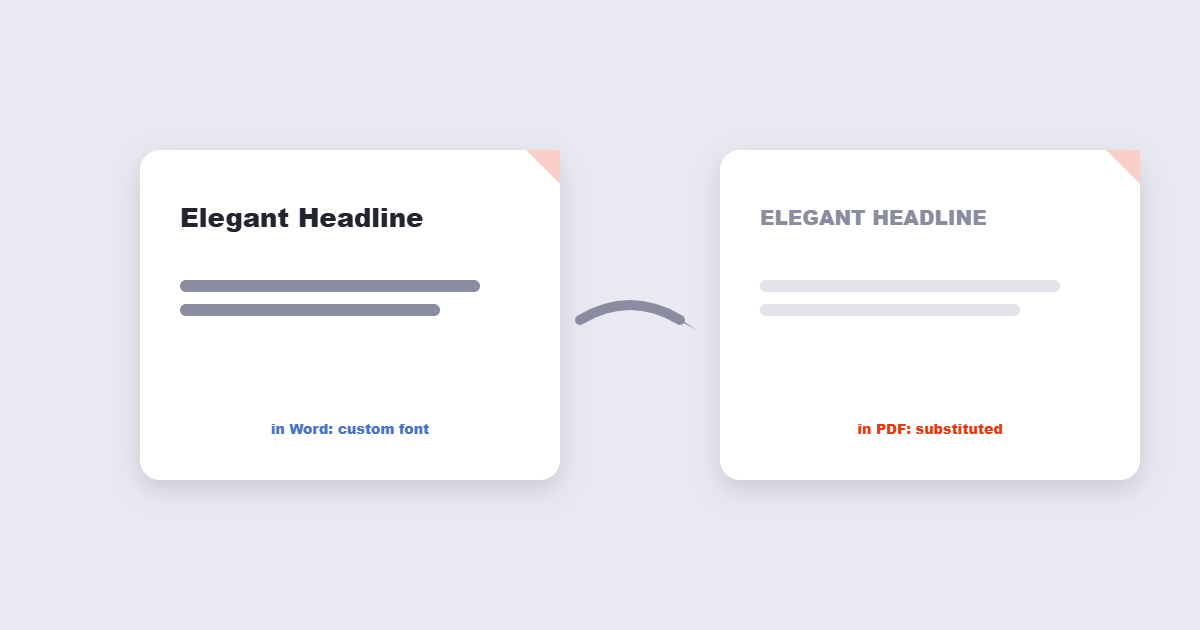
If the Word document uses a font that isn’t installed on the converting machine (or server), the converter substitutes the nearest available font. This shifts character widths, which breaks line breaks, paragraph lengths and page count. Fix: embed fonts in the Word file before converting. In Word: File → Options → Save → tick “Embed fonts in the file”. The .docx file gets larger but the PDF renders correctly anywhere.
2. Tracked changes left on
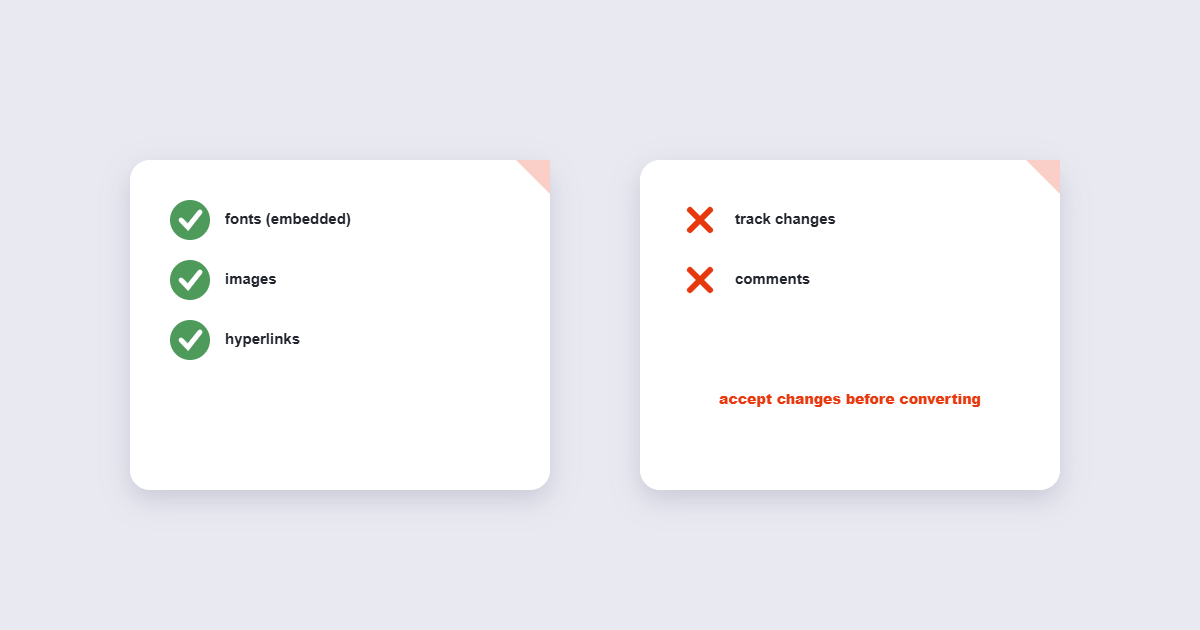
If Track Changes is active, the PDF may include markup (strikethrough deleted text, coloured insertions) depending on which “show” setting was active. Fix: before converting, go to Review → Accept All Changes, or set the display to “Final” so the PDF shows only the clean document.
3. Table of contents page numbers shift
A table of contents with manual page numbers won’t update when the PDF is generated — if the document reflowed since you last updated the TOC, the page numbers will be wrong. Fix: press Ctrl+A to select all, then F9 to update all fields (including the TOC) before converting.
4. Header/footer content missing
Some online converters don’t render Word headers and footers correctly. Fix: use Word’s own export (File → Save As → PDF) for documents with complex headers, footers or section breaks. Online tools are better suited to simpler documents.
Fonts, Hyperlinks and Images: What Survives
| Element | Survives conversion? | Notes |
|---|---|---|
| Fonts (embedded) | Yes | Embed before converting for guaranteed accuracy |
| Fonts (not embedded) | Sometimes | Substituted if not installed on the converting machine |
| Hyperlinks (URLs) | Yes | Clickable in the PDF — check “export hyperlinks” option is on |
| Images | Yes | Resolution stays as-is; print quality depends on source image DPI |
| Tables | Yes | Layout stays correct; very wide tables may overflow narrow pages |
| Comments / annotations | Optional | Include or exclude in the PDF Options dialog |
| Animations / transitions | No | PDF is static — Word doesn’t really have these but embedded GIFs freeze |
| Form fields (content controls) | Sometimes | Some converters render them as static text; use Acrobat to create fillable PDF forms |
Word to PDF vs Save As PDF — What’s the Difference?
Inside Microsoft Word, you’ll see both “Save As PDF” and “Export to PDF/XPS” options. They produce nearly identical results for standard documents. The Export route gives you a slightly more detailed options dialog — useful if you need PDF/A compliance, want to exclude document properties, or need to specify which pages to export. For everyday use, Save As → PDF is faster and produces the same result.
For archival documents that need to meet PDF/A standards (government submissions, court filings, university archives), use the Export route and tick “ISO 19005-1 compliant (PDF/A)” in the options. This embeds all fonts, strips interactive elements, and creates a self-contained file suitable for long-term archiving.
Frequently Asked Questions
Will my Word to PDF conversion look the same on every device?
Yes — that’s the main reason for converting. A .docx file can look different on different computers depending on which version of Word and which fonts are installed. A PDF renders identically everywhere because the font data and layout are locked into the file.
Can I convert Word to PDF without Microsoft Word installed?
Yes. Use the online Word to PDF converter — it handles .docx files browser-based. On Mac, Pages or LibreOffice also convert .docx to PDF for free without needing Word.
How do I convert multiple Word files to PDF at once?
Most online converters handle batch conversion — upload multiple .docx files and download separate PDFs, or download them as a ZIP. In Word, you can print multiple files to PDF via File → Print in the file manager (Windows) — select multiple files, right-click, Print, choose “Microsoft Print to PDF”.
My Word to PDF is a different number of pages — why?
The most common cause is a font substitution that shifted line breaks, making the document reflow across more or fewer pages. Embed fonts in the Word document before converting to prevent this. The second cause is that the PDF page size doesn’t match the Word document’s page size — check that A4 is set in both places.
Can I convert a password-protected Word document to PDF?
You need to know and enter the password first. Open the document in Word (entering the password), then export to PDF normally. The resulting PDF won’t carry the password unless you add one separately using a PDF password tool.
Does Word to PDF conversion reduce image quality?
No — images are embedded at their source resolution. The PDF export dialog in Word has an option to reduce image resolution for smaller file sizes (useful for large documents with many photos). Leave this at its default unless file size is a concern.
Working with plain text files instead? See how to convert TXT to PDF.
The Short Version
For the most accurate result, use Word’s own export: File → Save As → PDF. This uses Word’s renderer, handles every formatting detail correctly, and requires no external tool. For a quick online conversion without Word installed, the Word to PDF converter handles .docx files in seconds — no account, no watermark, works on any device. Embed fonts before converting to prevent font substitution, update the table of contents before converting to keep page numbers correct, and accept tracked changes before converting to get a clean final document.