Removing a background from an image used to take 20 minutes in Photoshop and require a steady hand with the lasso tool. Today it takes 5 seconds with free AI tools that handle complex edges — hair, fur, translucent fabric — better than most manual selections. This guide covers every method, what to do when the result has rough edges, and which format to save in so the transparent background actually stays transparent.
Table of Contents
- How to Remove Background from Image Free (Step by Step)
- Which File Format to Save — PNG vs JPG
- How to Get Clean Edges on Hair and Fur
- Remove Background on iPhone and Android
- Remove Background on Mac (Built-In, No App)
- Common Use Cases and Best Practices
- What to Do After Removing the Background
- Frequently Asked Questions
- The Short Version
How to Remove Background from Image Free (Step by Step)
- Open the Remove Background tool and upload your image — JPG, PNG, or WebP.
- The AI detects the subject automatically and removes the background in seconds. No manual selection required.
- Preview the result. Most subjects — people, products, animals — are detected correctly with clean edges.
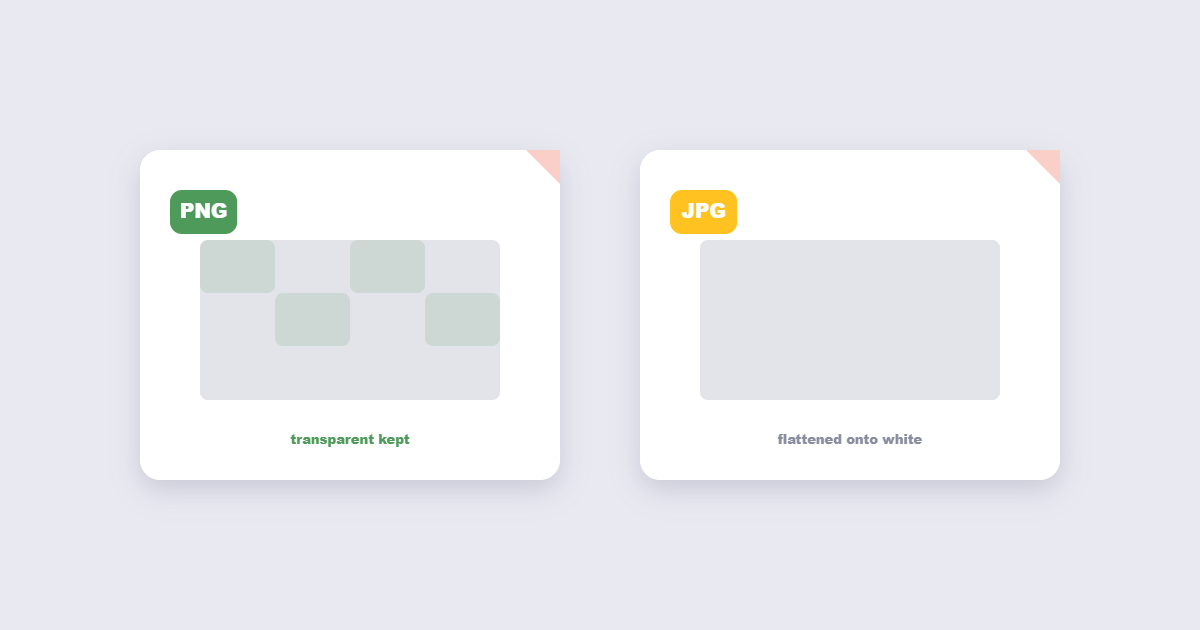
- Download as PNG. PNG preserves the transparent background — if you download as JPG, the transparent area fills with white.
No account required, no watermarks. Works on any device in your browser. For batch processing or very high resolution images (above 20 megapixels), a desktop tool may give better results than a browser-based tool.
Which File Format to Save — PNG vs JPG
This is the single most important thing to know about background removal:
| Format | Transparency | Use when |
|---|---|---|
| PNG | Yes — fully supports transparent areas | Always use PNG after background removal |
| JPG | No — fills transparent areas with white | Never use JPG if you need a transparent background |
| WebP | Yes — supports transparency | Good for web use where WebP is accepted |
| GIF | Partial — 1-bit transparency (jagged edges) | Only for animated GIFs; PNG is better for statics |
If you removed a background and the result shows a white box when placed on a coloured background, you saved as JPG instead of PNG. Re-download as PNG and the transparency will work correctly. The transparent area in a PNG appears as a grey-and-white checkerboard pattern in most editors — that is normal and means transparency is working.
How to Get Clean Edges on Hair and Fur
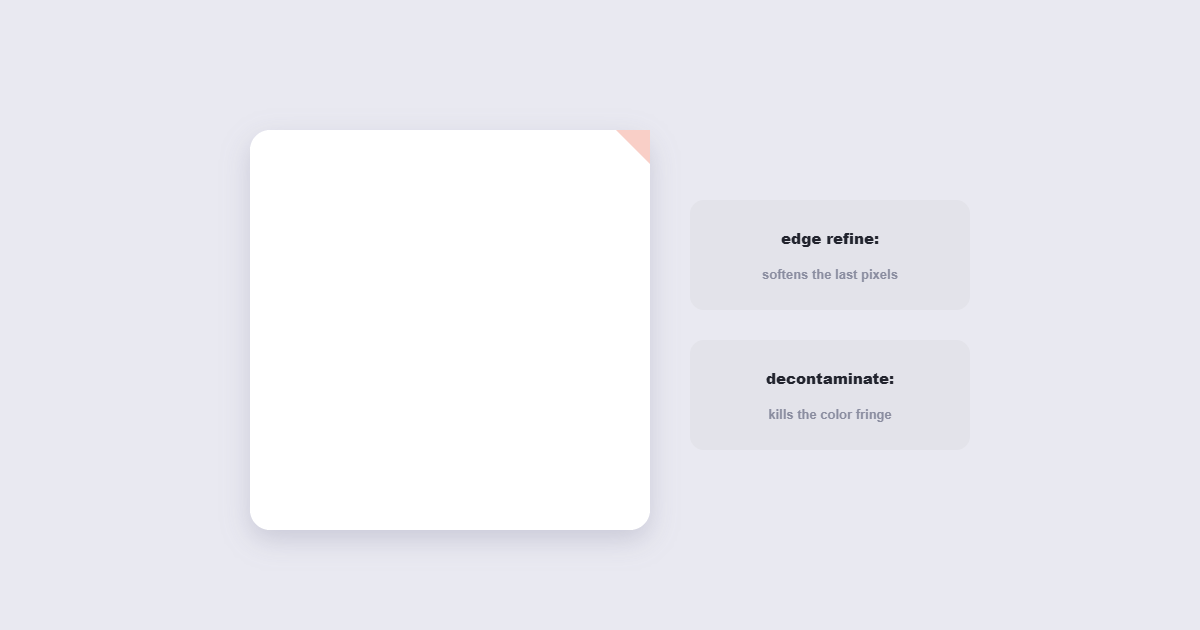
AI background removal handles most subjects well, but complex edges — loose hair, fur, feathers, translucent fabric — sometimes have a slight halo or rough fringe. Here’s how to improve the result:
Take a better source photo
The single biggest improvement comes from the original photo, not the tool. High contrast between subject and background makes AI detection far more accurate:
- Photograph against a plain, evenly-lit background — white, light grey, or a solid colour that contrasts with the subject.
- Avoid backgrounds that match the subject’s colour (dark hair against a dark background gives every tool trouble).
- Sharp focus on the subject edges — blurry edges are harder for AI to separate than sharp ones.
Manual refinement after AI removal
Most background removal tools offer an “erase/restore” brush after the initial AI pass:
- Use the erase brush to clean up areas of background that weren’t removed.
- Use the restore brush to bring back subject areas that were accidentally removed.
- Zoom in to 200–300% to see fine hair strands and work at the pixel level.
Edge refinement in Photoshop or GIMP (free)
For professional-quality edges on complex hair: after the initial removal, use Photoshop’s “Select and Mask” tool or GIMP’s “Foreground Select” → “Refine Edges” — these tools use machine learning to detect fine hair strands that a simple tool misses.
Remove Background on iPhone and Android
iPhone (iOS 16 and later — built-in, no app needed)
Apple’s Visual Look Up feature removes backgrounds natively on iPhone:
- Open the photo in the Photos app.
- Long-press on the subject (person, object, animal) until a white glow appears around it.
- Tap “Copy” — the subject is copied as a PNG with a transparent background.
- Paste it into any app that accepts images — Notes, Messages, Pages, or your photo editor.
- To save as a file: paste into the Notes app → long-press the pasted image → Save to Photos (saves as PNG) or Share → Save to Files.
This works entirely on-device, instantly, with no upload. For most photos of people and common objects, the result is excellent.
Android
- Google Photos on Pixel devices (Android 6+): open a photo → tap the subject → “Grab” to copy it without the background.
- Samsung Galaxy devices (One UI 5.1+): long-press the subject in Gallery to extract it.
- Online tool: open the Remove Background tool in Chrome, upload from your gallery, download the PNG.
Remove Background on Mac (Built-In, No App)
macOS Ventura (13) and later includes a built-in background removal feature in Preview and Quick Look:
- Quick Look: Select the image in Finder → press Space to open Quick Look → click the “Remove Background” button (magic wand icon in the top-right corner) → copy the result or save it.
- Preview: Open the image → use the Instant Alpha tool (magic wand in toolbar) → click the background area → press Delete → save as PNG.
- Photos app: Right-click a photo → Quick Actions → Remove Background. The result is saved as a new image.
Apple’s on-device background removal is fast, private, and works without any external tool for most subjects. For complex hair or detailed edges, the online tool with manual refinement may give a cleaner result.
Learn how alpha compositing works to understand what transparency actually means in image files.
Common Use Cases and Best Practices
| Use case | Key requirement | Best method |
|---|---|---|
| Profile photo / LinkedIn headshot | Clean edge around head and shoulders | AI tool; shoot against plain background |
| Product photos for e-commerce | White background, consistent look | AI tool + replace background with white |
| Logo on transparent background | Pixel-perfect edges, vector if possible | For logos, use SVG or recreate in vector format — AI removal on raster logos often has edge artefacts |
| Signature image for PDF | No white box around signature | Photograph on white paper, AI removal or simple threshold tool gives clean result |
| Stickers / overlays for presentations | Clean cutout, transparent PNG | AI tool; works well for distinct subjects |
| Passport photo background change | Specific background colour required | Remove background, add required solid colour, crop to required dimensions |
What to Do After Removing the Background
- Add a new background colour: After removing the background, open the PNG in any image editor and add a solid colour layer behind the subject. White is standard for product photos; the specific colour your passport authority requires for ID photos.
- Add to a document or PDF: A transparent PNG placed into a Word document or converted to PDF sits cleanly on the page without a white box — as long as the document background is white or a solid colour.
- Resize to exact dimensions: After background removal, use the image crop tool to trim to exact passport or social media dimensions.
- Convert to PDF for official submission: If the form requires the image as a PDF, convert the PNG to PDF — the transparent background becomes white (standard for most official document submissions).
Frequently Asked Questions
Is removing background from an image free?
Yes. The Remove Background tool is completely free — no account, no subscription, no watermarks on the downloaded result.
Why does my image have a white background after removing it?
You saved the result as JPG. JPG does not support transparency and fills any transparent area with white. Re-download the result as PNG and the background will be transparent.
Can I remove the background from a photo with complex hair?
Yes — AI tools handle hair well for most photos. Results are best when the hair contrasts clearly against the background. For very fine, wispy hair against a similarly-coloured background, use the manual refinement brush after the initial AI pass to restore hair strands that were removed.
Does background removal work on product photos?
Yes, and it’s one of the most common uses. Products against plain backgrounds remove very cleanly. Products with reflective surfaces (glass, chrome) or transparent areas (bottles, windows) are more challenging — the AI may remove part of the product along with the background. For complex products, manual refinement after the AI pass gives the best result.
Can I change the background colour after removing it?
Yes. Download the PNG (transparent), then open it in any image editor and add a solid colour or gradient behind the subject layer. For a white background specifically, paste the transparent PNG into a Word document or PowerPoint slide with a white background and screenshot or export it.
Will background removal affect image quality?
No. The subject area is unchanged — only the background pixels are made transparent. The quality of the subject depends entirely on the source image’s resolution and focus. No sharpening or colour changes are applied to the foreground.
The Short Version
Upload to the Remove Background tool, wait 5 seconds, download as PNG — not JPG. PNG keeps the transparent background; JPG fills it white. On iPhone (iOS 16+), long-press the subject in Photos → Copy → paste anywhere: no tool needed. On Mac (Ventura+), Quick Look → Remove Background button does it locally in one click. For the best AI result, photograph subjects against a plain, contrasting background — the photo quality determines the edge quality more than the tool does. After removing, crop to exact dimensions if needed for passports or social media.