Printing a PDF just to sign it and scan it back is still the most common approach — and also the most unnecessary one. You can sign a PDF digitally in under a minute, on any device, for free, without printing a single page. This guide covers every method: drawing your signature, typing it, uploading a scan of your handwritten signature, and what to do when a document requires a legally binding signature rather than a visual one.
Table of Contents
- How to Sign a PDF Free (Step by Step)
- Three Ways to Create Your Signature
- How to Sign on Windows, Mac, iPhone and Android
- Electronic Signature vs Digital Signature — What’s the Difference?
- Is a PDF Signature Legally Valid?
- How to Add Initials, Date and Other Fields
- What to Do After Signing — Flatten and Protect
- Frequently Asked Questions
- The Short Version
How to Sign a PDF Free (Step by Step)
- Open the PDF Sign tool and upload the PDF you need to sign.
- Click the signature field (if the PDF has one) or click anywhere on the page where you want the signature to appear.
- Choose how to create your signature — draw, type or upload (see section 2 below).
- Position and resize the signature on the page. Drag to move, corner handles to resize.
- Add any other fields needed — date, initials, job title.
- Save and download the signed PDF.
No account required. The signed PDF is ready to send immediately — no printing, no scanning. For confidential documents such as legal contracts or financial agreements, use a local desktop tool (Preview on Mac, Adobe Acrobat Reader) so the file never leaves your device.
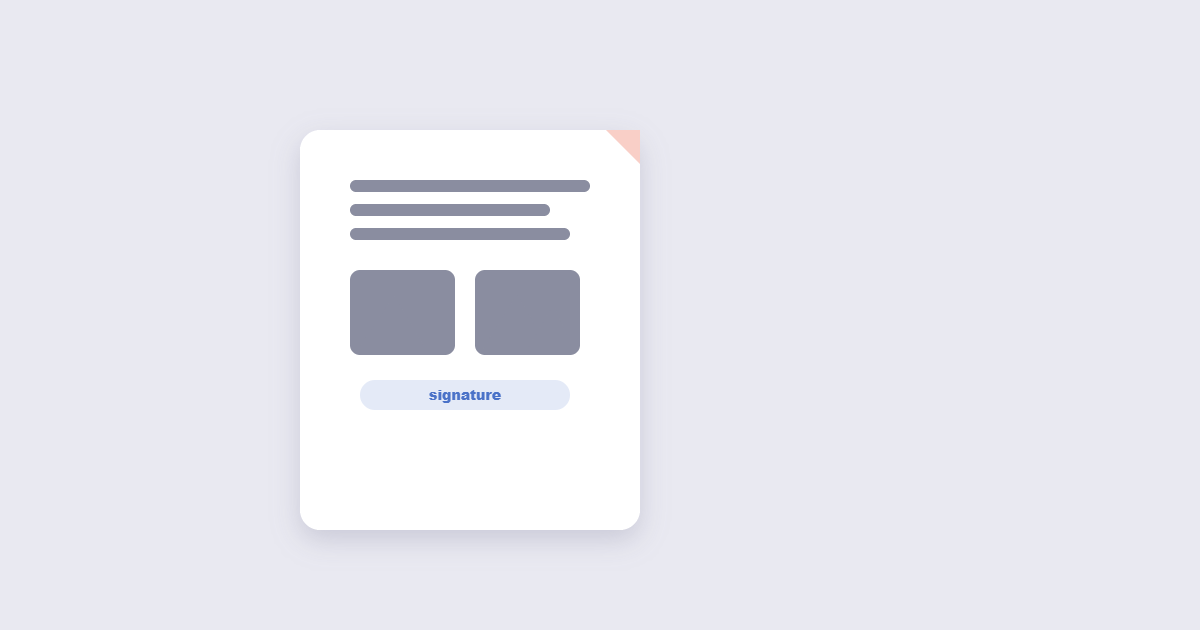
Three Ways to Create Your Signature
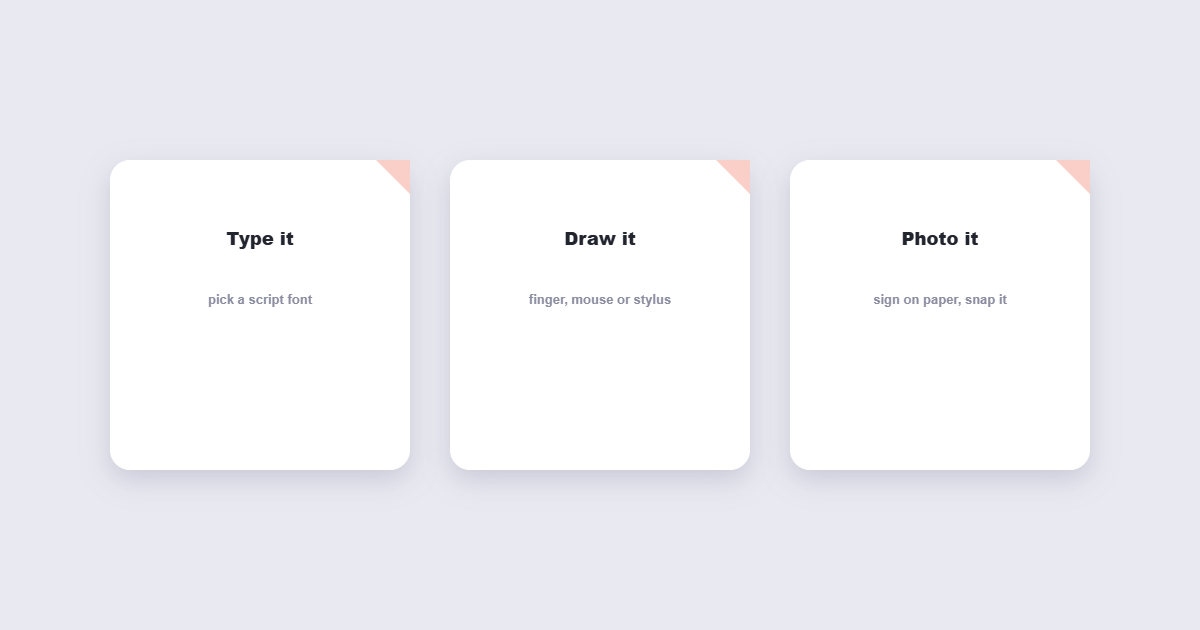
1. Draw your signature
Use your mouse, trackpad or touchscreen to draw your signature directly on screen. This is the closest to a real handwritten signature and looks most natural. On a touchscreen device — phone, tablet, iPad — finger or stylus drawing produces the best result. On a laptop trackpad, slow down and draw deliberately — trackpad signatures often look better than mouse signatures.
Tip: Every tool let you redo the signature as many times as you want before placing it. Take 2–3 attempts and pick the best one — it takes 30 seconds and the result looks significantly more professional.
2. Type your signature
Type your name and choose from a selection of script or cursive fonts. This is the fastest method and looks clean and consistent across documents. It doesn’t look handwritten — which is fine for internal documents but may look too generic for important contracts. Most platforms that receive typed signatures accept them as valid electronic signatures.
3. Upload a photo of your handwritten signature
Sign a white piece of paper with a black pen, photograph it or scan it, and upload the image. This gives you a genuine handwritten signature that you can reuse across any document. For best results:
- Use a black pen on plain white paper — dark ink on white background gives the cleanest crop.
- Photograph in good light, flat on a surface, directly above (no angle).
- Crop tightly around the signature before uploading.
- Save as PNG with a transparent background — this removes the white box around the signature so it sits cleanly on any document colour. Most phone photo editors and the image editor can do basic background removal.
How to Sign on Windows, Mac, iPhone and Android
Windows
- Online tool: Fastest — upload, draw or type signature, download. No install needed.
- Adobe Acrobat Reader (free): Open the PDF → Fill & Sign → click the pen icon to create a signature → place it. Acrobat Reader stores the signature for reuse on future documents.
- Microsoft Edge: Open the PDF in Edge → Draw tool → draw your signature directly on the page → Save. Simple, built-in, no external tool needed for basic signing.
Mac
- Preview (built-in, free): Open the PDF → Markup toolbar → Signature icon (looks like a cursive “S”) → Create Signature → sign on the trackpad, use the camera to photograph a paper signature, or type it → Done → click to place it anywhere on the page. Preview is the best free signature tool on Mac — fast, private, no upload.
- Online tool: For documents you’re comfortable uploading.
iPhone
- Markup (built-in): Open the PDF in Files or Mail → tap the pencil/markup icon → Signature → draw your signature → Done → drag to position. Works on any PDF on your iPhone without any app.
- Adobe Acrobat (free app): Open → Fill & Sign → sign. Stores your signature for future use.
- Online tool: Open in Safari, upload, sign, download — works on iPhone without an app.
Android
- Adobe Acrobat (free app): Best free option on Android — Fill & Sign, draw or type signature, save.
- Online tool: Open in Chrome, upload from your file manager, sign, download.
- Google Drive: Some PDFs can be signed in Google Drive with the built-in fill-and-sign feature — tap the pencil icon when viewing a PDF.
Electronic Signature vs Digital Signature — What’s the Difference?
These two terms sound the same but mean very different things in the legal and technical sense:
| Electronic Signature | Digital Signature | |
|---|---|---|
| What it is | A visual representation of a signature (drawn, typed, or image) | A cryptographic stamp verified by a certificate authority |
| How it works | An image or mark placed on the document | A unique mathematical key tied to your identity, embedded invisibly in the PDF |
| Can it be verified? | Not cryptographically — anyone can copy the image | Yes — the signature breaks if the document is changed after signing |
| Legally valid? | Yes in most countries for most documents | Yes, and required for some regulated documents |
| Cost | Free | Usually requires a paid certificate from a trust authority |
| When required | Everyday contracts, HR forms, offers, consent forms | Government filings, qualified eIDAS signatures, regulated financial documents |
For the vast majority of everyday signing needs — employment contracts, rental agreements, NDAs, consent forms, school forms — an electronic signature (the visual kind) is legally sufficient and free. A digital signature (cryptographic) is needed for specific regulated use cases, which will be clearly stated in the document or by the requesting party.
Is a PDF Signature Legally Valid?
In most countries, yes — electronic signatures on PDF documents are legally recognised for everyday contracts and agreements:
- United States: The ESIGN Act (2000) and UETA give electronic signatures the same legal weight as handwritten ones for most contracts. Exceptions include wills, court orders, and certain real estate documents.
- European Union: The eIDAS regulation recognises electronic signatures. A simple electronic signature (the visual kind) is valid for general contracts. Some documents require a “qualified electronic signature” (QES) with a government-issued certificate.
- United Kingdom: The Electronic Communications Act 2000 and eIDAS-derived regulations recognise electronic signatures. Same exceptions as the EU.
- Australia: The Electronic Transactions Act recognises electronic signatures for most commercial contracts.
The practical test: if the other party accepts the signed document without objection, it’s valid. If a document specifically says “wet ink signature required” or “notarised signature required,” a digital signature image won’t be sufficient — those documents need a physical signature or a certified digital certificate.
How to Add Initials, Date and Other Fields
Many contracts require more than just a signature — initials on every page, a date, a printed name, or a job title. In the PDF sign tool:
- Initials: Use the text tool to add a text box, type your initials, and place it on the required line — or create a separate smaller signature for initials using the same draw/type/upload method.
- Date: Add a text box with today’s date in the required format. Check the document for format requirements — some contracts specify DD/MM/YYYY, others MM/DD/YYYY or “Month DD, YYYY”.
- Printed name: Text box, your full name as it appears on official documents.
- Multiple pages: Place each element page by page. There is no “apply to all pages” option for signatures in most free tools — this is intentional, as each page of a multi-page contract should be individually initialled.
What to Do After Signing — Flatten and Protect
Two steps after signing make the document more secure and professional before sending:
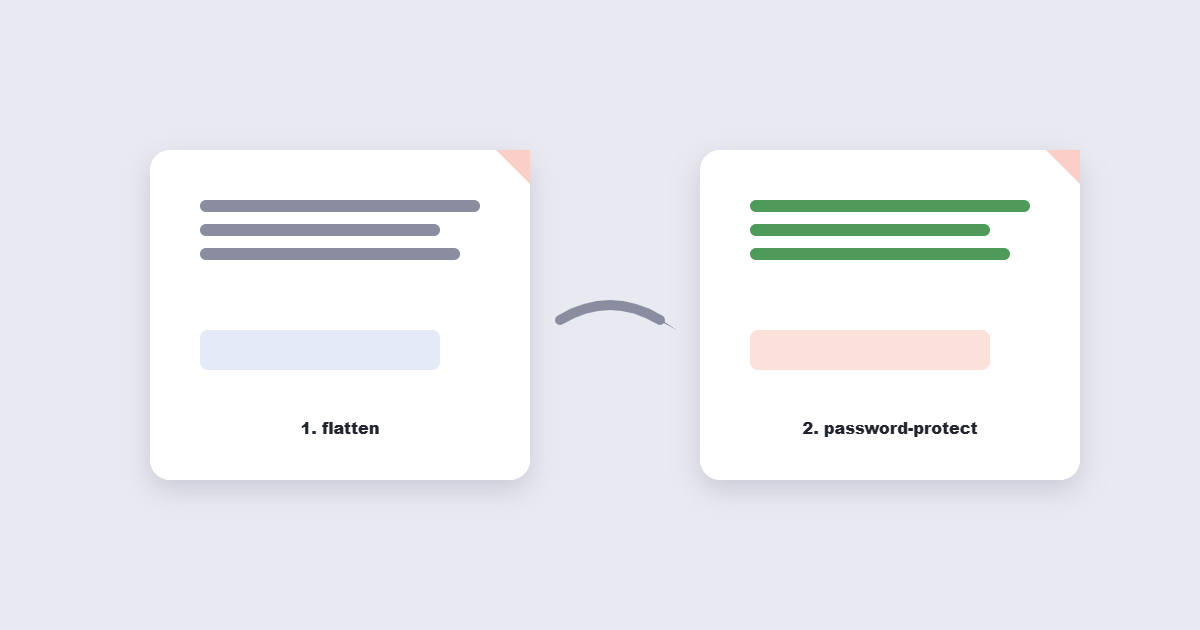
- Flatten the PDF: Flattening merges the signature image permanently into the page content so it can’t be moved, resized or removed by a PDF editor. An unflattened signature sits on a separate layer — anyone with a PDF editor can drag it off the document. Flatten before sending for anything important.
- Add a password (optional): For sensitive contracts, password-protect the PDF after signing and flattening. Share the password separately from the document. This prevents the recipient from editing the signed copy.
Frequently Asked Questions
Is signing a PDF free?
Yes — the PDF sign tool is completely free. Draw, type or upload your signature and place it anywhere on the document. No account, no subscription, no watermark on the result.
Can I reuse my signature across multiple documents?
In Adobe Acrobat Reader and Preview (Mac), your signature is saved automatically and available on future documents. In online tools, you create the signature fresh each time — or save your signature as a PNG image and upload it whenever you need it.
Can I sign a PDF on my phone without an app?
Yes. On iPhone, the built-in Markup tool (available when viewing any PDF in Files or Mail) lets you draw a signature without any app. On Android, the online tool works in Chrome without installing anything.
What if the PDF has a signature field I need to click?
PDFs with pre-built signature fields (an interactive rectangle with “Sign here” text) are designed to be filled with Adobe’s signature tools or DocuSign-style platforms. Open in Adobe Acrobat Reader (free), click the field, and choose Fill & Sign. The online tool can add a signature image on top of the field even if it can’t interact with the field natively.
Does a typed signature count as a real signature?
In most legal contexts, yes — typing your name with the intent to sign is legally equivalent to drawing it. The key legal element is intent, not the form of the signature. That said, some counterparties prefer a drawn or uploaded handwritten signature for psychological comfort — it “looks” more genuine even if it offers no additional legal protection.
How do I know if my signed PDF is tamper-evident?
A simple electronic signature (image overlay) is not tamper-evident — the image could be moved. To make it tamper-evident, flatten the PDF after signing (which bakes the signature into the page) and note the file’s checksum using the file hash tool — if the file changes after signing, the hash changes. For true cryptographic tamper-evidence, a qualified digital signature (from a trust authority) is required.
The Short Version
Upload to the PDF sign tool, draw or type your signature, position it, download. On Mac, Preview does this locally with no upload. On iPhone, Markup does it without any app. For everyday contracts and forms, an electronic signature is legally valid in the US, EU, UK and most other countries. After signing, flatten the PDF to lock the signature permanently into the page — an unflattened signature is an image layer that can be moved by anyone with a PDF editor. No account needed, no watermarks, free on every device.