Quick answer
Merging PDFs takes about a minute: open a merge tool, add your files in the order you want, click merge, download. Online tools work on any device; Windows and Mac have built-in options for confidential documents. And no — merging doesn’t hurt quality, because pages get copied into the new file, not re-rendered. If you only need to extract or rearrange pages rather than combine files, see our guide on how to rearrange PDF pages.
What’s in this guide
- Merge PDFs in your browser
- Windows: two built-in ways
- Mac: Preview does it free
- Merge on your phone
- Does merging reduce quality?
- Is it safe to merge PDFs online?
- Merging images and PDFs together
- When you shouldn’t merge
- Troubleshooting
- FAQ
What you need before you start
Three things, and one of them is optional:
- The PDFs themselves, named clearly. invoice-january.pdf beats scan_004.pdf the moment you’re staring at six files trying to remember which is which.
- About 60 seconds.
- That’s it. Every method below is free and none of them needs an account.
A 60-second pre-merge checklist
Thirty seconds of tidying now saves ten minutes of re-merging later:
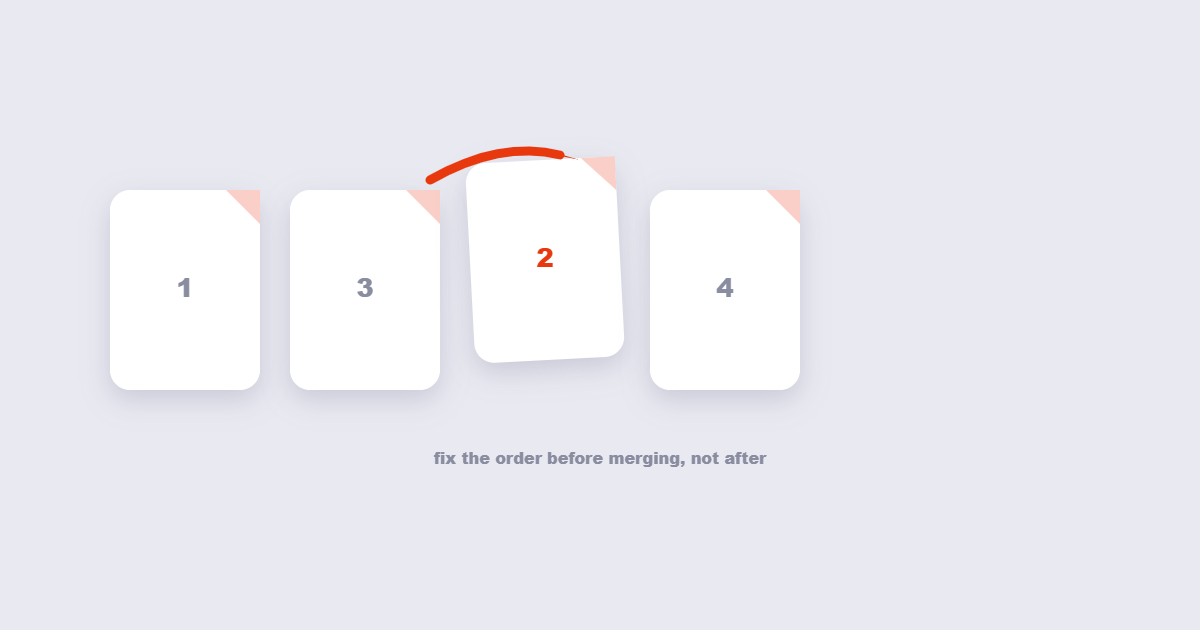
- Rename files so the order is obvious (01-cover.pdf, 02-contract.pdf…).
- Skim each PDF once — you’d be surprised how often a stray blank page sneaks in.
- Decide the final page order before you start dragging files around.
- Unlock anything password-protected first — merging locked files fails.
Method 1: Merge PDFs in your browser (fastest, most private)
This is the method I’d point most people to, because it works the same on Windows, Mac, Linux, a phone — anything with a browser.
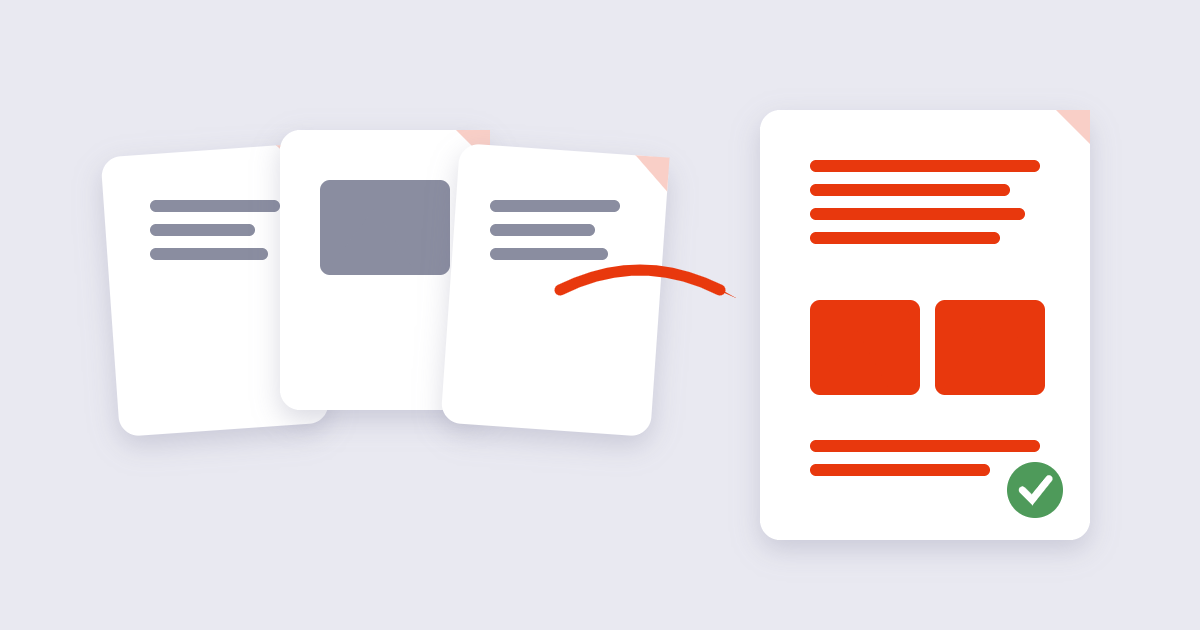
- Open the free Merge PDF tool.
- Drag your PDFs in, or click Choose Files to browse.
- Drag the files into the order you want them to appear.
- Click Merge and download the combined document.
The part that makes this different from most online mergers: the work happens inside your browser. Your files never get processed in your browser, so there’s no waiting on transfers and nothing to trust but your own device. More on why that matters below.
Method 2: Windows — two built-in ways
Option A: Microsoft Print to PDF. Select your PDFs in File Explorer, right-click and choose Print, then pick Microsoft Print to PDF as the printer. Windows spits out one combined file.
One honest caveat: printing re-renders every page, which can turn selectable text into an image layer and sometimes bloats the file. Fine for a quick job; less ideal for anything you’ll search through later.
Option B: PDF Merger & Splitter from the Microsoft Store. It’s free and does a true merge — pages get copied, not redrawn — which is the better pick for documents you care about.
Method 3: Mac — Preview does it for free
You already own the best tool for this:
- Finder way: select your PDFs, right-click, choose Quick Actions → Create PDF. Done in one move, in the order Finder had them sorted.
- Preview way (more control): open the first PDF, go to View → Thumbnails, then drag the other PDFs into the thumbnail sidebar wherever they belong. Export when the order looks right.
Both are lossless — Preview copies pages as they are.
Method 4: On your phone
The browser method (Method 1) works on Android and iPhone exactly as it does on a laptop, because it’s just a web page. Open the site, add the files from your phone’s storage, merge, download. iPhone users can also combine scanned documents in the Files app, but honestly, the browser route is the one that behaves identically every time.
Does merging reduce quality? (No — here’s why)
Merging doesn’t re-render or recompress anything. Your pages, fonts and images are copied into a new container exactly as they were, which is why a merged PDF looks identical to its parts.
Quality loss creeps in through one specific mistake: ticking an “optimize” or “compress” option during the merge. Some desktop tools do this by default — Adobe users have complained about it for years. Keep merge and compression as separate steps. If the combined file is too big to email, run it through a Compress PDF tool afterwards, deliberately, and check the result.
Is it safe to merge PDFs online? (The honest answer)
This is the question people actually worry about, so here’s the unvarnished version. Online tools fall into two buckets:
- Browser-based tools process files on your own device and never upload them. Nothing leaves your computer, so there’s nothing to leak. Safe for anything, including sensitive documents.
- Upload-based tools (Adobe’s online service, iLovePDF, Smallpdf) send your file to their servers, process it, and delete it afterwards. For everyday documents — a homework assignment, a non-confidential report — that’s fine, and these are reputable companies. But you are trusting their claim about deletion, so think twice before pushing contracts, medical records or ID scans through them.
For genuinely confidential material without compromise, use an offline method: the Windows and Mac options above keep everything on your machine. The browser-based merge tool gives you the same guarantee — which is exactly why it was built that way.
Merging images and PDFs into one file
Sometimes the “documents” you need to combine aren’t all PDFs. You’ve got two photos of a receipt, a scanned page and a proper PDF invoice. Instead of converting each image first, the free Merge PDF & Image tool accepts mixed inputs — JPG, PNG and WebP files become PDF pages automatically, in whatever order you arrange them. One step instead of four.
When you shouldn’t merge
Merging isn’t always the right move:
Merged file too heavy? See how to reduce PDF file size.
- Need those pages separate later? You can split them back out with a Split PDF tool, but it’s an extra step. Keep files separate if the pieces belong to different workflows.
- Pages in the wrong order inside one file? That’s not a merge problem — use Reorder PDF Pages instead.
- Just want to add one page to a document? Insert PDF Pages puts it exactly where you want without rebuilding anything.
Troubleshooting: when merging fails
- A file won’t open at all. It’s probably corrupted — often from an interrupted download. Run it through a PDF repair tool first, then merge the recovered version.
- A file asks for a password. Unlock it first with the password you have — protection has to come off before pages can be copied.
- Scanned pages came in sideways. Merge first, then fix orientation with a Rotate PDF tool in one pass.
- The merged file is too big to email. Expected, sometimes. Compress it afterwards — text stays sharp while the heavy images slim down.
Frequently asked questions
How do I merge PDF files for free?
Open a free merge tool in your browser, drag in the files, arrange the order and download. No account or payment needed — the browser-based Merge PDF tool does it in about a minute, and your files stay on your device the whole time.
Is it safe to merge PDFs online?
For everyday documents, yes — reputable services process and delete files routinely. For anything confidential, use a tool that processes files in your browser instead of uploading them to a server. Then there’s nothing to trust except your own computer.
Can I merge PDFs without losing quality?
Yes — merging is lossless by nature, because pages are copied rather than re-rendered. The only way to lose quality is by enabling a compress or optimize option during the merge. Skip it, and compress separately afterwards if you need a smaller file.
How many PDFs can I merge at once?
It depends on the tool. Browser-based mergers are limited mainly by your device’s memory, so dozens of files usually merge without a hiccup. Upload-based services often cap the total size or number of files on free plans.
Can I merge specific pages from different PDFs?
Yes — most merge tools let you rearrange before combining, and dedicated tools let you pull individual pages. If you only need one page dropped into another document, an insert-pages tool does it in one step.
How do I merge PDFs on my phone?
Open a browser-based merge tool in your phone’s browser, add the PDFs from your storage, arrange and download. It works the same on Android and iPhone because nothing needs installing.