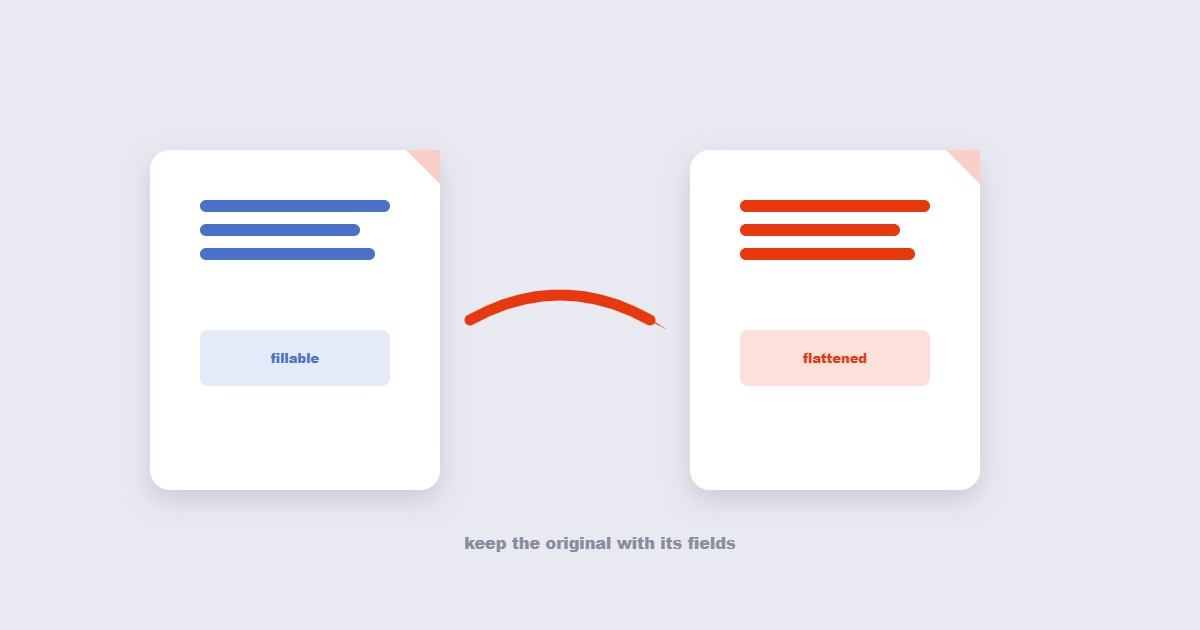
You filled out a PDF form, hit send, and the recipient saw an empty document — or worse, a document where your answers had drifted on top of someone else’s text. That’s the moment people learn what flattening is for. Flattening takes everything that sits on interactive layers of a PDF — form fields, comments, annotations, digital stamps — and bakes them into the page itself, the same as if they’d been printed there. The result looks identical but behaves like a photograph: nothing can be moved, edited, or accidentally cleared.
Table of Contents
What Flattening Actually Does to a PDF
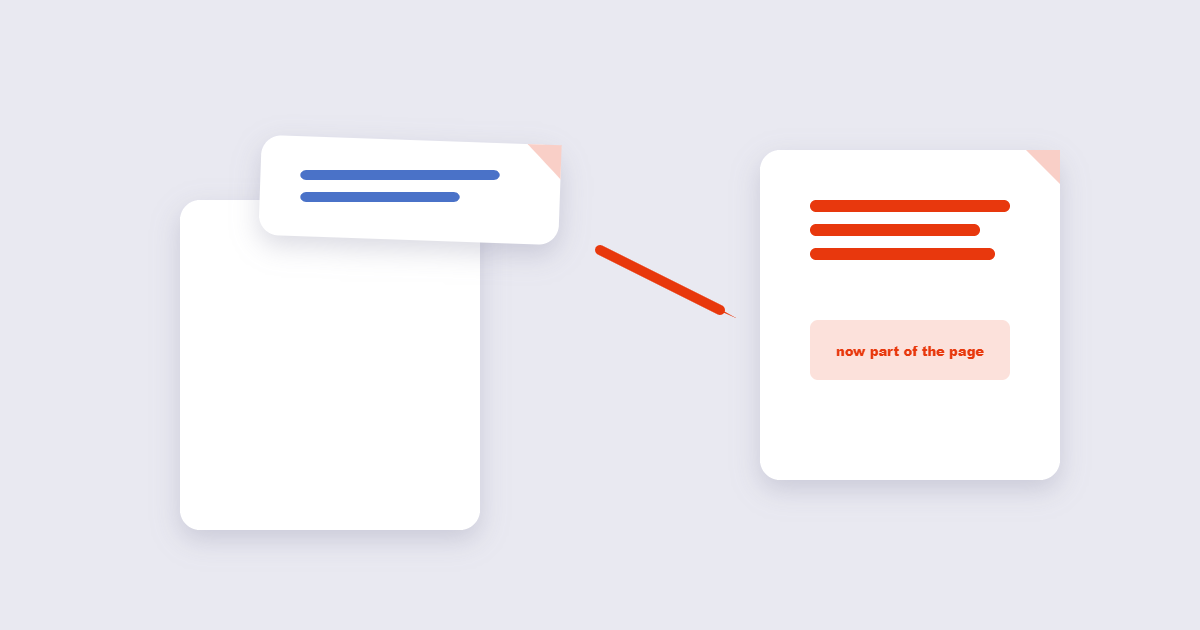
A PDF you type into isn’t one document so much as a stack. The bottom layer is the original page — the text, the borders, the company logo. Form fields and annotations float above it as separate objects, each with its own editable definition. Flattening merges the stack: each field’s current appearance gets drawn into the page content, and the interactive definitions are discarded. Nothing moves visually, but the “edit me” machinery is gone. This is also why flattening is a one-way door — once it’s done, the fields can’t be filled again, because there are no fields left, just ink.
When You Should Flatten a PDF (and When You Shouldn’t)
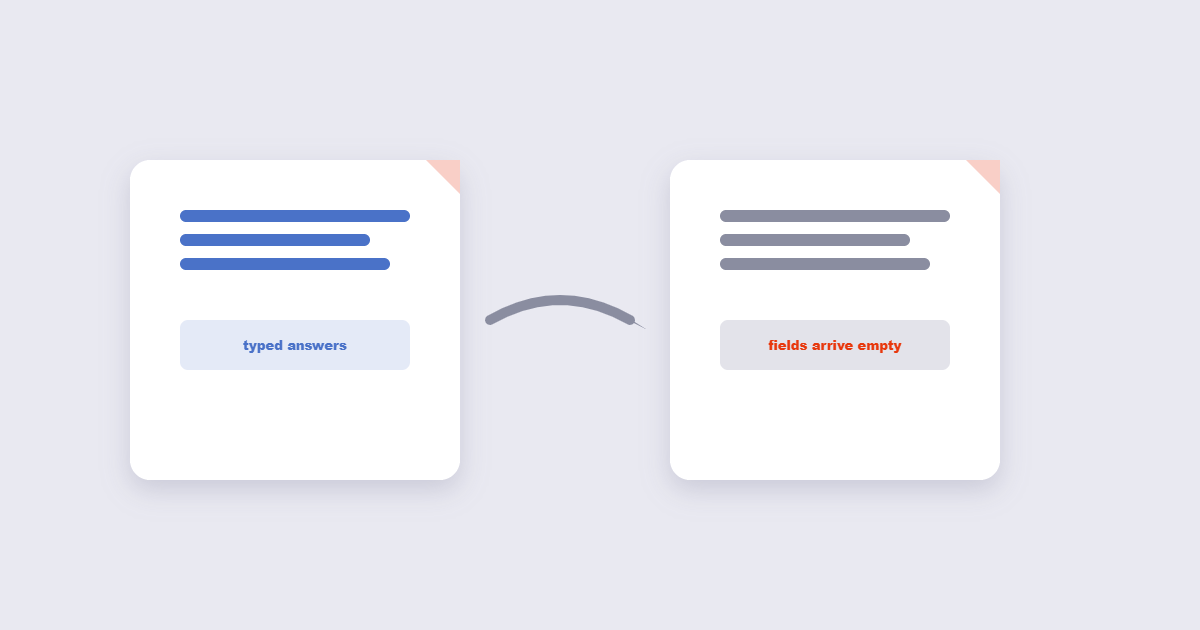
The clearest case is a filled form on its way out. Government portals, banks and HR systems routinely re-render PDFs on arrival, and if your answers live on the field layer, that re-render can drop them. Flattening first means your answers travel inside the page where nothing can separate them.
Printing is the second case. Some printers and print software handle annotation layers badly — comments print twice, or a signature stamp lands on a different page than intended. Flattening merges every annotation, form field and layer into the page’s own content stream. Afterwards the fields are no longer interactive and the annotation objects are gone — which is why a flattened PDF is smaller and cannot be edited back. A flattened file prints exactly what you see.
The counter-case matters just as much: flatten too early and you lose work. If more people still need to fill the form, or you intend to correct an entry next week, keep the fields alive and flatten only the final copy. Digital signatures are the other warning — flattening breaks signature validity, because it changes the signed content. A signed contract should be flattened only when it’s fully final and everyone accepts a “signed copy” that no longer verifies cryptographically.
How to Flatten a PDF Online (Free)
For a one-off job, the browser route takes a minute:
- Open the Flatten PDF tool and upload your file.
- Check that every field you filled shows the value you expect — flattening preserves appearances, so an empty field stays empty forever.
- Run the flatten, download under a new name, and open the result once to confirm the text sits where it should.
Keep the unfilled original. You’ll want it if the form ever needs refilling.
Flattening in Acrobat and Preview
In Adobe Acrobat, the Print dialog holds the trick most people miss: choose “Microsoft Print to PDF” or “Adobe PDF” as the printer, and the output is a flattened copy — everything becomes page content. Acrobat Pro also has a dedicated Preflight fixup, but the print route works in the free Reader too. On a Mac, Preview’s File → Export as PDF rewrites the file, though results with form fields vary by macOS version; the online tool is the more predictable option there. Neither route takes longer than making coffee.
Flatten or Protect: Knowing Which Fix You Need
| You want to… | Use | Flatten helps? |
|---|---|---|
| Lock answers into a filled form | Flatten PDF | Yes — that’s exactly what it’s for |
| Stop anyone editing the document | Password protection | No — flattening doesn’t restrict edits, it removes fields |
| Make a scanned page searchable | OCR | No — different tool entirely |
| Keep the form fillable for others | Nothing — send as is | No — flattening kills the fields |
| Safe-print annotations and stamps | Flatten, then print | Yes — prints exactly what you see |
Frequently Asked Questions
Does flattening a PDF reduce file size?
Occasionally, a little — the interactive field definitions are small, but dropped. Don’t flatten for file size; if that’s the goal, a PDF compressor does far more.
Can a flattened PDF be un-flattened?
No. The form field definitions are discarded, not hidden. Recovery means refilling the original form — another reason to keep the pre-flatten copy. Flattening a form removes its interactive fields permanently. If the form will ever need editing again, keep the unflattened original — the flattened PDF cannot be un-flattened, because the field objects are discarded rather than hidden.
Why does my signature disappear after flattening?
If the signature is an image or stamp, it survives flattening — it becomes page content. If it’s a cryptographically verified digital signature, the visual mark survives but the verification stops working, because the document bytes changed.
Do PDFs from scanners need flattening?
No. Scanner output has no live layers — each page is already a flat image. Flattening applies to documents with form fields, comments or annotations on top.
Flattening and PDF/A: How They Work Together
If a document needs to meet PDF/A archiving requirements, flattening is often a required step in the workflow — not an optional one. PDF/A strips interactive elements by definition, and the conversion process handles that automatically. But the order matters:
- Fill all form fields completely.
- Flatten the filled form (bakes answers into page content).
- Convert the flattened PDF to PDF/A format for submission or archiving.
Flattening before converting to PDF/A ensures the conversion has nothing interactive left to strip — which means the output is cleaner and the font/color rules apply to exactly what you intended to preserve.
What Happens to Different Annotation Types When You Flatten
Not all interactive elements behave identically when flattened. Understanding what survives and what changes helps you check the result intelligently:
| Element type | After flattening | What to check |
|---|---|---|
| Filled text fields | Text baked into the page at the field’s position | Font and size match surrounding text |
| Checkboxes (checked) | Checkmark symbol baked into position | Symbol is visible, not a box |
| Radio buttons | Selected option’s appearance baked in | Correct option is marked |
| Digital signature (image/stamp) | Visual mark stays, cryptographic verification broken | Visual looks correct; do not use for verified signature workflows |
| Comment / sticky note | Removed if closed; baked in if open/showing | Collapse all annotations before flattening if you don’t want them visible |
| Highlight annotation | Color block baked onto the page | Underlying text remains readable |
| Dropdown / list selection | Selected value baked as text | Confirm the right option was selected before flattening |
The single most common post-flatten surprise is a checkbox that showed as checked on screen but flattened as an empty box — this happens when the form’s checkbox appearance wasn’t fully rendered before flattening. Always open the flattened file on a different device or reader than the one used to fill it, to catch rendering differences early.
The One-Line Rule
Flatten the final copy of a filled form or annotated document before it leaves your hands; keep the working original with its fields alive. Two minutes of care prevents the classic disaster of a form arriving with every answer stripped out. And if the document also needs to meet PDF/A compliance, flatten first, then convert — that order matters.